
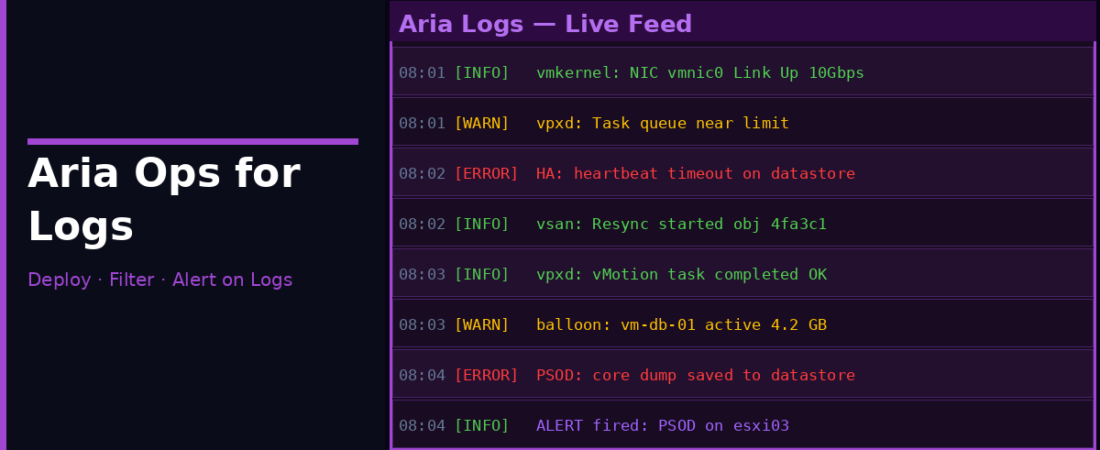
If you’ve ever SSHed into a vCenter or ESXi host and grep’d through /var/log trying to figure out what happened 20 minutes ago, you already understand the problem that Aria Operations for Logs (formerly vRealize Log Insight) solves. It’s a centralised log aggregation and analysis platform built specifically for VMware environments, but it handles any syslog source, not just VMware products.
The current enterprise production version as of mid-2026 is VMware VCF Operations for Logs 9.0 (or current subscription-vetted Aria Operations for Logs releases). This post covers the deployment and initial configuration that makes it genuinely useful rather than just another place logs disappear into.
What It Does That Syslog Doesn’t
You could point everything at a plain syslog server. The difference with Aria Logs:
- Structured parsing of vSphere log formats, it understands ESXi and vCenter log fields natively
- Real-time alerting on log events (not just storage, but actual pattern matching)
- Interactive query interface with instant search across billions of events
- Pre-built content packs with dashboards for ESXi, vCenter, NSX, vSAN, and more
- Integration with Aria Operations (the performance monitoring platform) for correlated troubleshooting
Architecture Overview
Aria Logs deploys as a virtual appliance. Small environments run a single node. For larger deployments or high availability, you configure a cluster with one master node and multiple worker nodes. Logs are ingested in real time and indexed for search.
Supported ingestion methods:
- Syslog (UDP/TCP port 514). Any device that can send syslog
- Syslog over TLS (port 1514). Encrypted syslog
- CFAPI (port 9000/9543). VMware’s native ingestion API, used by the Aria Logs agent and vSphere log forwarding
- Aria Logs Agent. Deployed on Windows or Linux VMs to collect log files and forward them
Sizing
| Deployment | vCPU | RAM | Disk (OS) | Disk (Data) |
|---|---|---|---|---|
| Extra Small | 2 | 8 GB | 60 GB | 200 GB |
| Small | 4 | 16 GB | 60 GB | 500 GB |
| Medium | 8 | 32 GB | 60 GB | 1 TB |
| Large | 16 | 48 GB | 60 GB | 2 TB |
The data disk is where all log retention lives. Calculate based on your log ingestion rate and how far back you need to search. A typical vSphere environment with 20–50 hosts can generate 5–20 GB of logs per day depending on verbosity settings.
Deploying the OVA
- Download the Aria Operations for Logs OVA from Broadcom
- In vSphere Client: right-click cluster → Deploy OVF Template
- Select storage, put the data disk on fast storage if possible (searches are disk I/O bound)
- Configure networking: static IP, DNS, NTP server
- Set the admin password in OVF properties
- Power on and wait for initial boot (about 5 minutes)
Initial Setup
Browse to https://<aria-logs-ip>. Log in with admin and the password you set. The setup wizard covers:
- Licence. Enter your platform tier licence key. Legacy free OSS ingestion baselines are no longer available under the current Broadcom subscription model
- Email. Configure SMTP for alert notifications
- NTP. Critical for log timestamps to be accurate across sources
After setup, you land on the main dashboard. It will be empty until you start sending logs to it.
Configuring vCenter to Forward Logs
In the vSphere Client, go to your vCenter Server → Configure → Advanced Settings. Find the key vpxd.event.syslog.enabled and set it to true. Then set the syslog server:
vpxd.event.syslog.remote.host = <aria-logs-ip-or-fqdn>
vpxd.event.syslog.remote.port = 514
Alternatively (and more completely), configure vCenter log forwarding via Aria Logs itself. In Aria Logs UI: Administration → vSphere Integration. Enter your vCenter server details. Aria Logs will configure the connection and begin pulling events, tasks, and alarms directly from vCenter’s event stream.
Configuring ESXi Hosts to Forward Logs
Each ESXi host needs to be pointed at Aria Logs. You can do this host by host from the vSphere Client, or at scale using host profiles or PowerCLI.
From the vSphere Client (per host):
- Select the ESXi host → Configure → System → Advanced System Settings
- Find
Syslog.global.logHost - Set the value to
udp://<aria-logs-ip>:514orssl://<aria-logs-ip>:1514for encrypted - Apply the change
Using PowerCLI for all hosts at once:
$ariaLogsIP = "192.168.10.50"
Get-VMHost | ForEach-Object {
  Get-AdvancedSetting -Entity $_ -Name "Syslog.global.logHost" |
  Set-AdvancedSetting -Value "udp://${ariaLogsIP}:514" -Confirm:$false
}

# Open the ESXi firewall for syslog
Get-VMHost | Get-VMHostFirewallException |
  Where-Object {$_.Name -eq "syslog"} | Set-VMHostFirewallRule -Enabled $true
Important: ESXi has a local firewall that blocks outbound syslog by default. The last command opens it. Without this, logs won’t reach Aria Logs even if the syslog setting is correct.
Installing Content Packs
Content packs provide pre-built dashboards, queries, and alerts for specific products. The VMware content packs are installed by default and cover:
- VMware vSphere (ESXi host and vCenter logs)
- VMware vSAN
- VMware NSX
Find them under Repository → Content Packs. Other useful community content packs include ones for Windows Server event logs, Linux syslog, and network devices (Cisco, Juniper, Palo Alto). Install what matches your environment.
Creating Alerts
Alerts in Aria Logs trigger based on log event patterns. Navigate to Alerts → Alert Definitions → Add Alert Definition.
Useful alerts to set up from the start:
- ESXi host disconnected from vCenter (look for “esx.problem.net.connectivity.lost” in vCenter logs)
- SSH login to an ESXi host (sshd accepted password/public key)
- VMFS datastore running out of space
- Hardware health sensor failures (CPU/memory/storage controller alerts in ESXi vmkernel.log)
- vSAN health degradation events
Alerts can trigger email notifications, SNMP traps, webhook calls (for Slack/Teams integration), or actions in Aria Operations if the two are integrated.
Deploying the Aria Logs Agent
For Windows VMs and Linux guests where you want to collect application logs (IIS logs, SQL Server logs, application error logs), the Aria Logs Agent is the right tool. It tails log files and forwards them to the Aria Logs server.
Deploy the agent on Windows:
- Download the agent installer from the Aria Logs UI: Administration → Agents
- Run the MSI installer on the target Windows Server
- During installation, provide the Aria Logs server IP/FQDN
- Configure which log files to collect in the agent configuration
On Linux, the agent installs as a systemd service and uses a YAML configuration file to define log sources.
Integrating with Aria Operations
If you have Aria Operations for performance monitoring, connecting it to Aria Logs creates a combined troubleshooting workflow. In Aria Operations: Administration → Solutions → Aria Operations for Logs, add the Aria Logs instance.
Once connected, you can launch directly from a vSphere object in Aria Operations (a VM, host, or cluster) to a pre-filtered log view in Aria Logs showing events for that specific object. This dramatically speeds up root cause analysis, no more jumping between tools with copy-pasted hostnames.
Log Retention and Archiving
Aria Logs retains logs based on available disk space. When the data partition fills up, it automatically purges the oldest logs. Configure the retention period explicitly under Administration → General → Log Retention.
For compliance or audit requirements where you need longer retention (90 days, 1 year, etc.), configure log forwarding to an external SIEM or cold storage:
- Forwarding to another syslog destination: Administration → General → Forwarding, add an external syslog server
- S3 archive: Some organisations forward to an S3-compatible bucket for cheap long-term retention
Start with 30–60 days retention locally in Aria Logs (sized accordingly) and archive to cheaper storage for anything older. That covers most troubleshooting needs while keeping storage costs manageable.