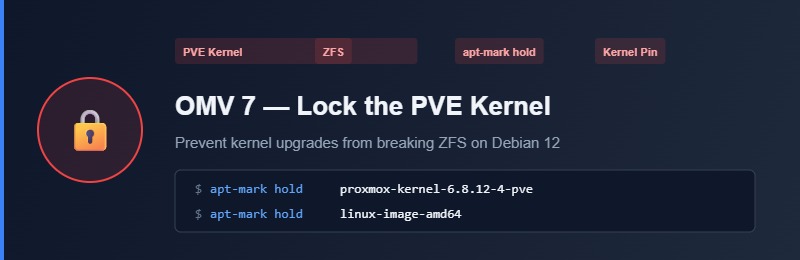
Running ZFS on OMV 7 requires the Proxmox VE kernel. The problem is that Debian does not know that. A routine apt upgrade will happily pull in a stock Debian kernel, and after the next reboot your ZFS pools fail to import. This post covers how to lock the system so that cannot happen.
Why this matters: ZFS on OMV 7 relies on the PVE kernel (e.g. proxmox-kernel-6.8.12-4-pve). If apt installs linux-image-amd64 and your server reboots into it, ZFS modules will not load and your storage pools go offline.
Step 1 — Block Recommended and Suggested Packages
By default, Debian installs optional packages that are not strictly required — including extra kernels pulled in as recommendations. Disabling this globally means apt only installs what you explicitly request.
Create a new apt configuration file:
sudo nano /etc/apt/apt.conf.d/99no-recommendsPaste these two lines:
APT::Install-Recommends "false";
APT::Install-Suggests "false";
Save and exit with Ctrl+O, Enter, Ctrl+X. This stops apt from silently dragging in packages — including backport kernels that arrive as recommendations alongside other packages.
Step 2 — Pin the Proxmox Kernel and Block the Debian Meta-Package
OMV often enables the Debian Backports repository, which is where unwanted kernels (like broken 7.0.7 builds) can come from. Use apt pinning to give Proxmox packages the highest priority and explicitly ban the standard Debian kernel meta-packages.
Create a package preferences file:
sudo nano /etc/apt/preferences.d/99pve-kernelPaste this configuration block:
Package: proxmox-kernel* proxmox-headers*
Pin: release o=Proxmox
Pin-Priority: 1001

Package: linux-image-amd64 linux-headers-amd64
Pin: version *
Pin-Priority: -1
What each block does:
- Priority 1001 on
proxmox-kernel*— exceeds the maximum normal apt priority (1000), so the PVE kernel always wins even if a newer Debian version exists. - Priority -1 on
linux-image-amd64— a negative priority explicitly bans the package. apt will refuse to install or reinstall it automatically.
Step 3 — Verify the Pin is Active
Check that apt sees the correct priorities before rebooting:
# Debian kernel should show no installable candidate
apt-cache policy linux-image-amd64

# PVE kernel should show priority 1001
apt-cache policy proxmox-kernel-6.8.12-4-pve
If the Debian kernel still shows as installable, check the file syntax and run sudo apt update to refresh the policy cache.
Step 4 — Hold the Currently Running Kernel
As an extra safety net, hold the specific PVE kernel version you are running right now so it cannot be removed by the dependency resolver:
# Check which PVE kernel you are on
uname -r

# Hold it — replace version with your actual uname -r output
sudo apt-mark hold proxmox-kernel-6.8.12-4-pve
sudo apt-mark hold proxmox-headers-6.8.12-4-pve

# Confirm holds are in place
apt-mark showhold
Upgrading the PVE kernel intentionally: Run sudo apt-mark unhold proxmox-kernel-*, install the new version, verify ZFS loads cleanly after reboot, then re-hold the new version.
Final Dry-Run Check
Run a full update dry-run to confirm nothing unexpected is queued:
sudo apt update && sudo apt upgrade --dry-runThe output should show no kernel packages being changed. If you see linux-image-* in the list, the pin file has not taken effect. Once the dry-run looks clean, apply the updates and reboot. Then verify:
# Confirm you are still on the PVE kernel
uname -r

# Confirm ZFS pools are imported
zpool status