
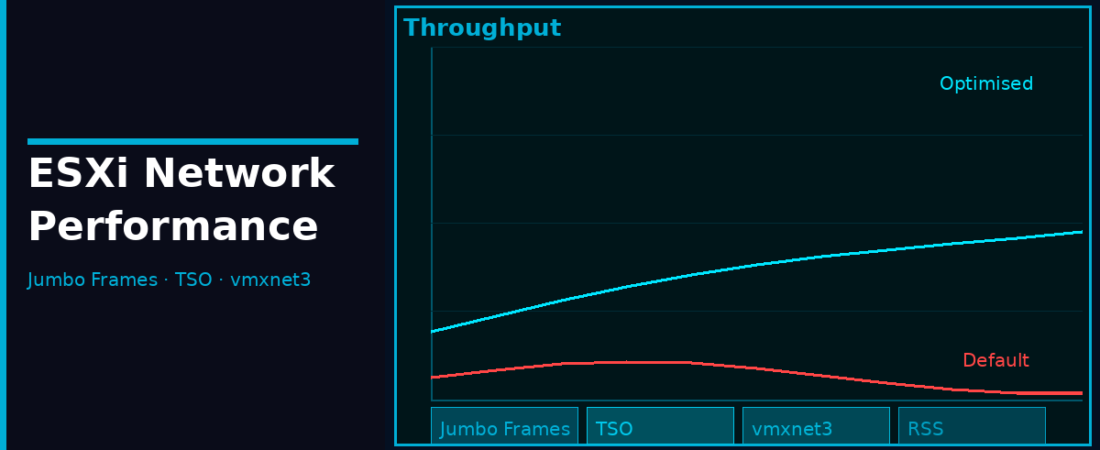
Out-of-the-box ESXi networking is functional, but it’s not necessarily optimised for high-throughput or low-latency workloads. There are a handful of settings that most environments should review, some are straightforward one-time changes, others require careful planning across your entire network stack. This post covers the practical ones that actually move the needle.
vmxnet3 – Start Here
If your VMs are still using the E1000 or E1000e emulated network adapter, that’s the first thing to change. E1000 emulates an Intel 82545EM Gigabit adapter, it works everywhere but has significant CPU overhead because the hypervisor has to emulate real hardware.
vmxnet3 is VMware’s paravirtualised NIC, designed specifically for virtualised environments. It has much lower CPU overhead, supports larger receive/transmit descriptor rings, supports multi-queue (allowing traffic to be processed across multiple vCPUs), and enables hardware offloads like TSO and LRO that E1000 can’t support.
To change a VM’s NIC to vmxnet3: power off the VM, edit its settings, remove the existing network adapter, add a new one and select VMXNET 3 as the adapter type. VMware Tools must be installed in the VM for the vmxnet3 driver to work. Linux and modern Windows versions include vmxnet3 drivers natively.
Jumbo Frames – MTU 9000
Standard Ethernet uses an MTU of 1500 bytes. Jumbo frames extend this to 9000 bytes. With larger packets, you send more data per CPU interrupt, which reduces per-byte CPU cost significantly for high-bandwidth workloads.
Who benefits most: iSCSI storage networks, NFS datastores, vSAN inter-host traffic, vMotion, and any VM workload pushing large sustained transfers.
The catch: Every element in the path must support jumbo frames. The vSwitch, VMkernel ports, physical switches, and storage target all need to be configured for MTU 9000. A mismatch anywhere causes packet fragmentation or drops.
# Set MTU on the vSwitch
esxcli network vswitch standard set --vswitch-name=vSwitch1 --mtu=9000

# Set MTU on the VMkernel port (e.g., iSCSI VMkernel)
esxcli network ip interface set --interface-name=vmk1 --mtu=9000

# Verify
esxcli network ip interface list | grep -i mtu

# Test end-to-end (Don't Fragment flag + 8972 byte payload)
vmkping -d -s 8972 192.168.10.50
The vmkping -d flag sets the Don’t Fragment bit. If the ping fails at 8972 bytes but works at 1472 bytes, something in the path is still at MTU 1500. Narrow it down hop by hop.
TSO – TCP Segmentation Offload
When a VM sends a large TCP stream, the networking stack normally breaks it into MTU-sized segments in software (using VM CPU cycles). TSO offloads this segmentation to the virtual or physical NIC, reducing CPU load. ESXi enables TSO by default for vmxnet3 adapters.
# Check TSO status on the host
esxcli system settings advanced list | grep -i tso

# Check inside a Linux guest
ethtool -k eth0 | grep tcp-segmentation
LRO – Large Receive Offload
LRO is the receive-side counterpart to TSO. Instead of processing every small TCP segment as it arrives, LRO coalesces multiple incoming segments into a larger chunk before passing them up the stack. Fewer interrupts, lower CPU overhead per byte received. ESXi has both software LRO (VMkernel) and hardware LRO (if the physical NIC supports it). Enabled by default.
# Disable software LRO on the host (only if you have a specific reason)
esxcli system settings advanced set -o /Net/TcpipDefLROEnabled -i 0
# Disable software LRO for IPv6 (required for dual-stack environments)
esxcli system settings advanced set -o /Net/Tcpip6DefLROEnabled -i 0
Network I/O Control (NIOC) Tuning
NIOC is a VDS feature that allocates bandwidth shares and reservations across different traffic types. Default shares in vSphere 8: management traffic 50, vMotion 50, vSAN 100, VM traffic 100, iSCSI 50, NFS 50. In a converged 25GbE environment running vSAN, set a bandwidth reservation on the vSAN system traffic class (for example, 10Gbps guaranteed out of a 25GbE uplink) to prevent VM bursts from starving your storage fabric.
Interrupt Coalescing
Modern NICs batch interrupts to reduce CPU overhead at high packet rates. Default settings are tuned for throughput. For latency-sensitive workloads (financial trading, real-time analytics), you may want to adjust this.
# Check current interrupt coalescing settings
esxcli network nic coalesce get --nic-name=vmnic0

# Reduce coalescing delay (lower latency, higher CPU cost)
esxcli network nic coalesce set --nic-name=vmnic0 --rx-usecs=0 --tx-usecs=0
Setting coalescing to 0 gives lowest latency but highest CPU use. Tune based on what your workload actually needs.
⚠️ Warning: Setting coalescing delays to 0 forces a CPU interrupt for every single incoming packet. Only use this on dedicated low-throughput interfaces. Applying it to high-throughput links like vSAN, iSCSI, or NVMe-oF will trigger an interrupt storm, driving host CPU to 100% and stalling your workloads.
Receive Side Scaling (RSS)
RSS allows the physical NIC to distribute incoming network traffic across multiple CPU cores. ESXi supports RSS for compatible physical NICs and for vmxnet3 virtual NICs. For high-bandwidth VMs (10Gbps+), RSS is critical. A single-vCPU VM can’t benefit from RSS regardless of NIC settings, give high-bandwidth VMs enough vCPUs.
# Check RSS queue count for a physical NIC
esxcli network nic basic get -n vmnic0 | grep -i queue
Checklist for High-Bandwidth VMs
- Use vmxnet3 (not E1000 or E1000e) with VMware Tools installed
- Enable jumbo frames end-to-end for iSCSI, NFS, or vSAN workloads
- Verify TSO is enabled (default on vmxnet3)
- For latency-sensitive VMs, test interrupt coalescing settings
- Give high-bandwidth VMs multiple vCPUs so RSS can distribute network processing
- If using VDS with NIOC, set bandwidth reservations for critical traffic types
- Use dedicated VMkernel ports for storage traffic
None of these require dramatic environment changes. Start with vmxnet3 and jumbo frames, those two alone make the biggest difference for most environments.