Updated 25 September 2026: added the full build steps and commands.
With the core host ready in Part 2, the next job is the domain controllers. The first half covers the decisions behind them. The second half is the full build, with every command I ran.
Scripts for this post: Import-DnsRecords.ps1 (bulk A + PTR records from a CSV) and Test-DnsRecords.ps1 (finds duplicates and missing PTRs), free on GitHub.
Two DCs, two arrays
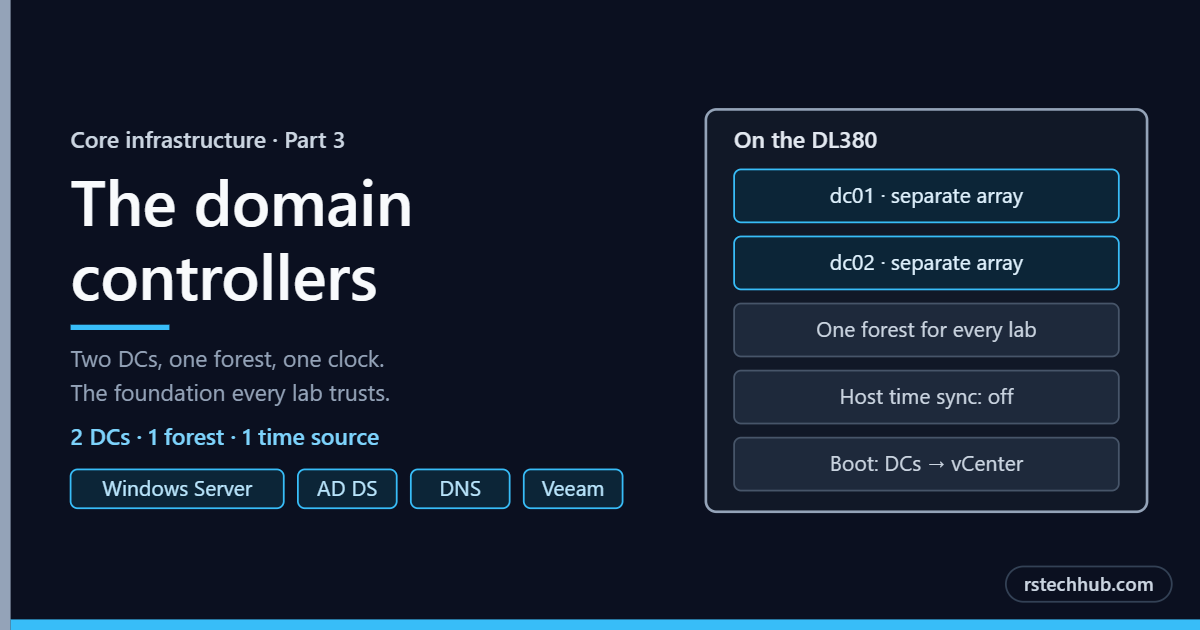
dc01 lives on one storage array and dc02 on another. If an array fails, one DC goes with it and the other keeps DNS and logins running. In my lab that is the difference between an annoyance and rebuilding everything that trusts the domain.
Both are small on purpose. A DC in a lab this size needs very little, so they sit on the fastest storage I have and run nothing else.
One clock, not two
A DC keeps time for the whole domain. It must never have its clock nudged behind its back by the hypervisor, so I switch off every kind of host time sync before Windows is even installed. Time comes from the network instead, as designed in Part 1.
It is a small setting. When it is missed, it causes some of the strangest faults I have chased.
Built fresh, never cloned
Each DC gets its own clean Windows install. Cloning a DC, or rolling one back to an old snapshot, is a classic way to damage a directory. I skip that shortcut even in a lab.
One forest for every lab
Every lab I run lives in a single Active Directory forest, each with its own DNS zone. One place to manage accounts, one place to fix name resolution.
dc01 creates the forest and keeps time for the domain. dc02 joins as a replica. From then on either DC can answer DNS and logins alone, and each looks to the other first for name resolution, so rebooting one never breaks the other.
DNS before VCF
VCF is strict about DNS. Every appliance needs matching forward and reverse records before the installer will even start. I create them all up front, for every lab, and check them long before an ESX host is involved.
VCF also signs in against AD, so the domain gets an admin group, a read-only group and a dedicated service account. Nothing runs on a personal account.
Boot order
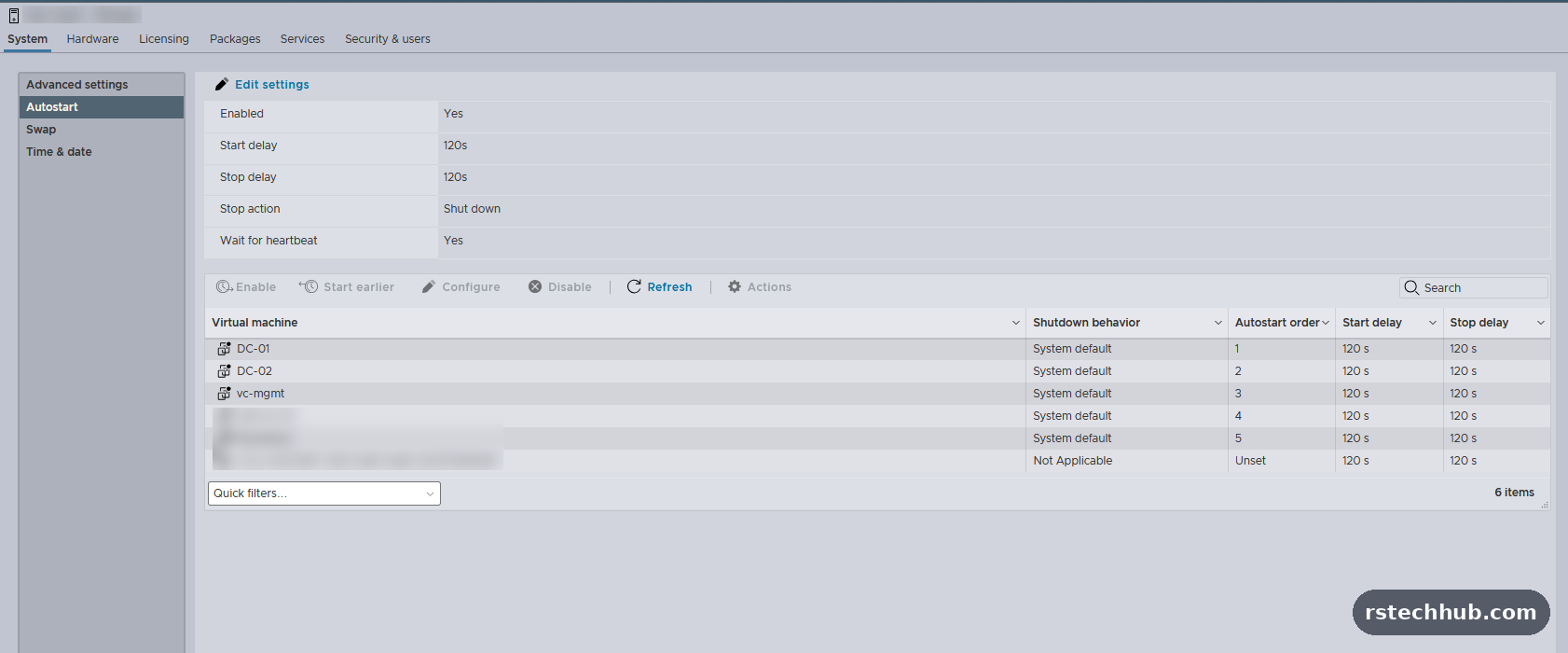
After a power cut, the DCs start first, then vCenter, then everything else. Most of the lab depends on DNS. If it is not there yet, things come up half-broken.
Healthy and protected
Before moving on I check three things across both DCs: replication, DNS and time. If any of them is off, VCF finds it later, at a far worse moment.
Both DCs are backed up every day. Losing the domain would mean rebuilding every lab that trusts it.
The build, step by step
The IP addresses below are examples, not the ones in my lab. Everything below is what I ran to build dc01 and dc02 on the DL380. The domain is lab.internal (NetBIOS LAB), dc01 is 192.168.10.20, dc02 is 192.168.10.21, and the CRS309 at 192.168.10.1 is the gateway and NTP source. Swap in your own values.
1. VM spec (both DCs)
| Setting | Value |
|---|---|
| Guest OS | Windows Server 2022 |
| vCPU / RAM | 2 / 8 GB |
| Disk | 80 GB thin, VMware Paravirtual controller |
| NIC | VMXNET3 on the management VLAN port group |
| Firmware | EFI, Secure Boot on |
2. Turn off every kind of host time sync
With the VM powered off: Edit settings, VM Options, Advanced, Edit Configuration. Add each of these with the value 0. The “Synchronize guest time with host” tick box only covers periodic sync; one-off syncs still happen unless these are set.
tools.syncTime
time.synchronize.continue
time.synchronize.restore
time.synchronize.resume.disk
time.synchronize.shrink
time.synchronize.tools.startup
time.synchronize.tools.enable
time.synchronize.resume.host
3. Windows, static IP and name
Install Windows and VMware Tools first. No network card in Windows before Tools is normal, because Windows has no VMXNET3 driver. Then set the address. Public DNS is only temporary, so Windows Update works; it changes before promotion.
# dc01 (use .21 and DC02 on the second DC)
Get-TimeZone
New-NetIPAddress -InterfaceAlias Ethernet0 -IPAddress 192.168.10.20 -PrefixLength 24 -DefaultGateway 192.168.10.1
Set-DnsClientServerAddress -InterfaceAlias Ethernet0 -ServerAddresses 1.1.1.1,8.8.8.8
Rename-Computer -NewName DC01 -Restart
Run Windows Update to completion on both and reboot.
4. Promote dc01 (new forest)
Set-DnsClientServerAddress -InterfaceAlias Ethernet0 -ServerAddresses 127.0.0.1
Install-WindowsFeature AD-Domain-Services -IncludeManagementTools
Install-ADDSForest -DomainName lab.internal -DomainNetbiosName LAB -InstallDns `
  -SafeModeAdministratorPassword (Read-Host -AsSecureString "DSRM password")
Two warnings are expected. The Windows NT 4.0 cryptography one is informational. “DNS delegation cannot be created” appears because lab.internal has no parent zone. Neither needs action.
5. Forwarders and time on dc01
Set-DnsServerForwarder -IPAddress 1.1.1.1,8.8.8.8

w32tm /stripchart /computer:192.168.10.1 /samples:3 /dataonly
w32tm /config /manualpeerlist:"192.168.10.1,0x8" /syncfromflags:manual /reliable:yes /update
Restart-Service w32time
Start-Sleep 10
w32tm /resync /rediscover
w32tm /query /status
The ,0x8 flag matters. Without it Windows uses symmetric mode, RouterOS does not answer, and the DC stays on “Local CMOS Clock”. Expect Source: 192.168.10.1,0x8.
6. Check dc01
Get-ADDomain | Select DNSRoot, NetBIOSName, PDCEmulator
Get-DnsServerZone
nslookup dc01.lab.internal
Get-SmbShare SYSVOL, NETLOGON
Get-WinEvent -LogName "DFS Replication" -MaxEvents 3 | Select TimeCreated, Id, Message
dcdiag /q
DFS Replication event 4602 means SYSVOL is initialised. On a brand new DC, dcdiag reports some first-boot noise (DFSR, Group Policy 1058, Secure Boot event 1796 on VMware VMs, DCOM 10010). It ages out within 24 hours.
7. Promote dc02 and point it at dc01 for time
Set-DnsClientServerAddress -InterfaceAlias Ethernet0 -ServerAddresses 192.168.10.20
Install-WindowsFeature AD-Domain-Services -IncludeManagementTools
Install-ADDSDomainController -DomainName lab.internal -InstallDns `
  -Credential (Get-Credential LAB\Administrator) `
  -SafeModeAdministratorPassword (Read-Host -AsSecureString "DSRM password")

# after the reboot
w32tm /config /syncfromflags:domhier /update
Restart-Service w32time
w32tm /resync /rediscover
w32tm /query /status
Expect Source: DC01.lab.internal. Then set each DC to use its partner first and itself second:
# dc01
Set-DnsClientServerAddress -InterfaceAlias Ethernet0 -ServerAddresses 192.168.10.21,127.0.0.1
# dc02
Set-DnsClientServerAddress -InterfaceAlias Ethernet0 -ServerAddresses 192.168.10.20,127.0.0.1
8. Lab DNS zones and records
I load the lab records with a PowerShell script on dc01 that creates the zones, then an A record and matching PTR for every host, and prints a verification table. Each record comes down to lines like these:
Add-DnsServerPrimaryZone -NetworkId "192.168.10.0/24" -ReplicationScope Forest
Add-DnsServerResourceRecordA -ZoneName lab.internal -Name vcmgmt -IPv4Address 192.168.10.22 -CreatePtr
Resolve-DnsName vcmgmt.lab.internal -DnsOnly
Resolve-DnsName 192.168.10.22 -DnsOnly
If a check fails straight after adding records, dc01 has probably asked dc02 before AD replicated. repadmin /syncall /AdeP pushes from the DC it runs on, so run it on the DC where you made the change. To make dc02 pick up the change straight away:
# dc01
repadmin /syncall /AdeP
# dc02
dnscmd /zoneupdatefromds lab.internal
dnscmd /zoneupdatefromds 10.168.192.in-addr.arpa
Clear-DnsServerCache -Force
DNS Manager does not refresh itself. Select the zone and press F5 to see new records.
9. AD objects for VCF
New-ADOrganizationalUnit -Name Lab -Path "DC=lab,DC=internal"
New-ADOrganizationalUnit -Name "Service Accounts" -Path "OU=Lab,DC=lab,DC=internal"
New-ADOrganizationalUnit -Name Groups -Path "OU=Lab,DC=lab,DC=internal"

New-ADGroup -Name vcf-admins   -GroupScope Global -GroupCategory Security -Path "OU=Groups,OU=Lab,DC=lab,DC=internal"
New-ADGroup -Name vcf-readonly -GroupScope Global -GroupCategory Security -Path "OU=Groups,OU=Lab,DC=lab,DC=internal"

New-ADUser -Name svc-vcf-ldap -SamAccountName svc-vcf-ldap `
  -Path "OU=Service Accounts,OU=Lab,DC=lab,DC=internal" `
  -AccountPassword (Read-Host -AsSecureString "svc-vcf-ldap password") `
  -Enabled $true -PasswordNeverExpires $true -CannotChangePassword $true
For the bind account password, stick to letters, numbers and @ ! # $ % ?. Backslashes, quotes, ampersands and spaces cause trouble in appliance forms later.
10. Final validation
dcdiag /q
repadmin /replsummary
Get-ADDomainController -Filter * | Select Name, IPv4Address, OperationMasterRoles
w32tm /monitor
The result in my lab: zero replication failures, dc01 holding all FSMO roles, and both DCs within a few milliseconds of each other on time.
Things that caught me out
Time, again. The first DC would not sync from the MikroTik, even though a quick manual test against it worked straight away. Windows was asking for time in a mode the switch does not answer. Telling Windows to act as a plain time client fixed it at once, and it is now the first thing I set on any DC in this lab.
Next, Part 4 adds a certificate authority, so the lab can use trusted certificates instead of self-signed ones.