
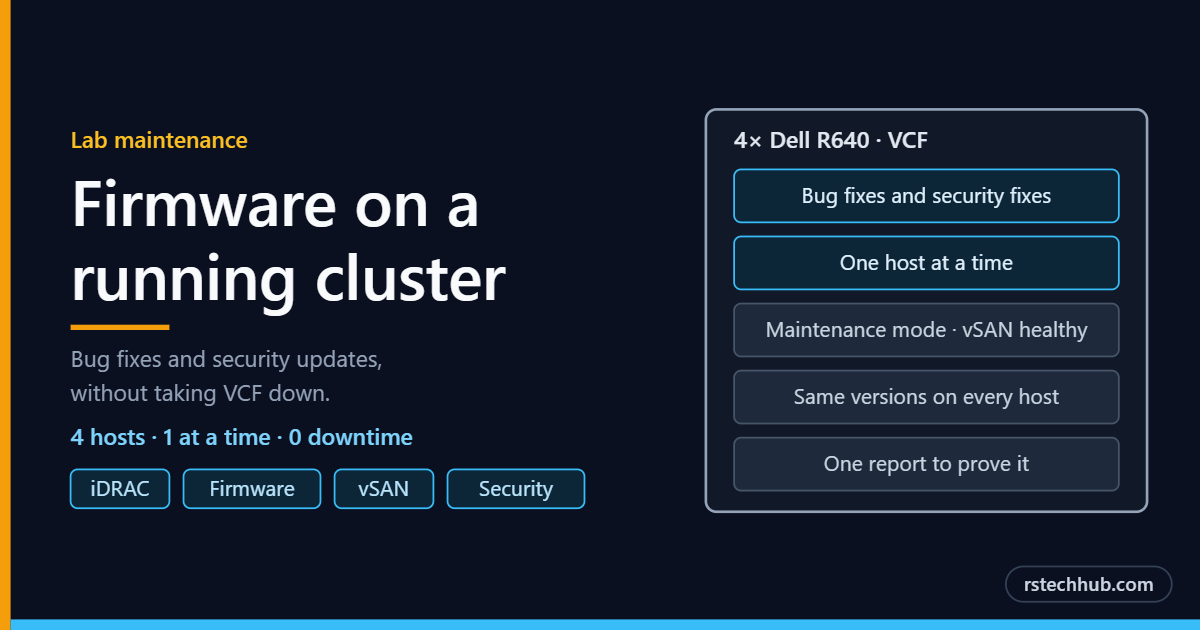
Installing VCF is the exciting part. Keeping it healthy afterwards is the part that matters. Server firmware is a big piece of that: BIOS, the iDRAC, storage controllers, network cards and drives all get regular fixes, and a good share of them are security fixes rather than new features. This post is the routine I use to apply them to the four R640s without taking the management domain down.
PowerShell script for this post: Get-ServerInventory.ps1, free on GitHub.
Why bother
Dell publishes firmware for the same reasons VMware publishes patches. BIOS updates carry CPU microcode for new processor vulnerabilities. iDRAC updates close holes in the management controller, which has full control of the server even when ESX is down. Network and drive firmware fix bugs that show up as dropped links or odd storage behaviour, the kind of thing vSAN is very sensitive to.
Just as important: all four hosts should run the same versions. vSAN and VCF lifecycle both expect a consistent cluster, and small differences between hosts tend to surface as problems that are hard to pin down.
Before you start
Check compatibility first. vSAN cares about which storage controller and NVMe firmware runs alongside which ESX driver. A firmware release that is newer than what Broadcom has certified for your ESX version will show up as a vSAN health warning, and on a bad day as a real problem. Before applying storage firmware, check the Broadcom compatibility guide for the exact controller and drives, or look at vSAN’s own hardware compatibility health check. BIOS and iDRAC updates are rarely an issue; storage firmware is where to be careful.
Save the server’s configuration. The iDRAC can export a Server Configuration Profile: one file with the BIOS, iDRAC and storage settings. It takes a minute (Configuration → Server Configuration Profile → Export) and means that if an update ever resets a setting, putting it back is an import rather than an afternoon of clicking.
One host at a time
The management domain keeps running throughout. Each host takes its turn:
- Check vSAN health is green before touching anything.
- Put the host into maintenance mode, letting vSAN keep the data accessible from the other three hosts.
- Update the host’s firmware from its iDRAC (below).
- Let it reboot, then confirm the new versions in the iDRAC.
- Exit maintenance mode and wait for vSAN to finish resyncing before starting the next host.
It is slower than updating all four at once, and that is the point. At no stage is more than one host out of the cluster.
Plan for 45 minutes to an hour per server. A full set of updates (BIOS, iDRAC, network card and drives) means several reboots, and the iDRAC restarts itself partway through. Add the vSAN resync after each host exits maintenance mode, and a round across four hosts is realistically half a day. Book it as such rather than squeezing it into a lunch break.
The easy way to update: let the iDRAC do it
No downloads, no USB sticks, no hunting through Dell’s support site for the right file. The iDRAC can check Dell’s catalogue for its own server and install exactly what is missing. With the host in maintenance mode:
- In the iDRAC, go to Maintenance → System Update and open the Manual Update tab.
- Set Location Type to HTTPS and the HTTPS Address to
downloads.dell.com. Leave the other fields empty. - Click Check for Update. After a minute or two you get a list of every component with a newer version for this exact server model, marked Critical, Recommended or Optional.
- Tick the updates you want (usually all of them) and click Install and Reboot.
- Follow progress under Maintenance → Job Queue. The server may reboot more than once, and the iDRAC page drops out while the iDRAC updates itself. It is done when every job shows Completed.
- Run Check for Update once more. Some updates only appear after the iDRAC itself has been updated.
The iDRAC needs to reach the internet for this, and to resolve names: give it working DNS servers under iDRAC Settings → Network. The Install Next Reboot button is handy too: it stages the updates and applies them the next time you reboot the host yourself.

One screen to stay away from: the iDRAC’s Automatic Update. It schedules recurring updates with reboots, on the server’s timetable rather than the cluster’s. On a vSAN host that is exactly what you do not want.
If an update goes wrong
A bad update is not a dead end. The iDRAC keeps the previous version of most firmware, and Maintenance → System Update → Rollback puts it back, with the same reboot as an update. Combined with the configuration export above, the worst case is an hour of rework on one host, while the other three keep the cluster running.
How often, and why N+1 matters
This is a repeating exercise, not a one-off. My rhythm:
| When | What |
|---|---|
| Every month | Run the report and check Dell’s catalogue. If nothing critical is waiting, stop there. |
| Every three months | Apply everything outstanding, one host at a time, and re-run the report to confirm all hosts match. |
| As soon as it lands | Anything Dell marks critical for security: a BIOS with new CPU microcode, or an iDRAC fix for an exposed vulnerability. These do not wait for the quarter. |
What makes a rolling update possible is sizing the cluster N+1: one host more than the workload needs. With four hosts, any one can be in maintenance mode while the other three carry every VM and vSAN keeps the data protected. If the cluster ever grows to the point where losing one host would leave it short, rolling updates stop being safe, and that is the moment to add a host rather than skip the maintenance.
The same N+1 thinking is why only one host is ever out at a time. Two in maintenance together on a four-node vSAN cluster leaves no room for the next surprise.
One report for every server
Clicking through eight management pages to compare versions is slow and easy to get wrong. The iDRACs and the HP iLO all expose the same information through their management API, so I pull every server’s firmware and disks into one side-by-side report. Anything that differs between hosts is flagged. I run it before an update round to see what is needed, and after it to prove every host landed on the same versions. The script is free to use: Get-ServerInventory.ps1 on GitHub. It works with Dell iDRAC 9 and 7 and HPE iLO 4.
Run it from any Windows machine that can reach the management network. It asks for the iDRAC login once and the iLO login once:
.\Get-ServerInventory.ps1 -Idrac md01idrac.lab.internal, md02idrac.lab.internal, md03idrac.lab.internal, md04idrac.lab.internal -Ilo dl380ilo.lab.internalIt prints two tables, firmware and physical disks, and saves both as timestamped CSV files in a Reports folder next to the script. It only reads, so it is safe to run at any time. A controller that is in the middle of an update does not answer; the script skips it with a warning, so run it again later.
| Component | MD01 | MD02 | MD03 | MD04 |
|---|---|---|---|---|
| BIOS | 2.28.1 | 2.28.1 | 2.28.1 | 2.28.1 |
| iDRAC / Lifecycle Controller | 7.00.00.185 | 7.00.00.185 | 7.00.00.185 | 7.00.00.185 |
| HBA330 | 16.17.01.00 | 16.17.01.00 | 16.17.01.00 | 16.17.01.00 |
| Mellanox NIC | 14.32.21.02 | 14.32.21.02 | 14.28.2006* | 14.32.21.02 |
* The report flagged MD03 straight away: its built-in network card is not detected, so its links run on a separate add-in card with older firmware. A reseat is booked for my next visit. Exactly the kind of thing that is easy to miss by eye.
The nested lab hosts
The two R740xd servers that run the nested VCF labs get the same treatment, with one extra step: shut down or migrate whatever nested hosts and appliances are running first, because an iDRAC Install and Reboot restarts the server straight away. After this round both were level with the R640s:
| Component | R740xd #1 | R740xd #2 |
|---|---|---|
| BIOS | 2.28.1 | 2.28.1 |
| iDRAC / Lifecycle Controller | 7.00.00.185 | 7.00.00.185 |
| HBA330 | 16.17.01.00 | 16.17.01.00 |
| Broadcom P225p NIC | 216.0.333.11 | 216.0.333.11 |
Their disks are a mix of SAS SSDs and drives collected over time, each with its own firmware. The report lists every one, which makes it easy to see which drives Dell still ships updates for.
The older servers
The same report covers the two older servers: the Dell R620 behind TrueNAS and the HP DL380 Gen9 core host. Both are on the final firmware their generations will ever get:
| Dell R620 (TrueNAS) | HP DL380 Gen9 (core host) | |
|---|---|---|
| BIOS / System ROM | 2.9.0 (final) | P89 v3.40, 2024 (final) |
| Management controller | iDRAC 7 2.65.65.65 (final) | iLO 4 2.82 (final) |
| Storage controller | Not reported over the API | Smart Array P440 / P440ar 7.00 |
| Network | Intel X520 / I350 daughter card 22.0.9 | Broadcom P225p 216.0.333.11 |
There is nothing left to apply, which is worth knowing in itself: from here on, any security issue found in those platforms stays unfixed, and that belongs in the plan for replacing them.
Two quirks worth knowing. The R620’s older iDRAC 7 does not report its disks through the API at all, so for that server the report shows firmware only. And the DL380 lists a redundant system ROM from 2021 alongside the current one: that is HP’s backup copy of the BIOS, kept for recovery, and it is normal for it to be older.
The production way: firmware inside VCF lifecycle
What I do here by hand is the lab version of something VCF can do itself. With Dell’s OpenManage Enterprise integration for vCenter (OMEVV) acting as a hardware support manager, firmware becomes part of the cluster image in vSphere Lifecycle Manager. ESX, drivers and firmware are then checked for compatibility and applied together, host by host, with maintenance mode handled for you.
For a four-host lab the manual routine is simpler and teaches you what is actually happening. For a production estate, the integrated route is the one to use: one image, one compliance check, no host left behind.
The rest of the stack
Servers are not the only firmware in the lab. The same monthly and quarterly routine covers:
- The MikroTik switches. RouterOS and the switch firmware get security fixes too. Update the access switches first and the core router last, in a quiet window, because every host’s traffic goes through them.
- The HP core host. HP bundles its firmware as a Service Pack for ProLiant rather than an online catalogue. For a DL380 Gen9 the releases have stopped, but the check still belongs on the list.
- The software on top. ESX, vCenter and the VCF components have their own patch cycle, handled through VCF lifecycle. Firmware and software rounds work best on the same schedule, so the whole stack moves together.
Things that caught me out
Some updates only appear after the iDRAC itself has been updated. A host offered only BIOS and iDRAC firmware on the first check showed network and drive updates on the next. Always check twice.
While an iDRAC is updating it stops answering its API. A report run mid-update returns server unavailable or internal error for that host. Wait for the job queue to show everything completed, then run it again.