
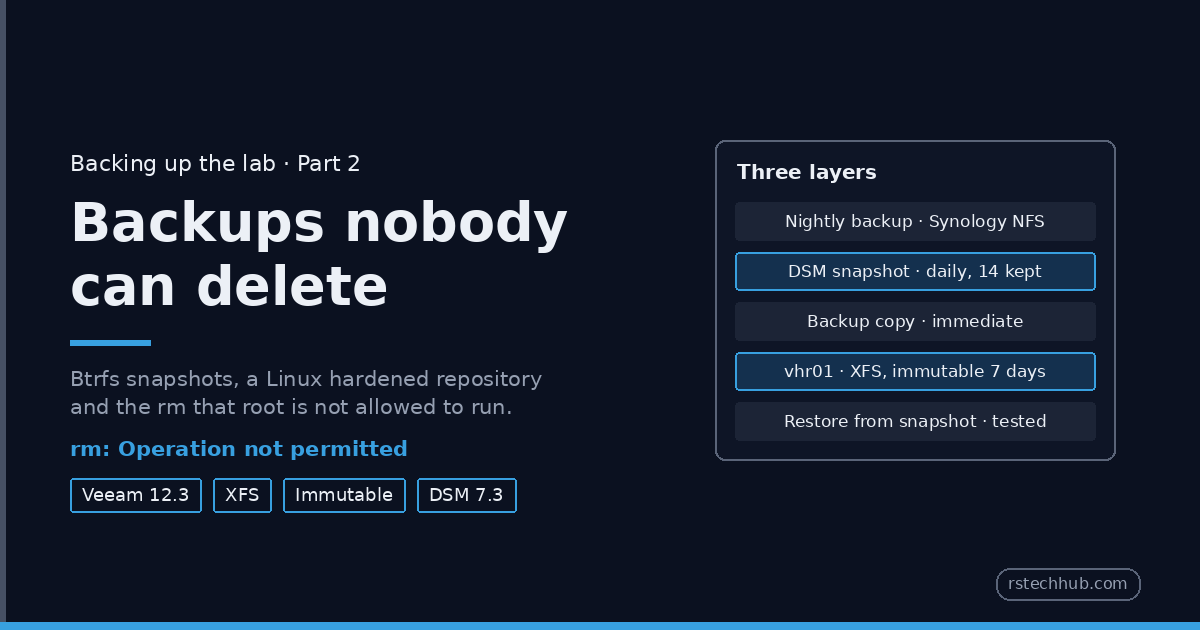
In Part 1 the lab got a Veeam server, an encrypted nightly job to a Synology over NFS, and a tested restore. What it does not have yet is a copy that survives someone with admin rights deciding to delete it. Ransomware crews go for the backups first. This part is about closing that gap, one layer at a time.
What “immutable” has to mean
| Threat | Encrypted NFS repository | DSM snapshots | Hardened repository |
|---|---|---|---|
| Ransomware on a Windows box with NFS access | Exposed | Protected | Protected |
| Someone with the Veeam console | Can delete backups | Protected | Protected |
| Someone with the DSM admin password | Can delete the share | Can delete snapshots | Protected |
| Root on the hardened repository | Protected (different box) | Protected (different box) | Exposed (see the caveat) |
| Stolen NAS or disks | Protected (encrypted) | Protected (encrypted) | Depends on disk encryption |
Layer one is free and already on the box: Btrfs snapshots of the Veeam share. Layer two is the one that answers the last row: a Veeam hardened repository.
Layer 1: DSM snapshots of the Veeam share
The Veeam share sits on a Btrfs volume, so Snapshot Replication can take read-only, point-in-time copies of it. Veeam knows nothing about them, which is the point: nothing that talks to Veeam can remove them.
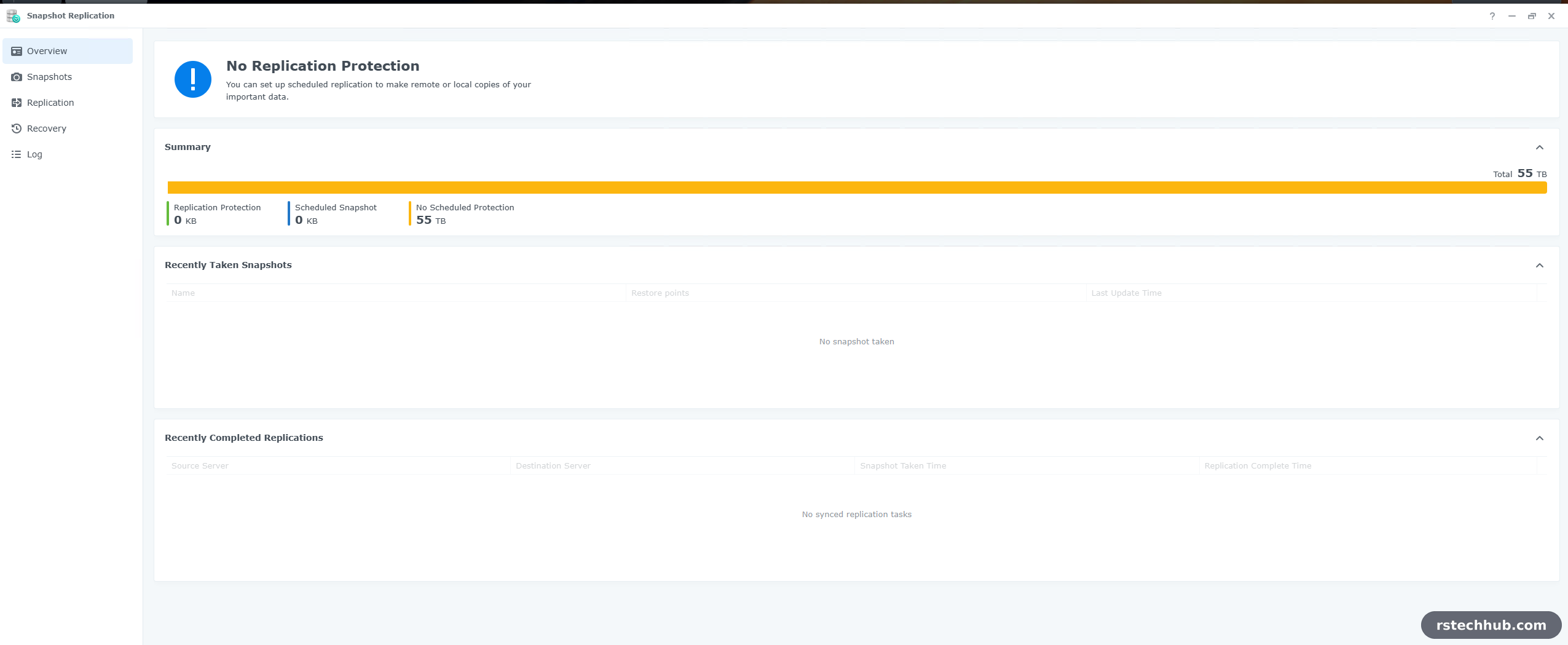
Snapshots, select the share, Settings.
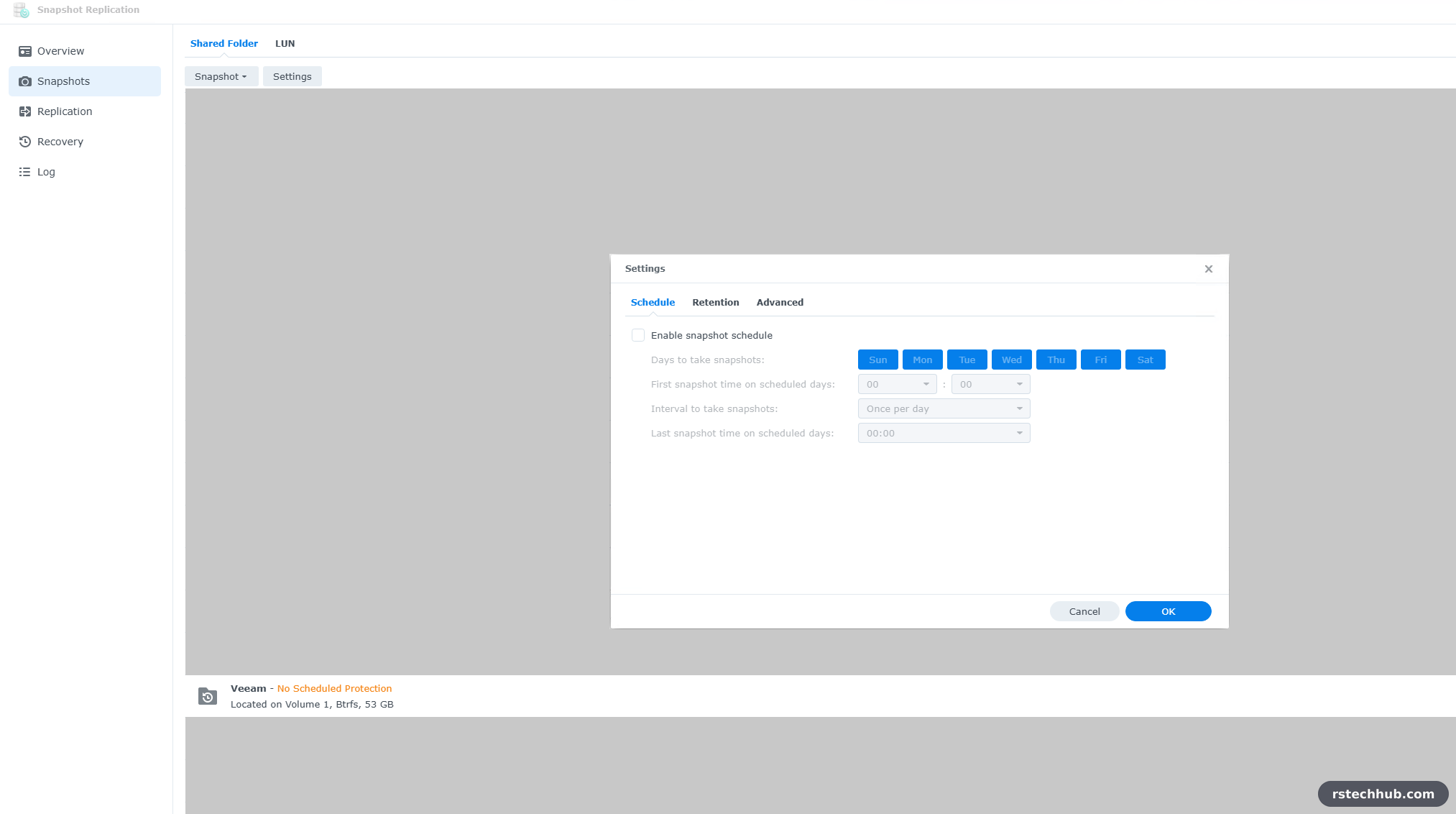
Schedule: daily at 23:30. The nightly Veeam job starts at 22:00 and now finishes in a few minutes, so the snapshot catches a complete restore point rather than a half-written one.
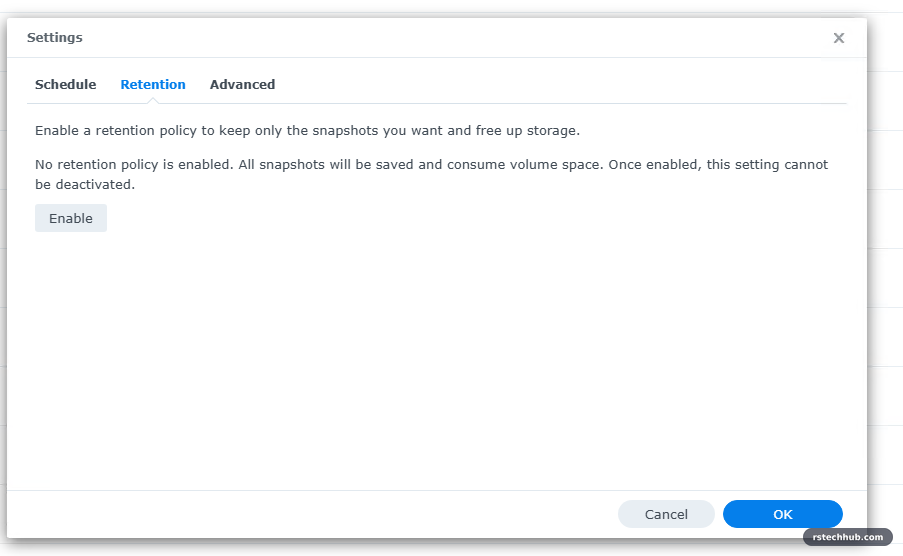
Retention is off by default, which means snapshots pile up until the volume is full. Turn it on. I keep the latest 14, to match Veeam’s 14 days.
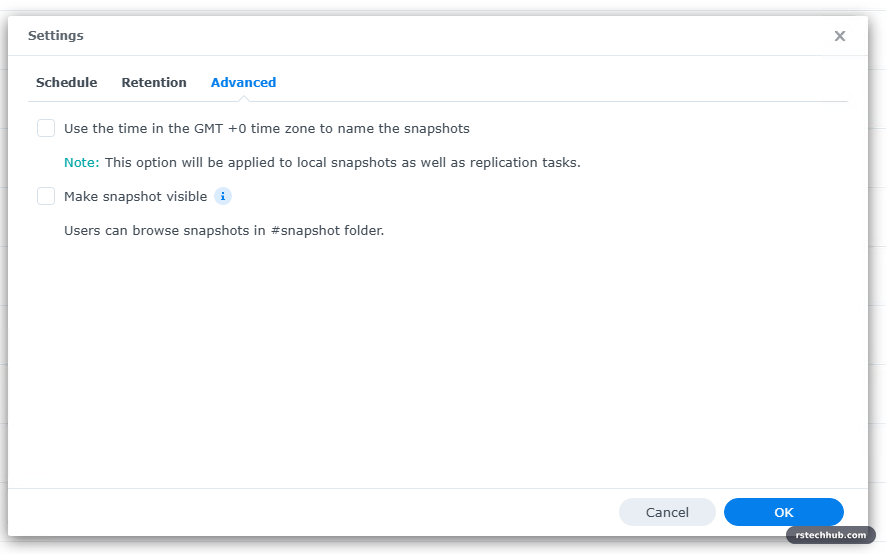
Advanced: leave Make snapshot visible off. Visible snapshots show up as a #snapshot folder to NFS clients, veeam01 included, and the whole idea is that the backup server cannot see them.
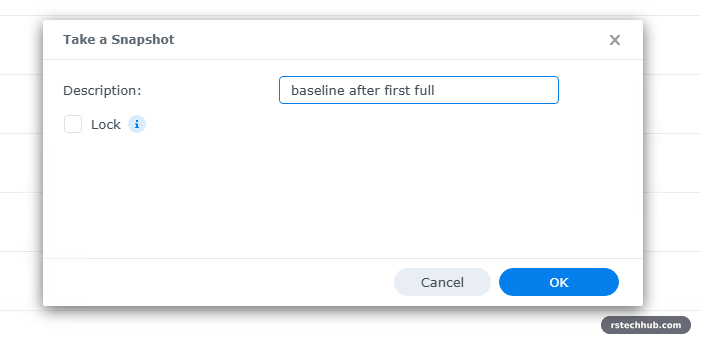
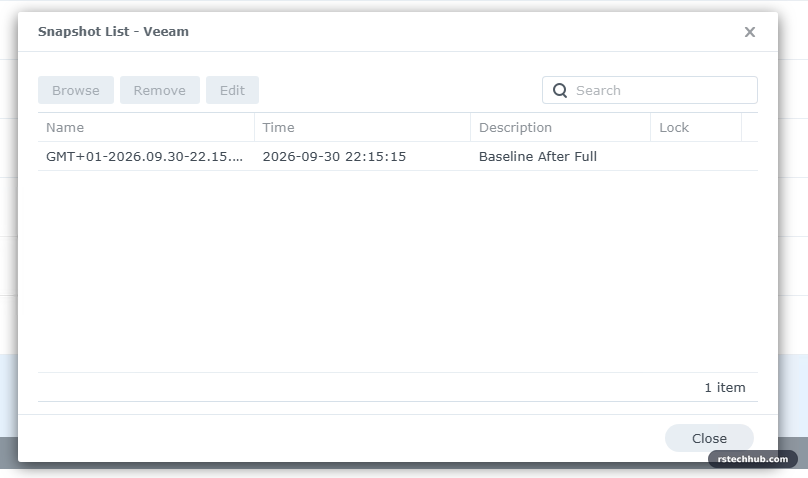
A manual snapshot gives a baseline straight away. Leave Lock unticked: a locked snapshot ignores retention and stays forever, and it is not immutability, because any DSM admin can unlock it.

One thing I checked and could not use: DSM 7.2 added immutable snapshots, which even an admin cannot delete until they expire. The option never appeared on this DS3617xs, on any tab. Synology only offers it on some models, and a 2017 box is not one of them. On a newer Synology, turn it on and most of Layer 2 becomes optional.
A small gotcha: the snapshot browser showed the share as empty. That is the share permissions from Part 1 doing their job, not a missing snapshot. My DSM account has No Access to the Veeam folder, and snapshot browsing uses the same permissions.
Restoring from a DSM snapshot
A snapshot nobody has restored from is the same kind of hope as a backup nobody has restored from. So the test: take a snapshot, mount it as a separate share, point Veeam at it, and get a file back. The live share is not touched at any point.
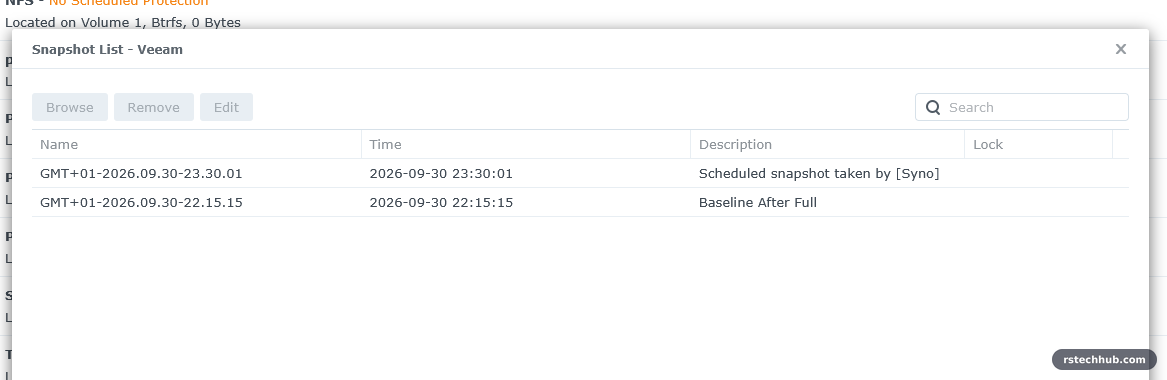
There was a lesson in this list before I even started. The 23:30 snapshot landed in the middle of an active full I had kicked off by hand at 23:23, so it caught half-written files. Harmless here, because every older restore point in it is complete, but it is exactly why the schedule sits after the backup window. I used the 22:15 one, which holds a finished full plus an incremental.
Recovery, select the share, Recover, pick the snapshot, then Action.
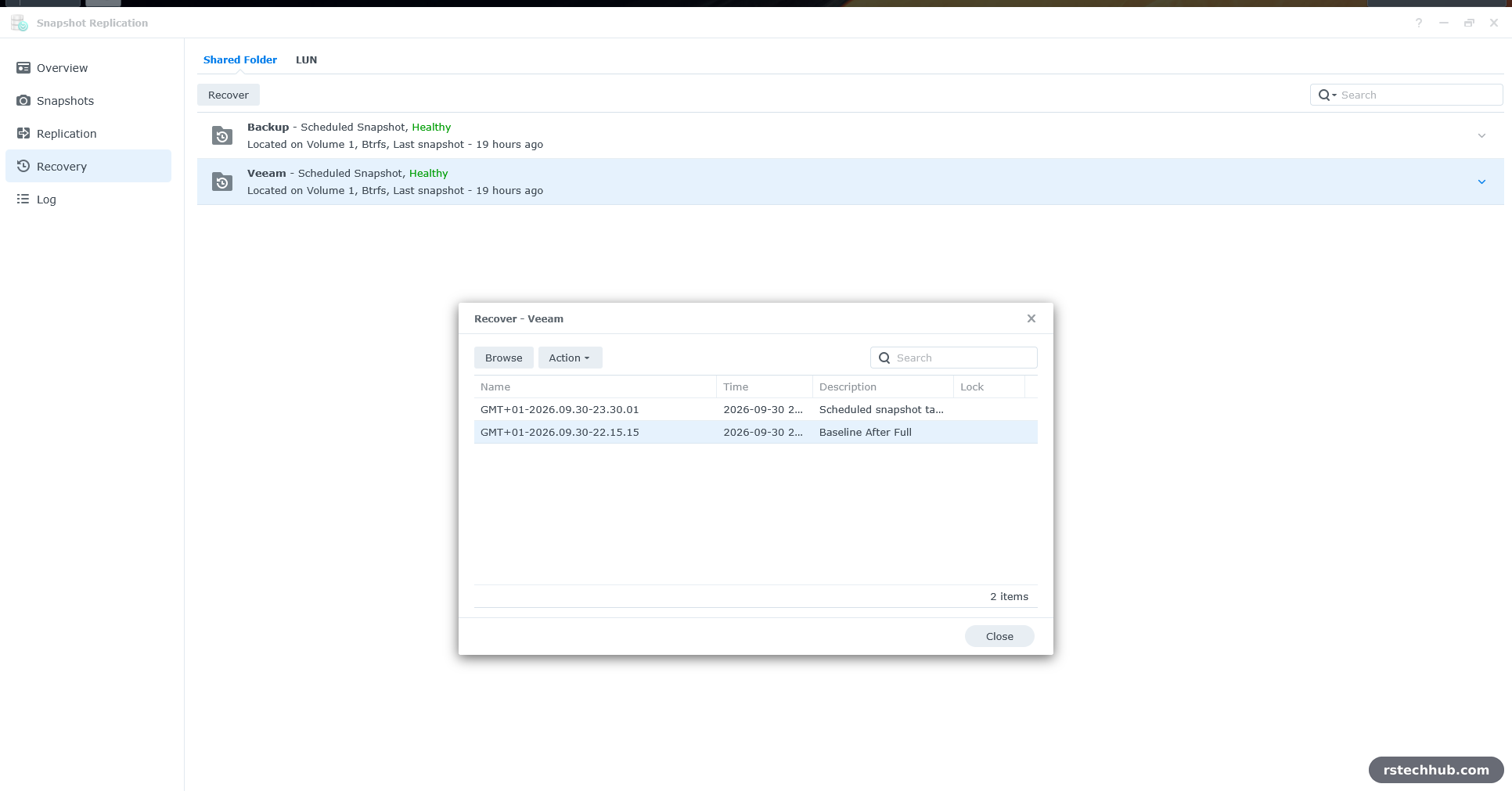
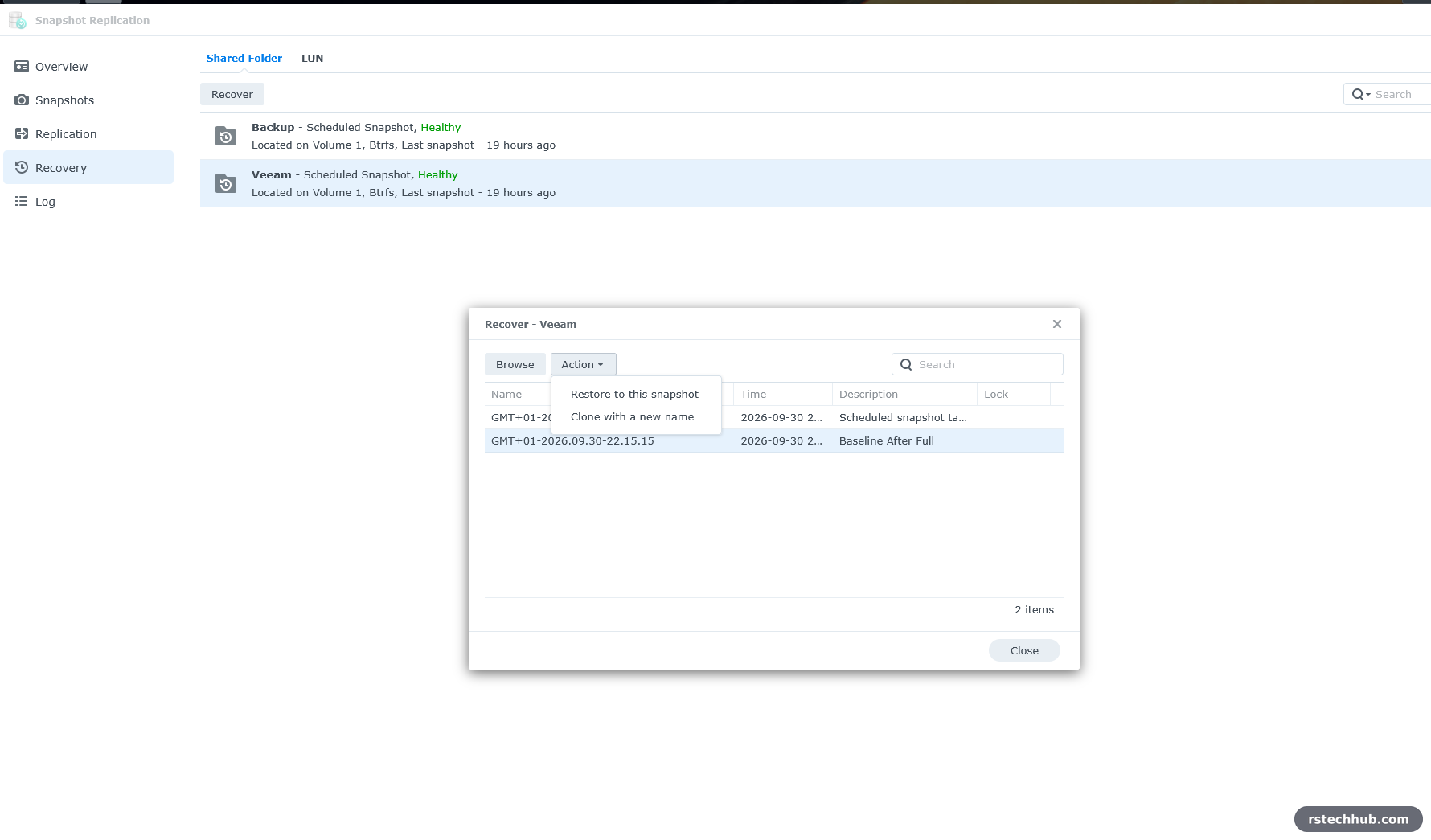
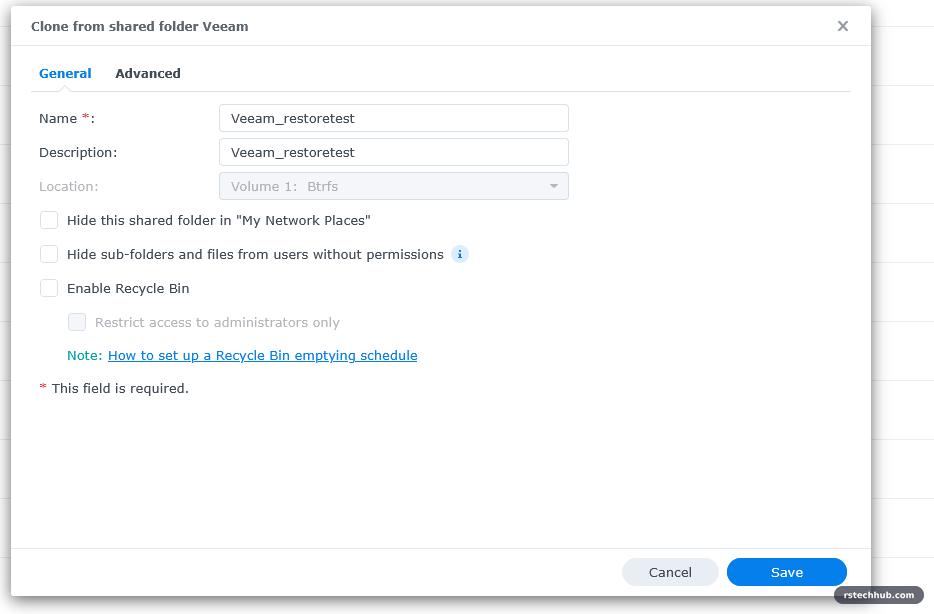

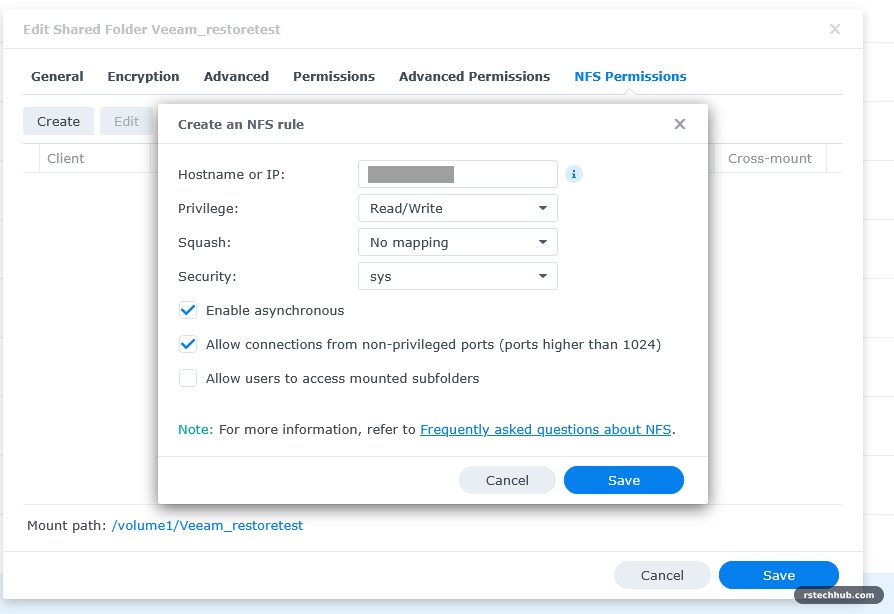
The clone needs its own NFS rule for the backup server, the same as the original share.
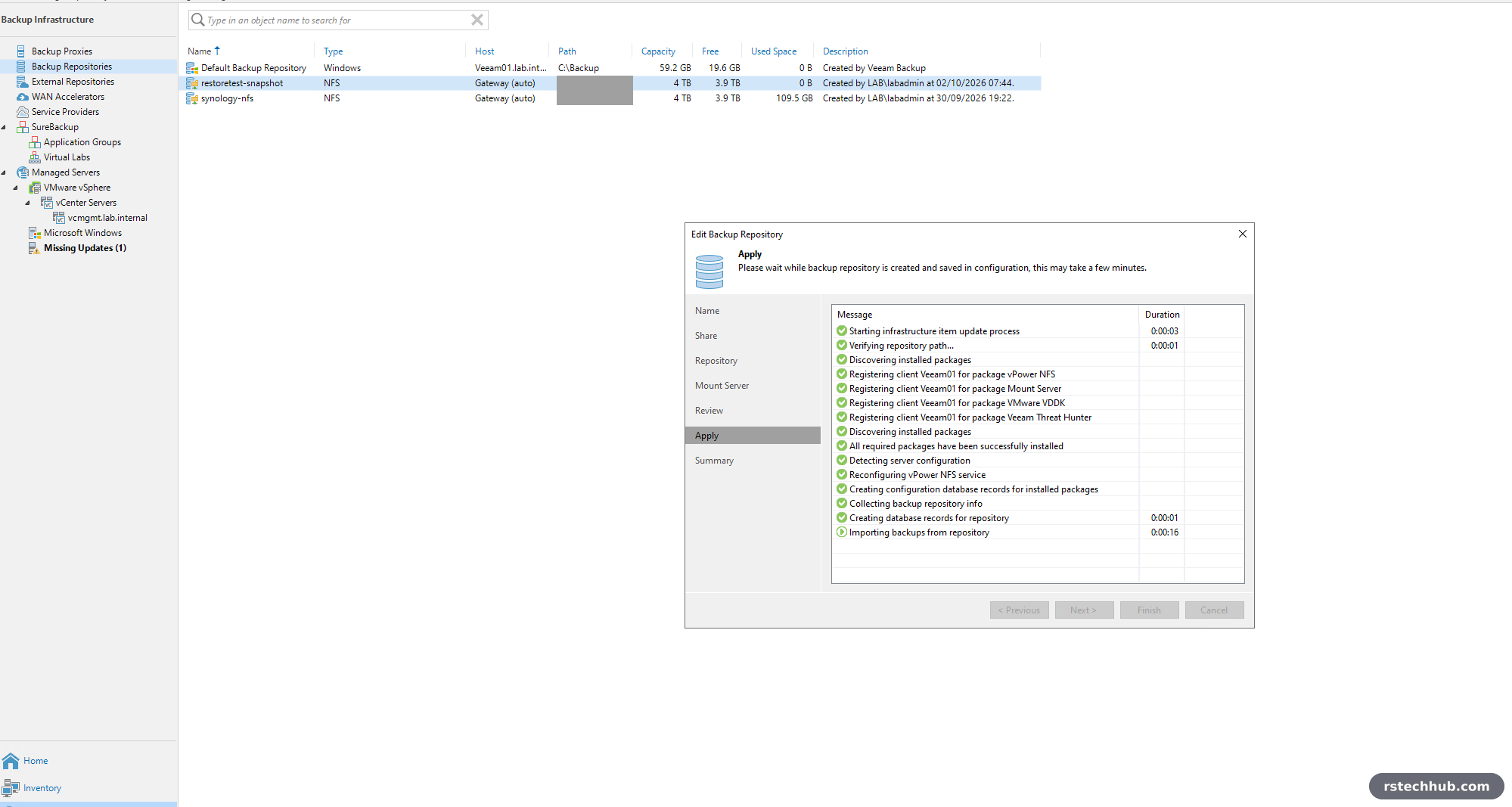
In Veeam, add the clone as a temporary NFS repository and, on the Review page, tick Search the repository for existing backups and import them automatically.
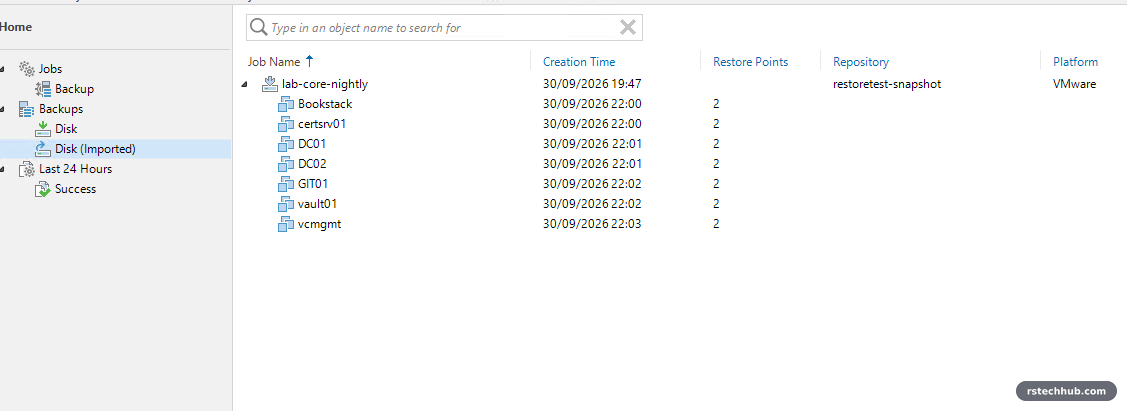
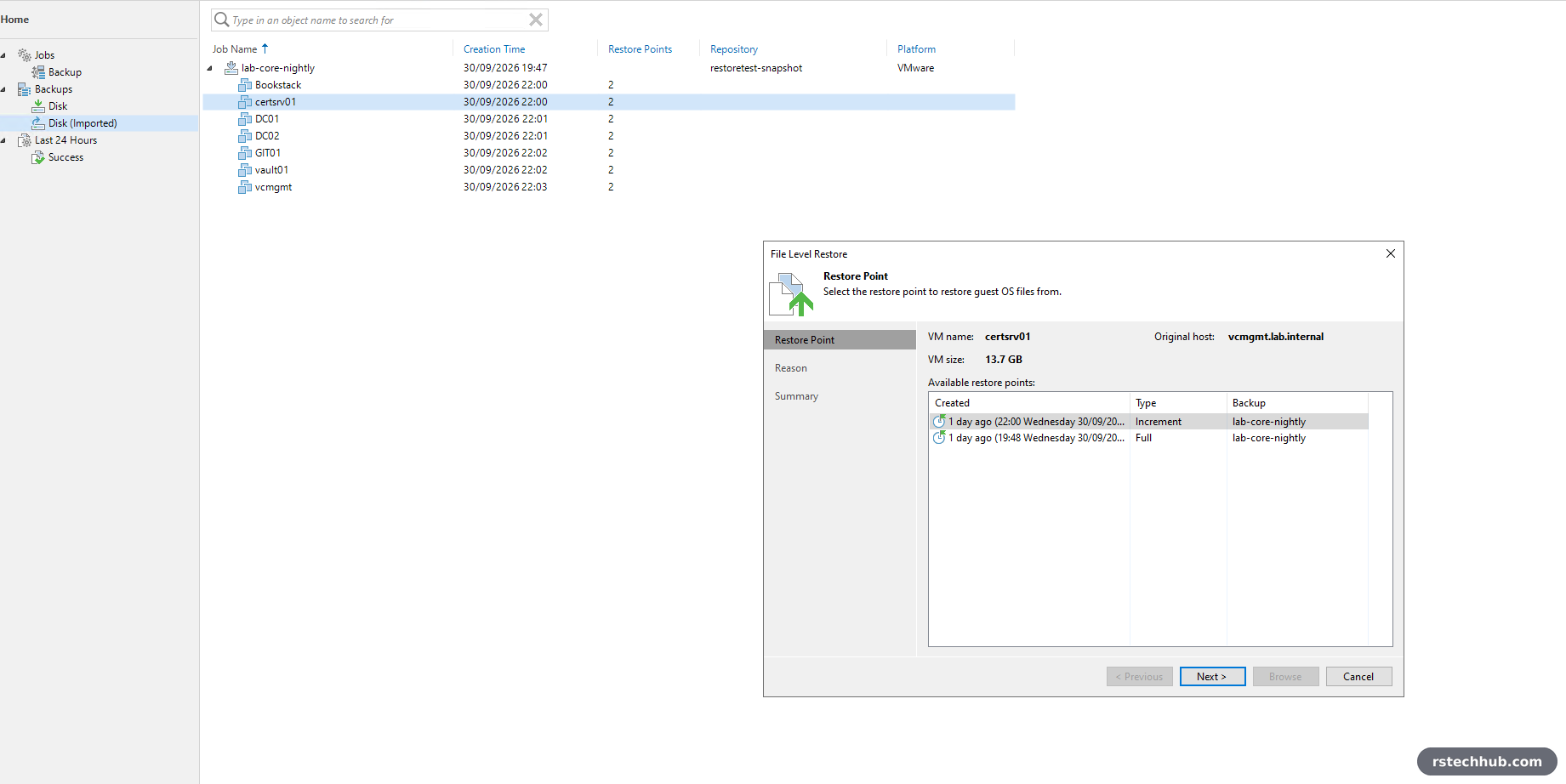
From there it is the same file-level restore as Part 1. I picked the incremental, not the full, so Veeam had to rebuild the file from both, all read out of the snapshot clone.
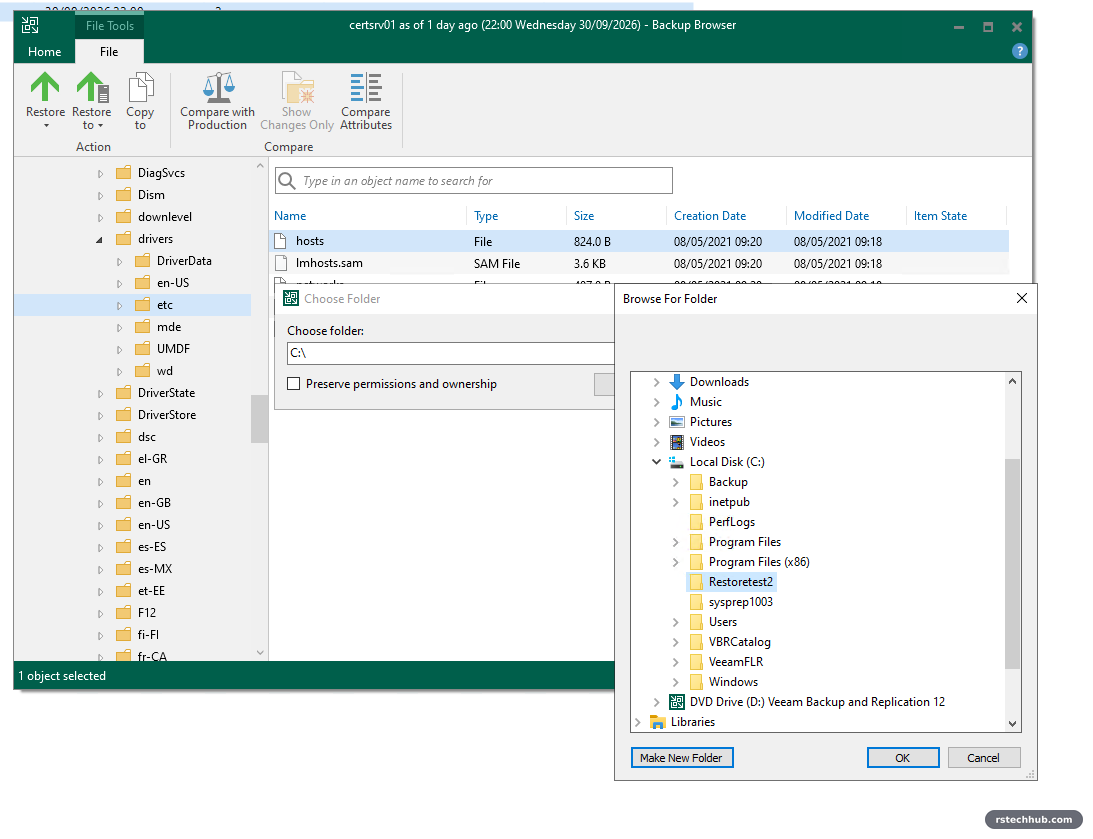
PS C:\> Get-Item C:\RestoreTest2\hosts | ft Name, Length, LastWriteTime

Name  Length LastWriteTime
----  ------ -------------
hosts    824 08/05/2021 09:18:32
Same file, same size, same timestamp as the restore in Part 1. Then the clean-up, in this order: remove the imported backup from the Veeam configuration (not Delete from disk), remove the temporary repository, delete the clone share in DSM.
Layer 2: a Veeam hardened repository
The DSM snapshots stop anything that reaches the share over NFS. They do not stop someone with the DSM admin password. For that the copy has to live somewhere that account cannot reach, on a server where even Veeam’s own login cannot delete it. That is what a Veeam hardened repository is: a Linux box with an XFS volume, where Veeam sets the immutable flag on every backup file and only lifts it when the retention period runs out.
Where to put it
A hardened repository should be physical, and my spare physical box is busy. So vhr01 is a VM on the DL380, with its OS disk on local SSD and its 1 TB repository disk on the TrueNAS R620 over NFS. The VM runs on the same host as everything it protects, but the backup data sits on a different physical server. If the DL380 dies, the copy survives on the R620.
| vhr01 | |
|---|---|
| OS | Ubuntu Server 24.04 LTS |
| CPU / RAM | 2 vCPU / 4 GB |
| Disk 1 | 40 GB on local SSD (OS) |
| Disk 2 | 1 TB thin on the TrueNAS NFS datastore (repository) |
| Network | Management VLAN, static IP, DNS A and PTR |
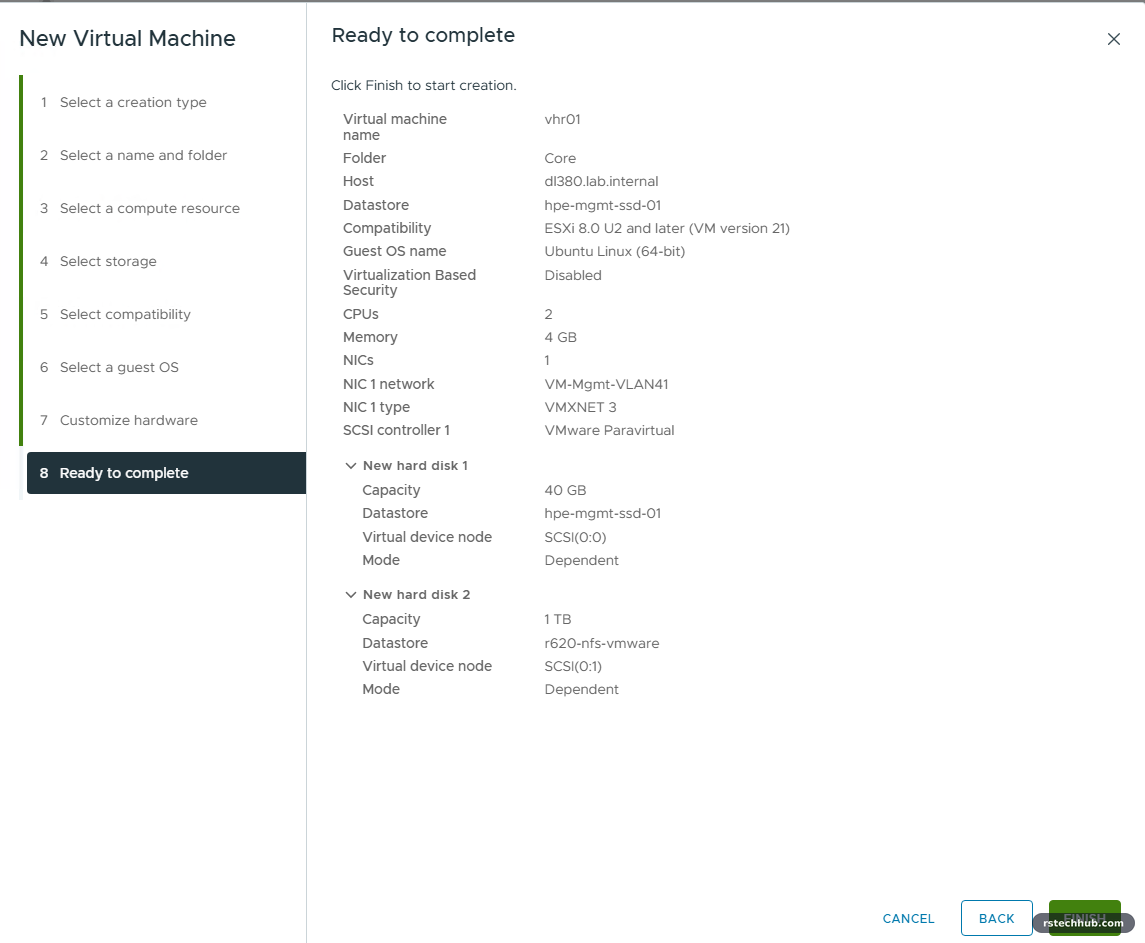
The VM that would not power on
It did not boot. ESXi refused the 1 TB disk: “The file specified is not a virtual disk.”
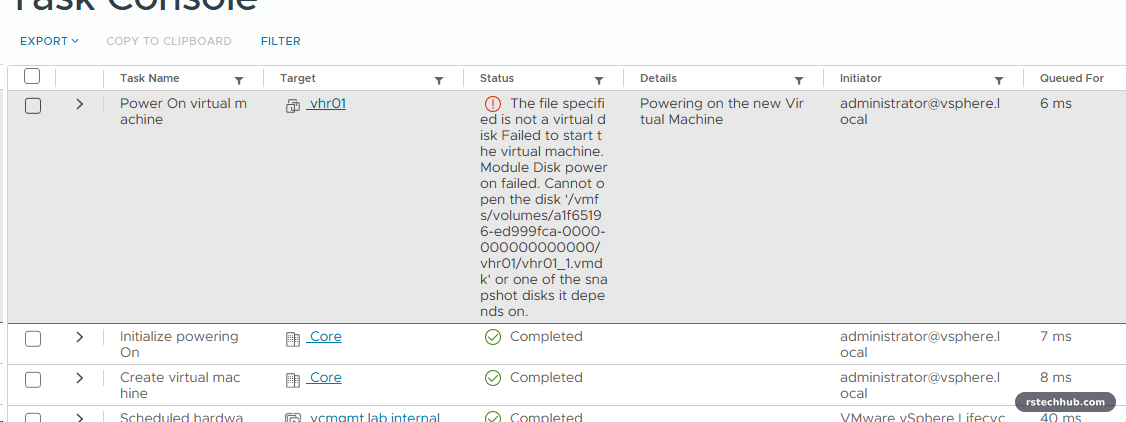
In the ESXi shell the disk’s data file was 0 bytes. On TrueNAS the same file was the full 1 TB. ESXi 8.0 U3’s NFS 4.1 client was caching a stale file size and believed it at power-on. Remounting the datastore as NFS 3 fixed it on the first try. That one gets its own post, because it affects any VM on that datastore, not just this one.
Install Ubuntu, carefully
One thing to watch in the installer: it picks the largest disk by default, which here was the 1 TB repository disk. Choose the 40 GB disk, and give the root volume all of the volume group, not the 50% the installer offers.
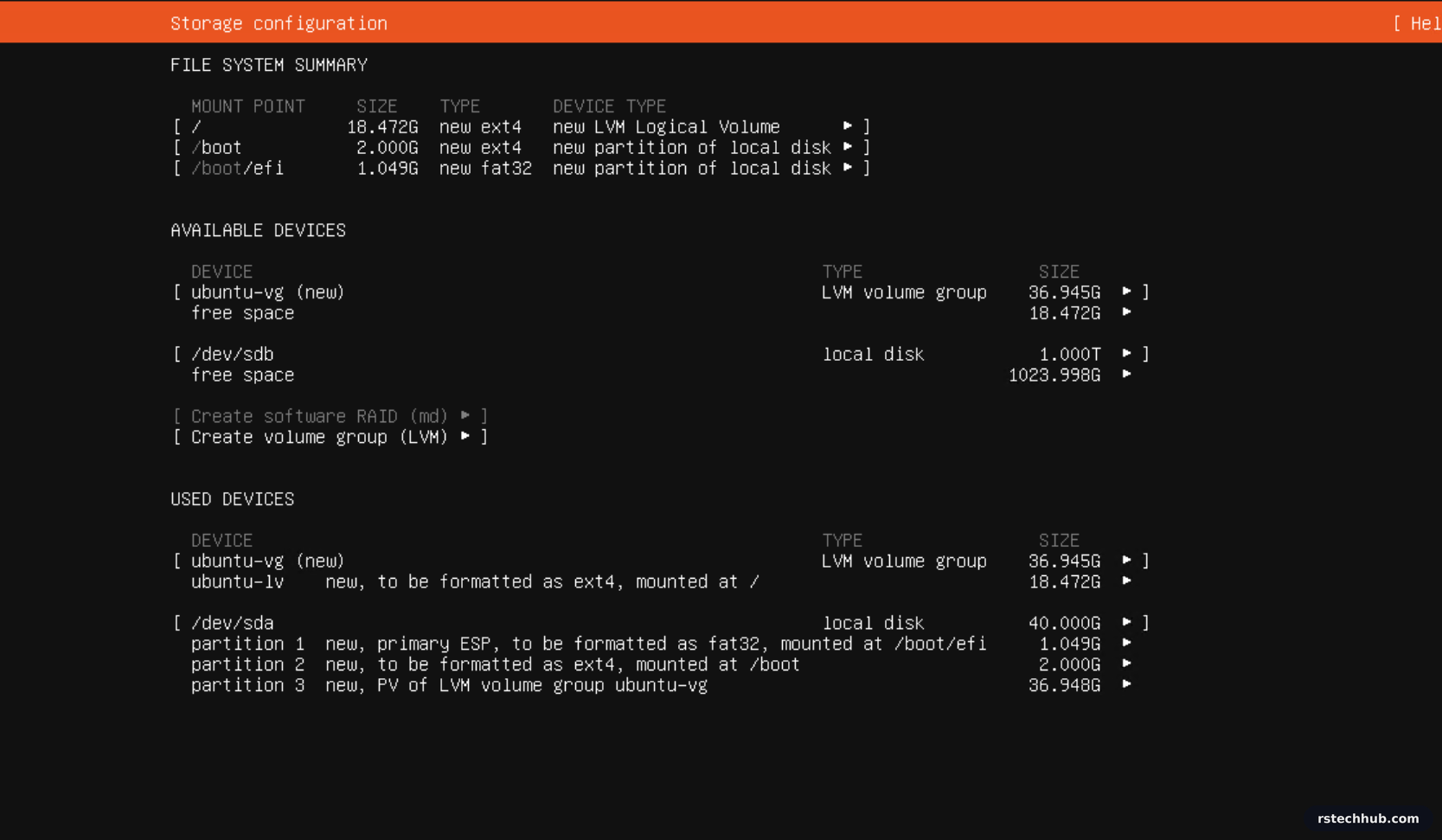
XFS with reflink, and a Veeam-only account
Point the clock at the domain controllers first. Immutability is time-based, so a box with the wrong time unlocks files at the wrong time.
sudo timedatectl set-timezone Europe/London
sudo sed -i 's/^#\?NTP=.*/NTP=<dc1> <dc2>/' /etc/systemd/timesyncd.conf
sudo systemctl restart systemd-timesyncd
The repository disk gets XFS with reflink, which Veeam uses for fast clone. The bigtime feature, on by default in Ubuntu 24.04, keeps timestamps valid past 2038, which matters for anything with a lock on it.
sudo parted -s /dev/sdb mklabel gpt mkpart veeamrepo xfs 0% 100%
sudo mkfs.xfs -b size=4096 -m reflink=1,crc=1 -L veeamrepo /dev/sdb1
sudo mkdir -p /mnt/veeamrepo
echo 'LABEL=veeamrepo /mnt/veeamrepo xfs defaults 0 0' | sudo tee -a /etc/fstab
sudo systemctl daemon-reload && sudo mount -a
Then a dedicated account for Veeam. It gets sudo only for the setup, and loses it straight after.
sudo adduser veeamrepo
sudo usermod -aG sudo veeamrepo
sudo mkdir /mnt/veeamrepo/backups
sudo chown veeamrepo:veeamrepo /mnt/veeamrepo/backups && sudo chmod 700 /mnt/veeamrepo/backups
One gotcha: if you paste that block in one go, the lines after adduser can get swallowed by its prompts. Check with id veeamrepo and ls -ld afterwards.
Add it to Veeam
Add Backup Repository → Direct attached storage → Linux (Hardened Repository). Plain Linux looks similar and has no immutability.
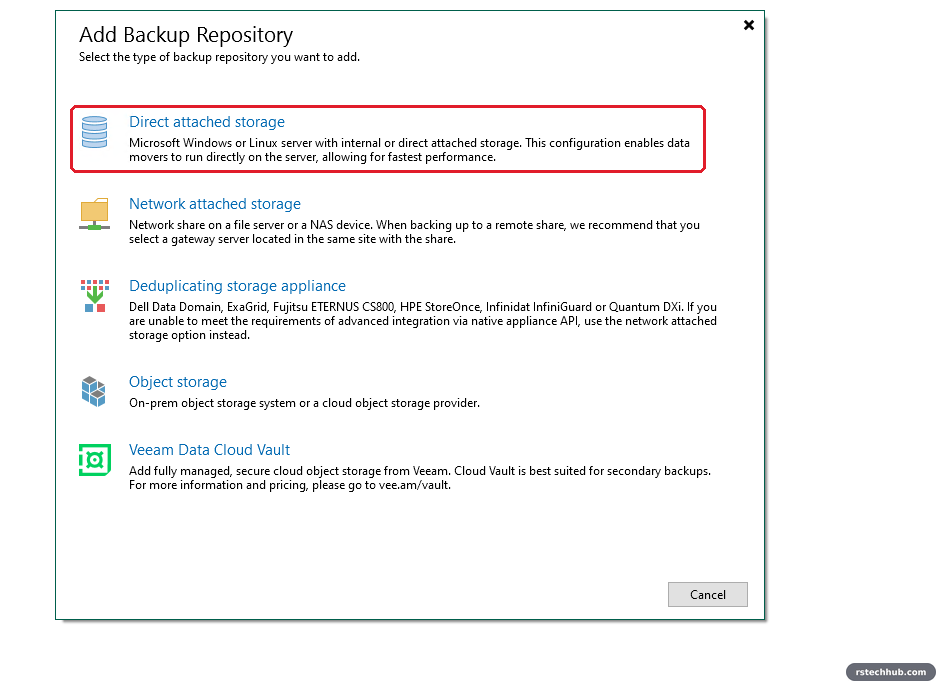
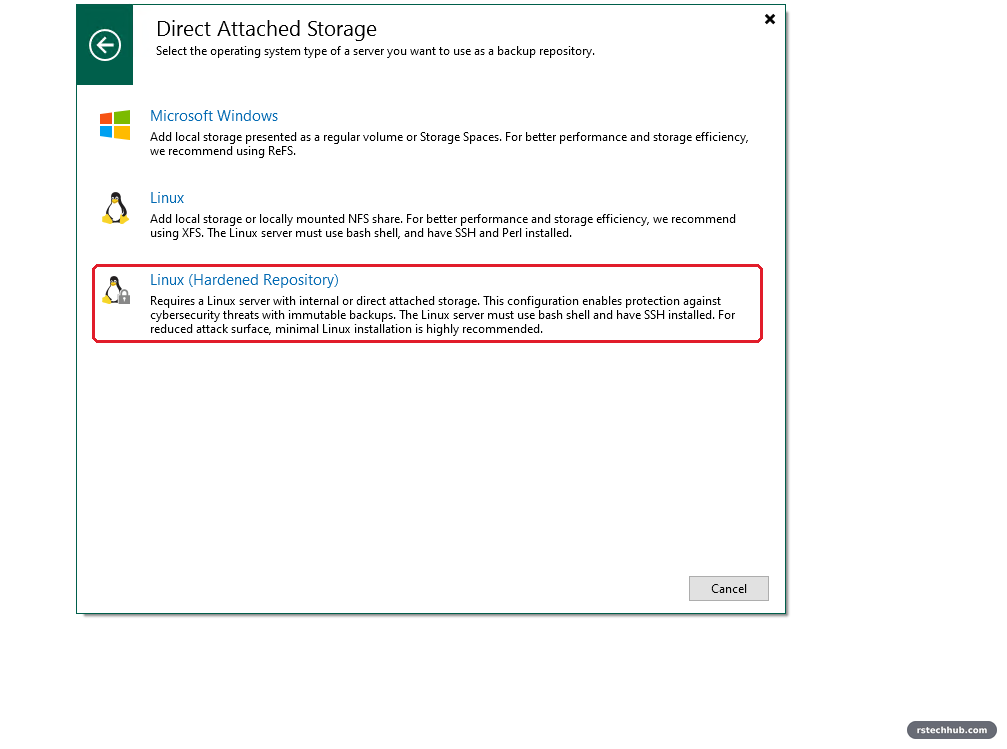
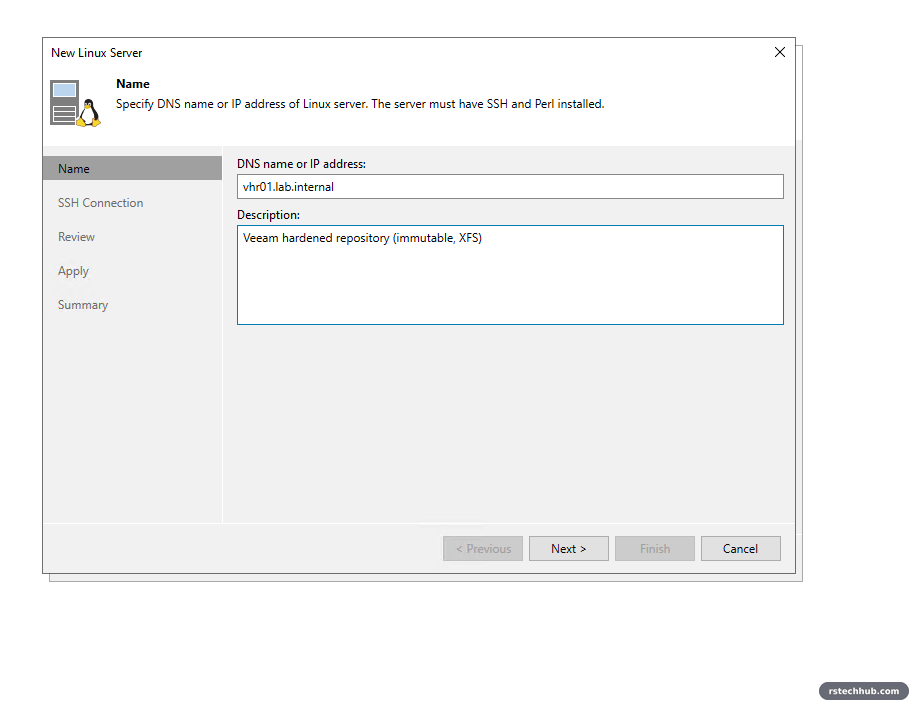
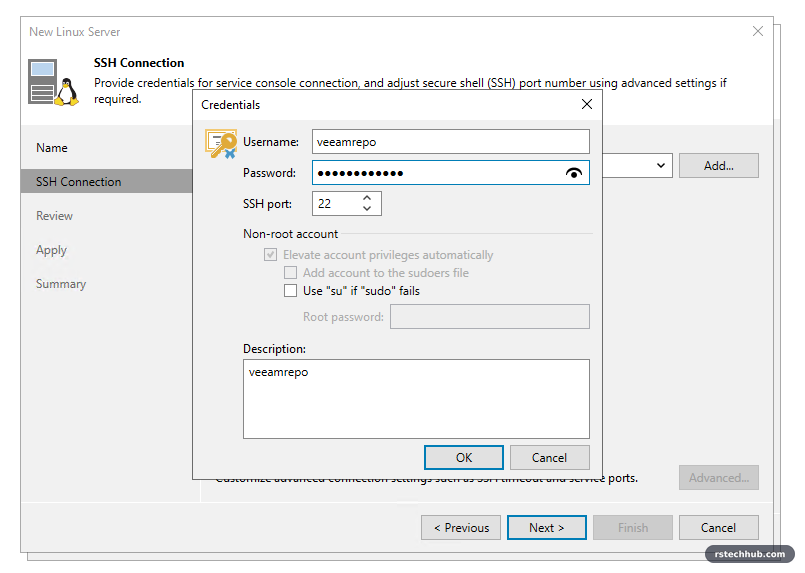
The important page is the credentials. Hardened repositories use single-use credentials: Veeam logs in once, installs its data mover, and does not store the password. Nothing on the Veeam server can SSH to vhr01 afterwards.
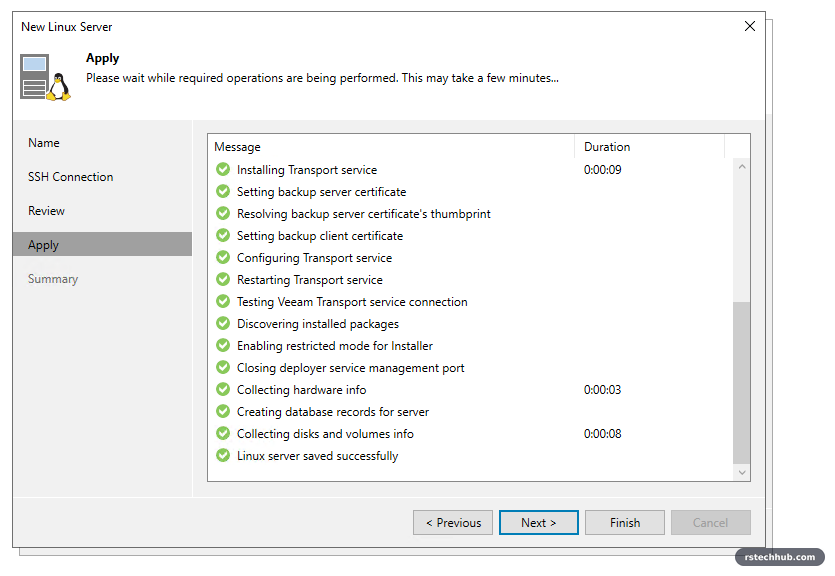
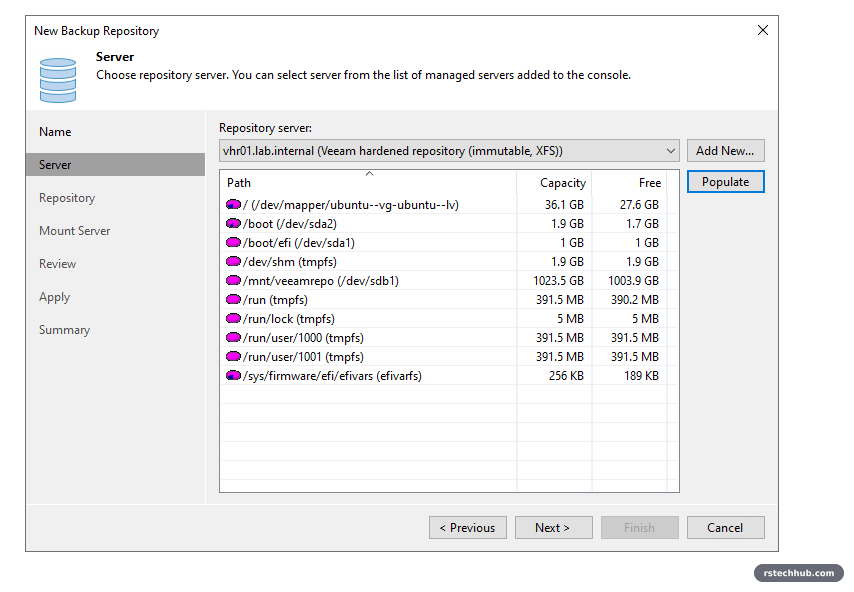
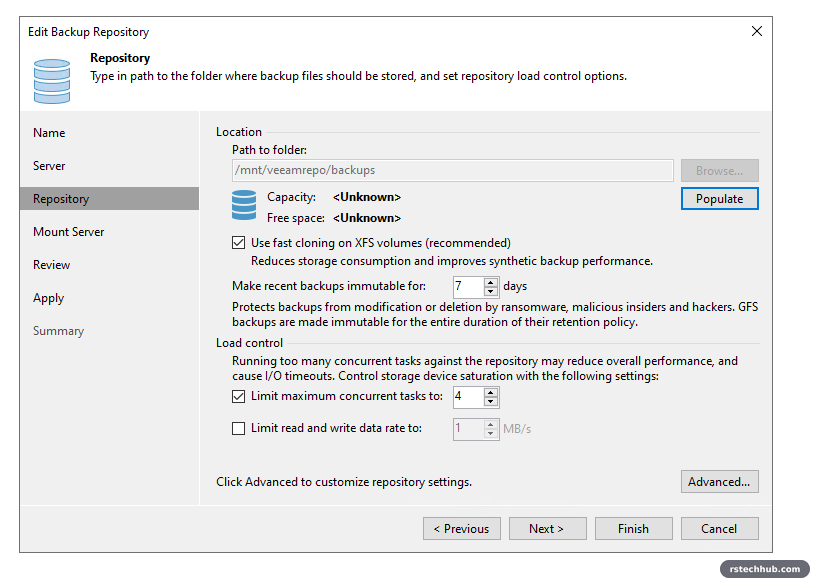
I started at 14 days and settled on 7, Veeam’s minimum. Someone would have to get in and stay unnoticed for over a week before the oldest locked copy could be touched. For a lab that is a fair trade against space.
Then take the sudo back.
sudo deluser veeamrepo sudo
id veeamrepo
uid=1001(veeamrepo) gid=1001(veeamrepo) groups=1001(veeamrepo),100(users)
The backup copy job
Home → Backup Copy → Virtual machine, Immediate copy, source From jobs → lab-core-nightly. Immediate mode copies each restore point as soon as the nightly job writes it, and any VM added to the nightly job is picked up automatically.
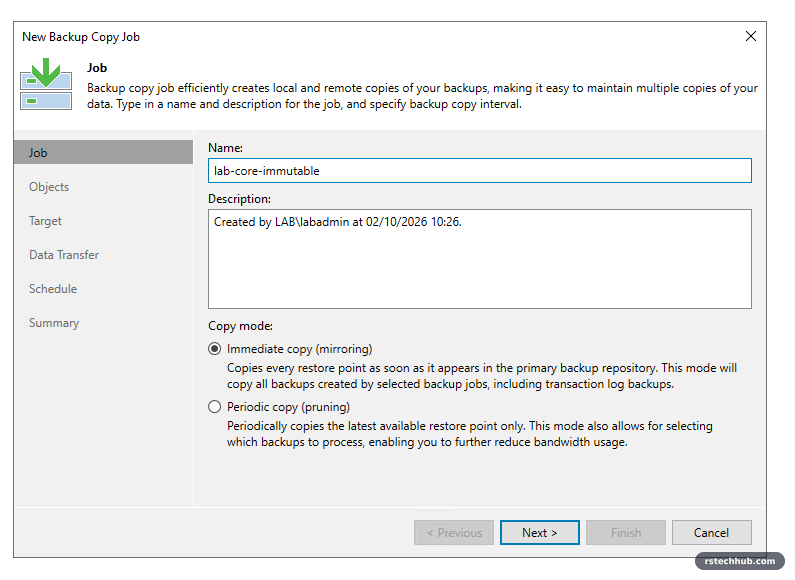
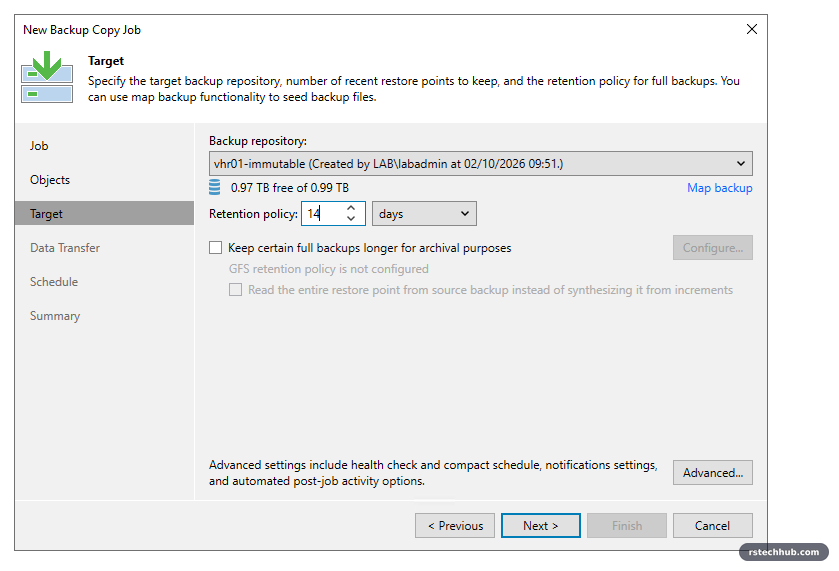
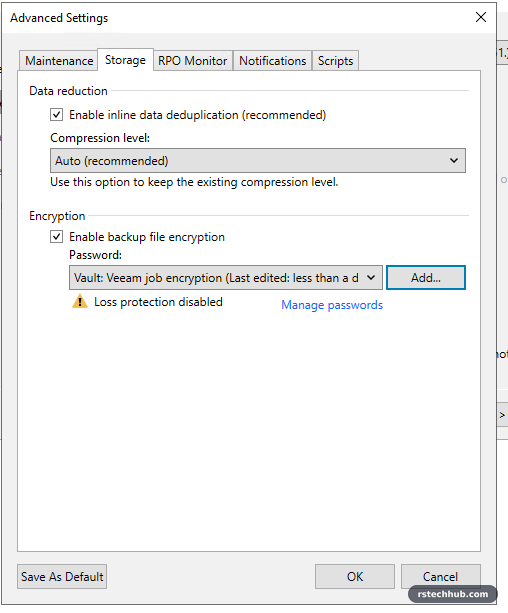
Give it its own encryption password, separate from the configuration backup.
At Finish Veeam stopped me:
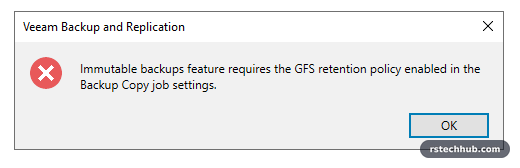
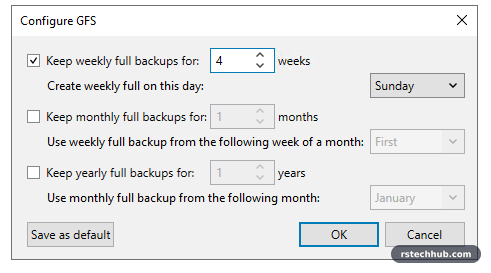
A backup copy job writes one forever-incremental chain. Without periodic fulls there is nothing that can be locked and then expire cleanly, so Veeam insists on GFS. Weekly fulls on XFS cost almost nothing, because fast clone builds them from blocks that are already there.
Immediate mode waits for new restore points, so I seeded it with Sync now → Latest. All would also have copied an older unencrypted chain that is about to expire anyway.
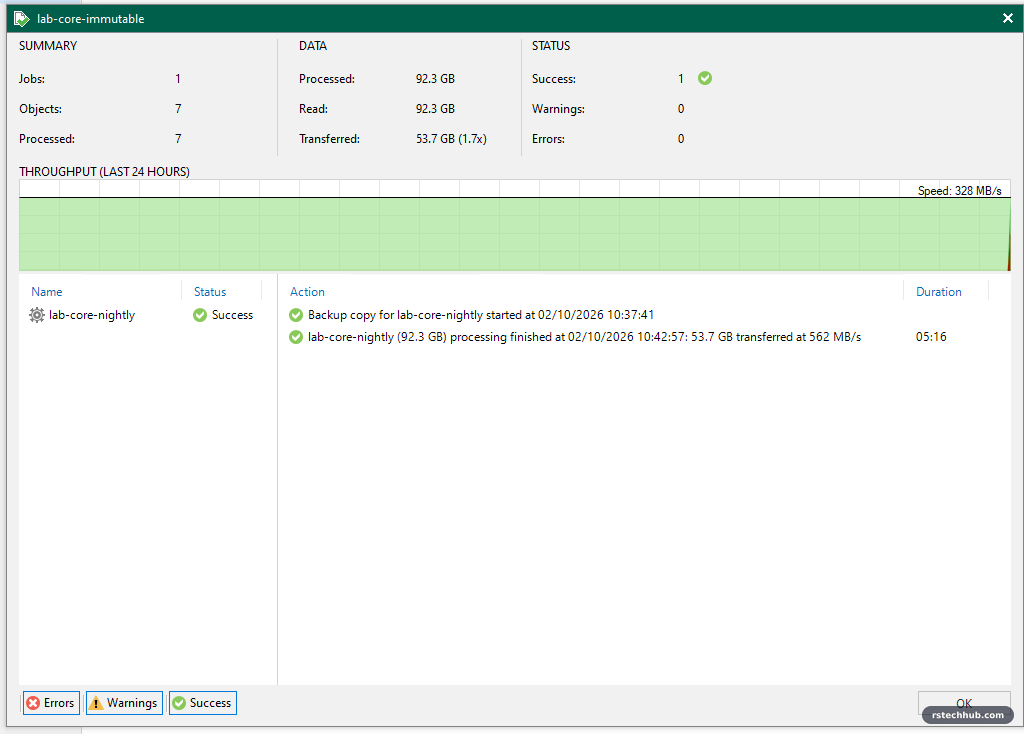
Proof
The test that matters: as root on vhr01, try to delete a backup file.
$ sudo find /mnt/veeamrepo/backups -name '*.vbk' -exec lsattr {} \; | head -3
----i----------------- .../lab-core-nightly/vault01.vm-28D2026-10-02T103741_3573.vbk
----i----------------- .../lab-core-nightly/DC01.vm-20D2026-10-02T103741_D2B1.vbk
----i----------------- .../lab-core-nightly/Bookstack.vm-17D2026-10-02T103741_68CC.vbk

$ sudo rm -v .../vault01.vm-28D2026-10-02T103741_3573.vbk
rm: cannot remove '...vault01...vbk': Operation not permitted
The i is the immutable attribute. Not even root can delete or change the file while it is set.
The honest caveat
Root can still clear that flag with chattr -i and then delete the file. Immutability on Linux holds as long as nobody gets root on the box. Veeam’s guidance is to disable SSH once the repository is set up. In my lab I have left SSH on for maintenance, so the admin account on vhr01, with its sudo rights, is now the most valuable password in the lab. It lives in the password manager and nowhere else. In production, turn SSH off and manage the box from its console only.
Next
The lab now has three copies: the VMs, an encrypted nightly backup on the Synology with daily snapshots, and an immutable copy on a separate server. Part 3 is the one this whole build started on version 12 for: the in-place upgrade to Veeam 13.1.