Updated 25 September 2026: added the full build steps, commands and the PowerShell scripts.
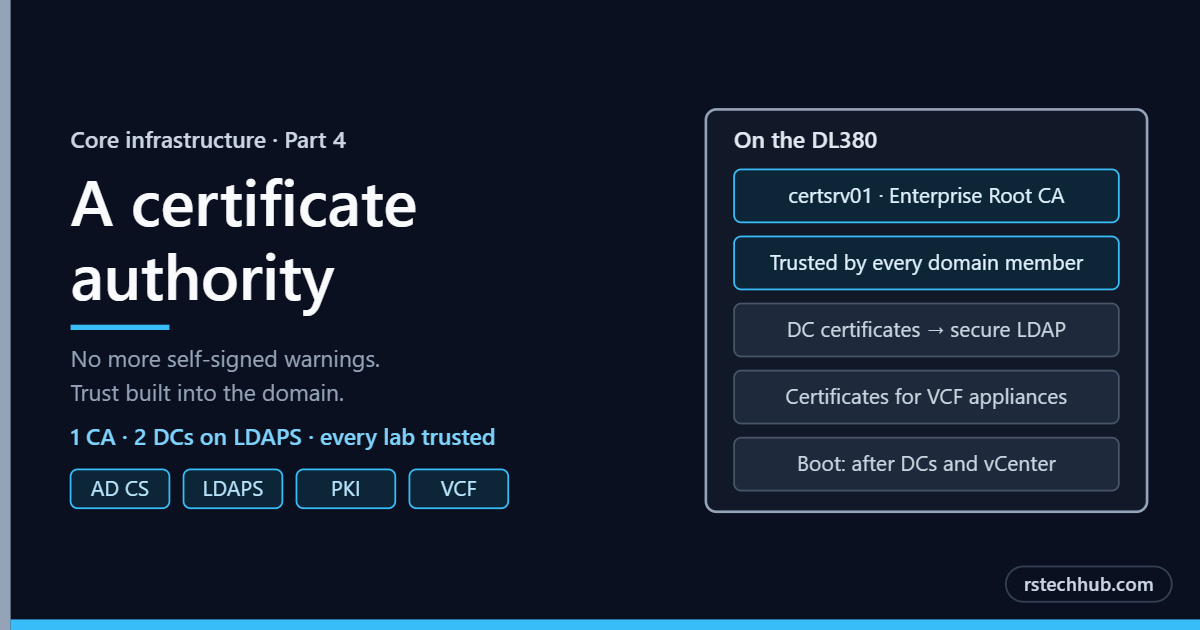
Part 3 gave the lab two domain controllers. This part adds the piece that makes every other service trustworthy: a certificate authority of my own.
PowerShell script for this post: Set-IdracCertificate.ps1, free on GitHub.
Why a lab needs its own CA
Every VMware appliance ships with a self-signed certificate. Each one throws a browser warning, and each warning trains you to click through the next one without reading it. That is a bad habit to carry into a real environment.
With my own CA, every appliance in the lab can carry a certificate the whole domain already trusts. No warnings, and a setup that behaves like production.
One server, one job
The CA runs on its own small VM on the core host, alongside the domain controllers. Nothing else runs on it. It starts after the DCs and vCenter, because it needs the domain to be up first.
Integrated with the domain
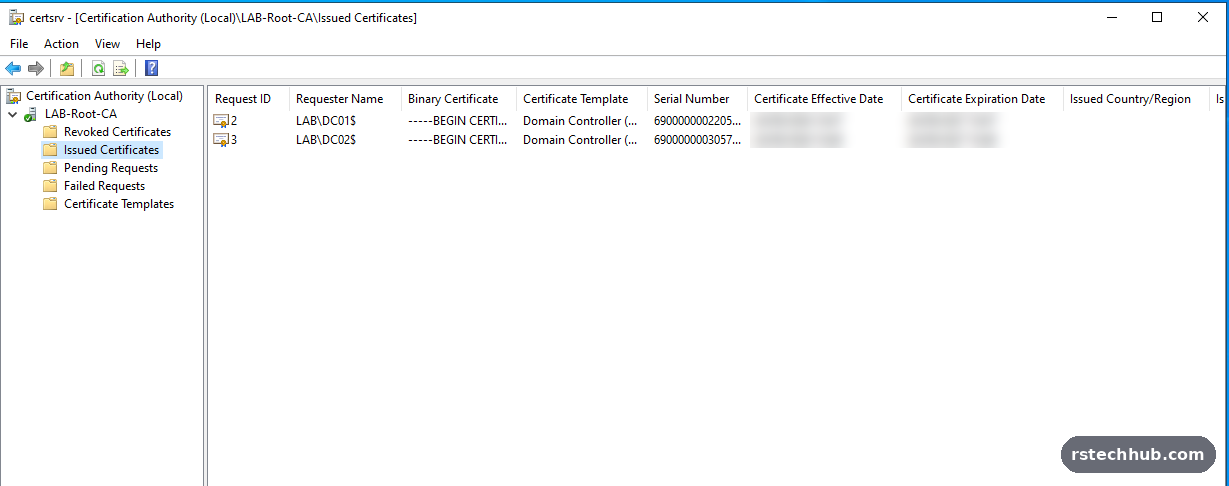
An enterprise CA is tied into Active Directory. Every domain-joined machine trusts it automatically, and the domain controllers request their own certificates without me touching them.
Secure LDAP for VCF
Those DC certificates switch on secure LDAP. VCF signs in against the domain, and with secure LDAP that sign-in traffic is encrypted instead of travelling in plain text across the management network.
Next: certificates for VCF
The appliances are next. When VCF deploys vCenter, NSX and SDDC Manager, each one gets a certificate from the lab CA instead of keeping its self-signed default. The browser padlock then just works, and so do the integrations that refuse to talk to anything self-signed. That happens in the VCF lab series.
Certificates for the out-of-band controllers too
The same CA now signs the web certificates of every iDRAC and iLO in the lab, so the management pages open without warnings as well. On the newer iDRACs the web upload rejected perfectly good certificates, so I did it through the iDRAC’s API instead. That script is free to use: Set-IdracCertificate.ps1 on GitHub.
The build, step by step
The IP addresses below are examples, not the ones in my lab. These are the commands I used. The CA server is certsrv01 (192.168.10.27), the CA is called LAB-Root-CA, and the domain is lab.internal.
1. VM, IP and domain join
| Setting | Value |
|---|---|
| Guest OS | Windows Server 2022 (Desktop Experience) |
| vCPU / RAM | 2 / 4 GB |
| Disk | 60 GB thin, VMware Paravirtual |
| NIC | VMXNET3 on the management VLAN |
New-NetIPAddress -InterfaceAlias Ethernet0 -IPAddress 192.168.10.27 -PrefixLength 24 -DefaultGateway 192.168.10.1
Set-DnsClientServerAddress -InterfaceAlias Ethernet0 -ServerAddresses 192.168.10.20,192.168.10.21
Add-Computer -DomainName lab.internal -NewName certsrv01 -Credential LAB\Administrator -Restart
In my case the join worked but the rename failed with “The directory service is busy”. Renaming afterwards with domain credentials fixed it, and renamed the AD computer object too:
Rename-Computer -NewName certsrv01 -DomainCredential LAB\Administrator -Restart

# checks
hostname
Test-ComputerSecureChannel
nslookup certsrv01.lab.internal
w32tm /query /source
2. Install the Enterprise Root CA
Run as a domain account with Enterprise Admin rights. The CA name cannot be changed once installed, so choose it carefully.
Install-WindowsFeature ADCS-Cert-Authority -IncludeManagementTools
Install-AdcsCertificationAuthority -CAType EnterpriseRootCA -CACommonName "LAB-Root-CA" `
  -KeyLength 4096 -HashAlgorithmName SHA256 `
  -CryptoProviderName "RSA#Microsoft Software Key Storage Provider" `
  -ValidityPeriod Years -ValidityPeriodUnits 10 -Force

Get-Service CertSvc
certutil -ping
certutil -CAInfo name
Expect ErrorId 0 from the install, CertSvc running and LAB-Root-CA from the last command.
3. Certificates for the DCs, and LDAPS
Domain controllers enrol automatically from an Enterprise CA. To trigger it straight away, on both DCs:
gpupdate /force
certutil -pulse
Start-Sleep 30
Get-ChildItem Cert:\LocalMachine\My | Select Subject, Issuer, NotAfter
A TCP test on port 636 only proves the port is open. This does a real TLS handshake against both DCs:
foreach ($dc in 'dc01.lab.internal','dc02.lab.internal') {
  $c = New-Object Net.Sockets.TcpClient($dc,636)
  $s = New-Object Net.Security.SslStream($c.GetStream())
  $s.AuthenticateAsClient($dc,$null,[Security.Authentication.SslProtocols]::Tls12,$false)
  "$dc -> $($s.RemoteCertificate.Issuer)  TLS: $($s.SslProtocol)"
  $s.Close(); $c.Close()
}
Expect CN=LAB-Root-CA and Tls12 for both. Leave out the Tls12 argument and Windows PowerShell 5.1 negotiates TLS 1.0 and reports “Tls”. That is the client default, not a problem with the DC.
4. Signing any CSR with the WebServer template
Every web certificate in the lab is signed the same way on certsrv01:
certreq -submit -config "certsrv01.lab.internal\LAB-Root-CA" -attrib "CertificateTemplate:WebServer" host.csr host.cer5. Trusting the root on machines outside the domain
Domain members trust LAB-Root-CA automatically. On my standalone desktop, the Install Certificate wizard reported success but the root never reached the store. PowerShell worked first time, run as administrator and pointed at the file, not the folder:
certutil '-ca.cert' C:\Certs\LAB-Root-CA.cer      # on certsrv01; the quotes stop PowerShell splitting the argument
certutil -encode C:\Certs\LAB-Root-CA.cer C:\Certs\LAB-Root-CA.pem

# on the standalone PC
Import-Certificate -FilePath "D:\Certs\LAB-Root-CA.pem" -CertStoreLocation Cert:\LocalMachine\Root
Get-ChildItem Cert:\LocalMachine\Root | Where-Object Subject -match 'LAB-Root-CA'
Restart the browser fully afterwards. Firefox keeps its own store and needs the root imported there too.
6. The out-of-band controllers, with PowerShell
The iDRAC 9 web upload rejected valid certificates on my firmware (RAC0622, SYS426, RAC0615). The Redfish API worked every time, so I wrapped it in a script. It is on GitHub: github.com/rstechhub/lab-tools.
| Script | What it does |
|---|---|
Set-IdracCertificate.ps1 | Sets the iDRAC DNS name, has the iDRAC generate its own key and CSR, signs it with certreq, imports it over Redfish and restarts the iDRAC. The server keeps running. |
One iDRAC, run on certsrv01:
.\Set-IdracCertificate.ps1 -Name md01idrac -IP 192.168.20.11Several in one go, with one password prompt:
$cred = Get-Credential -UserName root -Message "iDRAC root"
$list = @(@{Name='md03idrac';IP='192.168.20.13'}, @{Name='md04idrac';IP='192.168.20.14'})
foreach ($i in $list) {
  try { .\Set-IdracCertificate.ps1 -Name $i.Name -IP $i.IP -Credential $cred }
  catch { Write-Warning "$($i.Name) failed: $($_.Exception.Message)" }
}
Allow up to 10 minutes per iDRAC for the restart. Setting the DNS name matters: iDRAC 9 answers 400 Bad Request when you browse to it by a name it does not recognise.
Two controllers needed the manual route:
- iDRAC 7 (R620): no certificate API. Generate the CSR in the web UI (it has a Subject Alternative Names field; put the FQDN in it), sign it with certreq, then upload it in the top section, Upload Server Certificate. The lower section only takes PKCS#12 and fails with RAC0613.
- iLO 4 (DL380 Gen9): set the hostname and domain first, then Customize Certificate. iLO generates the key in the background, so wait about 10 minutes and click Generate CSR again to get the text. Sign it, then Import Certificate and paste the PEM.
Things that caught me out
Joining the server to the domain worked first time, but renaming it in the same step failed with a busy directory. Renaming it again a moment later fixed it. Small, but the kind of thing that eats half an hour if you do not expect it.
Next, Part 5 gives the core host its own vCenter, signed in with the domain and secured with a certificate from this CA.