
Updated 26 September 2026: added setting up Git on a Windows admin machine.
Part 5 gave the core host its own vCenter. The last piece of plumbing is somewhere to keep everything I type into it: DNS scripts, switch exports, PowerCLI and runbooks. That is a Git server, and in my lab it is Gitea on a small Ubuntu VM.
Why not just GitHub?
I already publish the scripts I want to share on GitHub. The rest is different. Switch exports and DNS scripts are full of host names, VLANs and addresses that have no business on the internet. I wanted version history for all of it, kept at home, signed in with the same AD accounts as everything else.
Gitea fits that well. It is a single program, it runs happily on 2 vCPU and 4 GB, and it speaks LDAPS to Active Directory out of the box. GitHub stays the shop window. Gitea is the workshop.
The design
| Item | Choice |
|---|---|
| VM | git01, Ubuntu Server 24.04 LTS, 2 vCPU, 4 GB, 40 GB thin |
| Name | git.lab.internal, a CNAME to git01, so the service name can move later |
| App | Gitea as a binary with a systemd service, SQLite database |
| Sign-in | AD over LDAPS, two sources (one per DC), access by AD group |
| Certificate | Signed by the lab CA from Part 4 |
| Protection | Nightly Gitea dump on the VM, Veeam for the whole VM |
I gave it its own VM instead of adding a container to an existing host. Every core service in this lab has its own VM, and it means a broken Git server can never take my documentation down with it.
The IP addresses below are examples, not the ones in my lab.
1. AD groups, accounts and DNS
Two groups control access, a service account does the LDAP lookups, and a generic account does the day-to-day work. The generic account keeps my own name out of commit history and screenshots. On the first DC:
New-ADGroup -Name git-admins -GroupScope Global -GroupCategory Security -Path "OU=Groups,OU=Lab,DC=lab,DC=internal"
New-ADGroup -Name git-users  -GroupScope Global -GroupCategory Security -Path "OU=Groups,OU=Lab,DC=lab,DC=internal"

New-ADUser -Name svc-git-ldap -SamAccountName svc-git-ldap `
  -Path "OU=Service Accounts,OU=Lab,DC=lab,DC=internal" `
  -AccountPassword (Read-Host -AsSecureString "svc-git-ldap password") `
  -Enabled $true -PasswordNeverExpires $true -CannotChangePassword $true

New-ADUser -Name "Lab Git" -SamAccountName labgit -UserPrincipalName labgit@lab.internal `
  -GivenName Lab -Surname Git -EmailAddress labgit@lab.internal `
  -Path "OU=Lab,DC=lab,DC=internal" `
  -AccountPassword (Read-Host -AsSecureString "labgit password") -Enabled $true
Add-ADGroupMember git-users  -Members labgit
Add-ADGroupMember git-admins -Members labgit

Add-DnsServerResourceRecordA -ZoneName lab.internal -Name git01 -IPv4Address 192.168.10.28 -CreatePtr
Add-DnsServerResourceRecordCName -ZoneName lab.internal -Name git -HostNameAlias git01.lab.internal
repadmin /syncall /AdeP
Gitea insists on an email address for every user, so make sure the mail attribute is filled in. Then refresh the second DC so it answers straight away:
dnscmd /zoneupdatefromds lab.internal
dnscmd /zoneupdatefromds 10.168.192.in-addr.arpa
Clear-DnsServerCache -Force
2. The VM and Ubuntu
A new VM on the core host: Ubuntu Linux (64-bit), 2 vCPU, 4 GB, a 40 GB thin disk on the Paravirtual controller, VMXNET3 on the management VLAN, EFI with Secure Boot. Ubuntu is signed, so Secure Boot stays on.
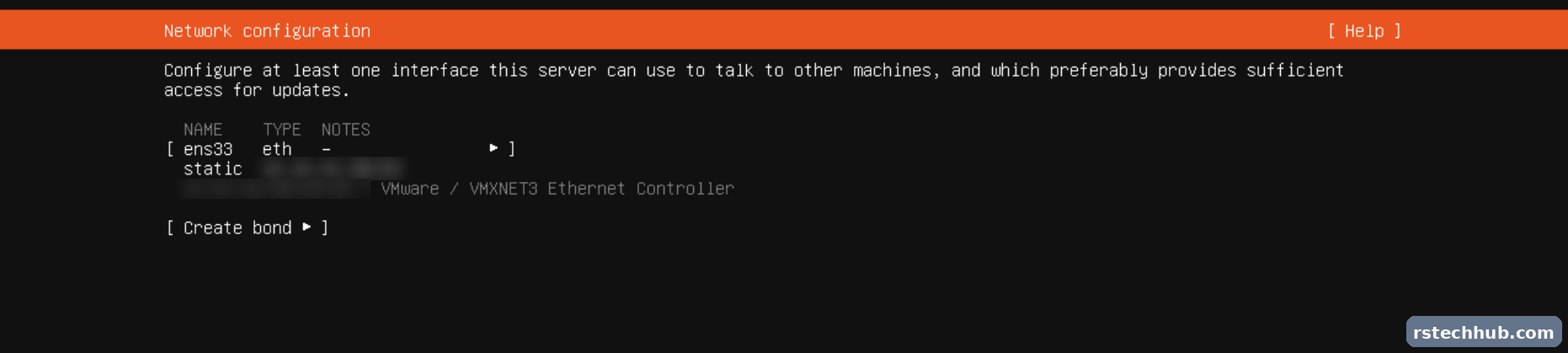
In the installer I set a static address, both DCs as DNS servers and lab.internal as the search domain, used the whole disk with LVM, and ticked OpenSSH. No snaps.
3. Time and trust
Time comes from the DCs, like everything else in the domain, and the lab root CA goes into the Ubuntu trust store. Without it, the LDAPS sign-in later fails.
sudo apt update && sudo apt -y full-upgrade
sudo apt -y install git open-vm-tools
sudo timedatectl set-timezone Europe/London
sudo sed -i 's/^#\?NTP=.*/NTP=192.168.10.20 192.168.10.21/' /etc/systemd/timesyncd.conf
sudo systemctl restart systemd-timesyncd
timedatectl timesync-status

# paste LAB-Root-CA.pem into this file, then:
sudo nano /usr/local/share/ca-certificates/LAB-Root-CA.crt
sudo update-ca-certificates
openssl s_client -connect dc01.lab.internal:636 -brief </dev/null
The last line is the real test. Verification: OK means the VM trusts the DC certificates. Mine connected over TLS 1.3, since the DCs run Server 2022.

4. Install Gitea
Gitea is a single binary. It runs as its own git user under systemd. I create the certificate folder now, because /etc/gitea gets locked down after the first run.
VER=1.27.3
sudo wget -O /usr/local/bin/gitea https://dl.gitea.com/gitea/$VER/gitea-$VER-linux-amd64
sudo chmod +x /usr/local/bin/gitea
sudo adduser --system --shell /bin/bash --gecos 'Git' --group --disabled-password --home /home/git git
sudo mkdir -p /var/lib/gitea/{custom,data,log,backup} /etc/gitea/certs
sudo chown -R git:git /var/lib/gitea && sudo chmod -R 750 /var/lib/gitea
sudo chown root:git /etc/gitea && sudo chmod 770 /etc/gitea
The service file, /etc/systemd/system/gitea.service. CAP_NET_BIND_SERVICE lets it use port 443 later without running as root:
[Unit]
Description=Gitea
After=network-online.target
Wants=network-online.target

[Service]
User=git
Group=git
WorkingDirectory=/var/lib/gitea/
ExecStart=/usr/local/bin/gitea web --config /etc/gitea/app.ini
Environment=USER=git HOME=/home/git GITEA_WORK_DIR=/var/lib/gitea
AmbientCapabilities=CAP_NET_BIND_SERVICE
Restart=always

[Install]
WantedBy=multi-user.target
sudo systemctl daemon-reload && sudo systemctl enable --now gitea5. The web installer
Browse to port 3000 on the new VM. The installer defaults to MySQL, so switch it to SQLite3 first. If you don’t, the failed attempt clears the admin account section and you fill it in twice (I did). Then set the domain to git.lab.internal, disable self-registration, require sign-in, and create a local admin account for emergencies only.
sudo chmod 750 /etc/gitea && sudo chmod 640 /etc/gitea/app.ini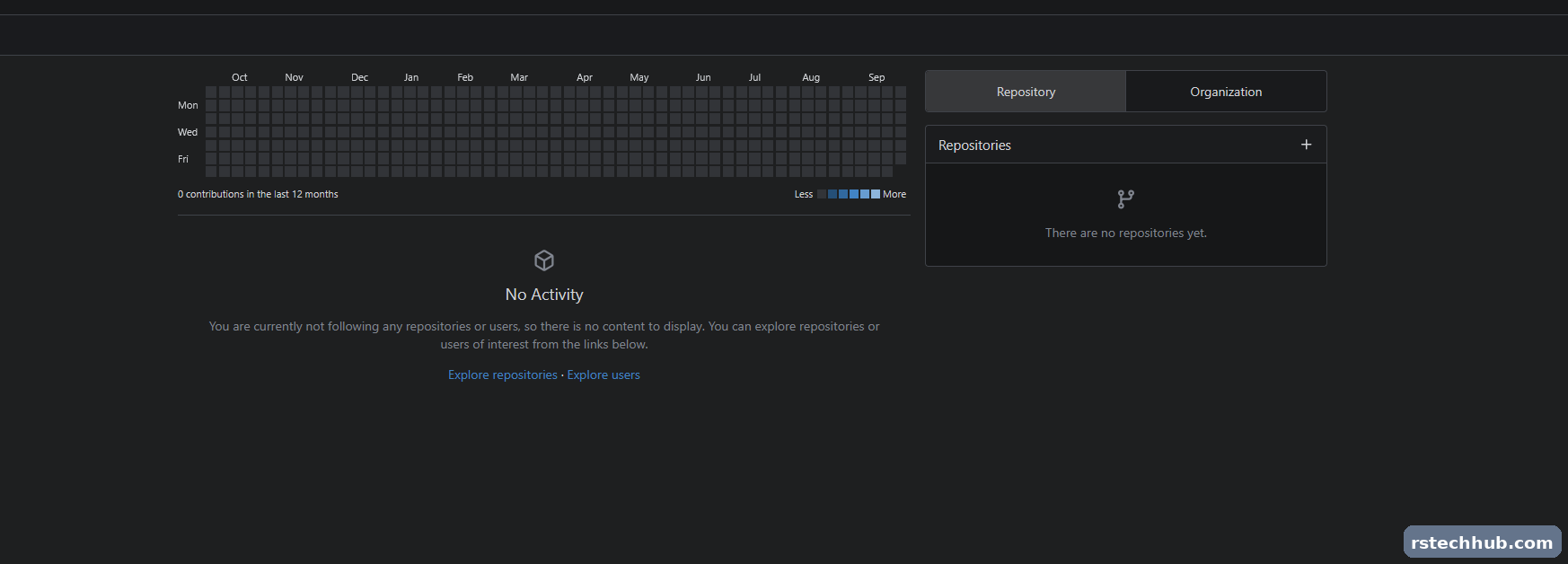
6. Sign in with AD
Site Administration, Identity & Access, Authentication Sources. I add one source per DC, so sign-in keeps working with either one down.
| Field | Value |
|---|---|
| Type | LDAP (via BindDN) |
| Security protocol | LDAPS |
| Host / port | dc01.lab.internal (dc02 for the second source) / 636 |
| Bind DN | svc-git-ldap@lab.internal |
| User search base | OU=Lab,DC=lab,DC=internal |
| User filter | (&(objectClass=user)(sAMAccountName=%[1]s)(memberOf=CN=git-users,OU=Groups,OU=Lab,DC=lab,DC=internal)) |
| Admin filter | (memberOf=CN=git-admins,OU=Groups,OU=Lab,DC=lab,DC=internal) |
| Attributes | sAMAccountName, givenName, sn, mail |
Two things caught me here. The security protocol resets to Unencrypted every time you add a source, so check it on both. And the grey text in the form is only a placeholder: even the fields that look filled in, like the port, need typing.

7. A proper certificate
The key and CSR are generated on the VM, and the CSR goes to the lab CA:
sudo openssl req -new -newkey rsa:3072 -nodes \
  -keyout /etc/gitea/certs/git.key -out /etc/gitea/certs/git.csr \
  -subj "/CN=git.lab.internal" -addext "subjectAltName=DNS:git.lab.internal,DNS:git01.lab.internal"
sudo cat /etc/gitea/certs/git.csr
On the CA server I pasted the CSR into Notepad first, and certreq failed with No mapping between account names and security IDs. The error has nothing to do with accounts. Writing the file as plain ASCII from PowerShell fixed it:
$csr = @'
-----BEGIN CERTIFICATE REQUEST-----
...
-----END CERTIFICATE REQUEST-----
'@
Set-Content -Path git.csr -Value $csr -Encoding ascii
certreq -submit -config "certsrv01.lab.internal\LAB-Root-CA" -attrib "CertificateTemplate:WebServer" git.csr git.cer
Back on the VM, with the signed certificate saved next to the key:
sudo chown -R root:git /etc/gitea/certs
sudo sh -c 'chmod 640 /etc/gitea/certs/*'
sudo sed -i 's/^HTTP_PORT *=.*/HTTP_PORT = 443/' /etc/gitea/app.ini
sudo sed -i 's|^ROOT_URL *=.*|ROOT_URL = https://git.lab.internal/|' /etc/gitea/app.ini
sudo sed -i '/^\[server\]/a PROTOCOL = https\nCERT_FILE = /etc/gitea/certs/git.cer\nKEY_FILE = /etc/gitea/certs/git.key\nREDIRECT_OTHER_PORT = true\nPORT_TO_REDIRECT = 80' /etc/gitea/app.ini
sudo systemctl restart gitea
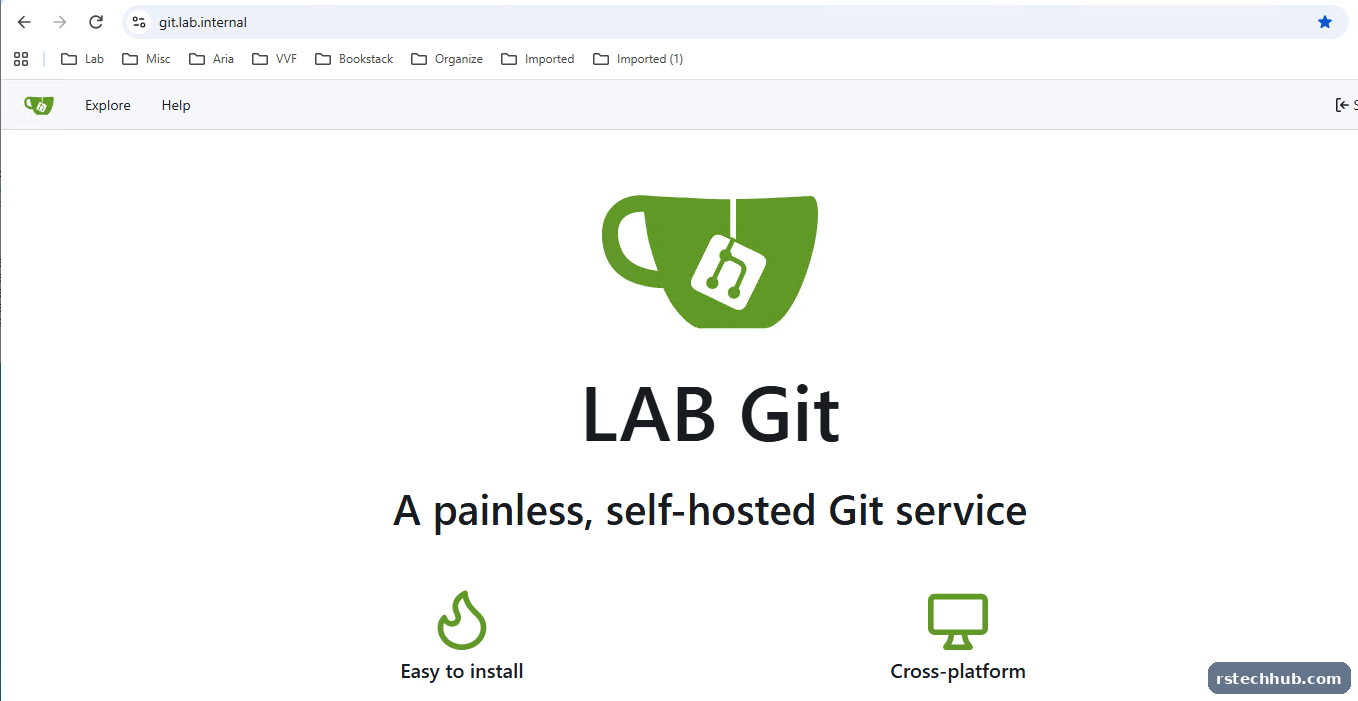
The chmod runs inside sudo sh -c because the * is otherwise expanded by your own user, who can’t see into the locked folder. Now https://git.lab.internal opens with no warning, and plain http redirects to it.
8. The first repository
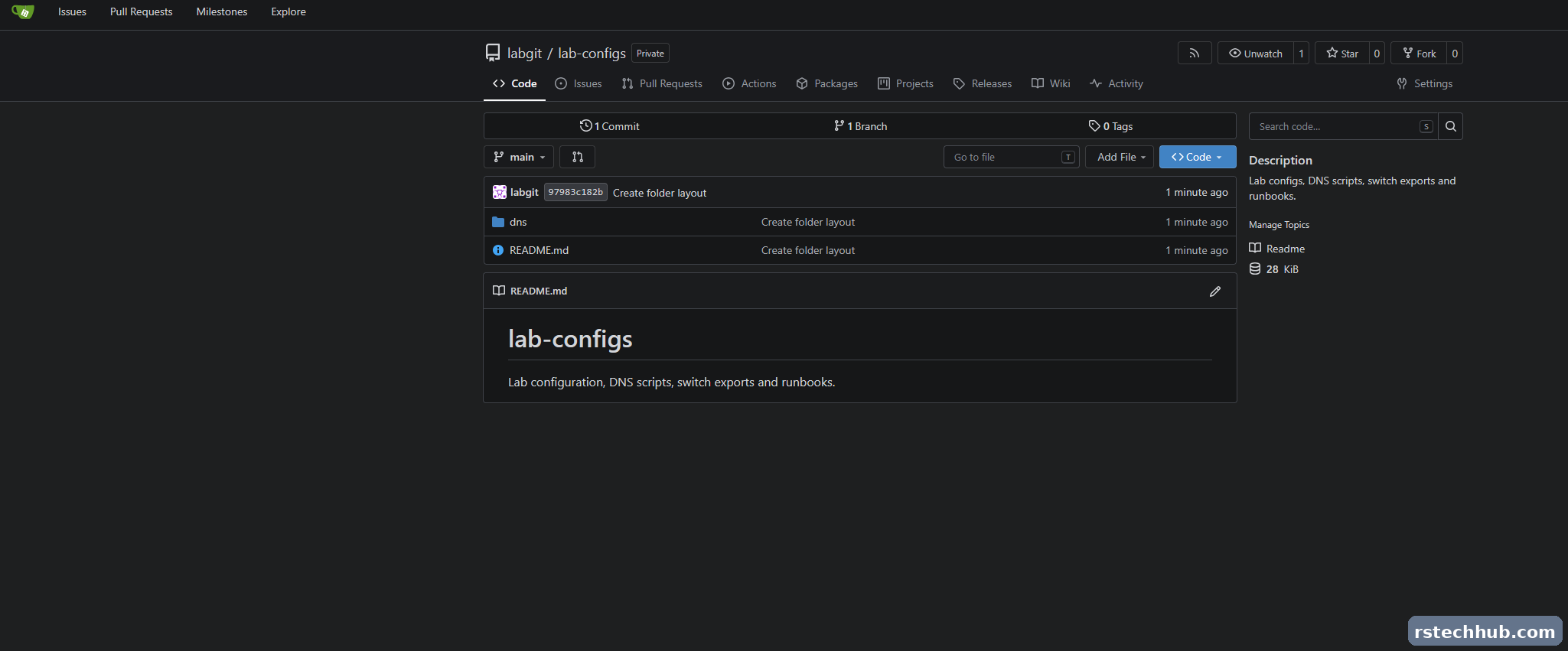
Signed in as the generic account, I created a private repository called lab-configs. On the management server, Git for Windows needs one setting so it trusts the lab CA through the Windows certificate store:
git config --global http.sslBackend schannel
git config --global user.name  "Lab Git"
git config --global user.email "labgit@lab.internal"
git clone https://git.lab.internal/labgit/lab-configs.git
cd lab-configs
git checkout -b main
mkdir dns, mikrotik, scripts, runbooks
"# lab-configs" | Out-File README.md -Encoding utf8
git add . ; git commit -m "Create folder layout" ; git push -u origin main
Git Credential Manager handles the sign-in through the browser, so the browser needs to be signed in to Gitea as the right account. In PowerShell ISE, git progress messages show up in red as NativeCommandError. They are not errors.
Git on a Windows admin machine
My management server is Windows Server, which has no winget. This installs the latest Git for Windows silently, straight from its GitHub releases:
[Net.ServicePointManager]::SecurityProtocol = 'Tls12'
$rel   = Invoke-RestMethod https://api.github.com/repos/git-for-windows/git/releases/latest
$asset = $rel.assets | Where-Object name -match '^Git-.*-64-bit\.exe$'
Invoke-WebRequest $asset.browser_download_url -OutFile "$env:TEMP\git-setup.exe"
Start-Process "$env:TEMP\git-setup.exe" -ArgumentList '/VERYSILENT','/NORESTART' -Wait
A few things tripped me up on Windows, all worth knowing before you start:
git config --global http.sslBackend schannelGit for Windows ships its own list of trusted CAs and ignores the Windows certificate store. With an internal CA, every clone fails with a certificate error until you point it at the Windows store with the line above. A silent install does not ask about this, so set it by hand.
Sign-in is handled by Git Credential Manager, which opens a browser and signs in through Gitea. That login does not last forever. When a pull suddenly fails with Failed to authenticate user, clear the saved entry and sign in again:
cmdkey /delete:git:https://git.lab.internal
git pull
Use a normal PowerShell window for anything that signs in. PowerShell ISE cannot show interactive prompts, so SSH and Git logins just sit there waiting. ISE also shows every git progress message in red as NativeCommandError, which looks alarming but is not an error.
Last one: in Windows PowerShell 5.1, redirecting output with > writes UTF-16. Commit a file made that way and Gitea treats it as binary. Use Set-Content -Encoding utf8 instead.
9. Backups
Gitea can dump itself (repositories, database and config) into one zip. A cron job does it nightly and keeps a week:
30 2 * * * git cd /var/lib/gitea/backup && /usr/local/bin/gitea dump -c /etc/gitea/app.ini --file gitea-dump-$(date +\%F).zip >/dev/null 2>&1
45 2 * * * git find /var/lib/gitea/backup -name "gitea-dump-*.zip" -mtime +7 -delete
The dumps live on the same VM, so they cover a bad upgrade or a deleted repository, not a lost VM. Veeam covers the VM. The VM also goes into the host autostart order after the CA.
Things that caught me out
- PowerShell parses a pasted block before running any of it. One
<placeholder>left in a command stops the whole block, so nothing runs. - A typo in the installer’s search domain went unnoticed until
resolvectl status. Check it before moving on. - The web installer defaults to MySQL. A failed attempt clears the admin section.
- Each new authentication source defaults to Unencrypted.
- A CSR saved from Notepad made certreq fail with an account mapping error. ASCII from PowerShell worked.
- Once
/etc/giteais locked down,cdand shell globs as your own user fail. Create the certs folder first and put globs insidesudo sh -c. - Git for Windows ignores the Windows certificate store unless
http.sslBackendis set to schannel.
What’s next
The DNS scripts and switch exports are moving into the repository now. Next time I change a VLAN, the diff will show exactly what changed.