The four Dell R640s already run ESX 9.0.2.0100, the network is built and DNS is in place. What is left before VCF bring-up is the VCF Installer and its software binaries. This part covers deploying the installer appliance, connecting it to the online depot and picking the right bundles. I made two small mistakes on the way, and both would have cost me a long download.
Check the hosts first
I SSH’d to each host and ran vmware -vl. All four report 9.0.2.0100, build 25595025, which matches the ISO I pulled from the Broadcom portal. The same visit covers the host name (an FQDN, not a short name), NTP, and the NVMe drives, which must be empty so vSAN ESA can claim them. If you rename a host after install, regenerate its certificate with /sbin/generate-certificates and reboot. Otherwise validation complains about a name mismatch.
Check DNS before you touch the installer
Bring-up validation fails on a missing A record, a missing PTR, or a PTR that points at a different name. I check all of them first. My first attempt at a check script broke because the resolver returned each A record twice. The IP became an array and the PTR lookup crashed. Taking only the first answer fixed it, and I wrapped the result in a small script. It takes a DNS server, a zone and a list of names, and flags anything that needs fixing.
.\Test-VcfDns.ps1 -DnsServer dc01.example.internal -Zone vcf.example.internal -Names sddcmanager,vcenter,nsxmgr,esx01The script is free to download from my GitHub.
Which file is the installer?
The Broadcom download page for VCF lists an SDDC Manager OVA, an SDDC Manager upgrade tar, an ESX ISO and an ESX offline bundle. I spent a while looking for a separate installer file. There isn’t one. In VCF 9.0 the installer is the SDDC Manager appliance OVA, deployed in installer mode. The upgrade tar is for upgrading an existing SDDC Manager, so I skipped it. The ESX ISO and the offline bundle are for building and patching hosts, which I had already done.
Before deploying, I compared the SHA256 of the OVA with the value on the download page.
Get-FileHash -Algorithm SHA256 .\VCF-SDDC-Manager-Appliance-9.0.2.0100.25602461.ovaDeploy the OVA
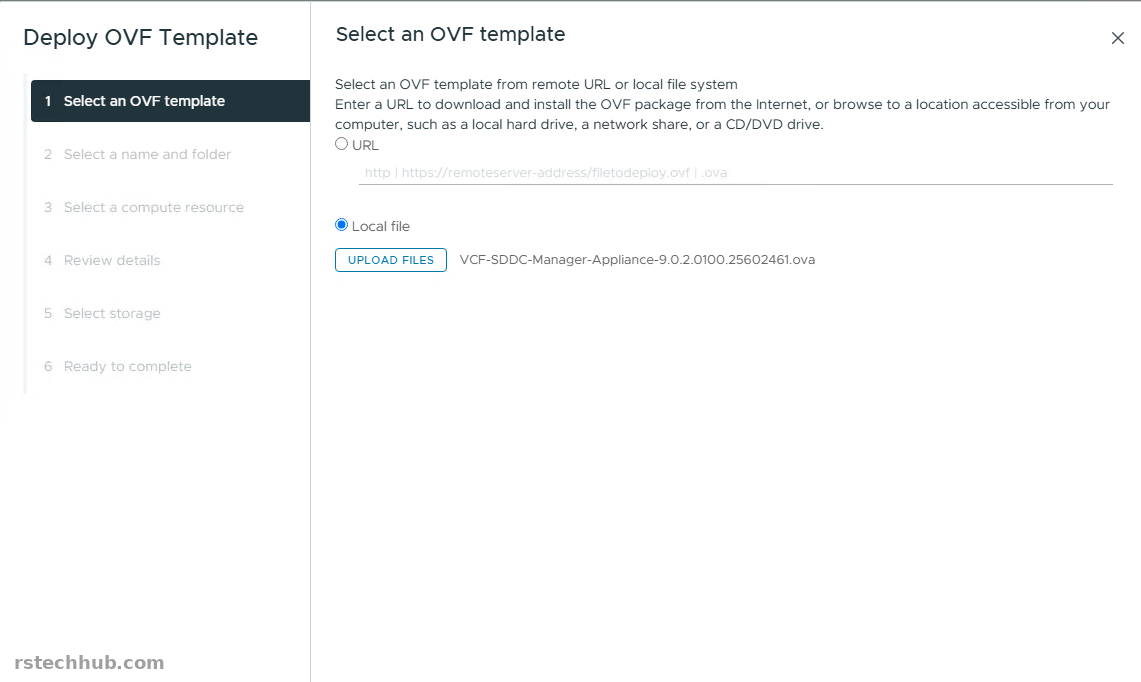
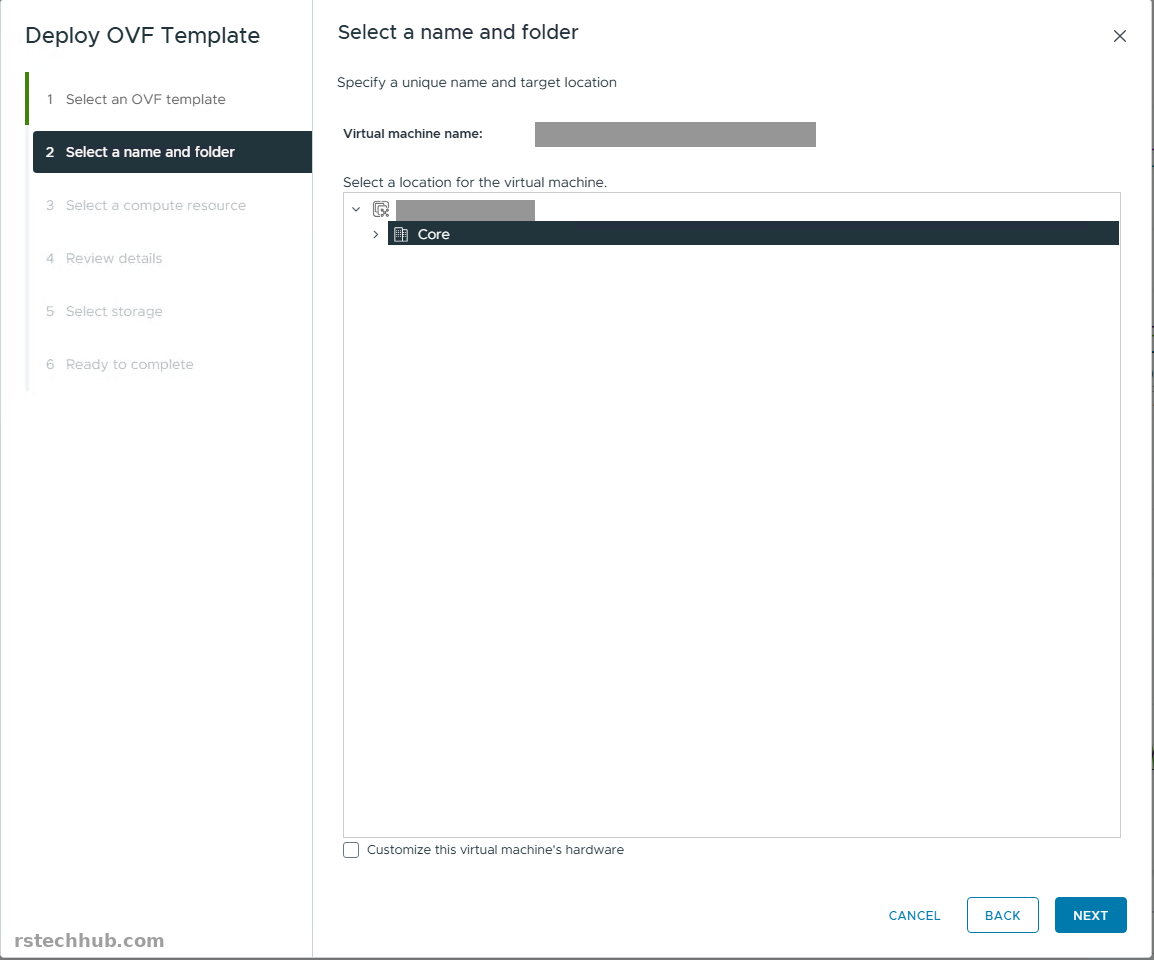
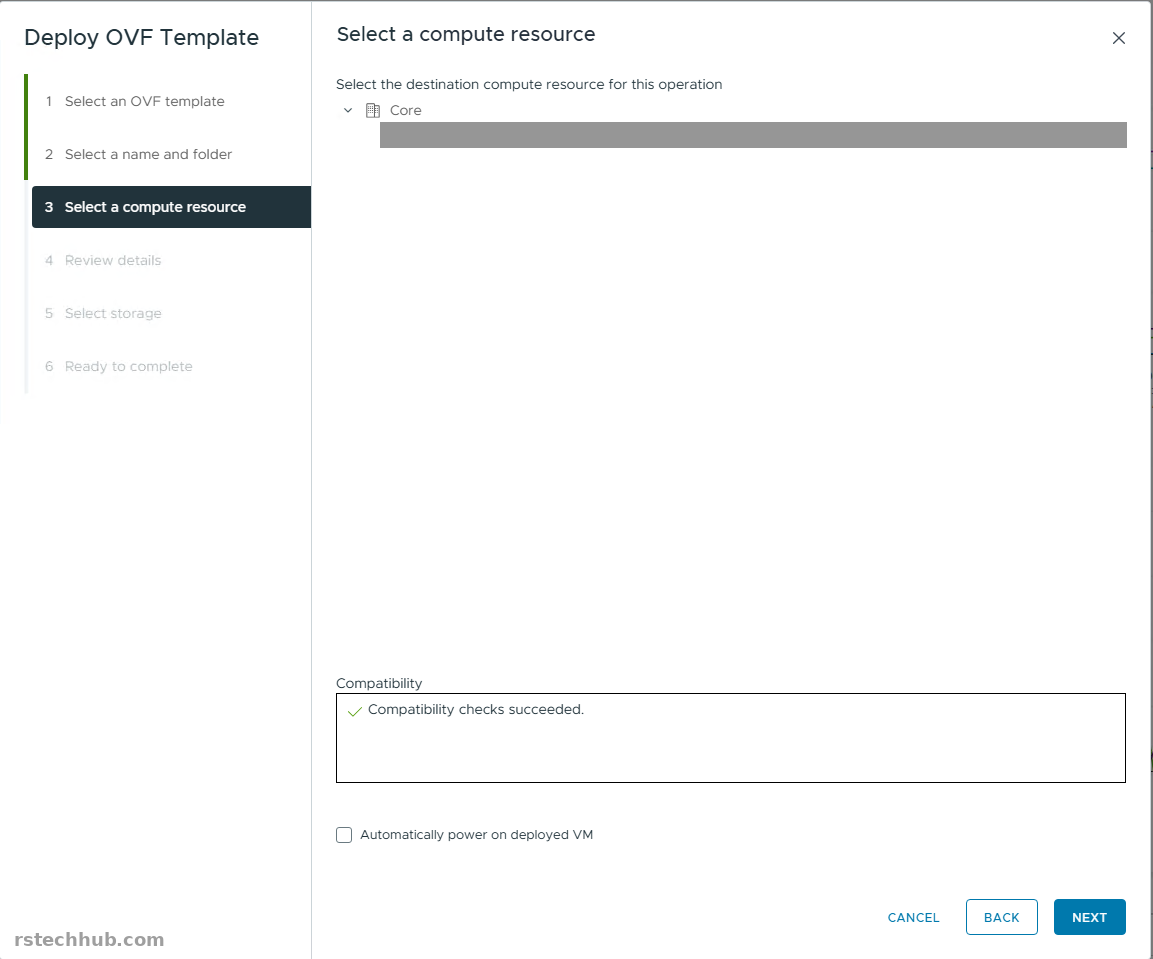
I deployed it to my management host through the vCenter that runs the core lab. Pick Deploy OVF Template, choose the local file, and give the VM a plain name. I used the short name and put the FQDN in the appliance properties instead.
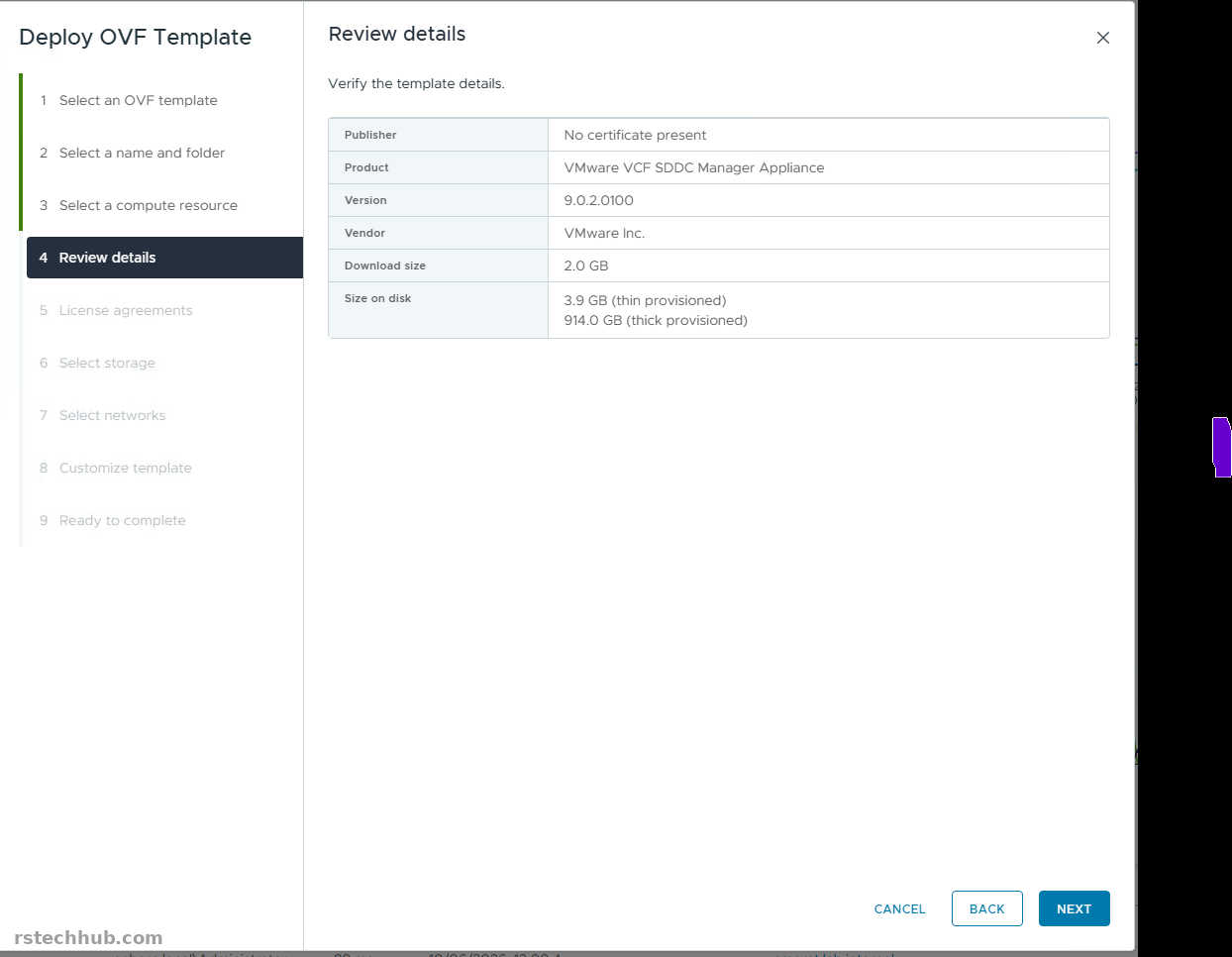
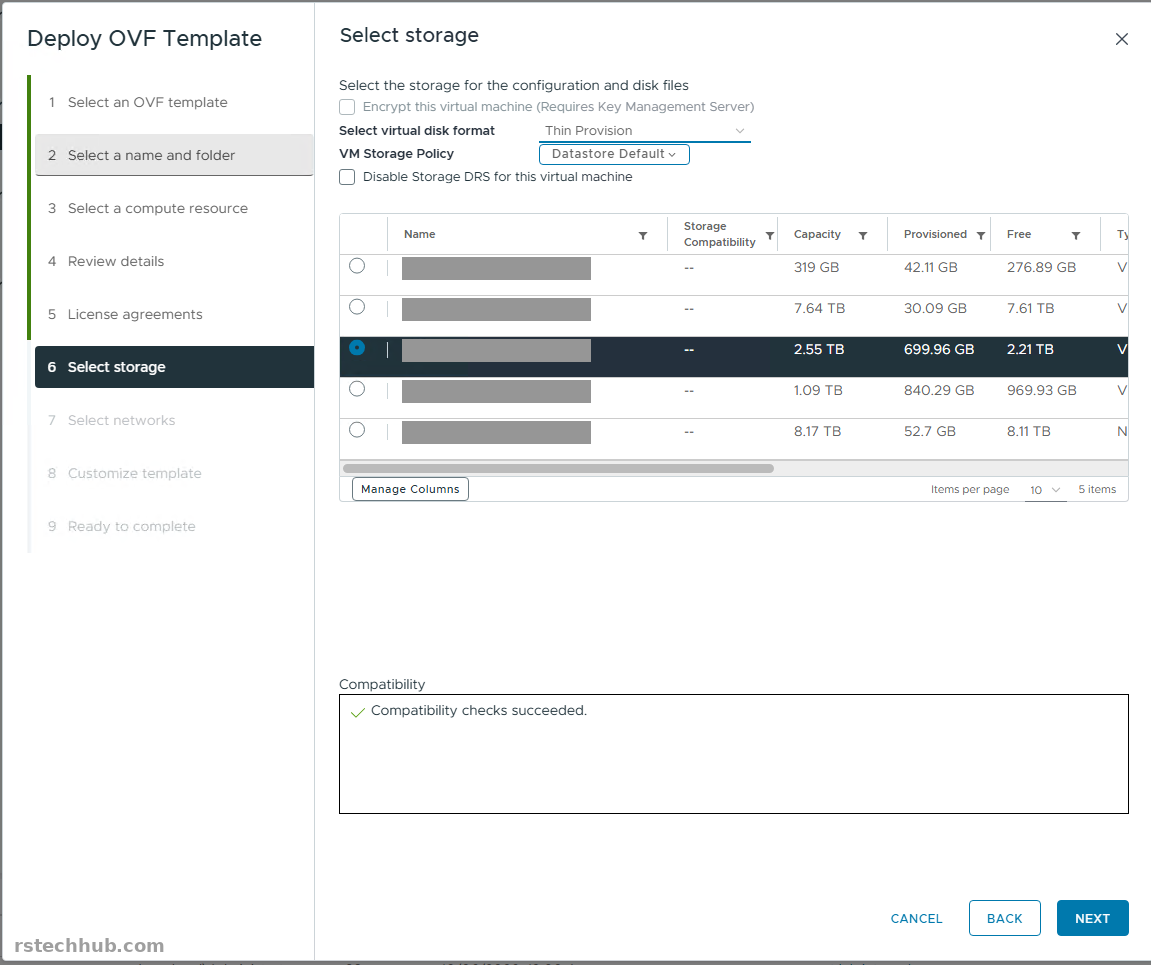
The review page shows 3.9 GB thin and 914 GB thick. Change the disk format to Thin Provision on the storage page. The default is Thick Provision Lazy Zeroed, and it would try to reserve the full 914 GB.
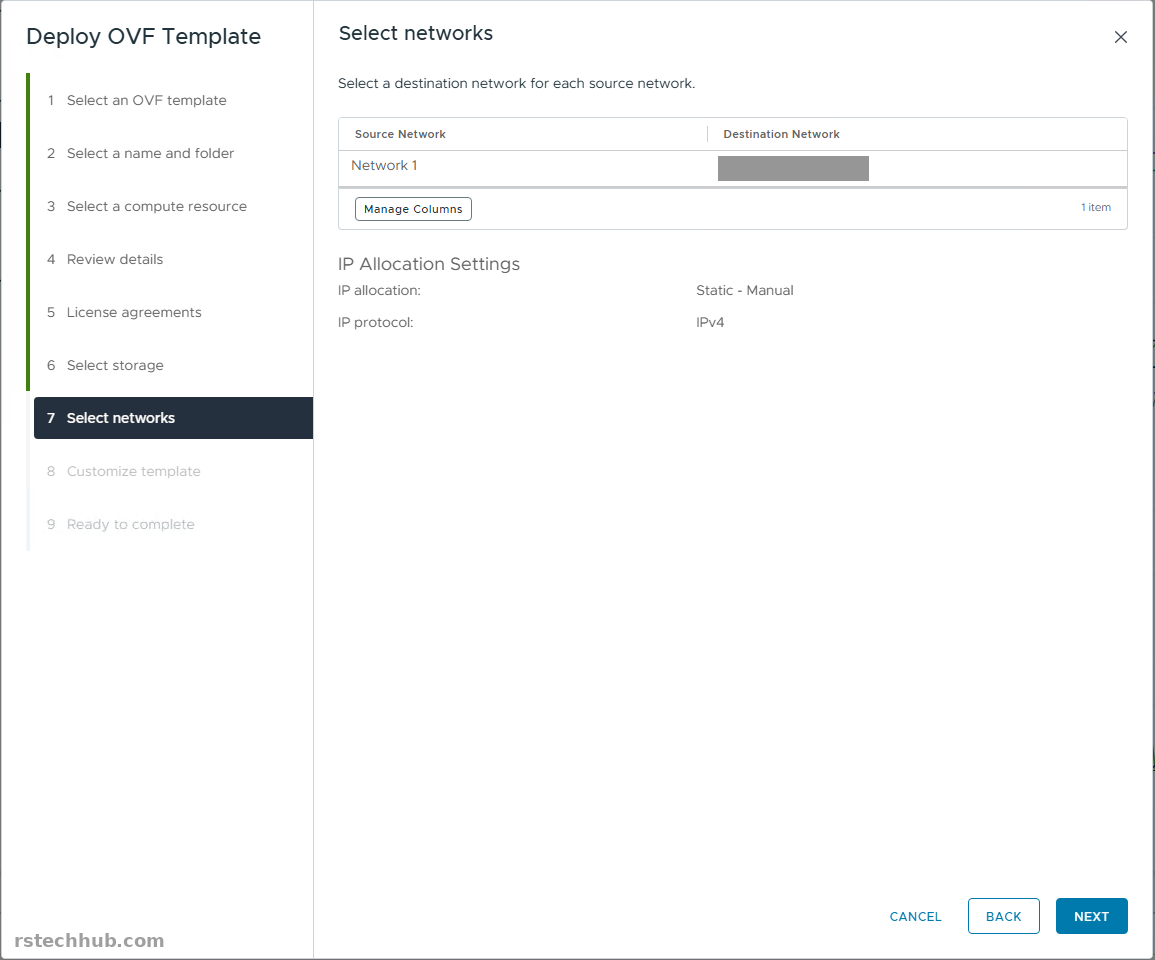
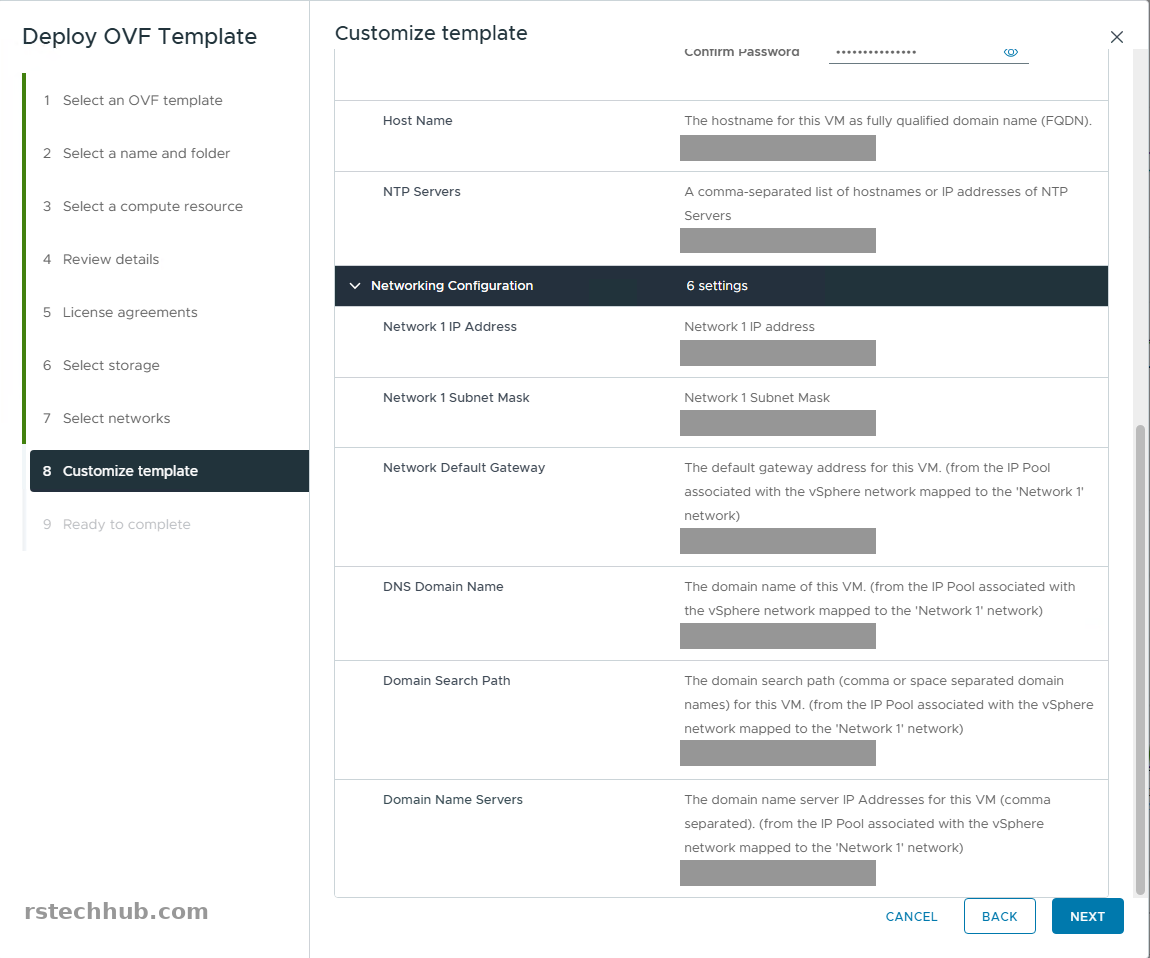
On the network page the appliance maps to the management port group with static IPv4 allocation. The Customize template page then asks for a local user password (15 characters or more), the host name as an FQDN, NTP, the IP address, mask and gateway, the DNS domain, the search path and the DNS servers. I stored the password in my vault before clicking Next.
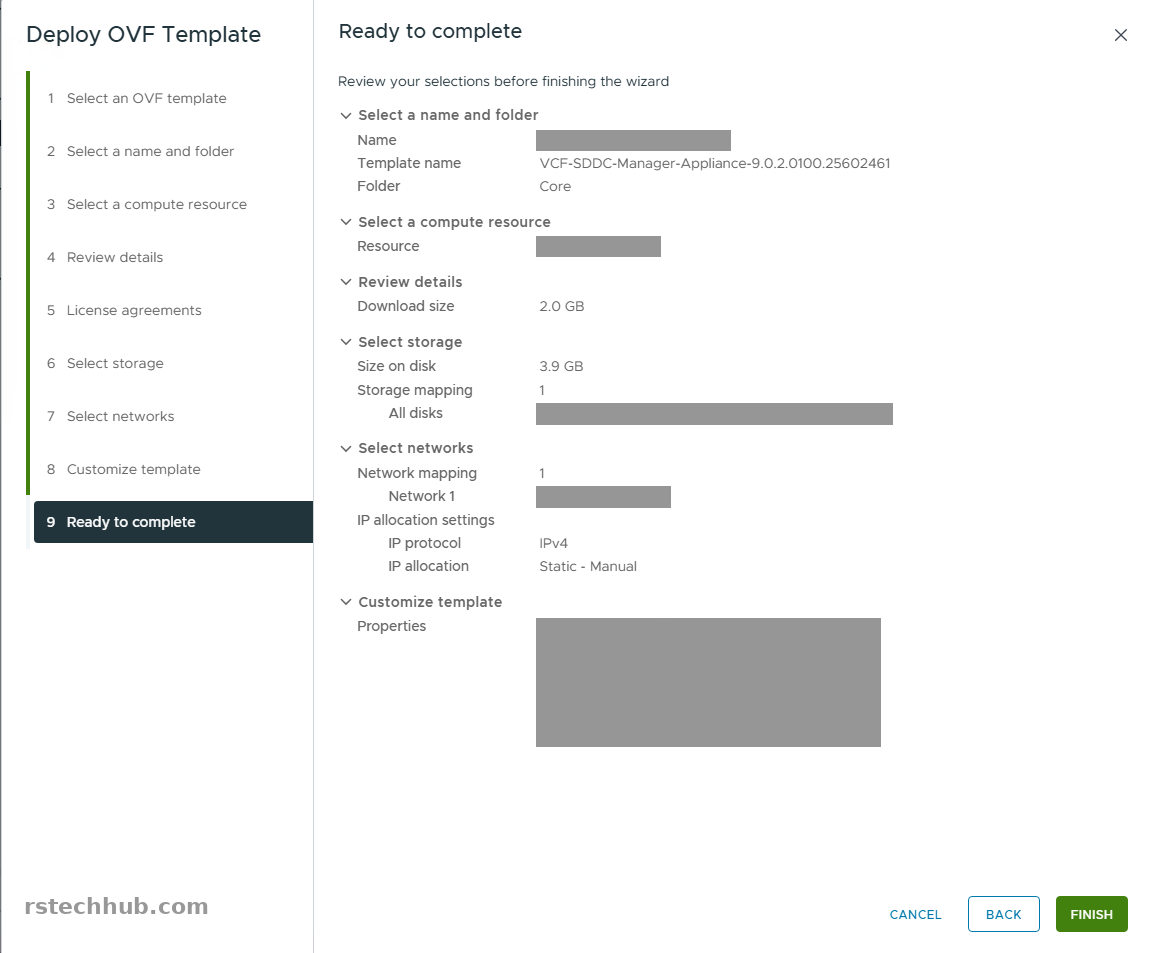
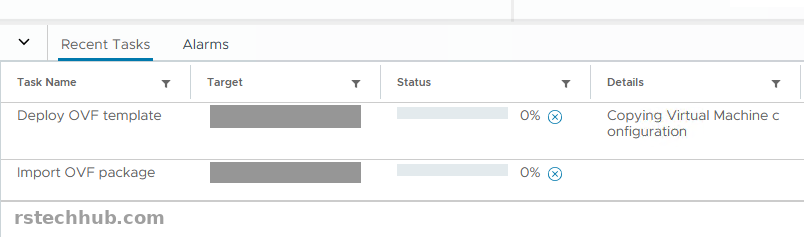
I left the VM powered off after the deploy so I could check the settings once more, then powered it on. The first boot shows “VMware Cloud Foundation is initializing” for several minutes. Leave it alone.
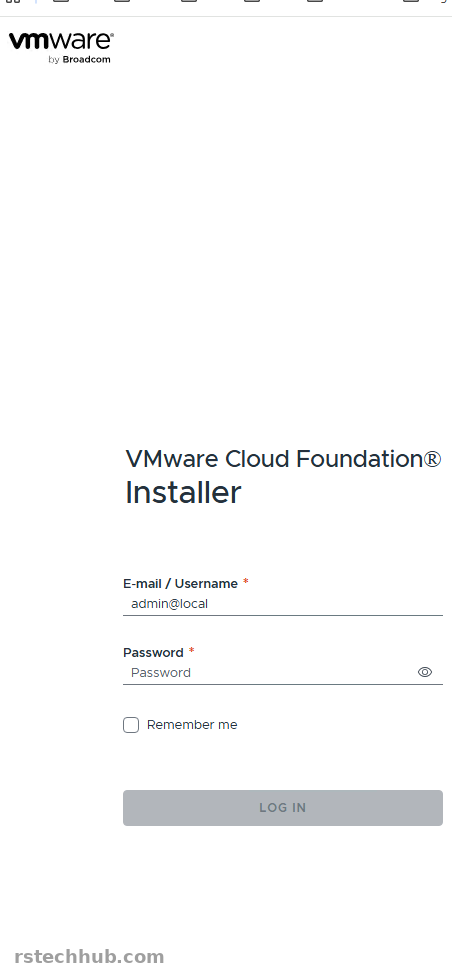
The login page loads over HTTPS with a certificate warning, because the appliance uses a self-signed certificate. I run my own certificate authority, so it bothers me, but I clicked through and carried on. After bring-up I will replace the certificate with one from my CA and write that up separately.
Connect the online depot
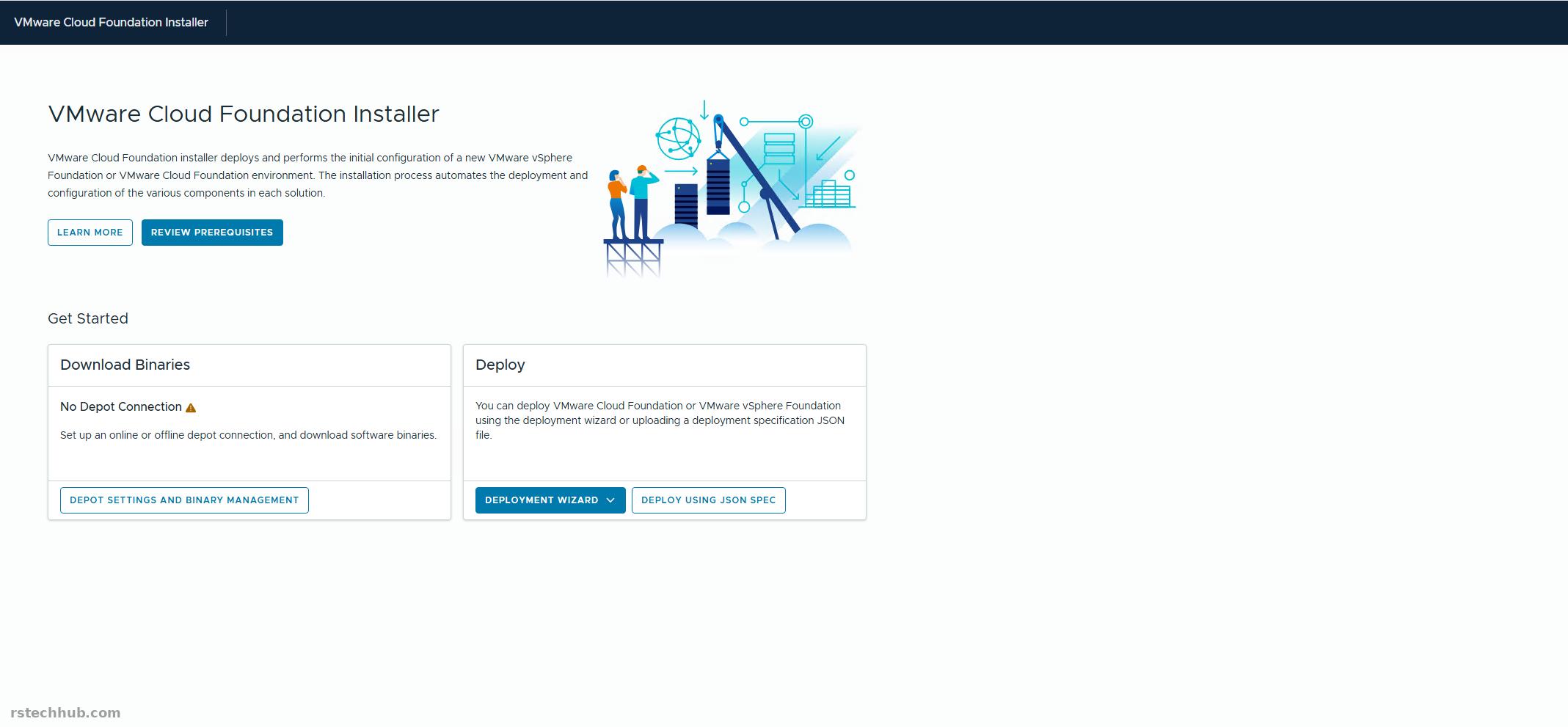
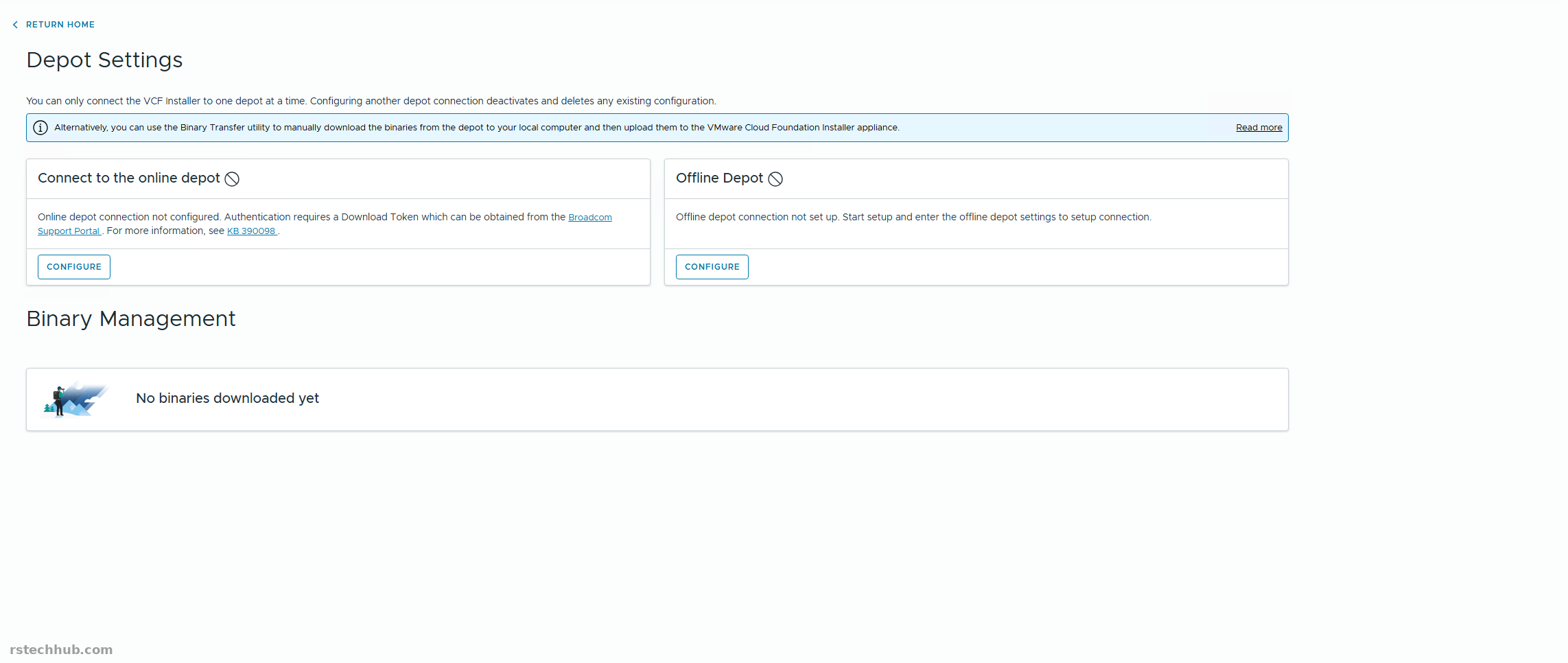
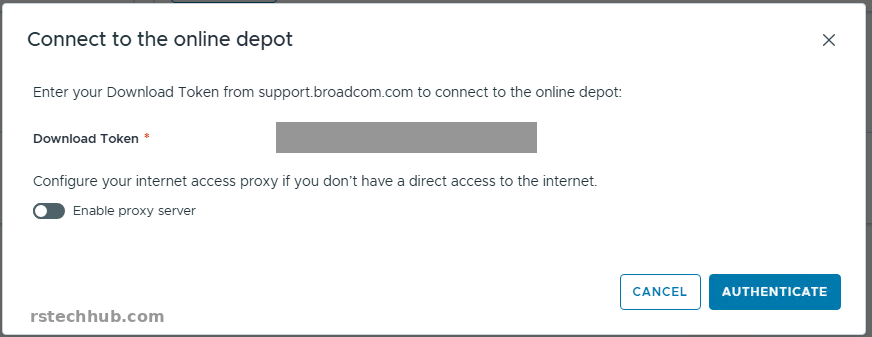
The home page says “No Depot Connection”. Depot Settings offers an online and an offline depot, with one catch printed on the page: the installer connects to one depot at a time, and configuring another deletes the existing configuration. I started with the online depot, which needs a download token from the Broadcom Support Portal. Treat the token as a password. I greyed it out in the screenshot, and I regenerate mine after the downloads finish.
Change the version before you download
The binary list opens on 9.0.0.0, and I almost downloaded that set without noticing. My hosts were on 9.0.2.0100, so I switched the Version dropdown to 9.0.2.0 first. The bundles you download have to match the version you plan to deploy. Get this wrong and you find out at validation, after a 30 GB download.
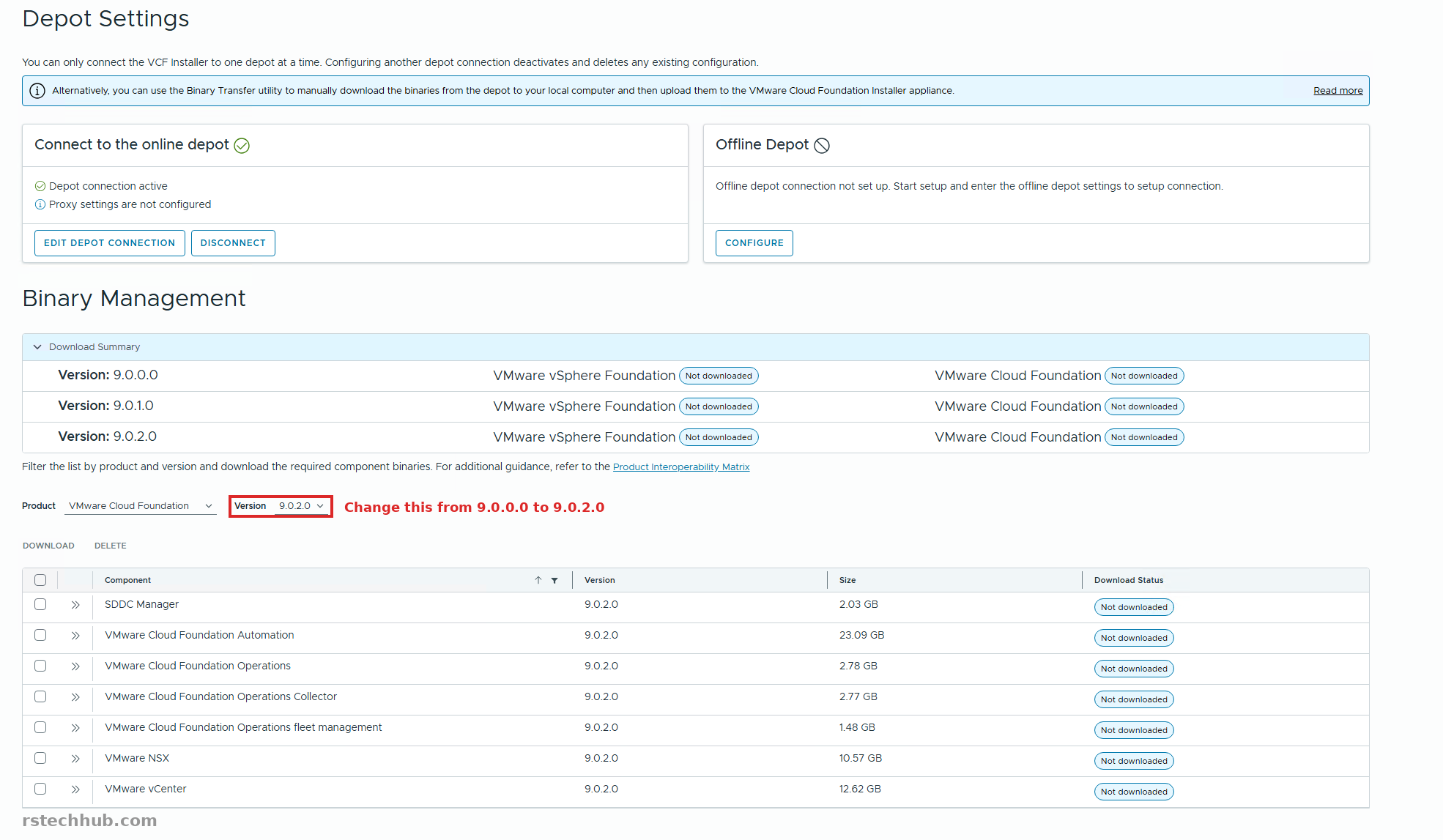
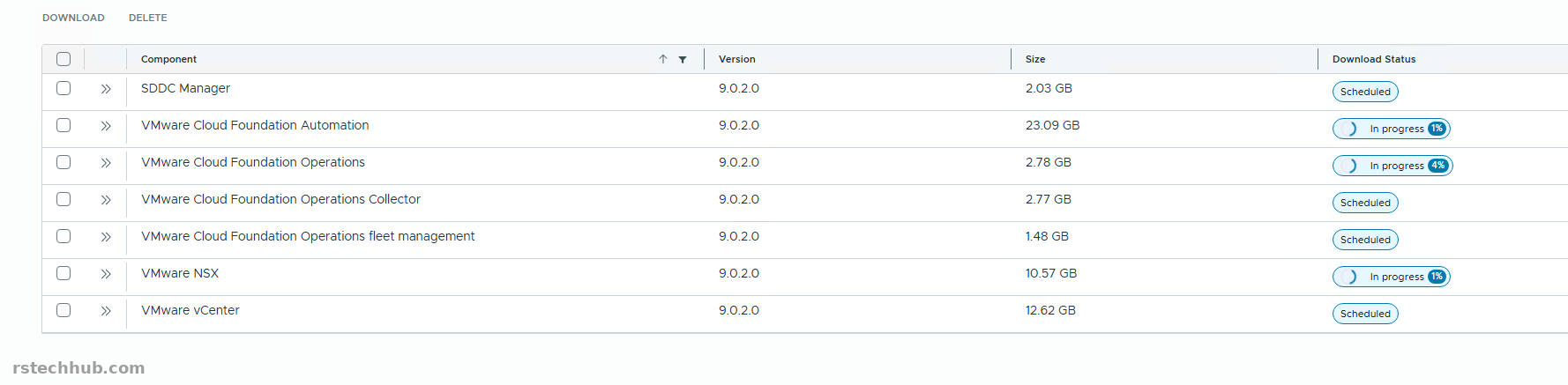
For the first build I ticked SDDC Manager, vCenter, NSX, VCF Operations, the Operations collector and fleet management. That is about 32 GB. VCF Automation adds 23 GB and can be added after bring-up, and I ticked it as well, so mine came to about 55 GB in total. All seven bundles finished with a Success status.
Next
The binaries are in place. Next I check the build numbers of each bundle against the hosts, then start the deployment wizard. That is the next part.