
After I added the two R740xd hosts in Nested Labs Part 1, my management vCenter was the oldest thing in the stack. It ran 8.0 U3i, and the new hosts were on U3j. vCenter should always be the same version as its hosts or newer, so it had to go first. Then I wanted every physical host on one ESXi build.
It should have been a routine evening. The first surprise came before I changed anything.
Before touching anything
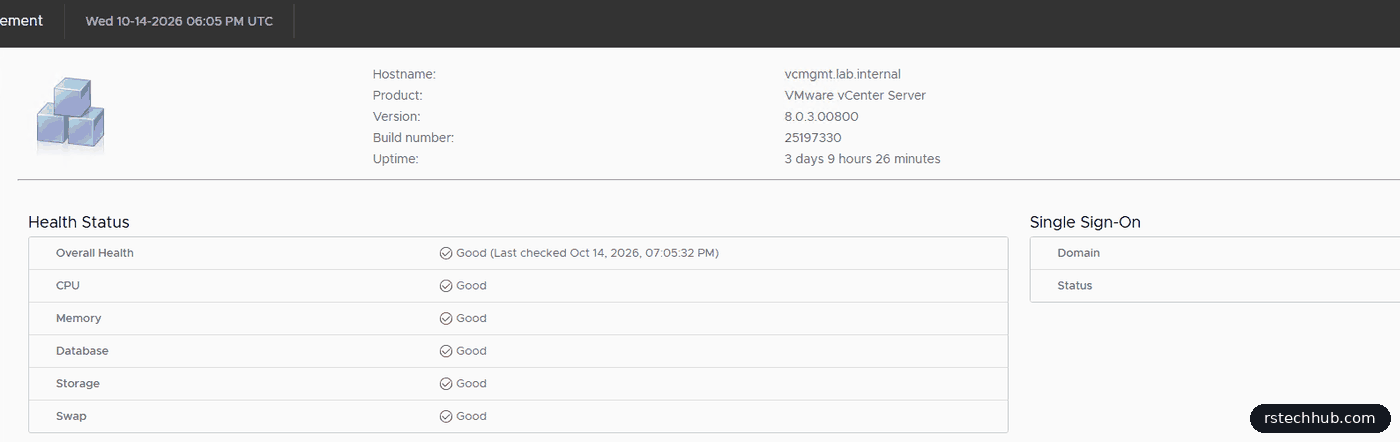
I start every vCenter patch the same way: check health, take a backup and a snapshot, and only then look at updates. The VAMI (port 5480) showed everything green on 8.0.3.00800, build 25197330.
My nightly file-based backup had run at 02:00, but I took a fresh one with Backup Now anyway. It goes to the same NFS share as the nightly backups and took about 30 seconds. Then a snapshot of the vCenter VM, without memory.

“No applicable update found”
Then I went to Update and clicked Check Repository. Nothing. There was no error, the list was simply empty. U3j and U3k had both been out for months, so this was wrong.

The reason is a Broadcom change. Since 23 April 2025 the public update URLs for vCenter and vLCM are retired. Downloads now need a download token tied to your Broadcom account, built into the repository URL. Without it the VAMI quietly finds nothing. That’s an easy one to miss in a lab you only patch now and then.
Setting the token
- In the Broadcom Support Portal, generate a download token for your site.
- In the VAMI, go to Update > Settings.
- Change the repository from Default to Specified.
- Enter the URL from Broadcom KB 390120, with your token and the version vCenter runs now at the end:
https://dl.broadcom.com/<token>/PROD/COMP/VCENTER/vmw/8d167796-34d5-4899-be0a-6daade4005a3/8.0.3.00800/Treat the token like a password. Anyone with it can download under your entitlement. I keep mine in my Vaultwarden vault and greyed it out of every screenshot here.
A second check found both patches straight away.

Patches are cumulative, so I went straight to 8.0.3.01000.
Stage first, install second
The VAMI offers Stage Only and Stage and Install. I always stage first, and this patch shows why. It’s an 8.1 GB download. Staging pulls it down and unpacks it while vCenter carries on running, so the download time doesn’t count towards the outage. If staging fails, nothing has changed, and Unstage throws it away.

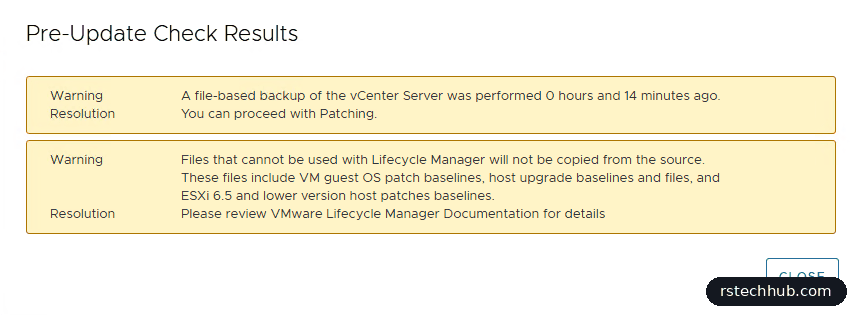
Once it’s staged, Run Pre-update Checks gives a real downtime estimate. Mine said 29 minutes, with two warnings. Neither mattered: one confirmed my backup was recent, the other said vLCM won’t carry over guest OS patch baselines, host upgrade baselines or ESXi 6.5 patches. I use none of those.
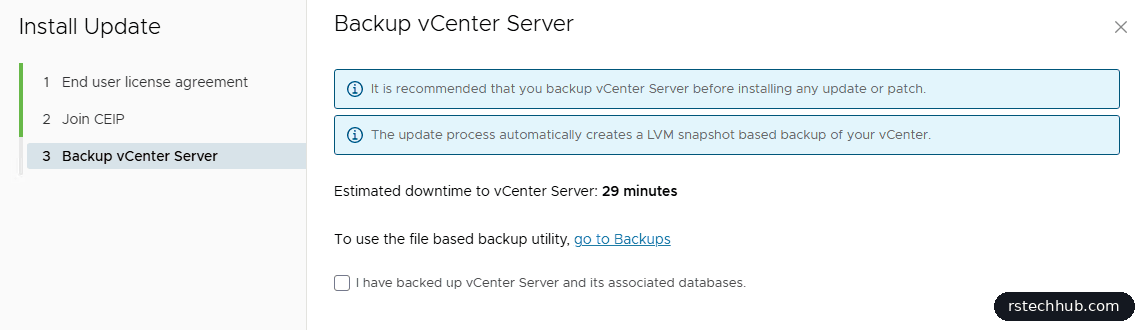
The install wizard asks you to confirm you have a backup. It also mentions that the update takes its own LVM snapshot inside the appliance. With my file backup and the VM snapshot, that gave me three ways back.
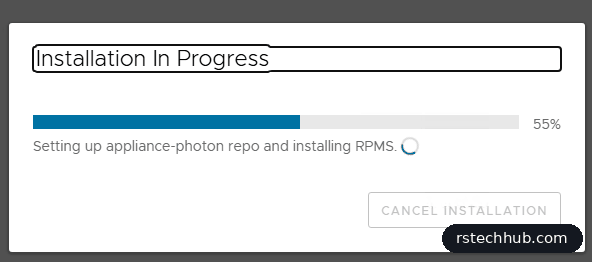
The install took about 20 minutes, less than the estimate, and vCenter rebooted itself at the end. The hosts and VMs kept running throughout. Only the management layer was away.
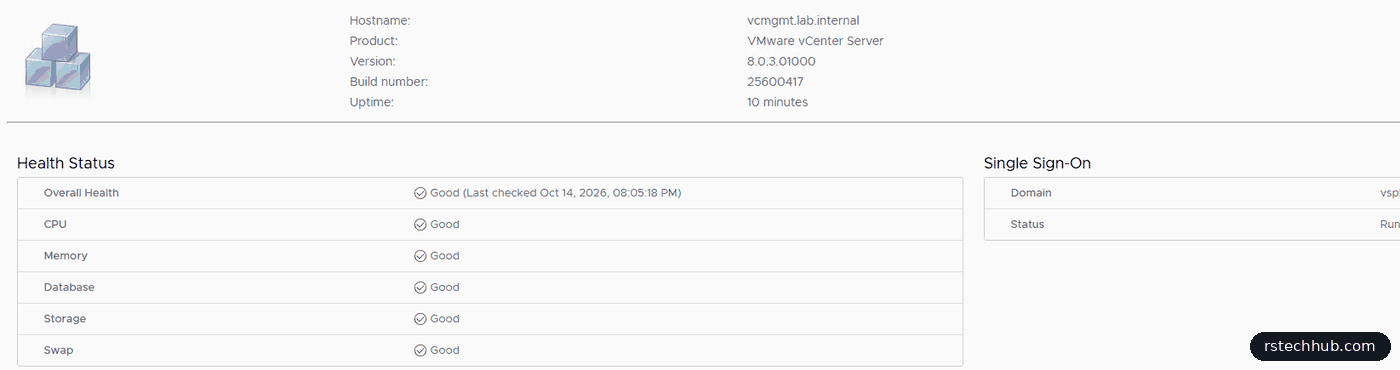
One thing to remember: the repository URL ends with the version vCenter runs. Now that it’s on 8.0.3.01000, the URL in Update > Settings has to end in 8.0.3.01000/ as well, or the next check won’t offer the right patches. Change it straight away.
vLCM needs the token too
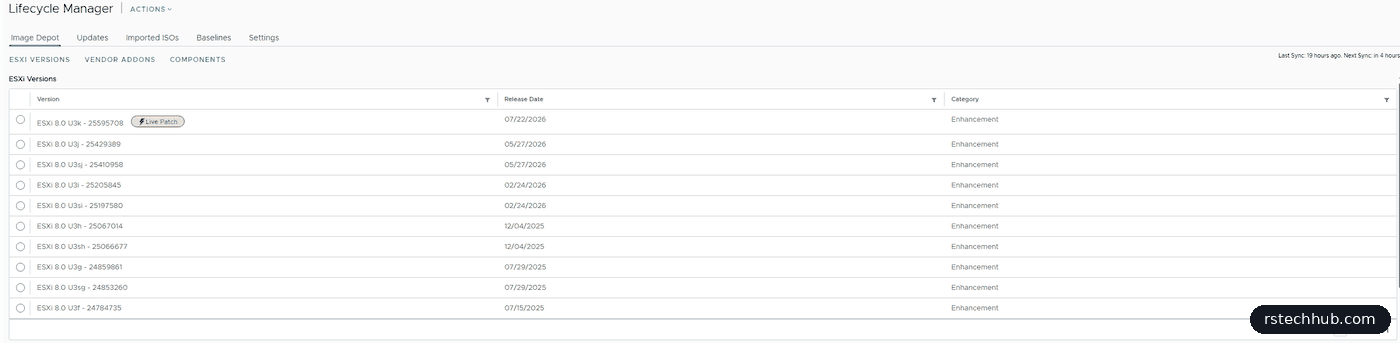
vSphere Lifecycle Manager had the same problem. The Image Depot was empty, because its default download sources were retired at the same time.

In Lifecycle Manager > Settings > Patch Setup I disabled the default sources and added four new ones from KB 390121, each with the token:
https://dl.broadcom.com/<token>/PROD/COMP/ESX_HOST/main/vmw-depot-index.xml
https://dl.broadcom.com/<token>/PROD/COMP/ESX_HOST/addon-main/vmw-depot-index.xml
https://dl.broadcom.com/<token>/PROD/COMP/ESX_HOST/iovp-main/vmw-depot-index.xml
https://dl.broadcom.com/<token>/PROD/COMP/ESX_HOST/vmtools-main/vmw-depot-index.xml
Then I restarted the service and ran Actions > Sync Updates. The service you need in the VAMI is still called VMware vSphere Update Manager. I picked “vCenter Server Lifecycle Manager” first, which is the one that patches vCenter itself, and it does nothing for the hosts.
Patching the hosts
My R740xds were installed from Dell’s customised ESXi 8.0 U3 image (A11). That’s VMware’s ESXi plus Dell’s add-on of drivers and tools. Patch baselines only replace VMware’s own components, so the Dell add-on stays where it is. When Dell ships a U3k image I can move to it, but there was no reason to wait.
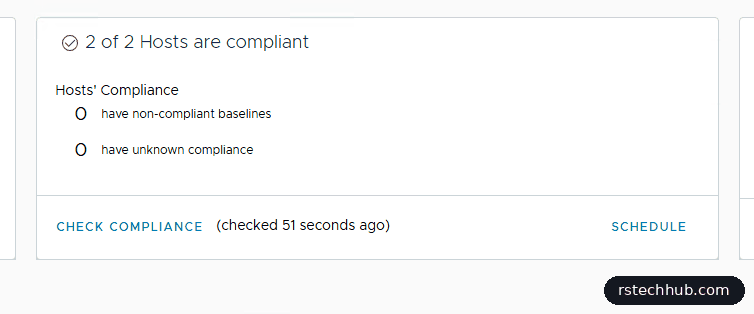
I still use baselines here. The banner says they’re deprecated in favour of single-image clusters, and I’ll move over when I plan the next upgrade. For a patch within 8.0 U3, the two predefined baselines do the job: Critical Host Patches and Host Security Patches. I attached them to the Nested-Labs cluster and checked compliance.
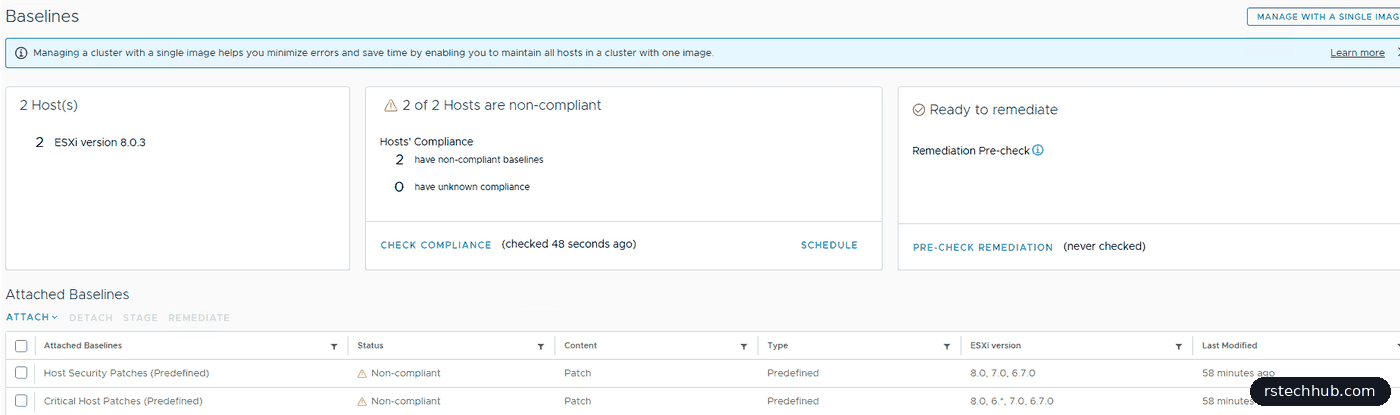
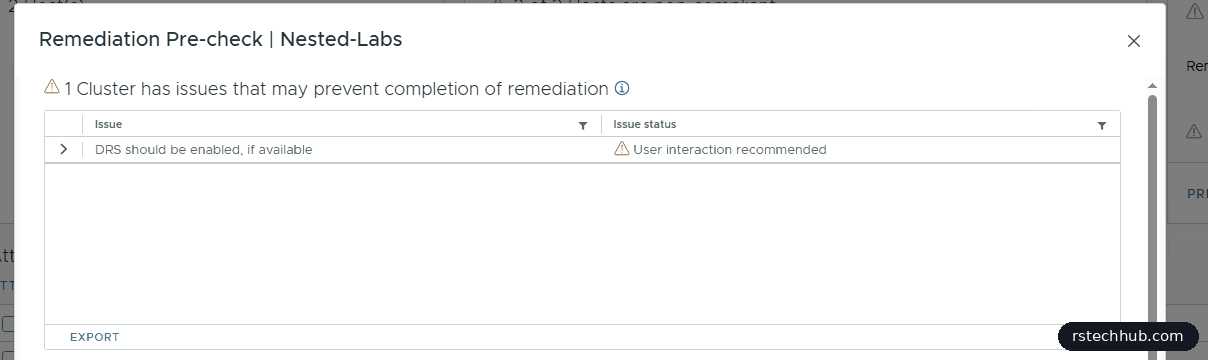
The same order as vCenter: pre-check, stage, remediate. The pre-check only complained that DRS was off. vLCM wants DRS so it can move VMs off a host before patching, and with no VMs on these hosts I could ignore it.
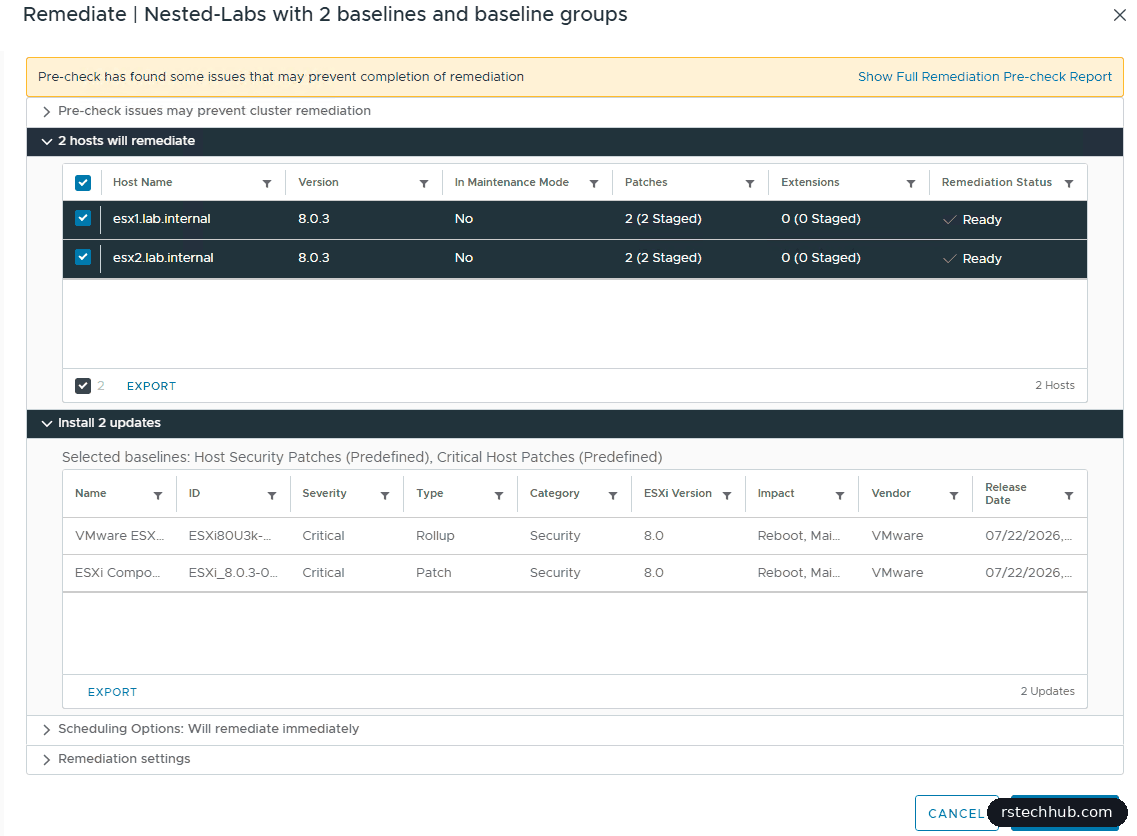
Staging took two minutes. The remediate dialog then showed exactly what would happen: the U3k rollup and its component patch, on both hosts, with a reboot.
vLCM did one host at a time: maintenance mode, install, reboot, exit maintenance mode. Each host showed as Not responding while it rebooted, which is normal. About 20 minutes later both were back.
Emptying the DL380
That left the DL380 on U3g. It’s the host my management vCenter runs on, together with my domain controllers, the vault, Veeam and the rest of the core, and vLCM can’t put a host into maintenance mode while vCenter is running on it. I could shut everything down for half an hour, or move it all to the new R740xds and patch the DL380 like any other host. With the R740xds in the same vCenter and sharing my TrueNAS datastore, moving was the better option.
Preparation was small. I ticked vMotion on vmk0 on all three hosts, and on the migration’s network page I mapped the DL380’s standard port groups to the matching VLANs on the distributed switch. The VMs sat on the DL380’s local SSDs, so each one moved host and storage together, onto NFS. The wizard warned that the hosts’ vMotion MTUs differ (1500 against 9000). That only slows the copy down.
Three things stopped VMs from moving:
- An install ISO still connected from the DL380’s local datastore, which the R740xds can’t see. Ubuntu locks the CD tray, so vSphere asks before disconnecting it. Overriding the lock is harmless on an installed VM.
- Virtualized CPU performance counters (vPMC) on the vault and on the Veeam server. vMotion then insists on exactly the same CPU microarchitecture, and the error says “VPMC version does not match”. Neither VM needed it: power off, untick it under CPU, power on, migrate.
- CPU generations. The DL380 is a Gen9 and the R740xds have Cascade Lake CPUs. A VM keeps the CPU features it was powered on with, so VMs started on the DL380 move both ways. A VM that gets powered off and on while it’s on the newer hosts picks up their features, and can only go back cold.

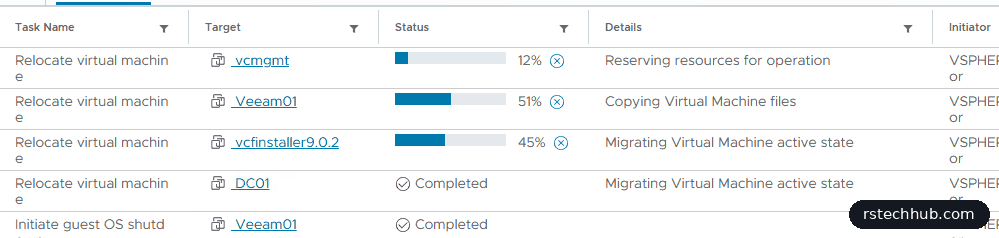
vCenter moved itself last, snapshot and all, while three other migrations ran beside it. The client froze for a few seconds at the switchover and carried on.
With the DL380 empty, it was the same routine as the R740xds. Being two releases behind, it had 34 updates. 13 were staged, because newer patches in the set replace the rest.

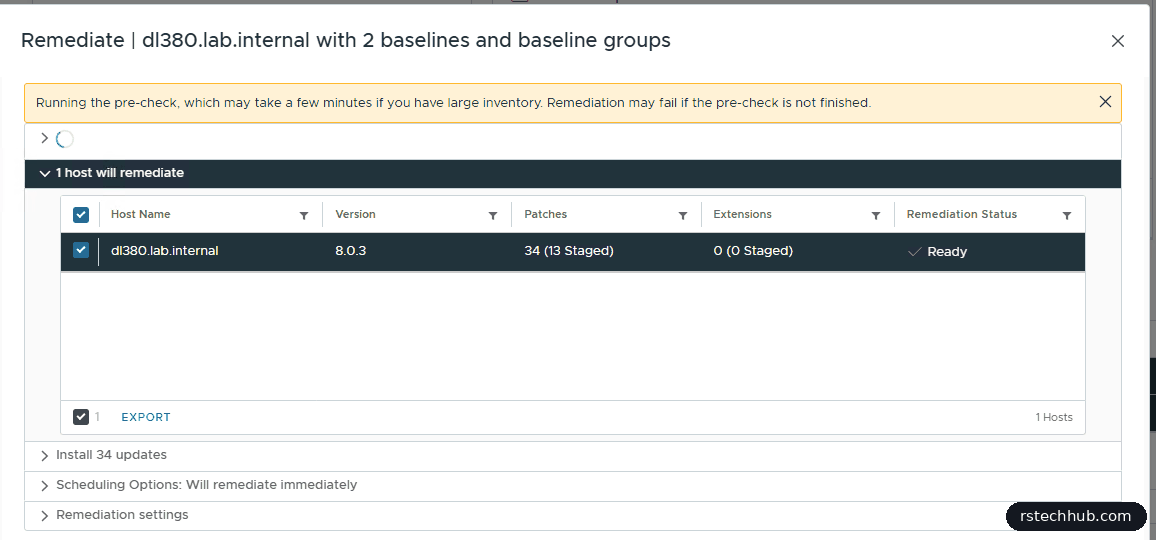
The remediate task sat at 26% while the server rebooted, which looked worrying for a while. A Gen9’s power-on self test takes several minutes. Once ESXi was up, vLCM checked the build and took the host out of maintenance mode by itself. A second pre-check, started in the background by the Remediate dialog, failed with “Cannot get exclusive access”, because the real remediation already had the host. It does no harm.

What’s next
All three physical hosts now run ESXi 8.0 U3k, and vCenter is on the matching 8.0.3.01000. The core VMs stay on the R740xds and NFS for now, because the DL380 is getting a CPU upgrade to two Xeon E5-2698 v4s. When it’s back, they move home with a compute-only vMotion. I’ll keep the vCenter snapshot for a day, then delete it.
- Since April 2025, the VAMI and vLCM need a Broadcom download token. Without one they show no updates and give no error.
- The VAMI URL ends with the current vCenter version. Update it after every patch.
- Stage first. The download happens while everything is still running.
- The vLCM service in the VAMI is still called vSphere Update Manager.
- Before moving VMs between CPU generations, look for connected ISOs and vPMC.