In Part 6 I worked through the day-one warnings. One banner was still there: SDDC Manager warning that its backups are on default settings. This part puts all three management backups, vCenter, SDDC Manager and NSX, on my Synology NAS over SFTP. vCenter was easy. SDDC Manager and NSX were not, and the reason is worth knowing if your target is a Synology.
Where the backups go by default
Out of the box, SDDC Manager backs itself up to a folder on its own appliance, and it points NSX Manager at the same place over SFTP. NSX had in fact been backing up every hour since bring-up, nineteen times by the next morning. That’s better than nothing, but if the SDDC Manager appliance dies, the backups go with it. vCenter, meanwhile, said “Last file-based backup: Not scheduled”.
My target is a Synology NAS. I prepared it like this:
- Enabled SFTP in Control Panel, File Services, FTP tab (port 22, shared with SSH).
- Created a shared folder just for VCF backups.
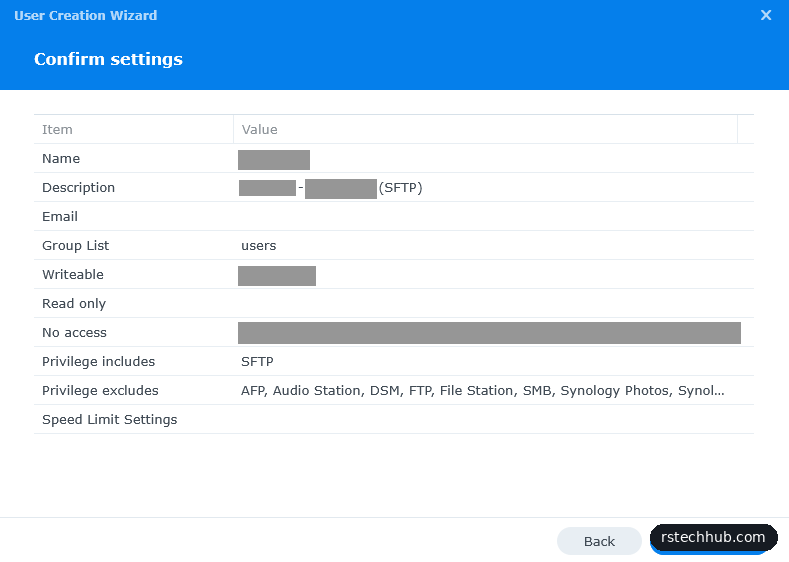
- Created a user in the default users group only, with read/write on that one folder and no access to any other share.
- On the application permissions page, allowed SFTP and denied everything else. My first pass through the wizard skipped that page, and the summary showed empty “Privilege includes” and “Privilege excludes” lines, so check the summary before you click Done.
A quick sftp session from my PC proved the account. The top level shows the list of shares and can’t be written to. Creating and deleting a folder inside the backup share works. Remember that first result, because it comes back later.
vCenter: the easy one
vCenter backs up on its own, from the VAMI on port 5480 (signed in as root): Backup, Configure. I gave it an SFTP location in a subfolder of the share, the backup user, a daily schedule, five backups to keep and an encryption password. Two things to know:
- The encryption password must be 8 to 20 characters with at least one special character. My first generated one had none, and the dialog rejected it.
- The schedule time is in UTC, so 23:00 in the dialog is midnight in the UK during summer time.
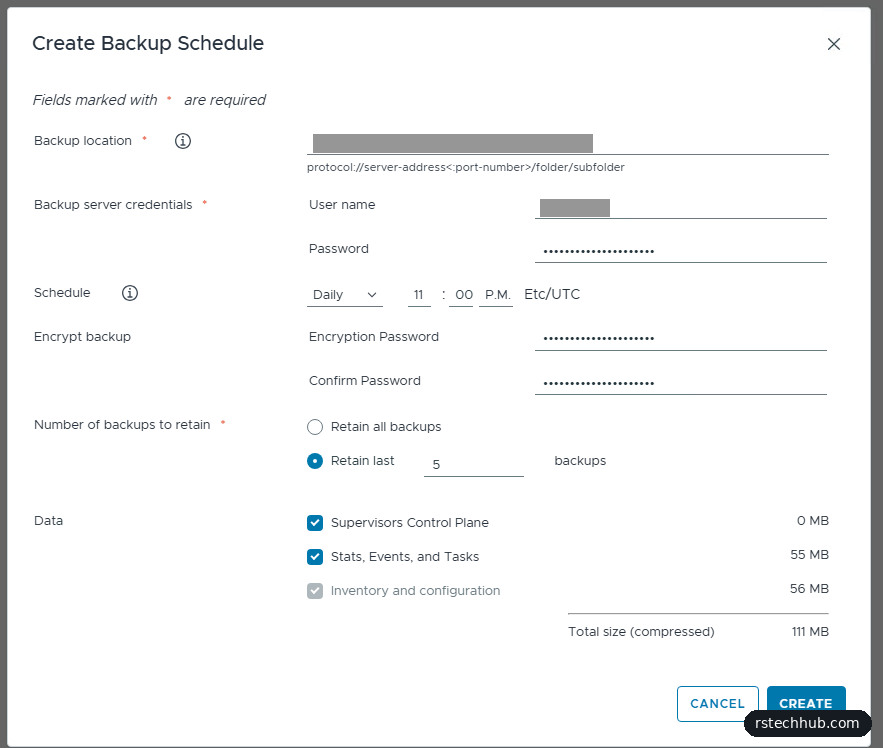
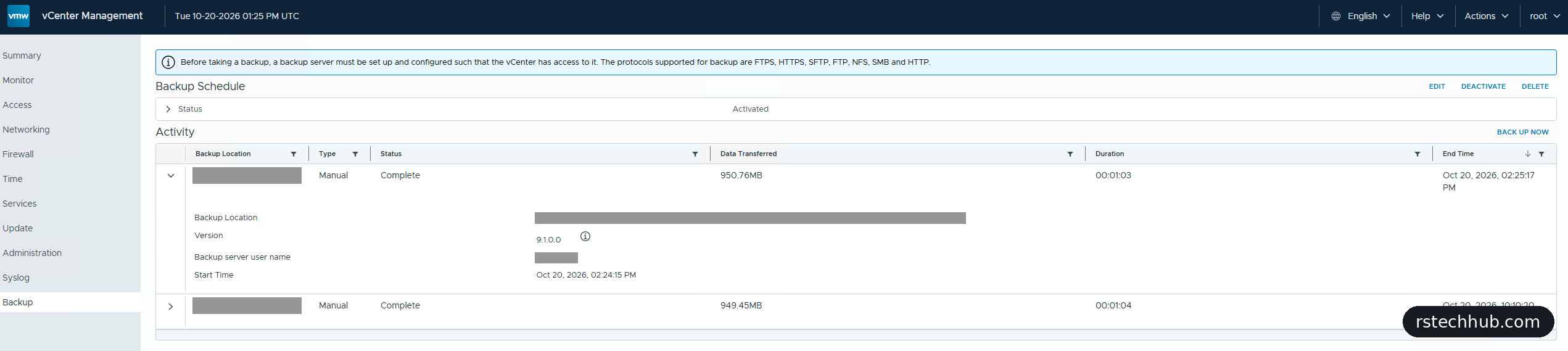
Back Up Now finished in just over a minute and wrote about 950 MB. The dialog had estimated 111 MB, so size your target for the real number.

SDDC Manager and NSX: the hard one
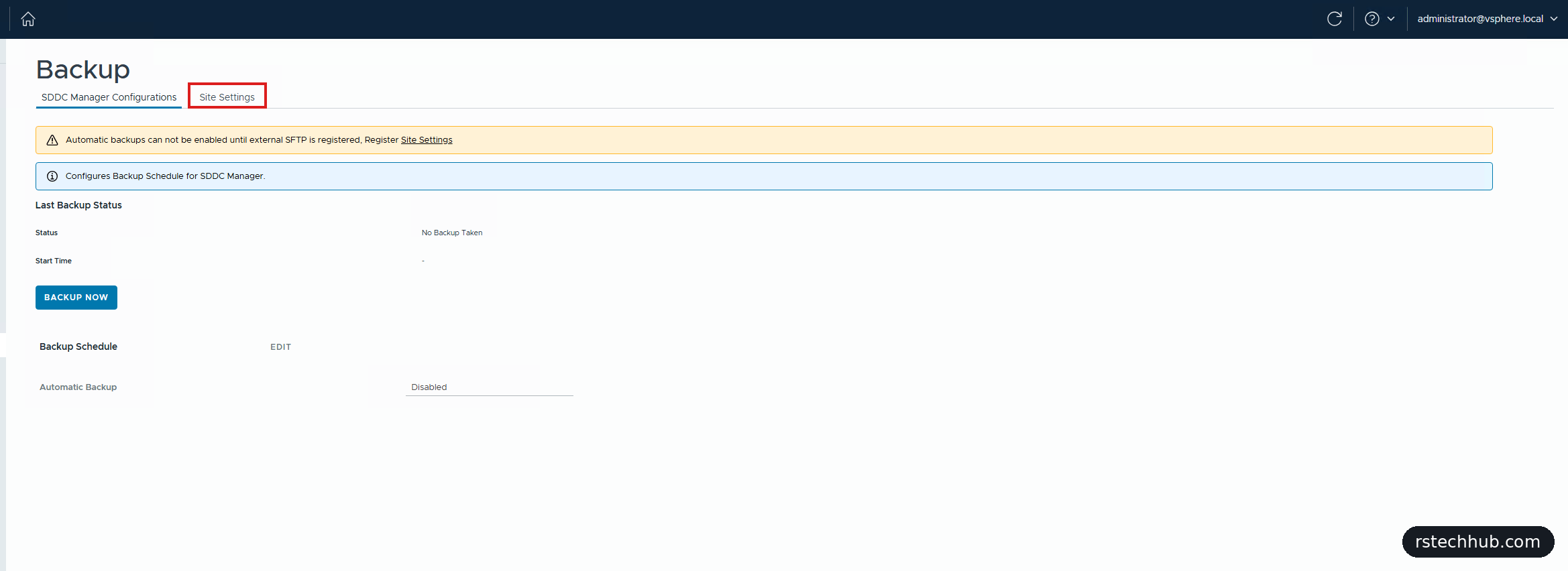
The settings live in SDDC Manager, under Administration, Backup, Site Settings, and they cover SDDC Manager and NSX together. In 9.1 there’s no Register button: you overwrite the default host, user and folder, confirm the SSH fingerprint, set an encryption passphrase and save. Keep the passphrase in your vault. Without it the backups can’t be restored.
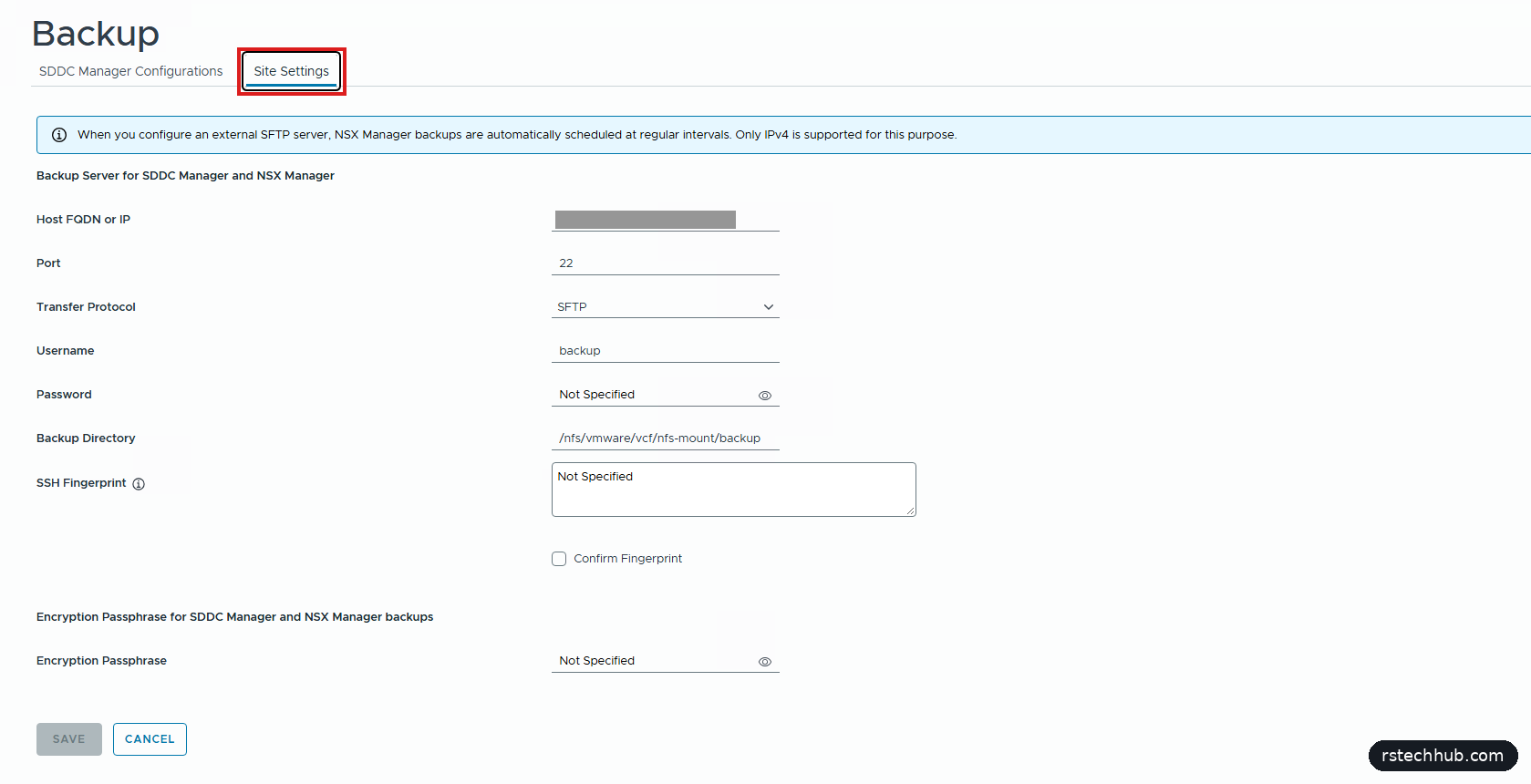
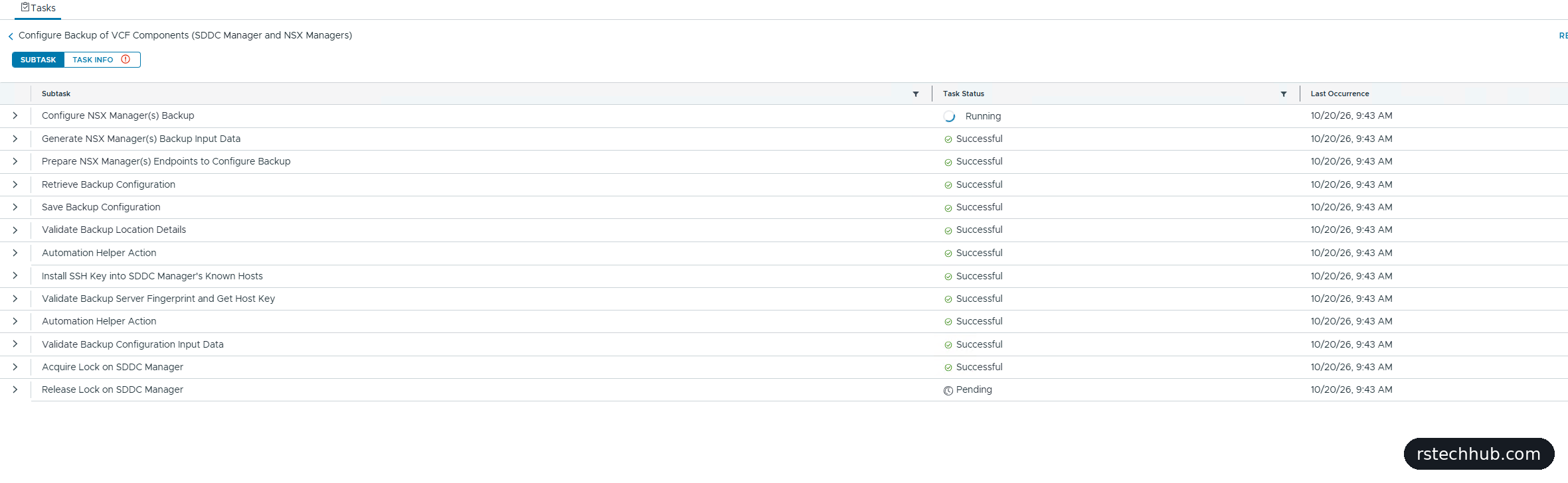
SDDC Manager validated the server, saved its own settings and then sat at 84% on “Configure NSX Manager(s) Backup” for about forty minutes before timing out. While it runs, the Site Settings form is locked. NSX still pointed at the old location.
A wrong turn: the fingerprint
My first theory was the SSH host key. Broadcom documents that VCF 9 expects an ECDSA fingerprint (KB 432679, KB 438943), and SDDC Manager had picked up the NAS’s RSA one. I made the NAS offer ECDSA only, and the task failed in exactly the same way. The NAS log had already told me why: NSX was logging in successfully, which a host key problem would have prevented. The ECDSA change is still worth having for VCF 9, but it wasn’t the cause.
The real cause: Synology’s SFTP top level
The real error was in SDDC Manager’s operations manager log: error code 29274, “User doesn’t have permission to create directory on fileserver”.
NSX tries to create its backup directory even when it already exists. On a Synology, the top level of SFTP is a read-only list of shares, so that attempt fails with “Permission denied” instead of the harmless error NSX expects. SDDC Manager’s own validation only checks that the folder exists and is writable, so it passes. One level down, inside the share, the same attempt behaves normally.
DSM’s “Change user root directories” option didn’t help, because it only applies to FTP. The fix was simply to give SDDC Manager a subfolder inside the share as its backup directory.
With /<share>/sddc-nsx as the backup directory, the same task finished in a couple of minutes, NSX step included.
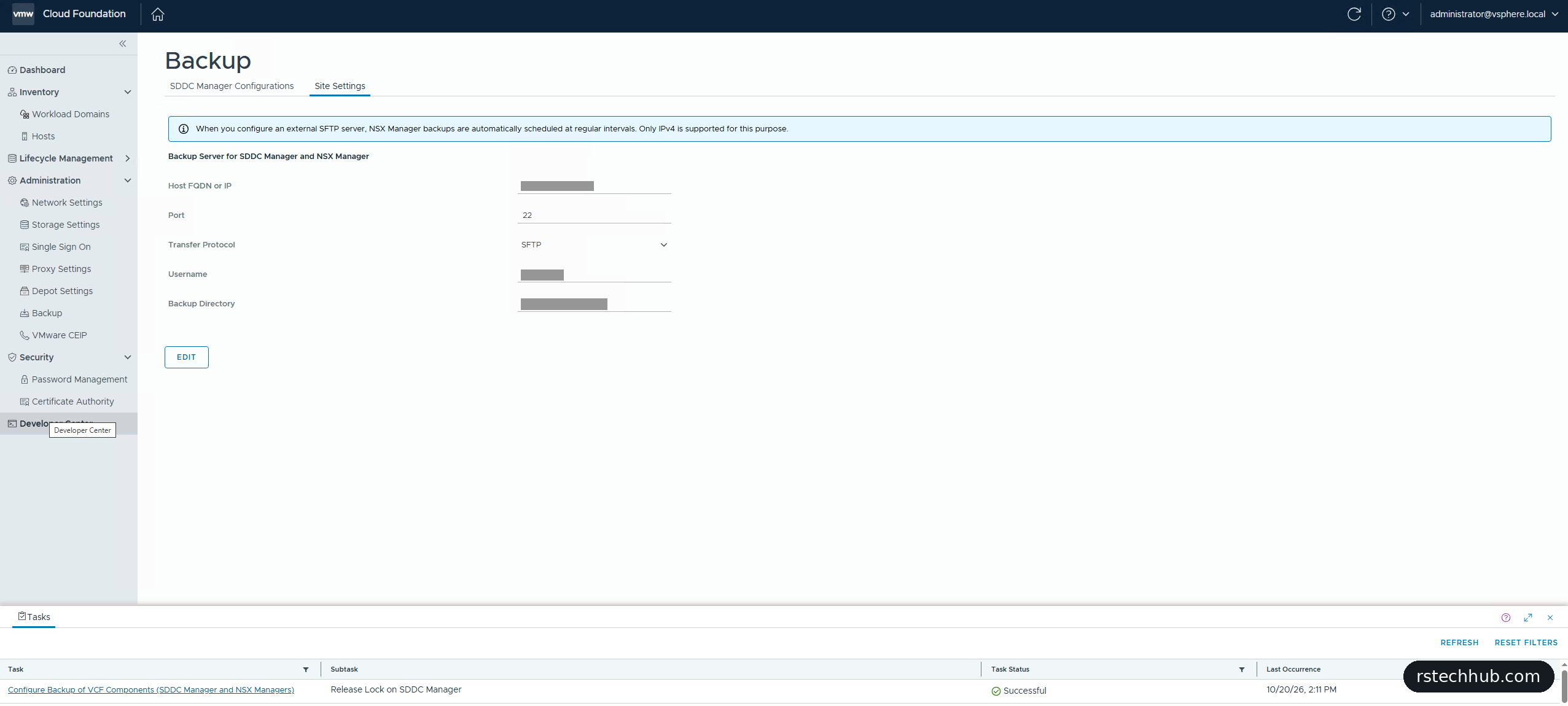
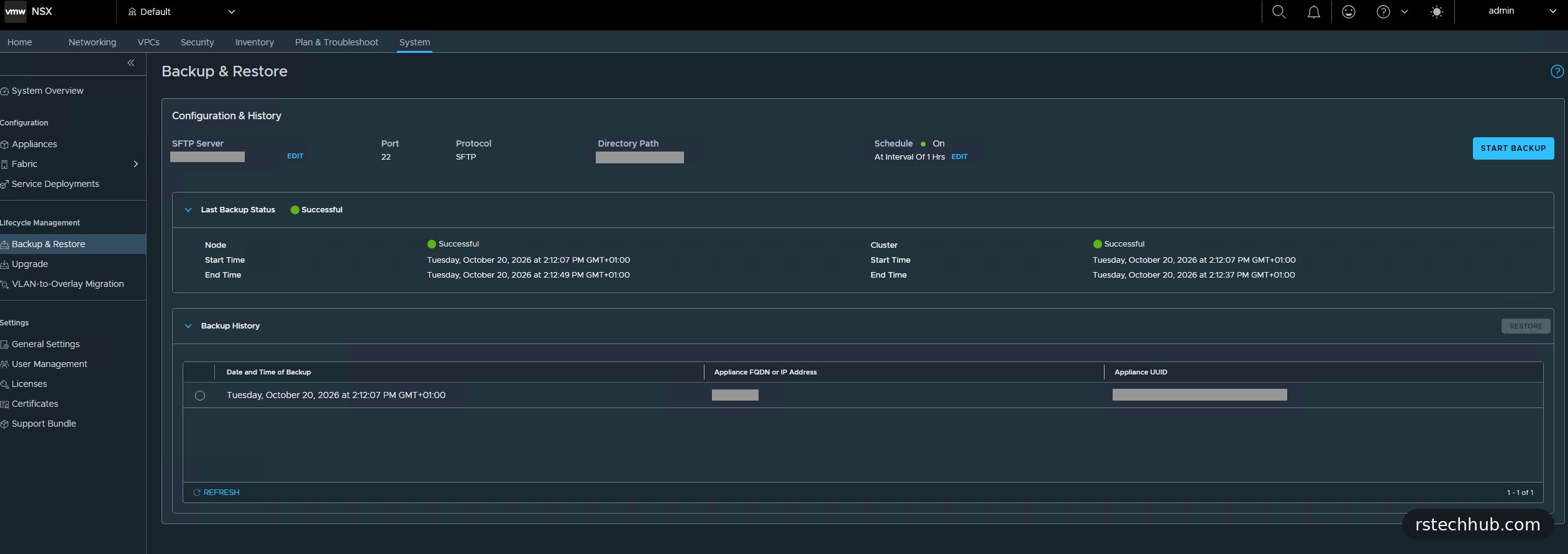
NSX Manager showed the change straight away under System, Backup & Restore: the NAS as its SFTP server, the new directory path and an hourly schedule. Its first backup there ran a minute later and took under a minute.
SDDC Manager’s own backups are a separate setting, on the SDDC Manager Configurations tab, and its automatic backup is disabled until you turn it on. There’s no daily option, only Weekly or Hourly, so I picked Weekly, with the days ticked and 02:00 UTC, and kept five. I also enabled “Take Backup on State Change”, which takes an extra backup after changes such as a password rotation or an update. Backup Now completed successfully.

Finally I ran vCenter’s Back Up Now again, to make sure the ECDSA-only change on the NAS hadn’t broken it. Same size, same minute, complete.
What’s next
All three components now back up to the NAS: NSX every hour, and SDDC Manager and vCenter on their nightly schedules. The last banner from bring-up is VCF Operations saying it isn’t registered. Part 8 registers it and adds my VMUG Advantage licences.