
In Part 2 the four R640s came up on ESX 9.1, named, timed and ready. The next piece is the VCF Installer, the appliance that runs the bring-up of the management domain. It’s also where 9.1 changed something I’d relied on in 9.0: the download token I set up last time doesn’t work here any more.
Clearing the way
I’d already run the 9.0.2 installer in this lab under the same name and IP address. Two appliances can’t share an address, so the old one went first: power off, Delete from Disk. Nothing depended on it, because the hosts had just been rebuilt. A ping to the address timed out and I was clear.
DNS was already done. The installer’s forward and reverse records sit in the new 9.1 zone with everything else, and my DNS sync script reported nothing to change before I started.
Deploying the appliance
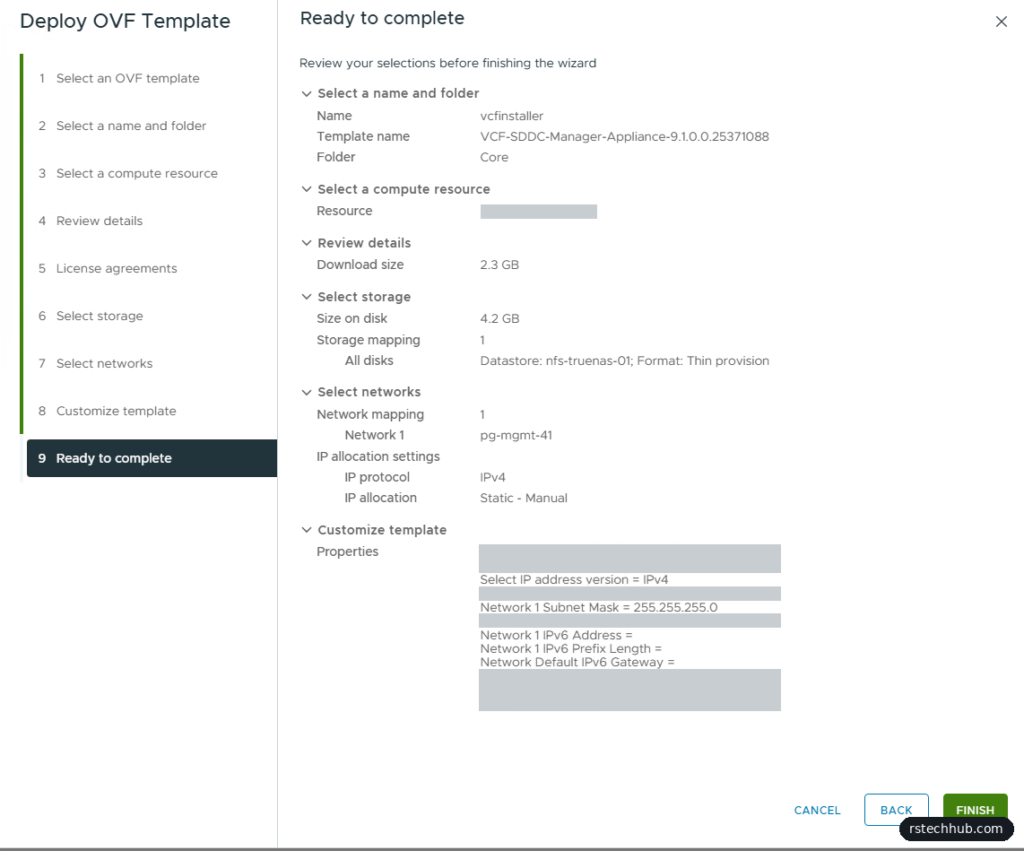
The installer ships as the SDDC Manager appliance OVA, VCF-SDDC-Manager-Appliance-9.1.0.0.25371088.ova: 2.3 GB to upload and 4.2 GB on disk, thin provisioned. I deployed it into my lab management vCenter from Core Infrastructure, Part 5, on one of the R740xd hosts rather than the DL380, which is waiting for a CPU swap. The disks went on the TrueNAS NFS datastore, so the appliance can move back to the DL380 later with a plain vMotion.
The OVF properties are the usual set:
- Host name as a full FQDN
- Static IPv4 address, subnet mask and gateway on the management VLAN
- DNS servers, DNS domain and search path
- NTP servers (my two domain controllers)
- Passwords for root and the local admin, each generated in Vaultwarden and typed in by hand
The three IPv6 fields stay empty. The lab runs IPv4 only, and so do the hosts.
After power-on I gave it about ten minutes before the web UI answered, then signed in as admin@local.
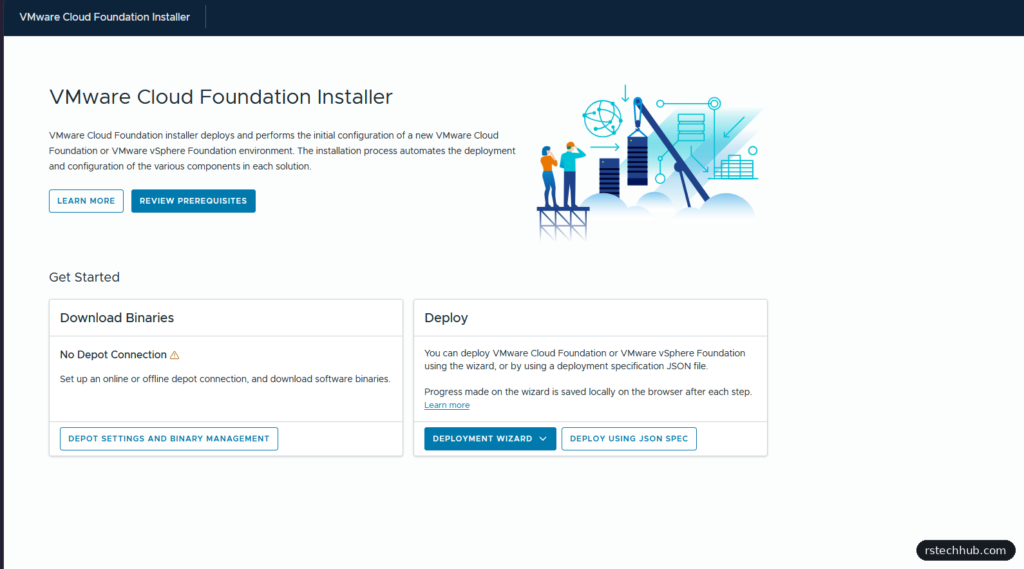
9.1 swaps the download token for an activation code
When I first built this lab on VCF 9.0, the online depot took a download token from the Broadcom support portal. 9.1 drops that (Broadcom KB 443647). Online Depot, Configure now shows a Download Service ID unique to the appliance and asks for an Activation Code.
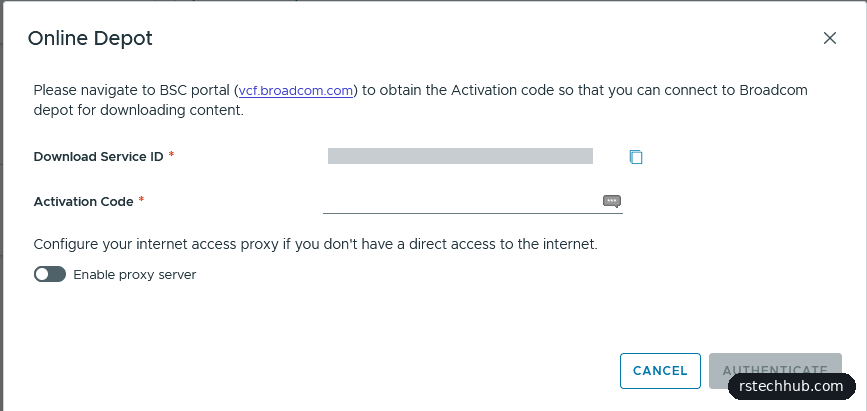
Getting the code takes five steps:
- Copy the Download Service ID from the installer’s dialog.
- Sign in to the VCF Business Services console at vcf.broadcom.com.
- Open Software Depot Registration from the left menu and click Register Software Depot.
- Paste the ID. The console gives you an activation code.
- Paste the code into the installer and click Authenticate.
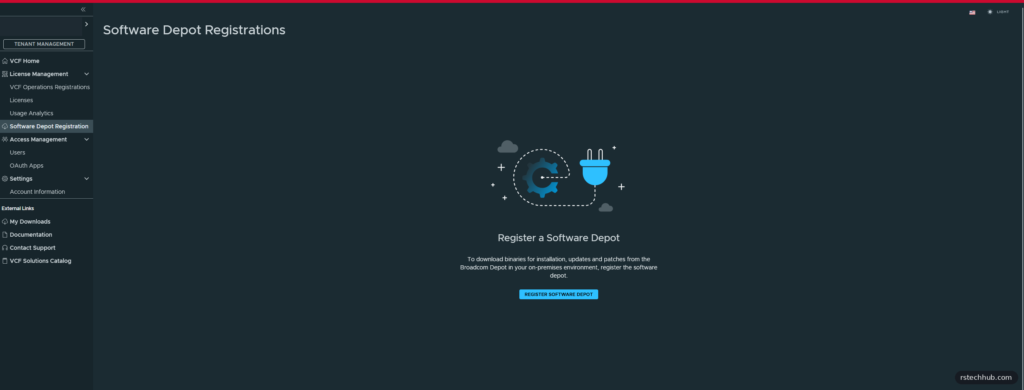
One thing caught me out here. The console also has VCF Operations Registrations, which looks almost the same and sits just above it in the menu. That one is for licensing and wants a registration file exported from VCF Operations, which doesn’t exist yet at this stage of a build. I opened it first. Software Depot Registration is the one you want.
I treat the activation code like a password. It lives in Vaultwarden next to the Download Service ID, and it’s never in a screenshot.
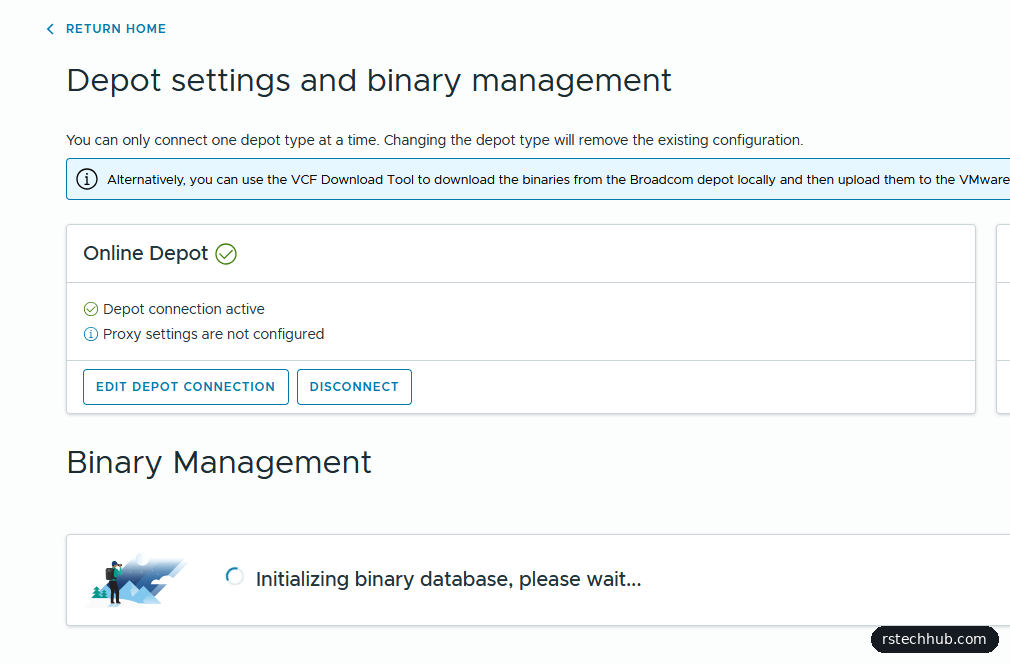
Choosing the binaries, and why I picked GA
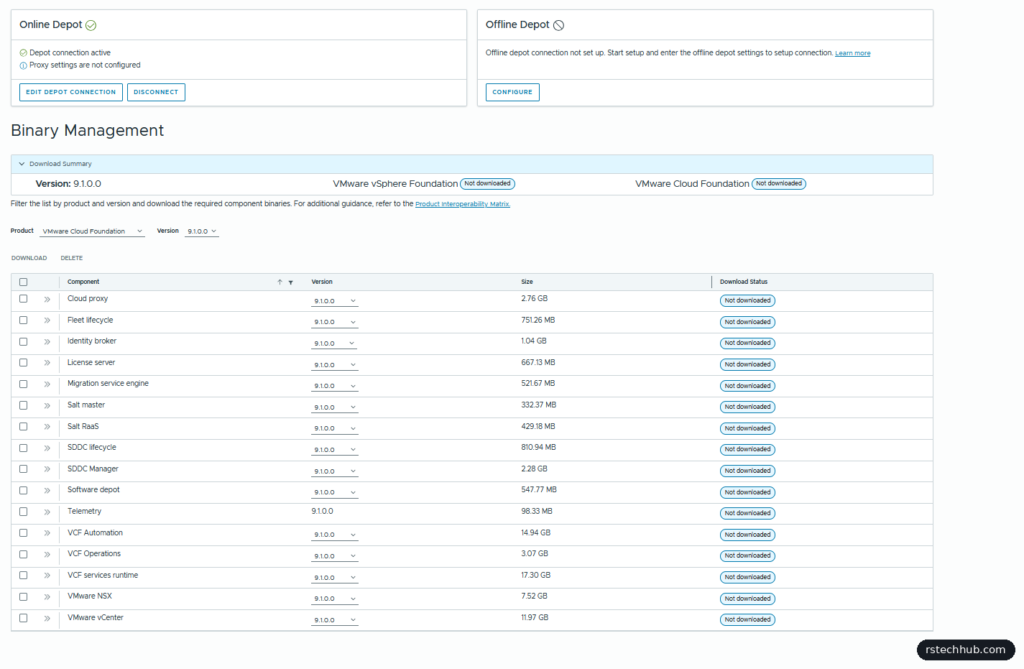
With the product set to VMware Cloud Foundation and the version to 9.1.0.0, the list shows 16 components, about 65 GB in all. The biggest are VCF services runtime (17.3 GB), VCF Automation (15 GB), vCenter (12 GB) and NSX (7.5 GB). There’s no ESX in the list: the installer doesn’t install ESX, it checks the build already on each host during validation.
Each component has its own version dropdown, and every one defaults to its newest 9.1.0 patch: 9.1.0.0400 for SDDC Manager, 9.1.0.0300 for vCenter and so on, from the patches Broadcom released on 12 October. Broadcom’s advice is to deploy with the latest binaries, and for a production build I’d leave those defaults.
For this lab I set every row back to 9.1.0.0, the GA build, on purpose. I want the series to cover what comes after a deployment as well: patching from 9.1.0.0 to the latest 9.1.0 patches, then the upgrade to 9.1.1. Starting on GA gives me both posts on the same hardware.
That choice had a knock-on effect on the hosts. In Part 2 I’d installed Dell’s customised image, ESX 9.1.0.0100, which is a patch newer than GA (build 25370933). vCenter has to be at the same build as its hosts or newer, so a GA vCenter over 0100 hosts was asking for trouble at validation. I rebuilt all four R640s on VMware’s standard 9.1.0.0 GA image with the same kit: 21 minutes for all four, and every readiness check passed again. The image’s inbox driver covers the Mellanox cards, so I didn’t need Dell’s add-ons.
Select all, Download. The installer pulls three components at a time and queues the rest. When every row says Success, the summary at the top marks both VMware Cloud Foundation and VMware vSphere Foundation as downloaded for 9.1.0.0.

One more change before the wizard: the vSAN ESA disk check
vSAN ESA only accepts NVMe drives that are certified for ESA on the compatibility list, and the installer checks this before it builds anything. Each R640 has three 1.6 TB Intel P4610s. MD01’s are Intel-branded and the other three hosts have Dell-branded versions of the same drive, so the firmware and the IDs the check reads don’t all match.
For a while I thought the mix was worse. The iDRACs on MD02 and MD03 listed an HPE 2 TB drive, and MD04’s showed a different Intel model. When I opened MD03 there were three 1.6 TB drives and no HPE drive at all. The iDRAC was showing inventory from before I bought the servers, because Collect System Inventory on Restart (CSIOR) was switched off, so the Lifecycle Controller never rescanned the hardware. Two racadm commands fix that, the first to turn it on and the second to check it:
racadm set LifecycleController.LCAttributes.CollectSystemInventoryOnRestart Enabled
racadm get LifecycleController.LCAttributes.CollectSystemInventoryOnRestart
The setting is saved straight away and stays on. After one reboot each, all four iDRACs showed the same three 1.6 TB P4610s. If you buy second-hand Dell servers, check this first: the previous owner may have turned CSIOR off, and the iDRAC will happily show you their drives. I kept the vSAN property below anyway, as insurance against the mixed branding.
The fix comes from William Lam, whose posts on the vSAN ESA disk HCL workaround for VCF 9.0 and the 9.0.1 enhancement that bypasses the check are where I found it. Broadcom documents the same property in KB 408300, which lists 9.1.x. It tells the installer to claim the vSAN ESA disks itself instead of failing on drives it can’t match.
The KB and William’s post name different files. The KB says application.properties, William uses application-prod.properties. On my 9.1.0 installer both exist:
root@vcfinstaller [ ~ ]# ls /etc/vmware/vcf/domainmanager/
application-prod.properties  cipher
application.properties       vcf-domain-manager.conf
The -prod file overrides the plain one when the appliance runs its production profile, so I added the line to both and restarted the service. Over SSH as the vcf user, then su - to root:
for f in application.properties application-prod.properties; do
  echo "vsan.esa.sddc.managed.disk.claim=true" >> /etc/vmware/vcf/domainmanager/$f
done
systemctl restart domainmanager
grep -H disk.claim /etc/vmware/vcf/domainmanager/application*.properties
systemctl is-active domainmanager
One line per file and active means it took. Run the loop once: I pasted it twice the first time and got the line twice in each file, which works but is untidy. This is a lab setting, not one for production, as Broadcom only supports certified drives. If validation still flags the hosts, the installer’s embedded HCL file may be more than 90 days old, and William’s first post above covers refreshing it.
What’s next
With the 9.1.0.0 binaries on the installer and four GA hosts waiting, Part 4 walks through the deployment wizard, and Part 5 covers the bring-up of the management domain: vCenter, NSX, vSAN ESA, VCF Operations and the license server that 9.1 now needs.