

In Part 2 I built vhr01, a hardened Linux repository that keeps my Veeam backup copies immutable for 7 days. Its repository disk was a VMDK on my old TrueNAS box, the Dell R620. When I replaced the R620 with an R730xd, that disk went with it.
This time I didn’t want the immutable copies on the same storage as the VMs. vhr01 now gets its disk straight from my Synology DS3617xs over iSCSI. The rebuild took an afternoon, and I hit three problems along the way that are worth writing down.
Earlier parts: Part 1: Design and backup server, Part 2: Backups nobody can delete, Part 3: Upgrading to v13.1.
Problem 1: vhr01 won’t boot
vhr01 had been powered off since its disk disappeared. When I started it, Ubuntu dropped straight into emergency mode.
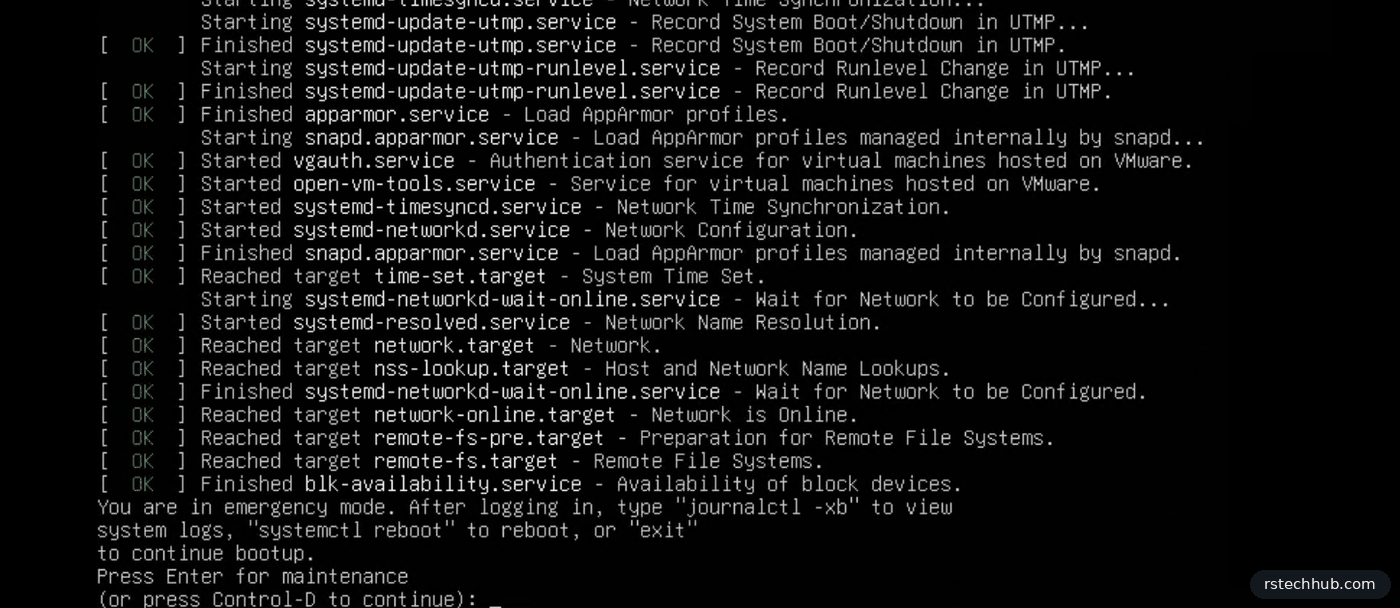
The cause was the last line in /etc/fstab. It still mounted the old repository disk by its label, and that disk no longer existed.
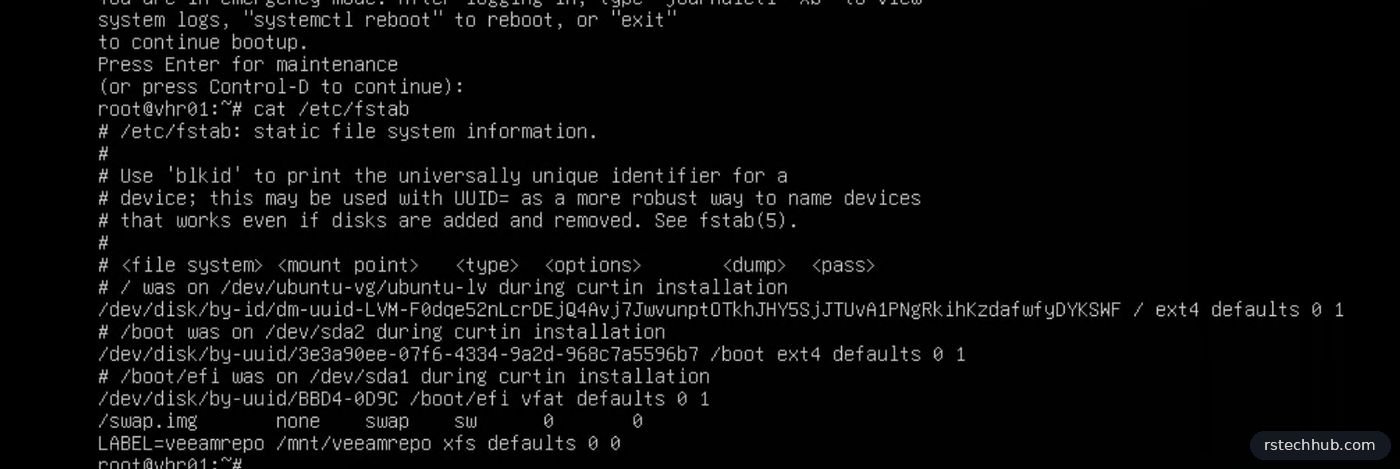
I logged in at the emergency prompt, put a # in front of that line, and rebooted. Later the new disk takes the same label and mount point, so Veeam doesn’t notice the swap.
The new disk: an iSCSI LUN on the Synology
A hardened repository needs a block device formatted with XFS. An NFS or SMB share won’t do, because Veeam relies on XFS for fast clone and on the Linux immutable flag. On DSM 7.3 that means a LUN in SAN Manager.
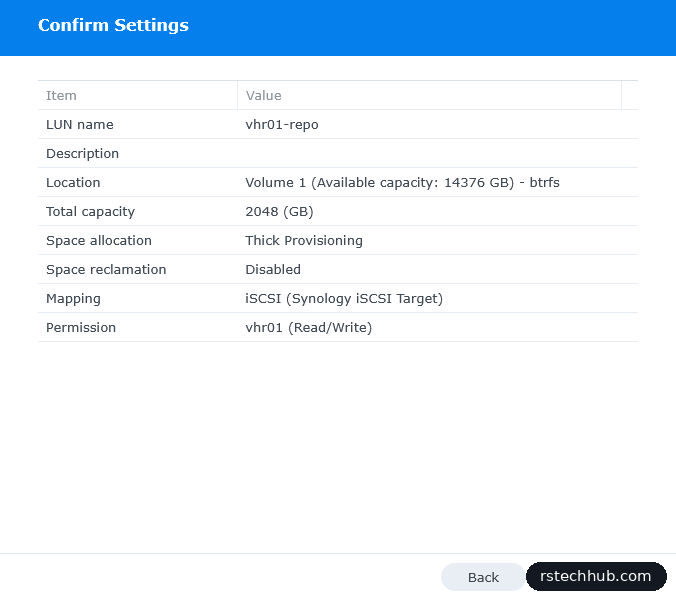
LUN, Create: I called it vhr01-repo, 2048 GB, and chose thick provisioning so the space is reserved up front. DSM 7.3 maps LUNs to a target and controls access with Hosts. I added a host called vhr01 with its initiator IQN and gave it Read/Write. Nobody else gets access.
To find the IQN, on vhr01:
# vhr01
sudo apt install -y open-iscsi
sudo cat /etc/iscsi/initiatorname.iscsi
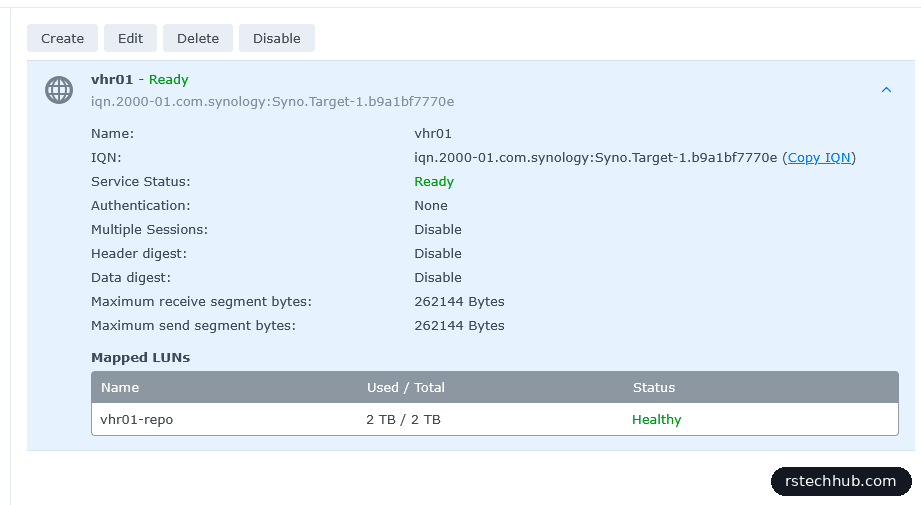
Two small traps. DSM rejected the IQN with “Field value is invalid” when I pasted it, because a stray space came along. Typing it fixed that. And after the wizard the LUN showed “No mapped targets”, so I created a target and mapped the LUN to it by hand.
Connecting vhr01
# vhr01
sudo iscsiadm -m discovery -t sendtargets -p <synology-ip>
sudo iscsiadm -m node -T <target-iqn> -p <synology-ip> --login
sudo iscsiadm -m node -T <target-iqn> -p <synology-ip> --op update -n node.startup -v automatic
Discovery returned the target on two Synology interfaces, one on another VLAN. I deleted the record for the second one with iscsiadm -m node -p <other-ip> -o delete, so vhr01 only ever uses the backup network.
Before formatting anything, I checked which disk was the LUN. Formatting the wrong disk is a bad day.
# vhr01
lsblk -o NAME,SIZE,VENDOR,MODEL /dev/sdb
# sdb   2T SYNOLOGY Storage
XFS with reflink, and a safer fstab
# vhr01
sudo mkfs.xfs -K -b size=4096 -m reflink=1,crc=1 -L veeamrepo /dev/sdb
reflink=1 is what gives Veeam fast clone. -K skips the discard pass. Without it, mkfs sat on “Discarding blocks…” for ages, and on a thick LUN that pass gains nothing.
The fstab line is the lesson from problem 1:
LABEL=veeamrepo /mnt/veeamrepo xfs defaults,_netdev,nofail 0 0_netdev waits for the network before mounting an iSCSI disk. nofail lets the server boot even if the Synology is down. Without it, a NAS outage would put vhr01 back in emergency mode. The 40 GB that df shows as used on an empty 2 TB volume is XFS metadata for reflink, not data.
Problem 2: permission denied
Veeam’s repository path is /mnt/veeamrepo/backups. I created the folder, set the owner to my admin account, and ran a rescan. It failed with “Permission denied”.
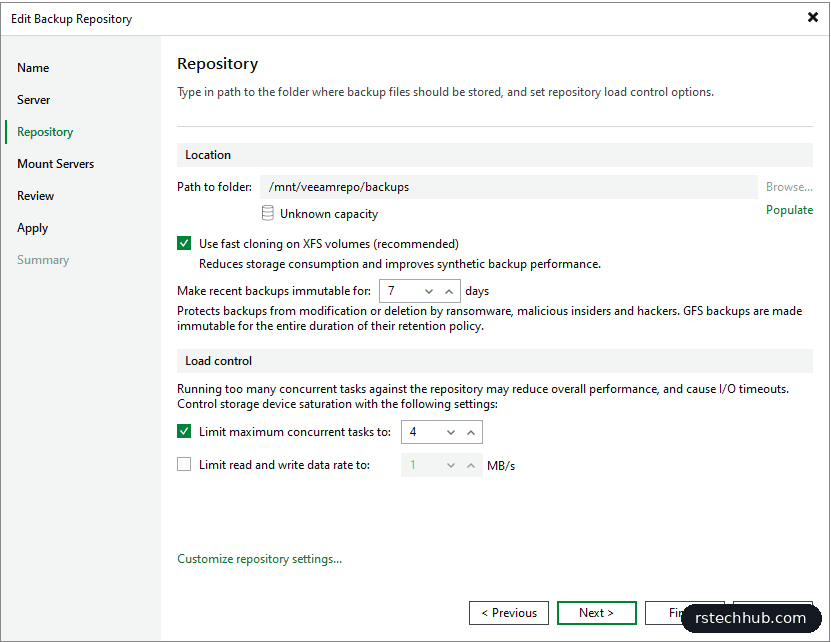
On a hardened repository the Veeam data mover doesn’t run as your admin user. It runs as its own service account. You can find out which one:
# vhr01
ps -o user:32= -C veeamtransport
# veeamrepo
# vhr01
sudo chown veeamrepo:veeamrepo /mnt/veeamrepo /mnt/veeamrepo/backups
sudo chmod 700 /mnt/veeamrepo /mnt/veeamrepo/backupsAfter that my admin account can’t even list the folder without sudo, which is how it should be. The rescan went through, showed 2 TB, and removed the 8 restore points that died with the old disk.

A reboot proved the rest: iSCSI logged in and the volume mounted on its own.
Problem 3: the time shift lock
I ran the backup copy job with all restore points. It copied 94.2 GB in about 9 minutes at 286 MB/s, then finished with a warning:
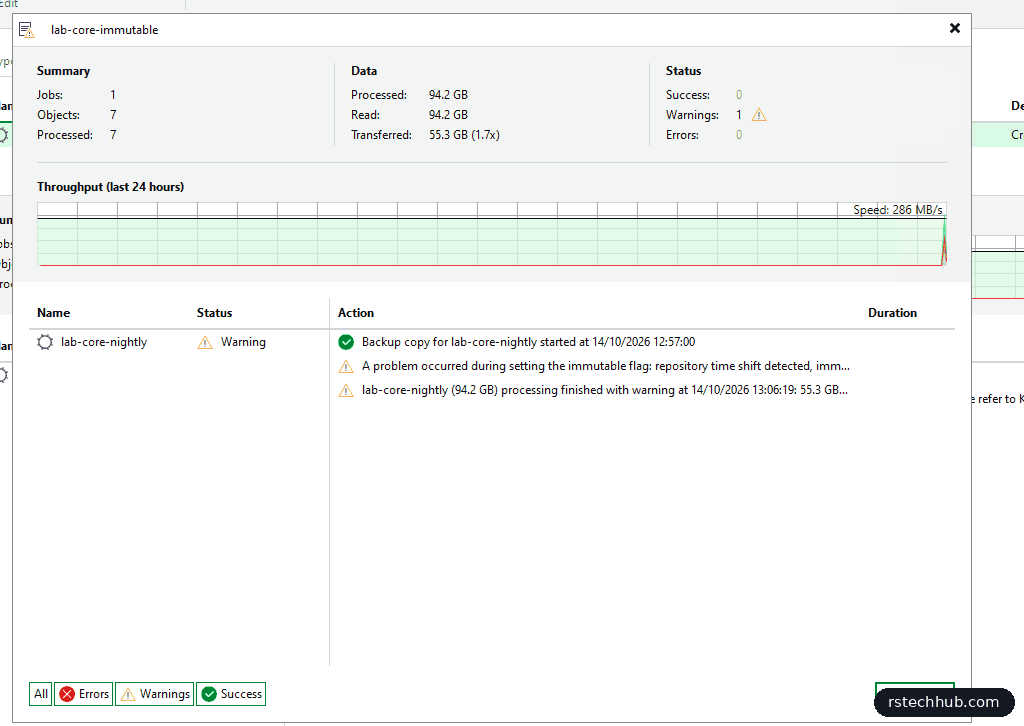
That’s the bad kind of warning. The data is there, but it isn’t immutable. Veeam KB4482 explains it. The hardened repository logs timestamps, and if the clock appears to jump by more than 24 hours it writes a retainLock file and refuses to set immutability. That’s a guard against someone winding the clock forward to expire immutable backups early. Mine tripped because vhr01 had been powered off for days.
First I checked the clock really was right (timedatectl: correct time, NTP synchronised). Then, for a hand-built repository like mine, the reset is:
# vhr01
sudo chattr -i /etc/veeam/immureposvc/retainLock
sudo rm /etc/veeam/immureposvc/retainLock
sudo systemctl restart veeamtransport
If you use Veeam’s own hardened repository ISO, there’s a Reset time lock option in its console menu instead.
Result
After the reset I ran the copy job again. The backup properties showed all 7 VMs on vhr01-immutable: 148 GB of VMs in 53.7 GB of backup files. The real proof is on the repository itself, where Linux marks each file with the immutable attribute:
# vhr01
sudo find /mnt/veeamrepo/backups -name '*.vbk' -exec lsattr {} +
----i----------------- .../lab-core-nightly/DC01.vm-...vbk
----i----------------- .../lab-core-nightly/Bookstack.vm-...vbk
----i----------------- .../lab-core-nightly/DC02.vm-...vbk
----i----------------- .../lab-core-nightly/certsrv01.vm-...vbk
----i----------------- .../lab-core-nightly/GIT01.vm-...vbk
----i----------------- .../lab-core-nightly/vault01.vm-...vbk
----i----------------- .../lab-core-nightly/vcmgmt.vm-...vbk
The i on every file means nobody can change or delete it, root included, until Veeam lifts the flag when the 7 days are up. That’s the check I’ll run whenever I’m not sure immutability actually applied, instead of trusting a green tick.
The copy job stays in its “as new restore points appear” mode, so from tonight it picks up each nightly backup on its own.
Lessons
- Put
_netdev,nofailon any network disk in fstab. A missing disk should cost you a mount, not the whole boot. - Check the disk vendor and size with
lsblkbeforemkfs. - On a hardened repository, the folders belong to the Veeam service account, not your admin account.
- If a hardened repository has been off for more than a day, expect the KB4482 time shift lock. Check the clock, then reset it.
- A backup copy that finishes with a warning about immutability is not immutable. Read the warnings.