
In Part 8 I registered VCF Operations and downloaded my licences. This part is about passwords: where VCF 9.1 keeps them, how you change them, and what happens when one changes behind VCF’s back. I ran five real scenarios on the lab to find out, and a couple of them surprised me.
Three places, one to use
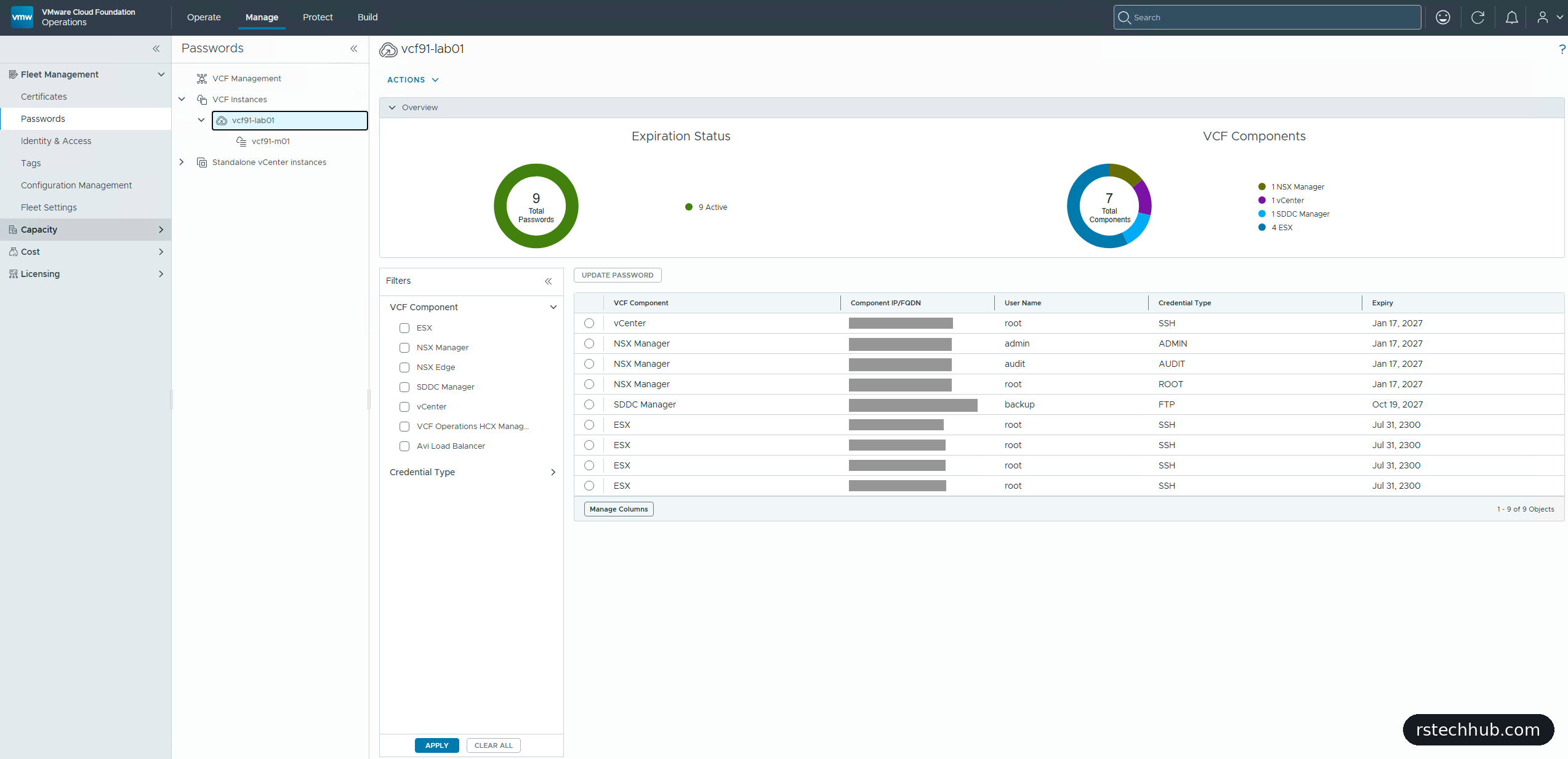
VCF 9.1 can manage passwords in three places. Broadcom’s guidance is clear about which one to use. VCF Operations is the recommended tool for the whole fleet. SDDC Manager is kept for backward compatibility and carries a banner saying its interface will be removed. Changing a password on the component itself is for break-glass situations only.
In practice I still needed both consoles. VCF Operations updates passwords and owns password policies. SDDC Manager is still the only place that generates random passwords and schedules rotation. Its own Update option is greyed out, which tells you where Broadcom is heading.
Eighteen passwords, straight into the vault
The 9.1 wizard only asked me for one password, the ESX root password. Everything else was generated: root and admin accounts for VCF Operations, the cloud proxy, vCenter, NSX and SDDC Manager, plus accounts for the two services runtimes. The installer’s Review Passwords button offers them all as JSON or CSV as soon as the deployment starts.
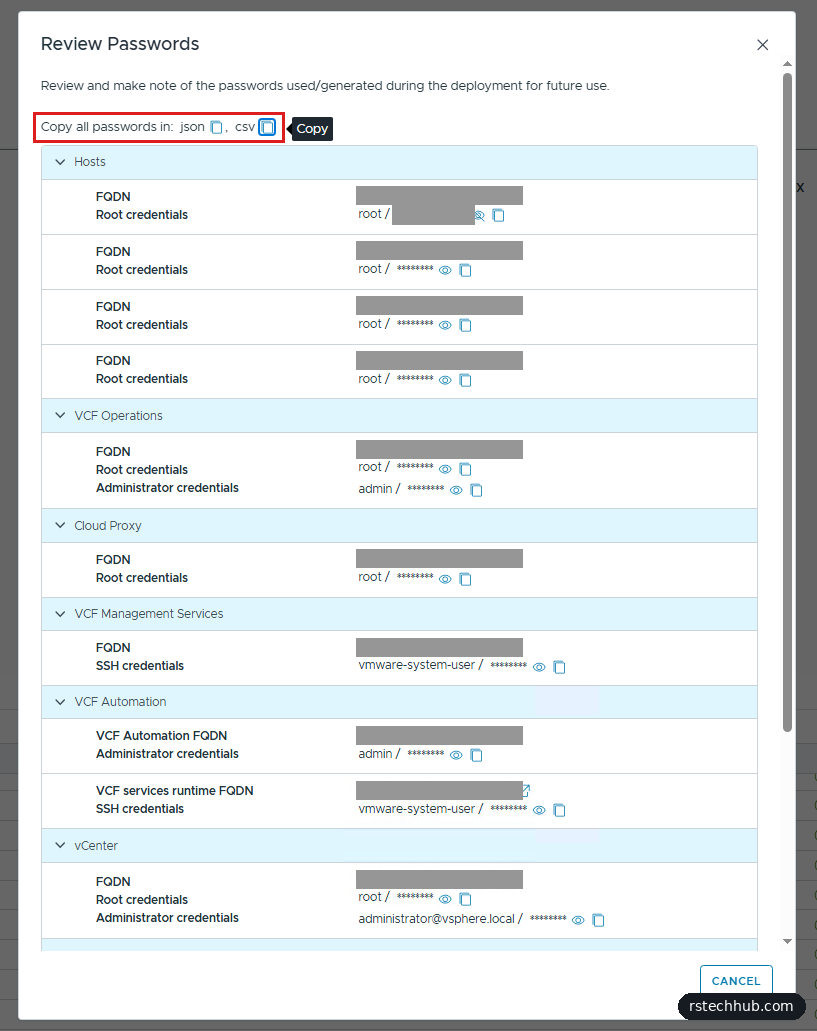
I didn’t want eighteen passwords in a spreadsheet, so a small script of mine turned the CSV into an import file for my password vault, and every copy left on disk was deleted. Whatever you use, don’t leave that file lying around. VCF Operations doesn’t keep a copy of the passwords it manages, so your vault is the only place you’ll find them later.
Before you set any password by hand, know that the rules differ by component, from a 7-character minimum on ESX root to 15 on vCenter and VCF Operations. The only special characters every component accepts are ! @ # $ ^. Broadcom lists every account in its default password requirements.
Characters that break a build
That list hides a catch. Each component also has characters it rejects, and some pass NSX or ESX but fail somewhere else in VCF. These are the ones Broadcom’s knowledge base documents:
- The VCF Operations Cloud Proxy accepts
@ ! # $ % ? ^and rejects*,&,_and-(KB 434522) - Fleet components accept
! @ # $ ^ *(KB 438606), and VCF Automation 9.1 accepts the same set with 15 to 64 characters (KB 451395) - SDDC Manager fails to remediate passwords containing
& < > ' ", with a misleading “incorrect user name or password” error (KB 383098) - The Fleet Manager appliance root password should avoid
! # % & | < > ; ' "(KB 422906)
NSX has its own rules on top. The admin and audit accounts need at least 12 characters, with an upper case letter, a lower case letter, a digit and a special character, and no character repeated three or more times in a row (SddcNsxtSpec). The root password needs 8 characters, five of them different, with no dictionary words and no palindromes. NSX gives example special characters but never publishes a full list, so it can accept something SDDC Manager later chokes on. A password that fails the NSX policy forces a change at next login for root and admin, and disables other local users such as audit until you reset them.
Some valid characters still cause trouble outside VCF. In a Linux shell, ! triggers history expansion and $ is read as a variable, so single-quote any password you paste. I stick to @ and ^, which pass every list above, and get strength from length instead.
A script to generate them
Typing passwords by hand is how the bad ones sneak in, so I wrote a PowerShell script that generates ones that pass every list. It uses only @ and ^, avoids look-alike characters such as l, 1, O and 0, and never ends on a special character, so a double-click selects the whole thing. Run it with no arguments and you get ten.
.\New-VcfPassword.ps1 -Count 20 -Length 20 -OutFile .\passwords.txtThe script is free to download from my GitHub.
Updating the ESX root password
My first job was replacing the ESX root password I’d typed into the wizard. VCF Operations does it one host at a time and asks for the current password as well as the new one, which makes sense for a tool that doesn’t store passwords. Each update reported success, and SDDC Manager picked up the change on its own, so nothing needed reconciling.
The expiry column held a small surprise. ESX root showed an expiry in the year 2300, and after the update it moved forward by exactly four days. ESX counts expiry as 99,999 days from the last change, and I’d installed the hosts four days earlier. In other words, out of the box ESX root never expires, and VCF doesn’t rotate it automatically either.
A password policy for the fleet
Password policies are new in VCF Operations and cover length, complexity, lockout, expiry and history. The page lays out the workflow in four steps: create a policy, assign it, run a compliance check, then remediate. I created one for the whole fleet with a 90-day expiry.
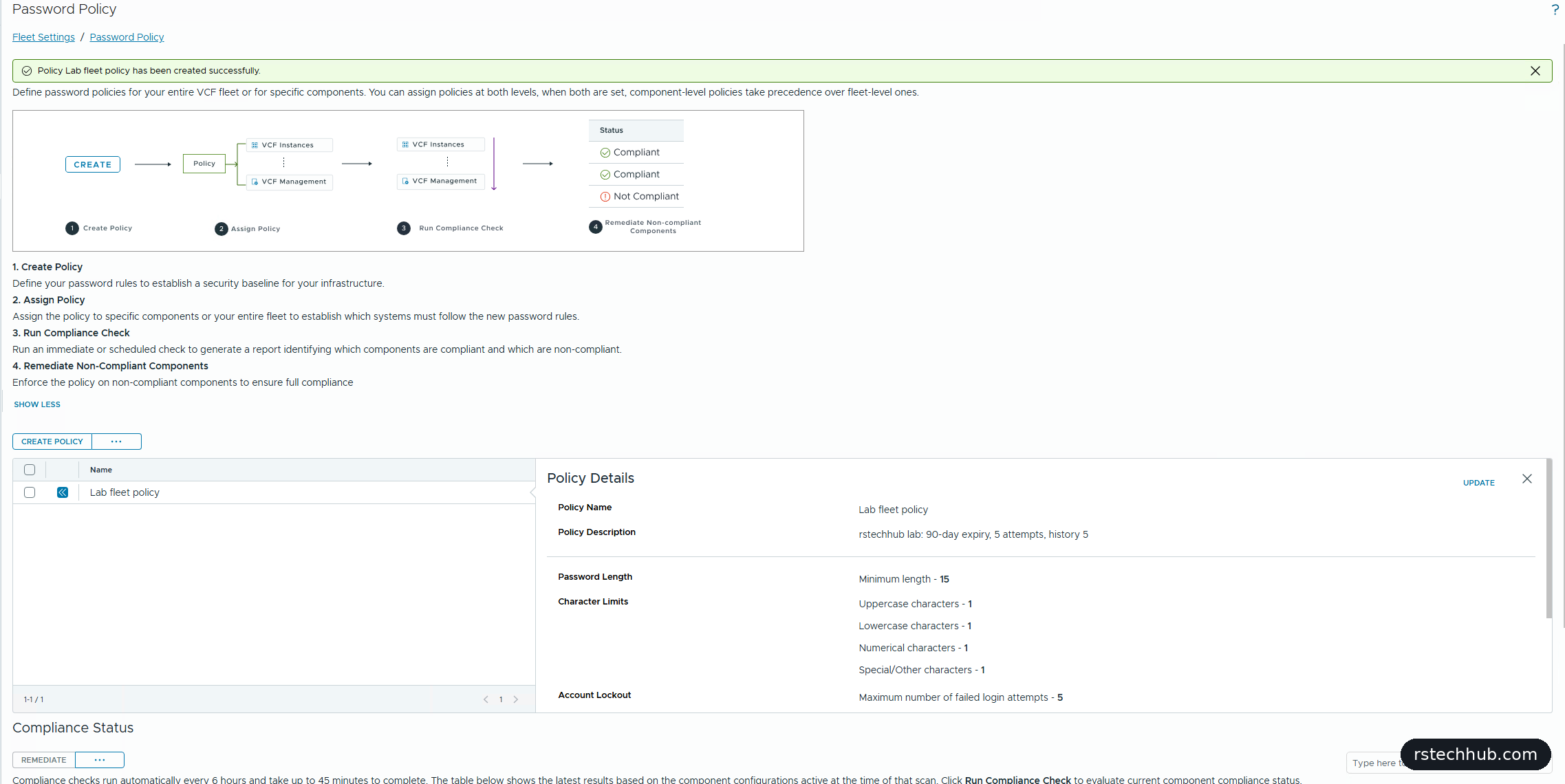
The lesson here: assigning a policy changes nothing. The compliance check then marked all ten components as not compliant, and the detail view shows exactly what would change on each one. For ESX that confirmed the 99,999-day expiry.
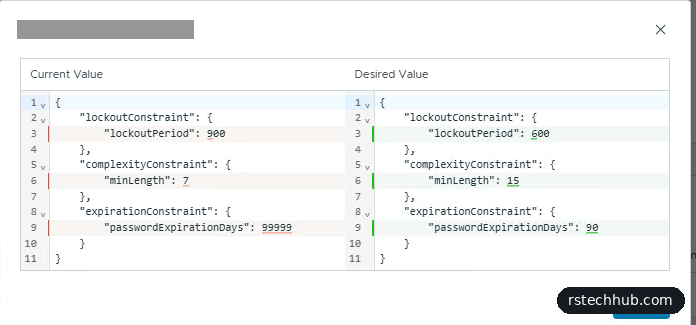
Remediation is the step that applies the policy, and it took a while. Afterwards both the management components and the instance showed compliant. The check itself ran in about a minute, much quicker than the 45 minutes the page warns about.

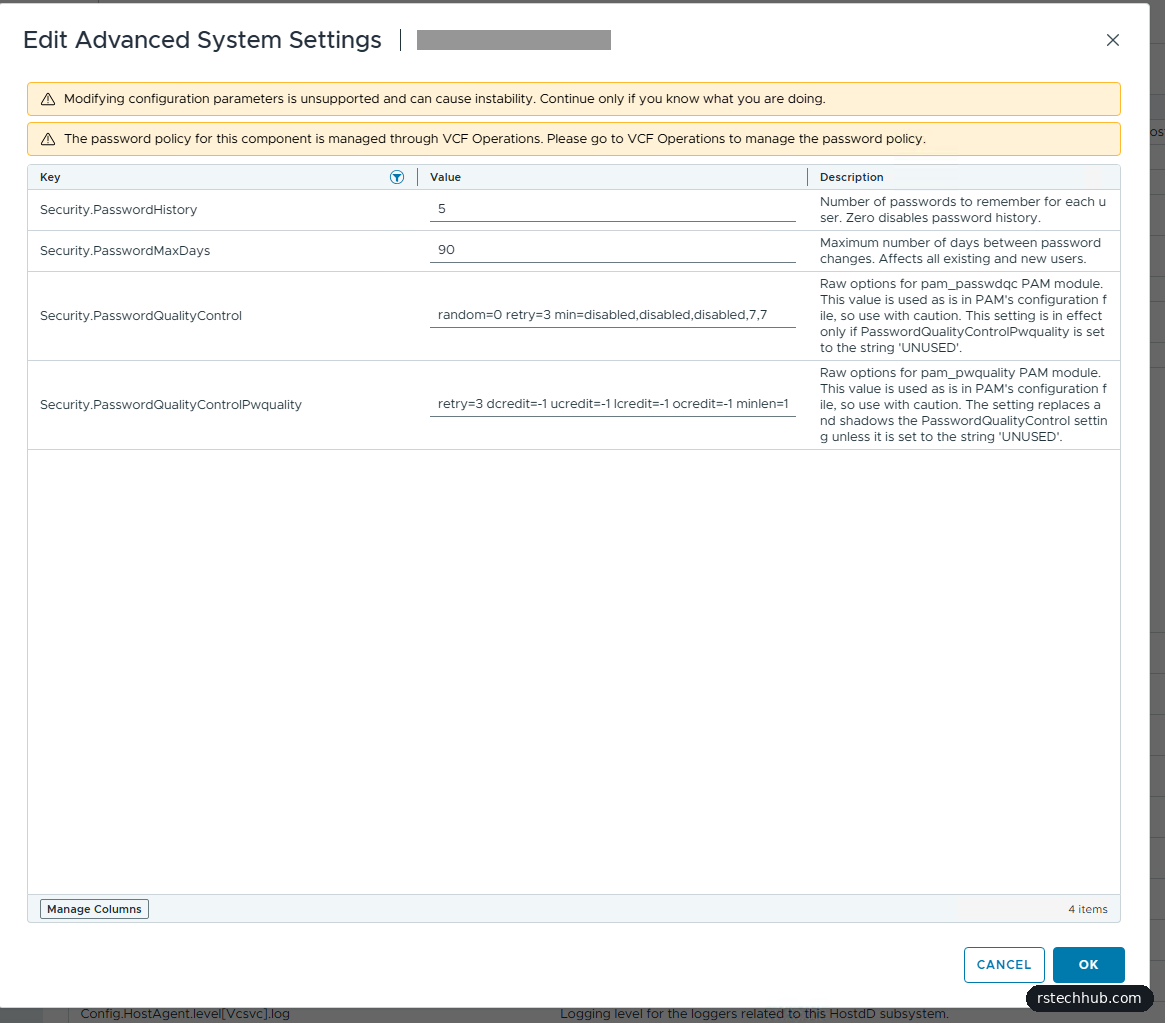
To be sure it really reached the hosts, I opened a host’s advanced settings in vCenter. The 90-day expiry and the history of five were there, and vCenter now shows a banner saying the password policy is managed through VCF Operations. The Passwords page in VCF Operations still showed the old expiry dates, though. It works expiry out from the last password change, so the new 90 days only shows up after the next one.
Rotation and schedules
Rotation means letting SDDC Manager generate a random password for you. I tried it on one of the ESX service accounts that VCF uses internally, and it went through cleanly. Scheduling is more selective: SDDC Manager only offers it for some accounts, such as vCenter root and its own service accounts on vCenter and NSX, and never for ESX. The choices are 30, 60 or 90 days.
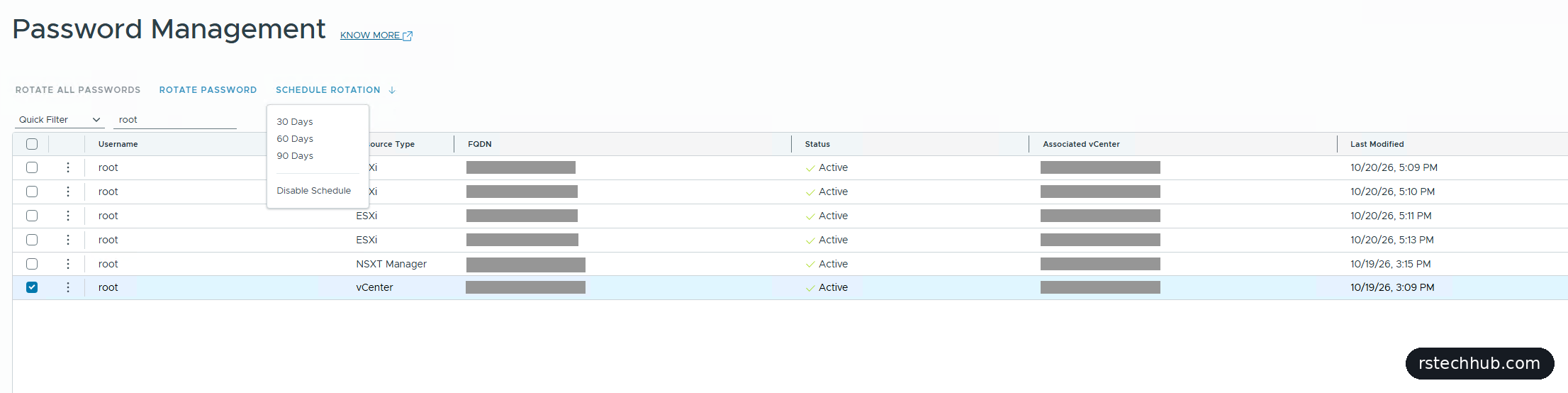
My rule: scheduled rotation is for accounts no person logs in with. I scheduled 90 days for SDDC Manager’s service accounts, which Broadcom recommends. I left the human accounts, root and admin, alone, because a random password set on a timer would quietly make my vault wrong. If I ever need a rotated service password, SDDC Manager’s API can return it.
When a password changes behind VCF’s back
For the last test I changed the NSX audit password directly in NSX. Two things happened. First, NSX marked the password as expired straight away: when an admin resets another local user’s password, that user has to choose a new one at their next login. Second, SDDC Manager didn’t notice at all. It still showed the account as active, with the old date.
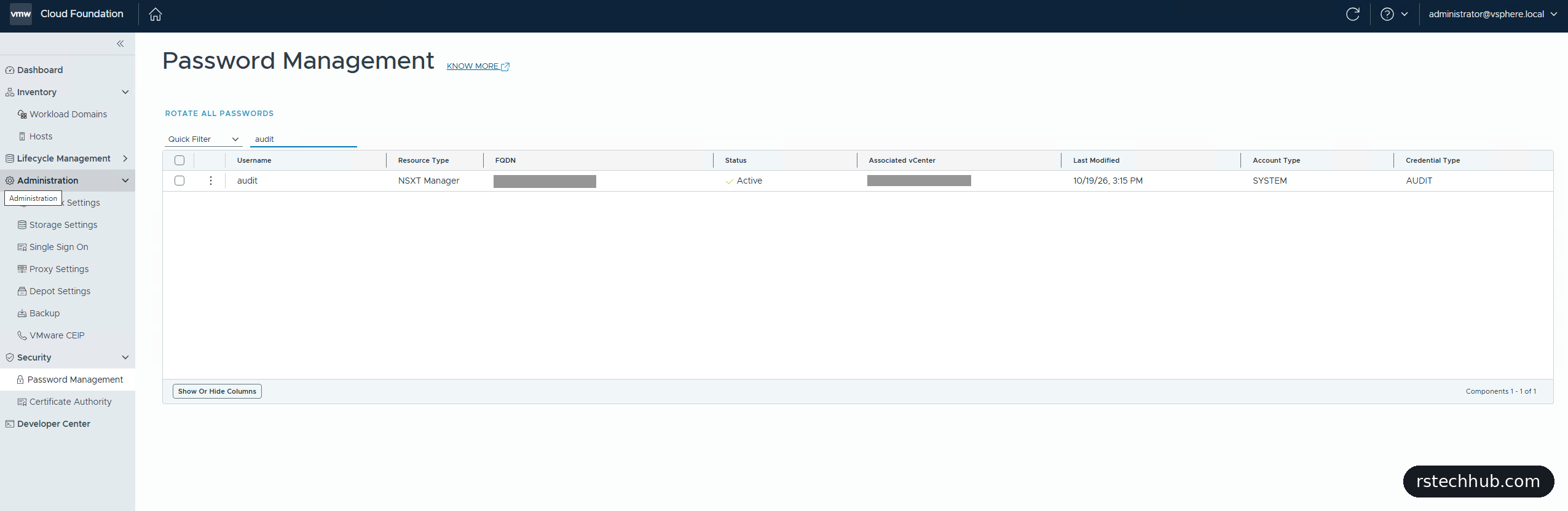
That’s the danger. A password changed outside VCF goes quietly out of sync until something tries to use it. The fix is Remediate in SDDC Manager: you give it the password that’s now on the component, and it checks and stores it. For service accounts it goes one step further and rotates them straight away.
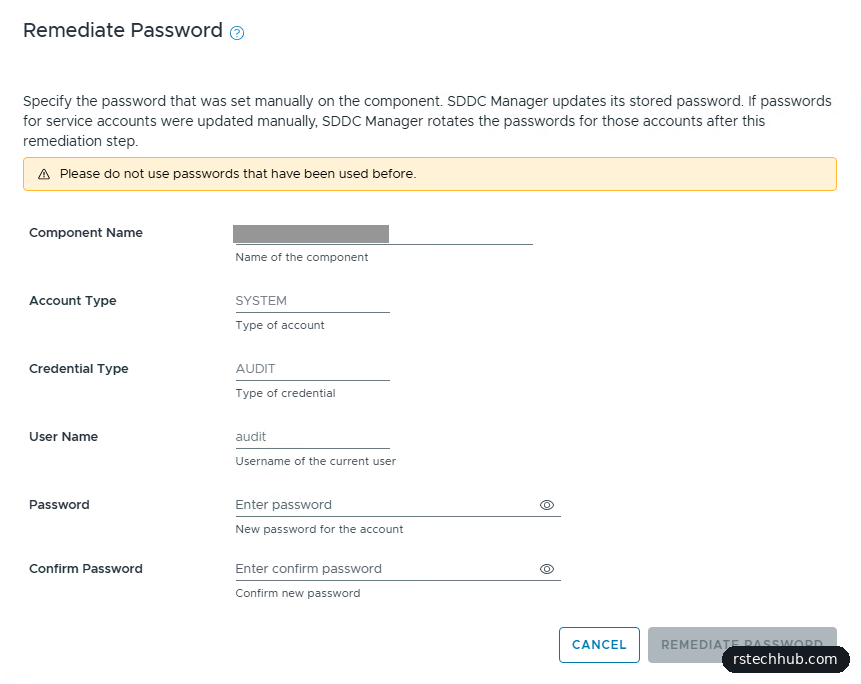
Expiry warnings
Expiry warnings arrive as ordinary VCF Operations alerts, so they reach whatever notifications you’ve set up. My alert list was empty, as nothing was close to expiring. Be aware of one known issue in 9.1: NSX can raise a false “password expired” alert (KB 448813).
What I’d tell anyone starting out
- Use VCF Operations for updates and policies, and SDDC Manager only for rotation.
- Keep your vault as the one place that’s always right, and save a new password there before you set it.
- Schedule rotation only for accounts nobody logs in with.
- Assigning a policy changes nothing until you remediate.
- If you change a password on a component directly, remediate it in SDDC Manager the same day.
- If you want one special-character set that works everywhere, stick to
@and^.
What’s next
Passwords are in order and the policy is enforced. Next in the series is Part 10, log management, so ESX and NSX finally have somewhere to send their logs. After that come my own CA certificates and patching from 9.1.0.0 GA.