
In Part 3 the VCF Installer came up, connected to the online depot and downloaded the 9.1.0.0 binaries. This part is the deployment wizard itself: every page, what I chose and why, and the few places where 9.1 asked for something I hadn’t planned. It ends with a clean validation run. The bring-up itself gets its own post, Part 5.
The wizard has three stages, Plan, Prepare and Deploy. It saves your progress in the browser after each step, so you can close the tab and come back.
Plan: deployment path
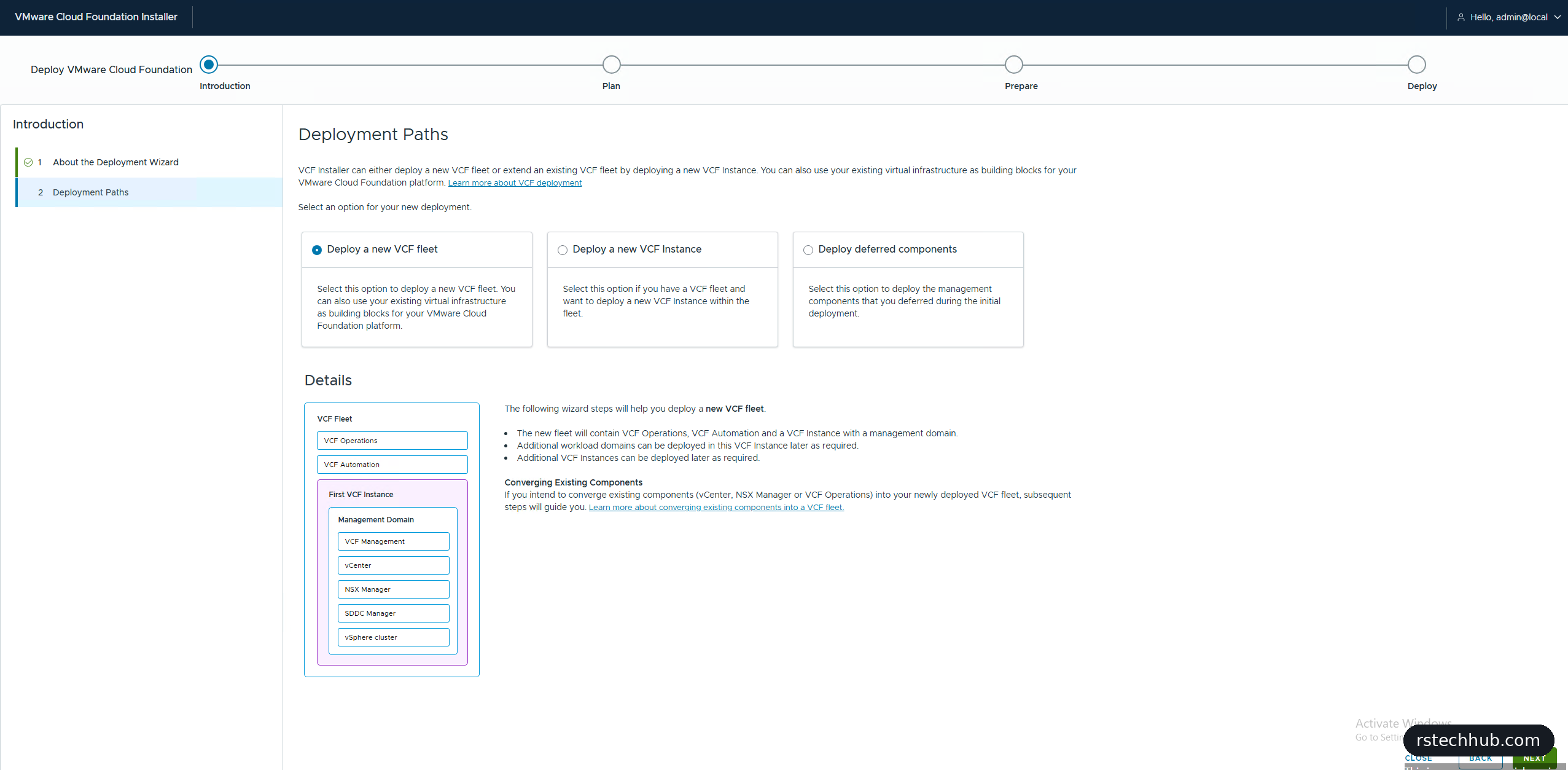
There are three paths: deploy a new VCF fleet, add a new VCF Instance to an existing fleet, or deploy deferred components. That last one is new. You can leave things like VCF Automation out of the bring-up and add them later from the same installer. This is a clean build, so I chose a new fleet.
The next page offers to reuse existing components: a VCF Operations 9.1 instance, a vCenter (with its NSX Manager), or an existing VCF Automation. I left every box unticked. The last box also doubles as “deploy VCF Automation later”, and I wanted it now.
Plan: size
The default is High Availability at Medium, which adds up to roughly 214 vCPUs, 708 GB of RAM and 9.8 TB of disk. That’s far more than four R640s should give to management. I switched to the Simple model, which only allows Small, and the totals dropped to about 82 vCPUs, 255 GB of RAM and 5.8 TB. One thing I didn’t expect: NSX Manager stays at Medium even in the Simple model.

Plan: network options, where 9.1 changed things
This page caught me out. The 9.1 defaults want two management networks, one for ESX host management and one for the management VMs (VCF Operations, VCF Automation and the new management services). They also turn on a distributed Transit Gateway, so the domain is VPC-ready from day one, and that needs its own VLAN.
My lab runs everything management on one VLAN, so I clicked Customize and set:
- VM management network: use the ESX management network.
- VCF management network: use the VM management network.
- “Deploy VCF Operations and VCF Automation to a specific switch or segment”: off. Turning it on defers both.
- Transit gateway type: Distributed connectivity.
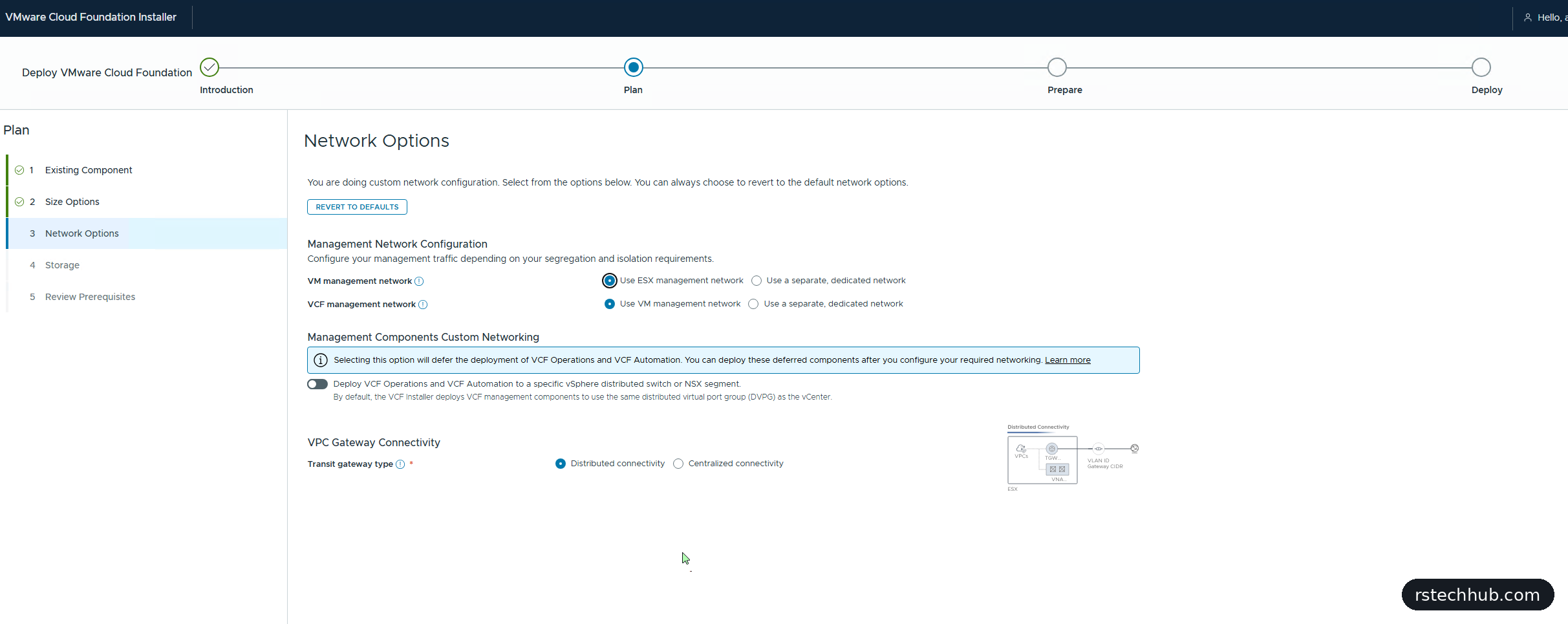
There’s no option to switch the transit gateway off. You choose Distributed, which runs on the hosts and only needs a VLAN and a gateway, or Centralized, which needs NSX Edges. Distributed is the lighter choice for a lab. I gave it VLAN 47, and before touching my MikroTik switches I checked them first. VLAN 47 already existed, with its gateway on the core switch and tagged on every server port, because I’d built the trunks for a range of VLANs back in Part 1. No switch change needed. It’s worth checking before you change anything.
Storage is vSAN ESA. I left Data-in-Transit encryption off for the lab, and noted that NFS v3 is now an option for the management domain’s principal storage too.
Plan: review prerequisites, and five DNS names I didn’t have
The prerequisites page lists what the deployment will need: three hosts minimum, five VLANs, and every FQDN and IP range. You can download it all as a JSON template. I’d prepared my DNS from the 9.0 build, and two lines didn’t match.
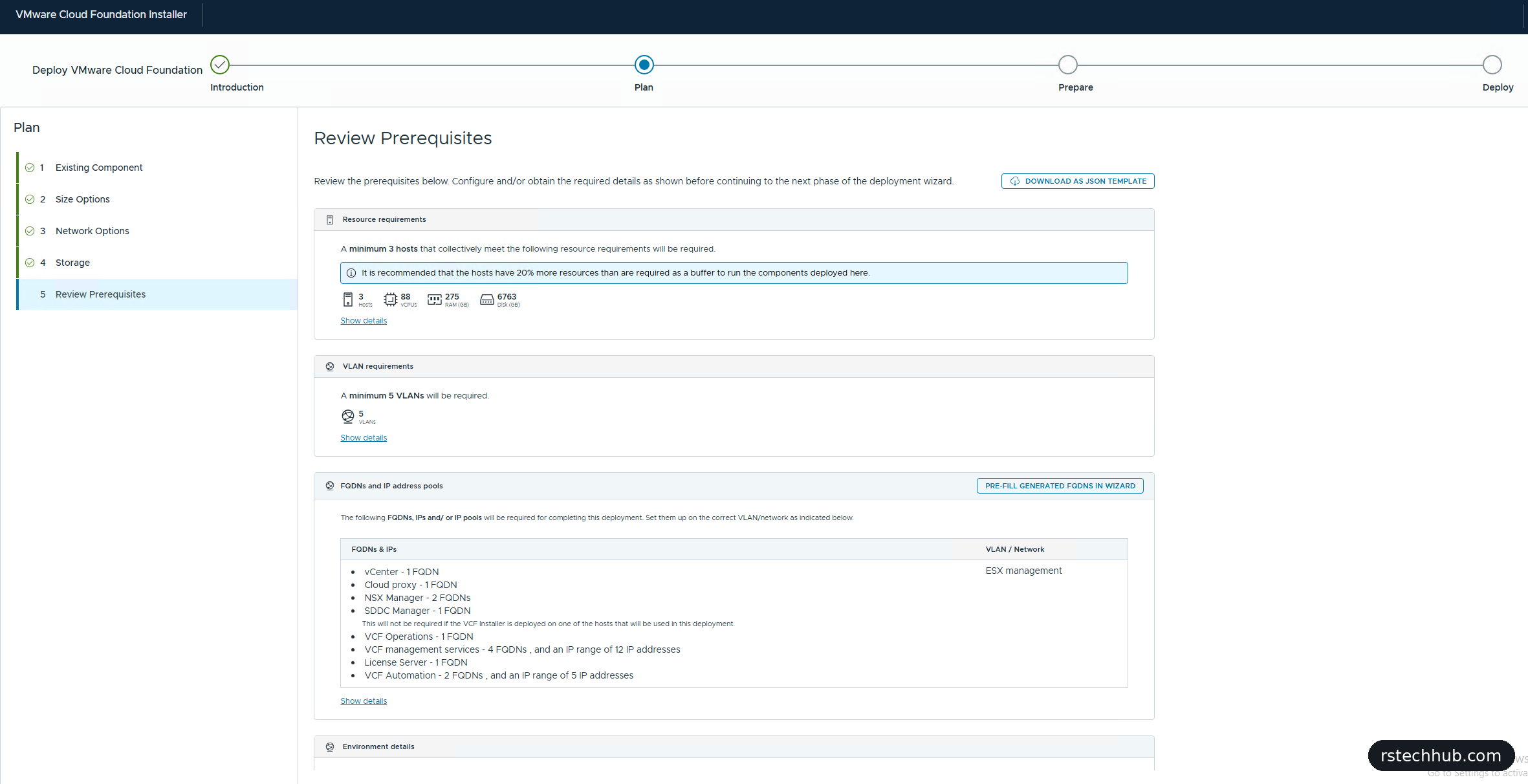
Show details explains them. The VCF management services, new in 9.1, need four FQDNs (fleet components, instance components, the VCF services runtime and an identity broker) plus a range of 12 IPs for the runtime nodes. VCF Automation needs two FQDNs, one for itself and one for its own services runtime, plus a range of 5 IPs. The FQDNs must resolve to addresses outside the ranges.
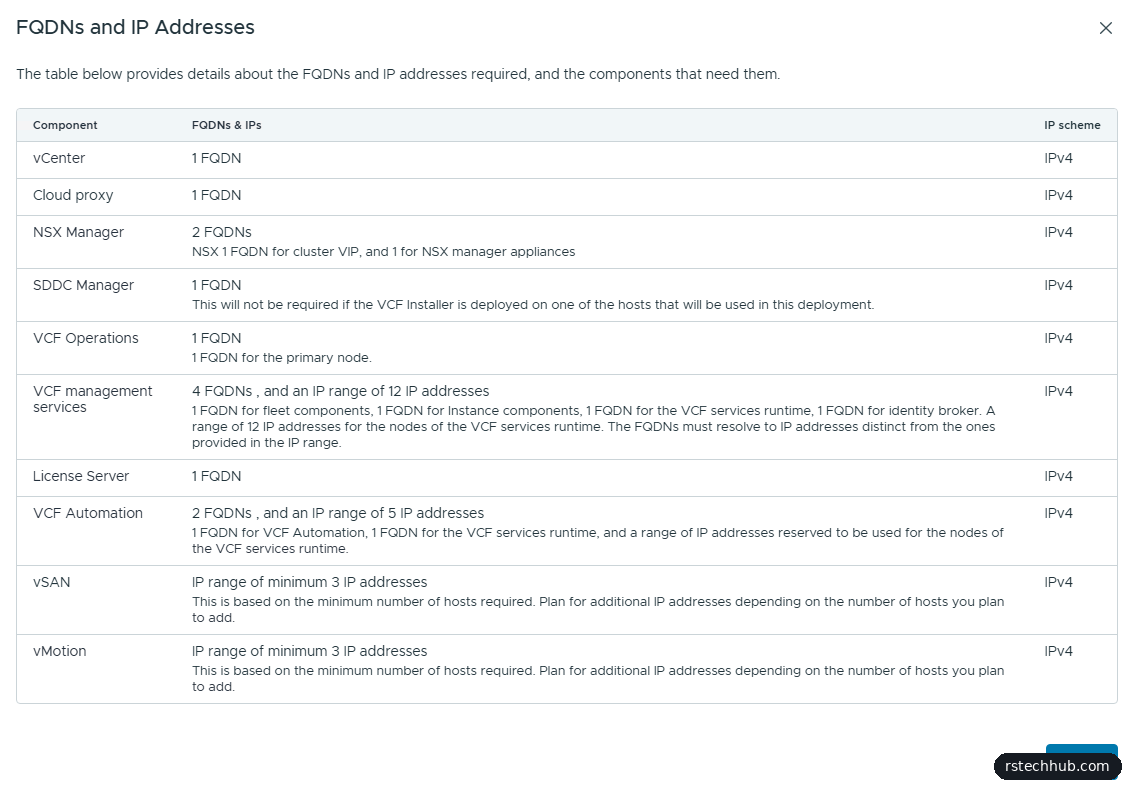
I reused my existing fleet management name for “fleet components” and added four new A and PTR records on the first domain controller. The first check said the names didn’t exist. They did, on that DC. My resolver had asked the second DC before Active Directory replicated the records, and Windows cached the negative answer. Forcing replication with repadmin and checking each DC directly with Resolve-DnsName -Server sorted it out within a few minutes. When you add records just before a deployment, check them against every DNS server the installer will use.
A word on passwords
Before starting I looked up the password rules, because VCF Automation 9.1 is stricter than everything else: 15 to 64 characters, and only ! @ # $ ^ as special characters (Broadcom KB 451395). A password that breaks the rule fails late in the deployment and leaves entries behind to clean up. I planned on 16 to 20 characters from that set. In the end the wizard only asked for one, the ESX root password. It generates every other password itself, and I’ll cover where to find them in Part 5.
Prepare: general information and hosts
General information takes the version (9.1.0.0, which uses the latest downloaded build of each component), an instance name, a management domain name, CEIP, DNS, NTP and the DNS suffix. I named the domain in VMware’s own style, vcf91-m01, because the wizard builds the datacenter, cluster, datastore and switch names from it.

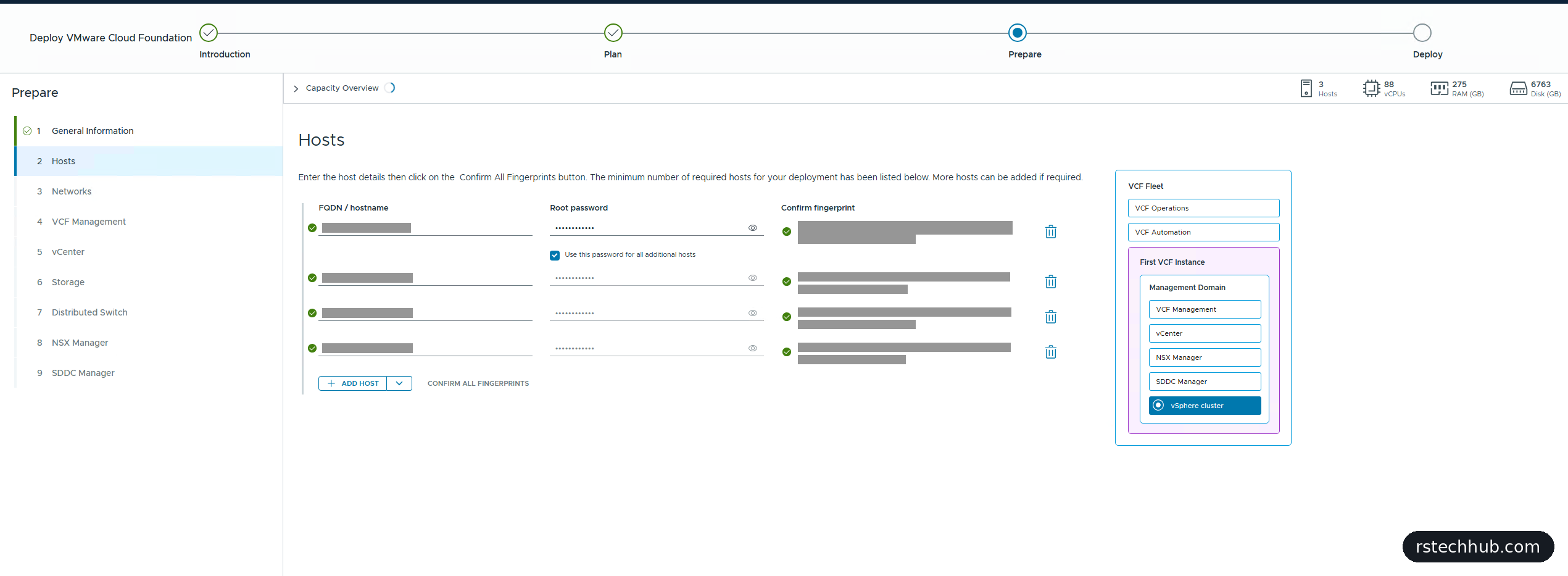
The hosts page starts with three rows; Add Host gives the fourth. Enter each FQDN and the ESX root password (one tick copies it to the others), then Confirm All Fingerprints. All four went green.
Prepare: networks and names
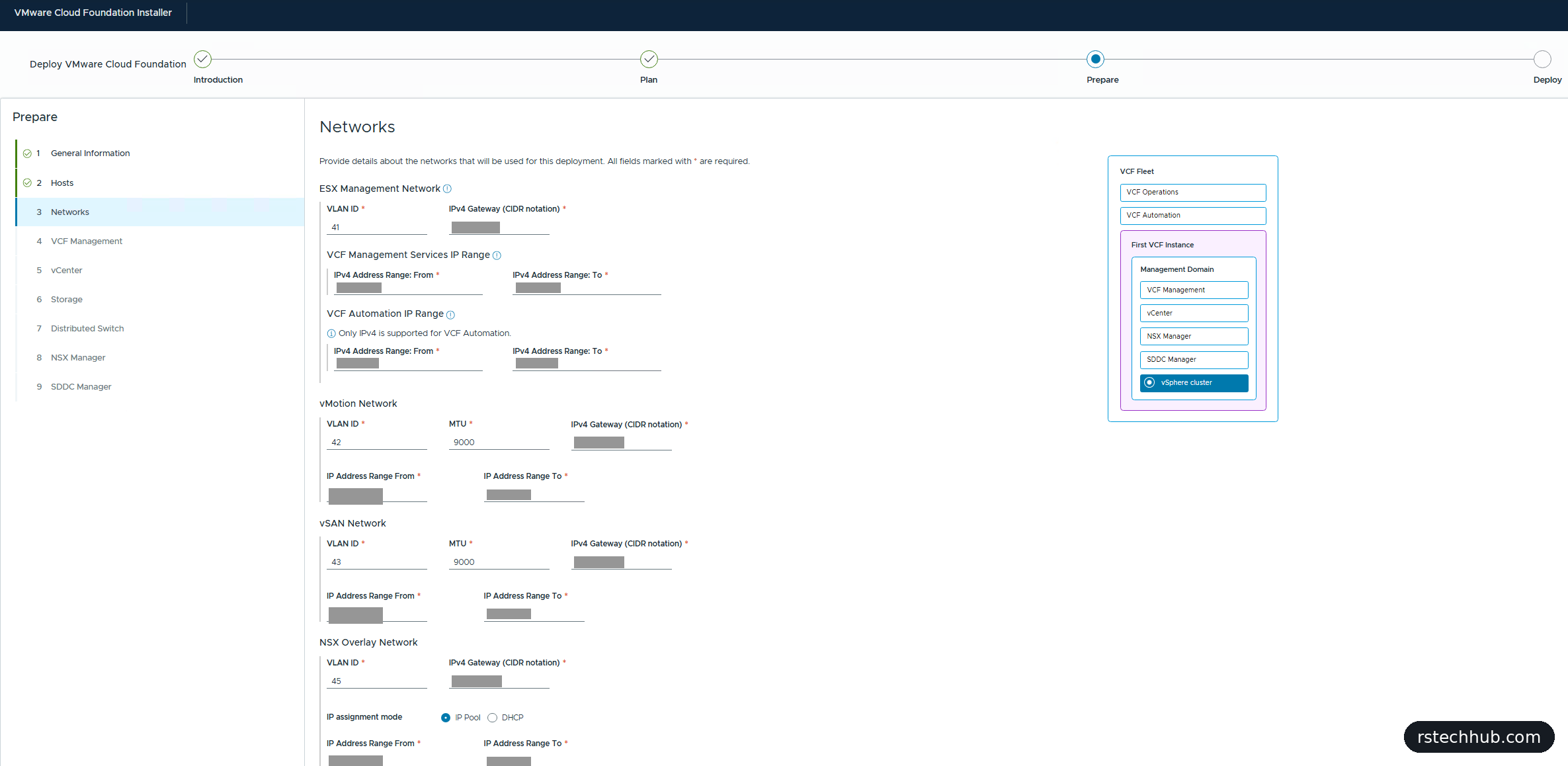
The networks page wants each gateway in CIDR form, the gateway address with its prefix length on the end. Management, vMotion, vSAN and the NSX overlay each get a VLAN, and the two new IP ranges go here too. MTU defaults to 9000 for vMotion and vSAN, which matches my switches.
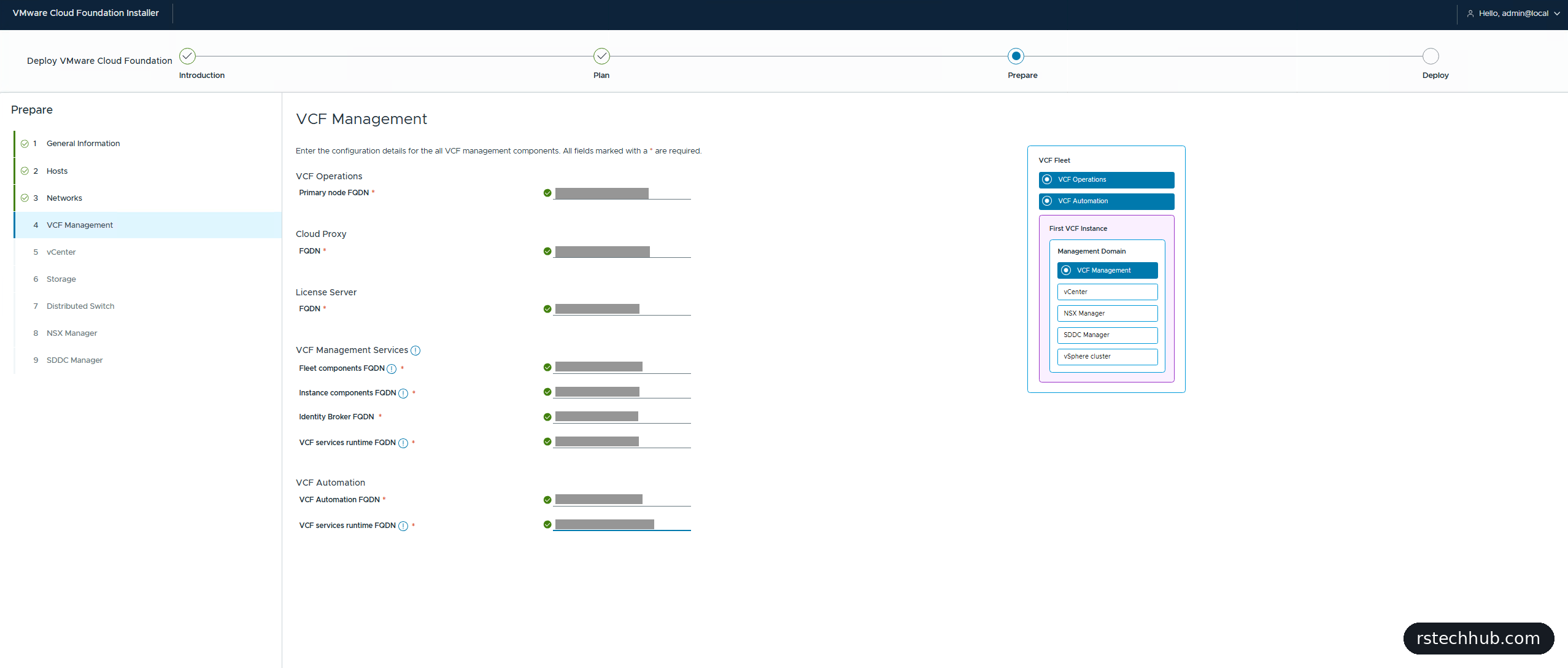
The VCF Management page takes only FQDNs: VCF Operations, the cloud proxy, the license server, the four management services names and the two VCF Automation names. Each field resolves the name in DNS as you type and shows a green tick. The two “VCF services runtime” fields are easy to mix up. The first belongs to the management services, the second to VCF Automation.
vCenter and storage were quick: the vCenter FQDN, then the datacenter, cluster and vSAN datastore names, all pre-filled from the domain name, and vsphere.local as the SSO domain.
Prepare: distributed switch and NSX
The wizard found both 10G ports on each host and offered a Default profile: one distributed switch for all traffic. With two NICs per host that’s the only sensible layout, so I kept it. MTU 9000, two uplinks, no LAG. Management, vMotion and vSAN use “Route Based on Physical NIC Load”, NSX uses source port ID, and both uplinks are active for everything.

The NSX Manager page is where the transit gateway’s VLAN finally comes in: the cluster and appliance FQDNs (only one appliance in the Simple model), then VLAN 47 and its gateway in CIDR form.
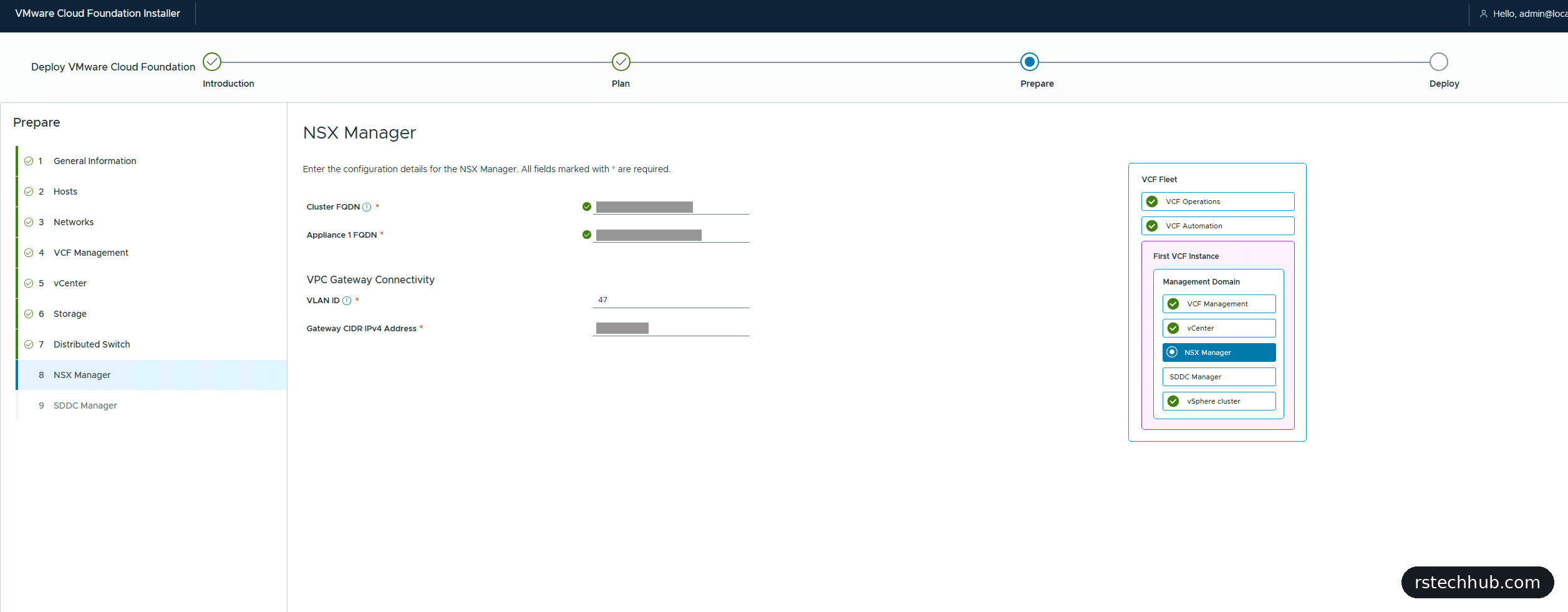
The last page is SDDC Manager. My installer runs on a separate management cluster, so the wizard deploys a new SDDC Manager appliance and asks for its FQDN. If you deploy the installer onto one of the new hosts instead, it becomes the SDDC Manager and you need one less address.
Review: read the JSON
The Review page shows everything as a summary or as JSON, and you can download the spec. I read both, and a few values I never typed are worth knowing about:
- The management services and VCF Automation run Kubernetes internally on 198.18.0.0/15. Make sure nothing in your network uses that range.
- The transit gateway gets a private block of 172.31.0.0/16, and the VPC external IP block defaults to the whole VLAN 47 subnet, gateway included. I’ll narrow that in NSX after bring-up rather than edit the JSON now.
- vCenter is Small but with Large storage, which is why it needs about 1.5 TB.
- The JSON contains the ESX root password in clear text. Keep the downloaded spec in your password vault, not in Downloads.
Validation, and the vSAN disks
Validation runs 17 checks and took about 15 minutes. The two I was watching were the vSAN ones. My R640s each have three 1.6 TB Intel P4610 NVMe drives, some Intel-branded and some Dell-branded, and none of them on the vSAN ESA certified list for this setup.
Before running the wizard I’d added one property to the installer, following William Lam’s vSAN ESA disk HCL workaround and Broadcom KB 408300:
for f in application.properties application-prod.properties; do
  echo "vsan.esa.sddc.managed.disk.claim=true" >> /etc/vmware/vcf/domainmanager/$f
done
systemctl restart domainmanager
Part 3 has the full steps and why both files. The result: “vSAN ESA Disks Eligibility” passed, and “ESX Host vSAN HCL Compatibility” came back as a warning on all four hosts (“not HCL compatible”, “no vSAN ESA certified disks found”) instead of an error. A warning can be acknowledged, an error stops you. This is fine in a lab, but Broadcom only supports certified drives in production.
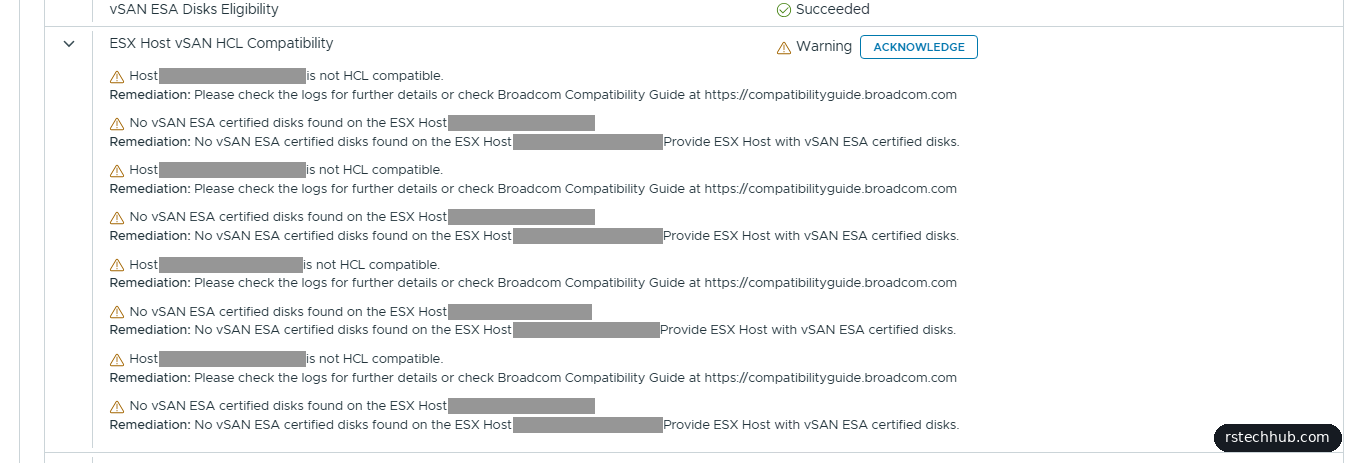
Everything else passed first time, including the vMotion, vSAN and NSX overlay connectivity tests, which check MTU 9000 end to end between the hosts. Sixteen green, one acknowledged warning, and the Deploy button lit up.

What’s next
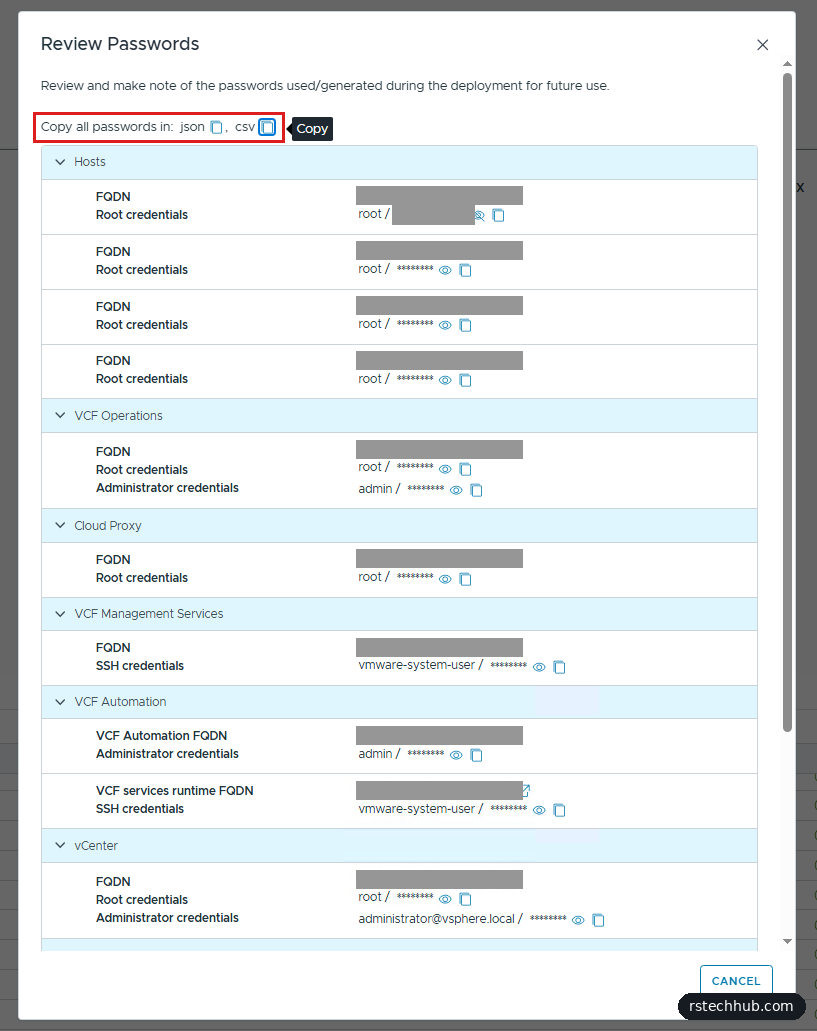
I clicked Deploy. The first thing the progress page offers is Review Passwords: every credential the installer generated, eighteen accounts in all, with one-click copy as JSON or CSV. Part 5 covers the bring-up itself, getting those passwords safely into my vault, first logins, and the tidy-up jobs I noted along the way.