
In Part 7 the backups landed on my NAS. The last banner left from bring-up is VCF Operations saying it isn’t registered. This part registers it in Connected mode and adds my VMUG Advantage licences. It ends with a rule I didn’t know about: a primary licence has to cover every core, or it can’t be assigned at all.
Where licensing lives in 9.1
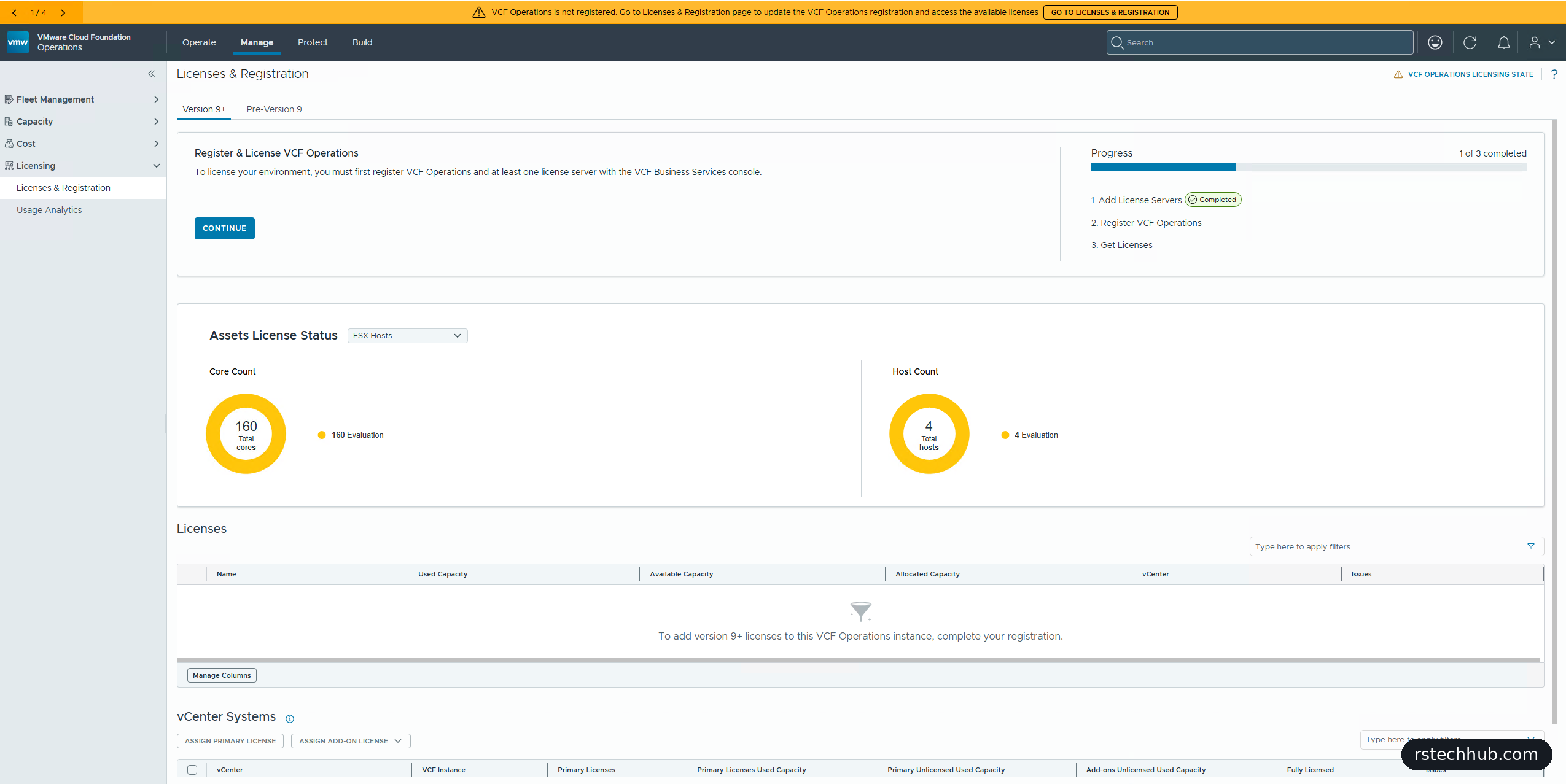
It sits in VCF Operations under Manage, Licensing, Licenses & Registration. The orange “not registered” banner links straight to it. Step one, a license server, was already done by the bring-up.
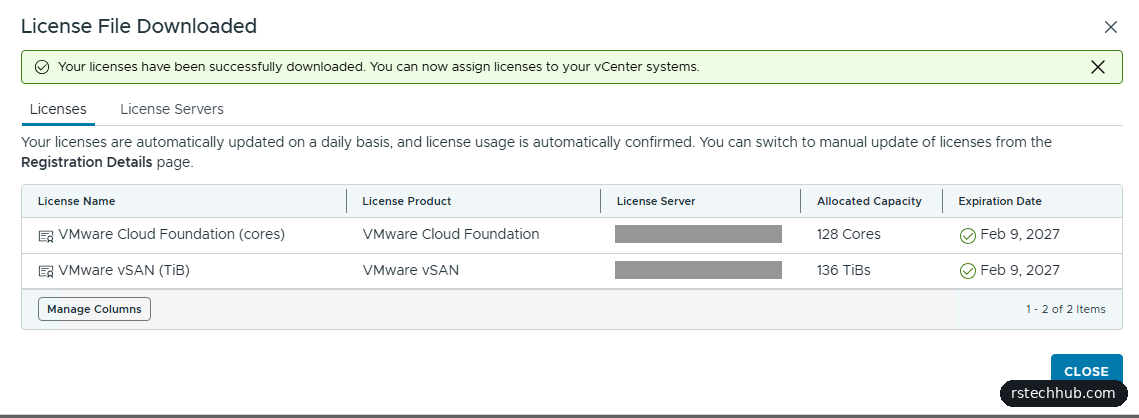
My licences come from VMUG Advantage, and they appear in the VCF Business Services console at vcf.broadcom.com, the same place I got the depot activation code in Part 3. Check they’re there before you start: I had VCF cores, vSAN TiB and some vSphere Foundation cores, all active and unallocated.
Connected or Disconnected
Registration asks for a connection mode. Disconnected swaps four files by hand (registration, verification, confirmation, licence) and needs a usage file uploaded every 180 days. Connected lets VCF Operations talk to the console directly, updates licences daily and reports usage on its own. My lab has internet access, so Connected was the easy choice, and it cut the wizard to six steps.

Registering and adding licences
The flow then works like the depot activation code:
- Start “Get Activation Code” in VCF Operations. The console opens and asks for a display name for this VCF Operations instance. I used the instance name rather than the default hostname.
- Generate the activation code and copy it to your vault. It can’t be shown again after you click Finish.
- Paste it into “Enter Activation Code” in VCF Operations.
- Start “Add Licenses”, which opens the console’s allocation page. Ticking a licence allocates all of it. Allocating part of one means splitting it first from its menu.
- Back in VCF Operations, Download Licenses, then Finish.

Every core or nothing
The last step is assigning a primary licence (VCF) and add-ons (vSAN) to each vCenter. Mine refused: “No licenses are assignable”. The detail said why. To assign it, the licence must have an allocated capacity of 160 cores.
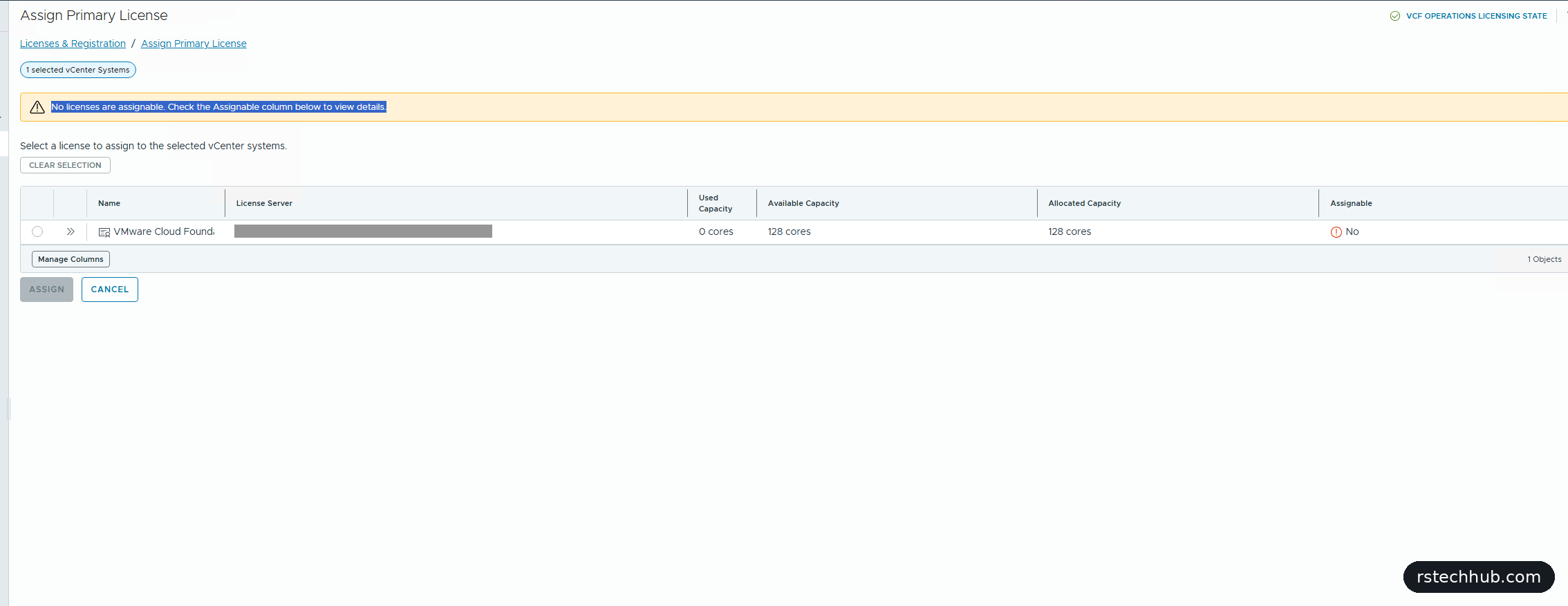
My four R640s have two 20-core CPUs each, 160 cores in all, and my VCF licence covers 128. I had assumed VCF Operations would license what it could and flag the rest. It doesn’t. A primary licence has to cover every core under the vCenter, or it can’t be assigned at all. The Assets License Status panel on the same page shows your core count, so check it before you allocate anything.
That leaves two options. Keep running unlicensed on the 90-day evaluation, which has every feature, or reduce the physical cores on the hosts to fit the licence. The Dell BIOS can limit the cores enabled per processor, and 16 per CPU makes exactly 128. I ran unlicensed at first. The fix is below.
Fixing it: fewer cores per CPU
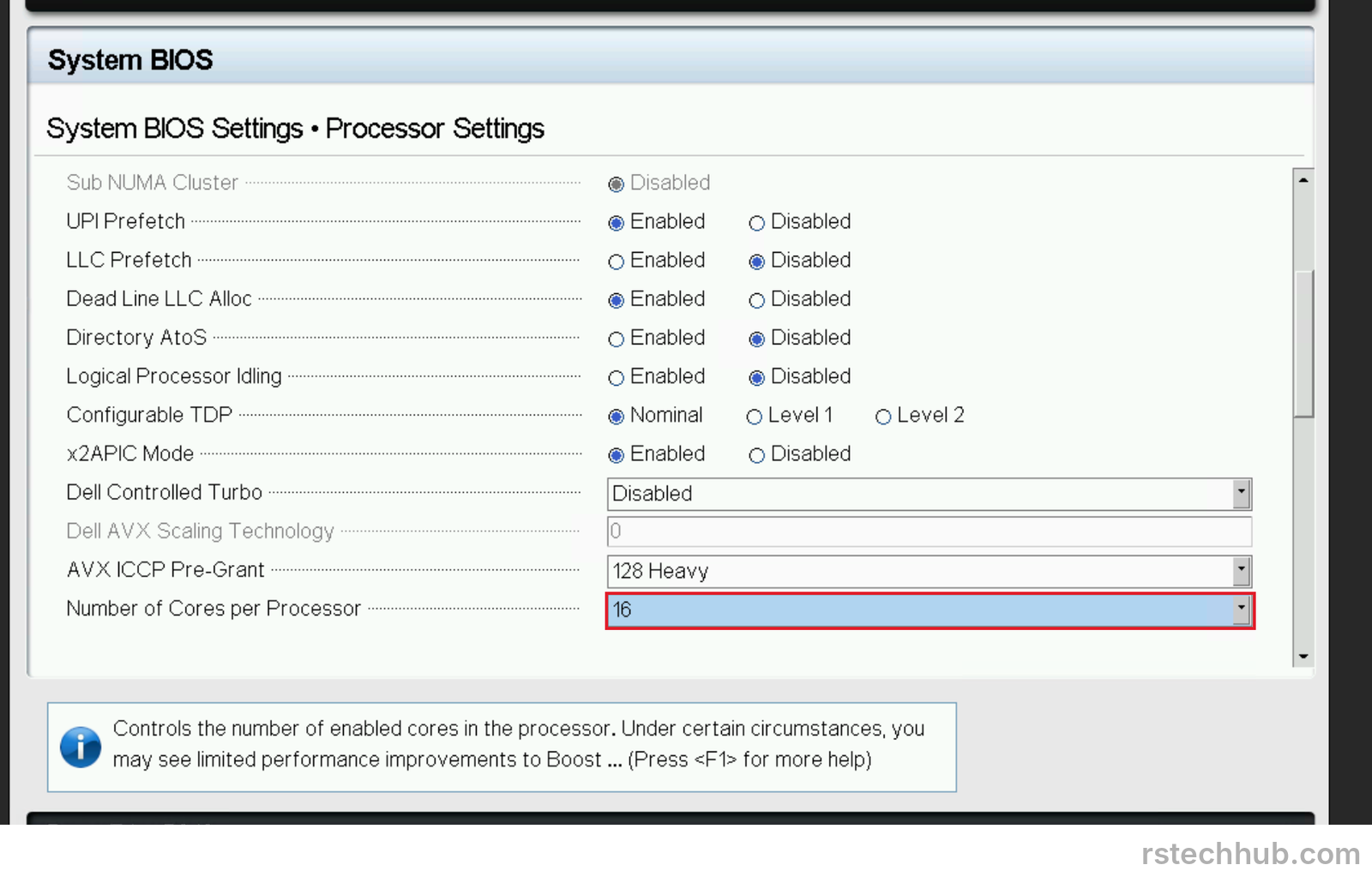
A day later I did it. Each host has two Xeon Gold 6230 CPUs with 20 cores each. The licence covers 128, so I limited every CPU to 16: four hosts, two CPUs, 16 cores, 128 in total. Sixteen is also the billing minimum per processor, so going lower would save nothing.
On a Dell R640 the setting lives in the BIOS. Press F2 at boot, then System BIOS, Processor Settings, Number of Cores per Processor.
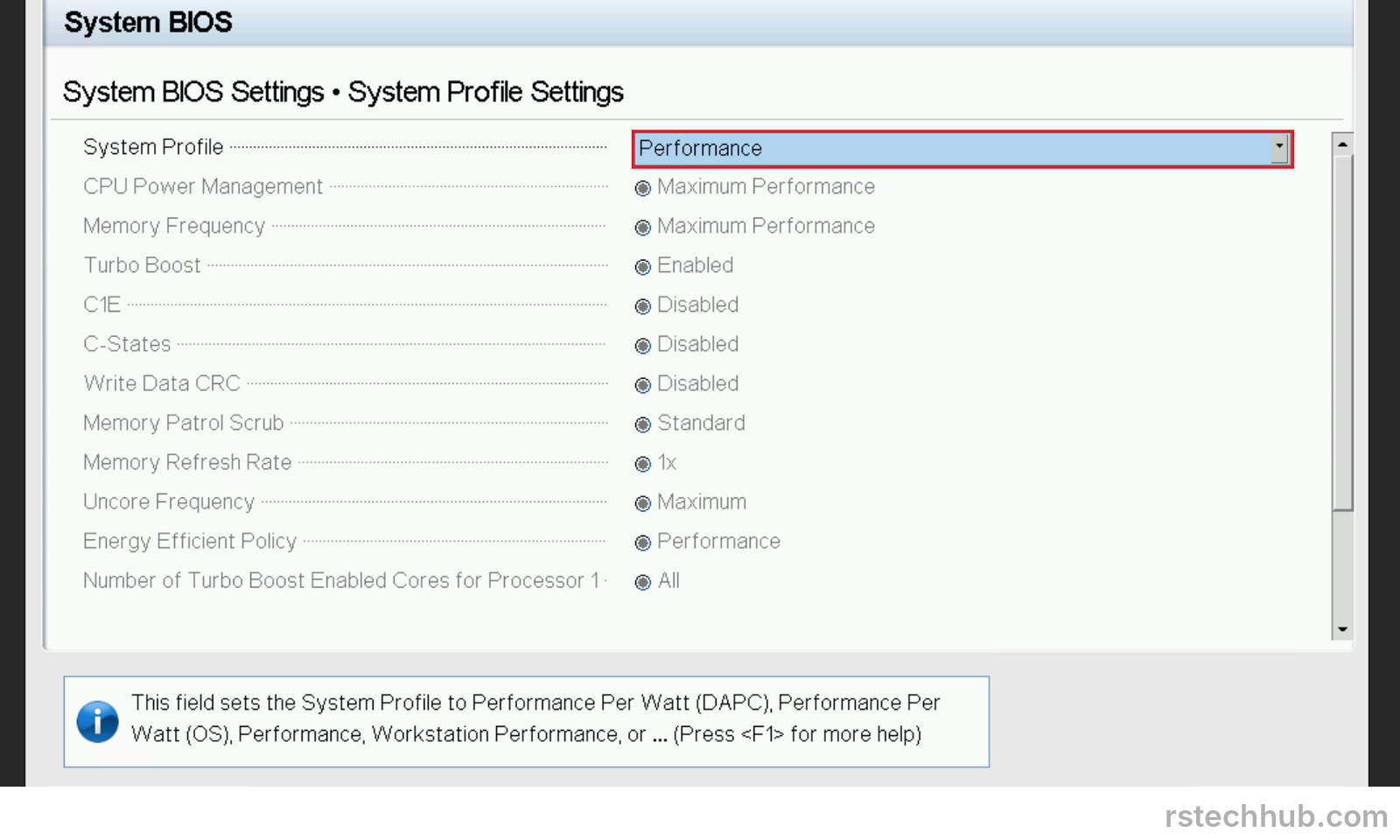
While the host was down anyway, I changed one more default. The system profile was Performance Per Watt (DAPC), which lets the CPUs clock down and keeps C-states on. Performance turns both off. For a lab that runs all day, that suits me.
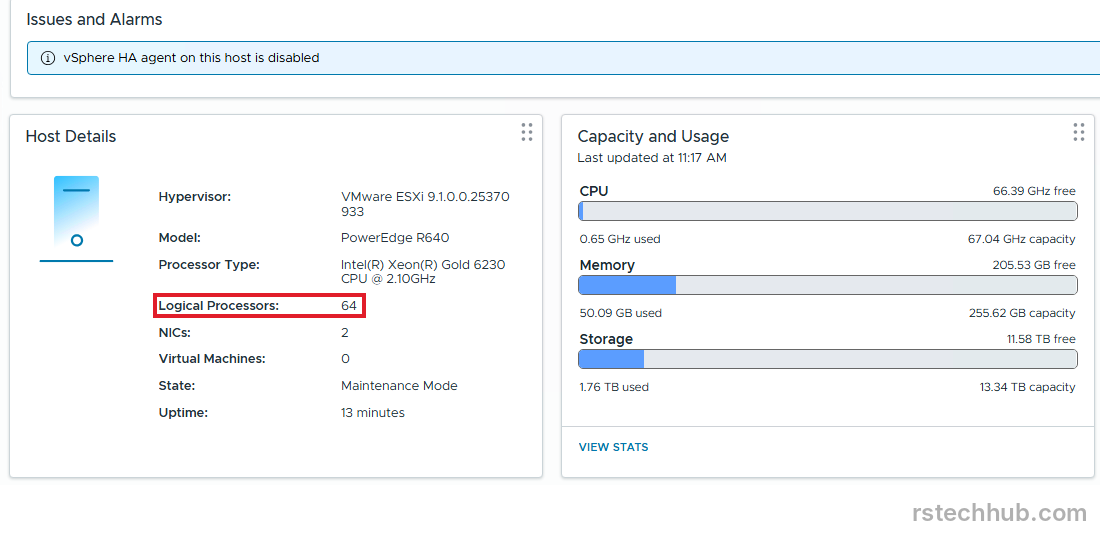
The catch is that these four hosts run vSAN and every management VM. I did one host at a time. Move the VMs off, enter maintenance mode with vSAN data migration set to Ensure accessibility, change the BIOS, reboot, then check the Summary page. Two CPUs, 16 cores and two threads each gives 64 logical processors. Exit maintenance mode and wait until vSAN shows 0 resyncing objects before touching the next host.
Watch the clock. vSAN starts rebuilding the missing copies after 60 minutes in maintenance mode, so I kept every host well inside that.
Once all four were done, I assigned the licences in VCF Operations. The page now shows 128 cores licensed on four hosts, and the vCenter is fully licensed with no issues.
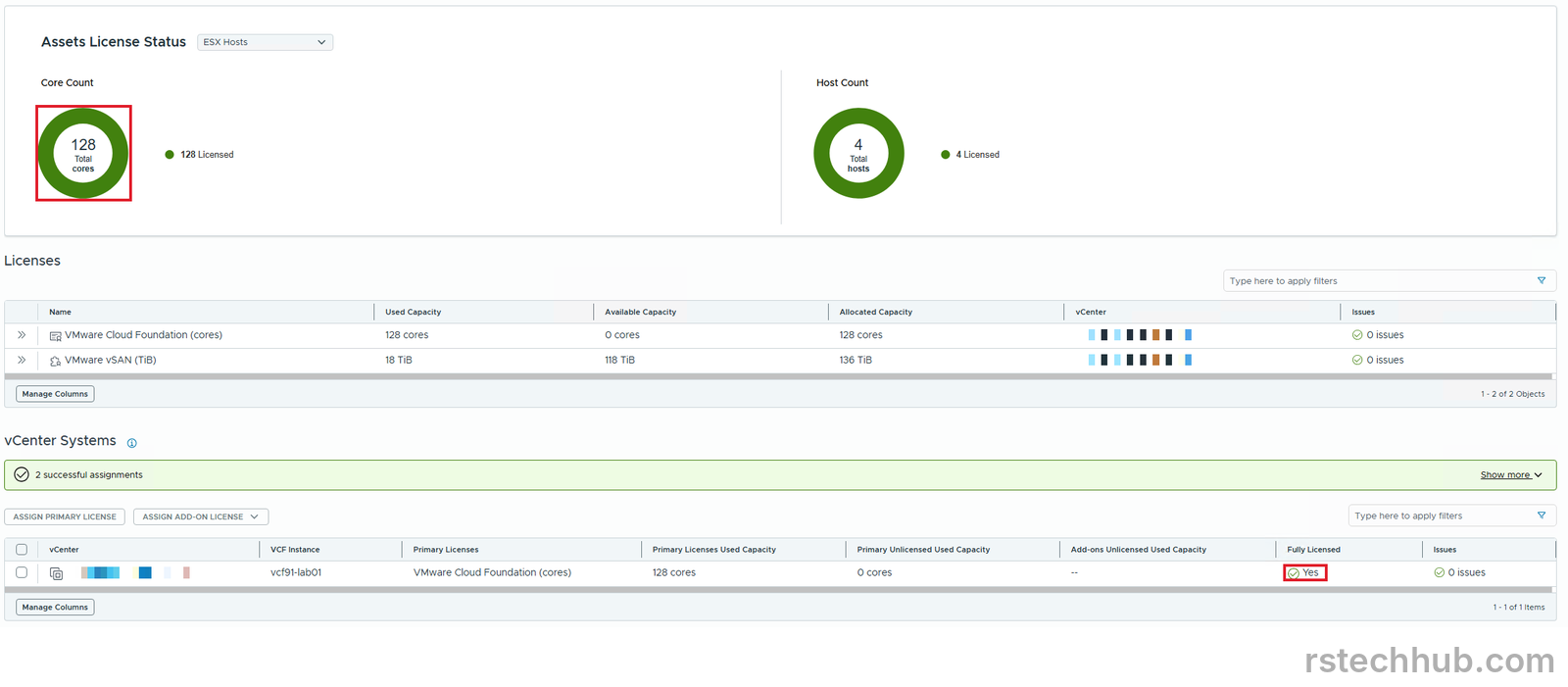
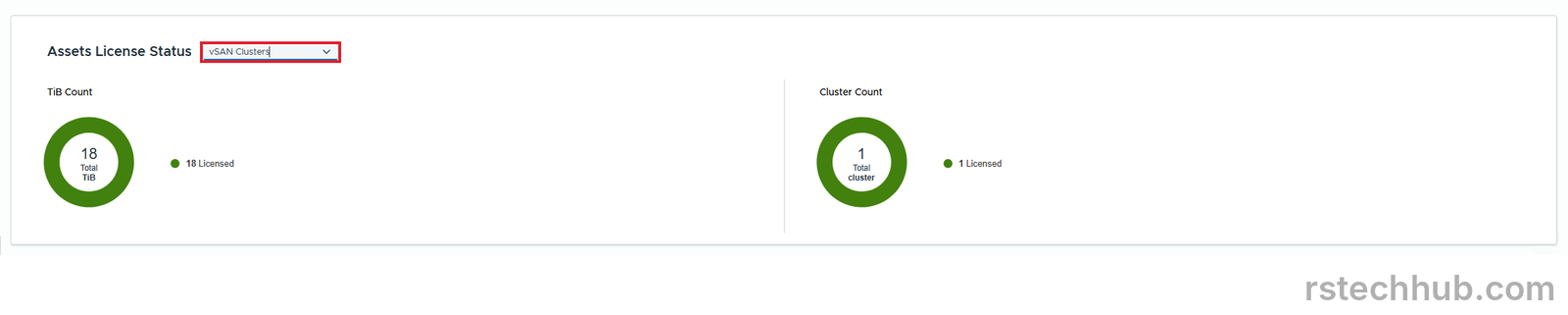
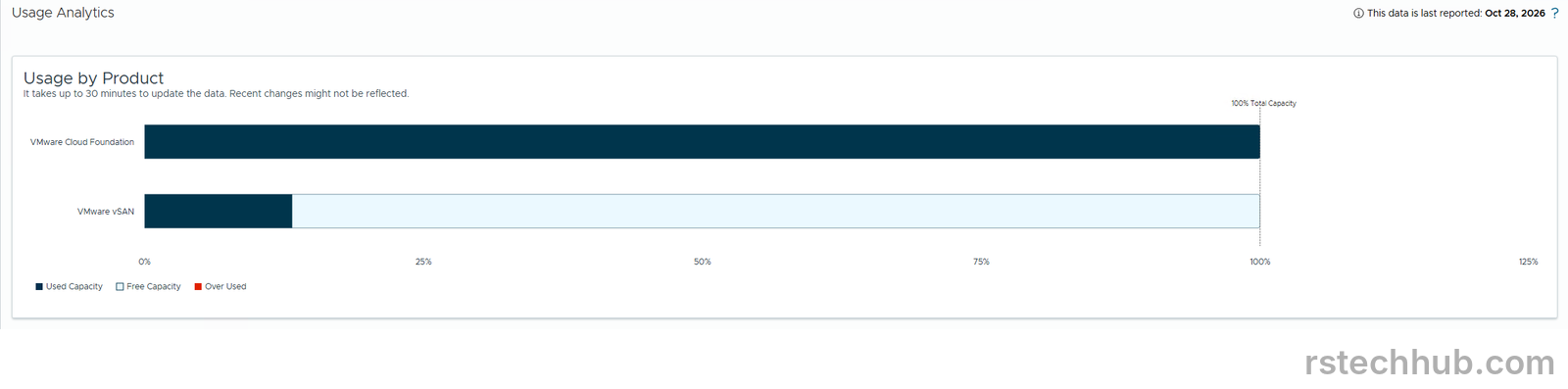
Usage Analytics agrees. Cloud Foundation sits at 128 of 128 cores, and the vSAN bar shows the 18 TiB in use against the 136 TiB I hold. The vSAN line read zero for the first few minutes, so give it 30 minutes before you worry.
What’s next
VCF Operations is registered, the licences are downloaded, and the core count and the licence now agree. Next in the series is Part 9, managing passwords: where 9.1 keeps them, a fleet password policy, rotation, and what happens when a password drifts.