Why certificates, and why now
Everything in a fresh VCF 9.1 fleet wears a certificate signed by the VMware Certificate Authority built into vCenter. It works, and every browser complains about it. I run a Windows certificate authority in the lab for everything else, so I wanted VCF to use it too. One root, one trust store, no warnings.
This part covers the management domain: vCenter, both NSX Manager entries, SDDC Manager and the log management service from Part 10. It also covers the four ESX hosts, which turned out to live somewhere else.
Two places to set the CA
9.1 splits the job. VCF Operations looks after the fleet components, which means log management, the management services and the rest of that family. It also holds the ESX host certificates. SDDC Manager looks after vCenter, NSX Manager and itself. You point each one at your CA separately, and each has its own certificate screen.
One detail decides whether a certificate is accepted: 9.1 wants both the FQDN and the IP address in the Subject Alternative Name. The SDDC Manager dialog only lists the FQDN, so you type the IP yourself.
My CA was not ready
VCF does not talk to the Certificate Authority service directly. It talks to the web enrollment pages on the CA server, over HTTPS, with basic authentication. My CA had the authority role and nothing else. No web enrollment, no IIS bindings, no web server certificate. The first sign was a connection timeout on the enrollment page.
So the first job was fixing the CA: add the web enrollment role, give IIS a proper certificate, turn on basic authentication, create a service account with no admin rights, and publish a certificate template for it to use.
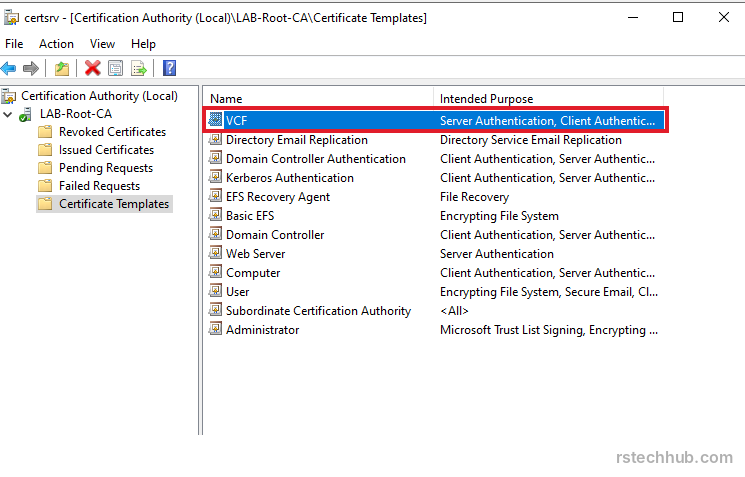
Two things cost me time. Templates are created in the template console, not the main CA console, which only lets you publish or delete them. I nearly deleted the Web Server template looking for a Duplicate button. And a new template does not appear in the publish list until Active Directory has replicated it.
Replace, do not renew
In VCF Operations the certificate screen has a Renew button at the top. I almost clicked it. The dialog says VMCA and 730 days, so it issues a new certificate from the same VMware CA that signed the old one. Nothing changes except the date.

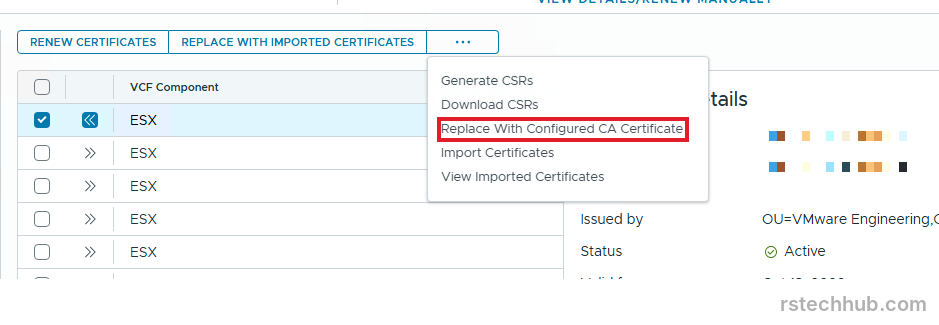
To use your own CA you generate a signing request first, then pick Replace With Configured CA Certificate from the three-dots menu. It is hidden one level down.

The first certificate
I started with log management, because I could confirm it worked by watching logs arrive. The replacement took ten minutes. The certificate now shows my root as the issuer, and Operate, Logs carried on receiving events without a gap.

SDDC Manager would not save the CA
Same details, same account, different console. SDDC Manager answered with “Unable to create CA” and a reference token.
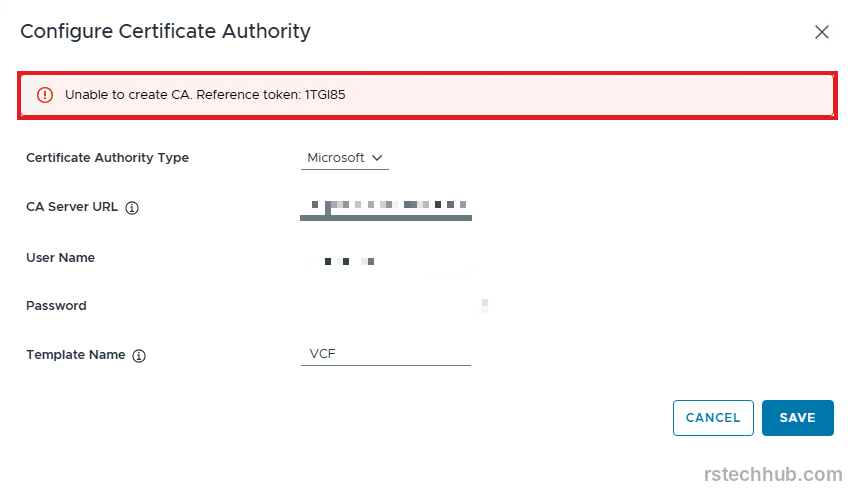
The log said “Failed to authenticate with CA server”, so I tested the login straight from the SDDC Manager shell with curl. It returned 401. On the CA server, the Security log (event 4625) gave the reason for each attempt. With the domain in front of the name, the failure code meant the account existed and the password was wrong. With a bare username, the code meant no such user. IIS basic authentication treats a bare name as a local account on the server, so that form can never work.
Two fixes. I reset the service account password and typed it carefully, and I entered the username as DOMAIN\name. The curl test returned 200 and SDDC Manager saved the CA.
The lesson: VCF Operations had accepted the same settings without testing them, and it keeps its own copy of the password. After the reset I updated it there too.
vCenter, NSX and SDDC Manager
The workflow in SDDC Manager is the same for each component. Open the domain, go to the Certificates tab, tick the row, generate the signing request, generate the signed certificate from the Microsoft CA, then install it. I did vCenter on its own first, both NSX Manager rows together, and SDDC Manager last because its own interface restarts during the install.

Each install restarted services and took a few minutes. Remember to add the IP to the Subject Alternative Name before you generate the request, or the certificate comes back without it.

Where are the hosts?
After those steps, vCenter, both NSX Manager entries and SDDC Manager carried a certificate from my own root. The ESX hosts still wore the VMware-signed ones. I went to the SDDC Manager Certificates tab, where I had done the rest, and found four rows. No hosts.

In 9.1 the host certificates live in VCF Operations. The same page I used for log management lists them once you ask it to show the ESX hosts. I lost a few minutes assuming the tab I knew would do the job.
Same routine, with a menu one level down
The routine matches what I did for log management. Tick a host, generate a signing request, then replace the certificate with one from the configured CA. The replace option sits under the three-dots menu, below the Renew button that would only re-issue a VMware certificate.
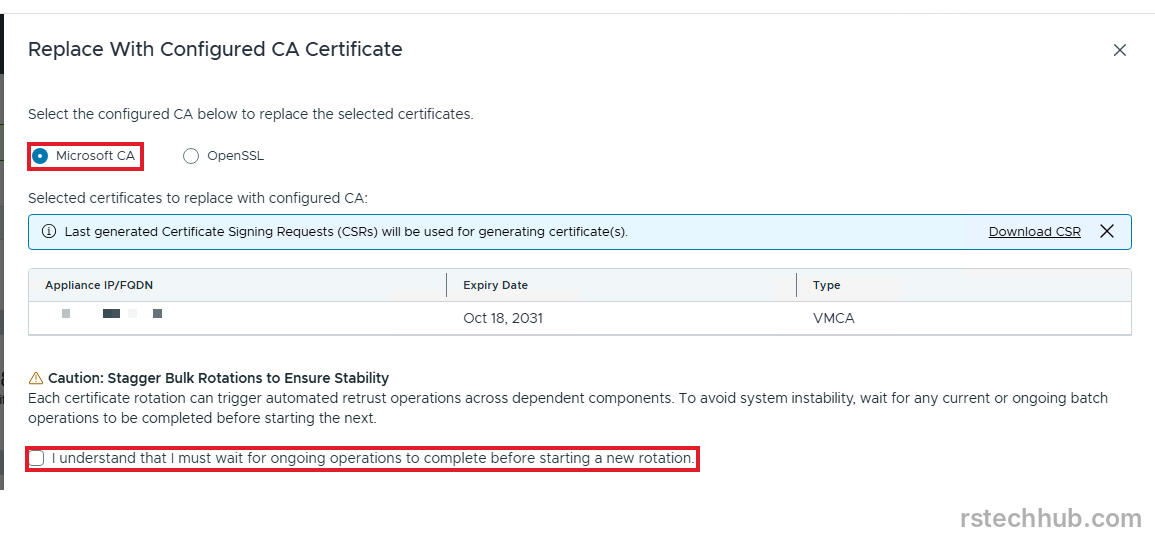
The signing request needs the host IP in the Subject Alternative Name next to the FQDN, as it did before. The dialog asks for the Microsoft CA, shows the old VMCA certificate and its 2031 expiry, and warns you to wait for a rotation to finish before starting another.
I did one host at a time. The replace restarts the management services on the host, so vCenter loses it for a moment. The virtual machines carry on.
The panel said the old certificate
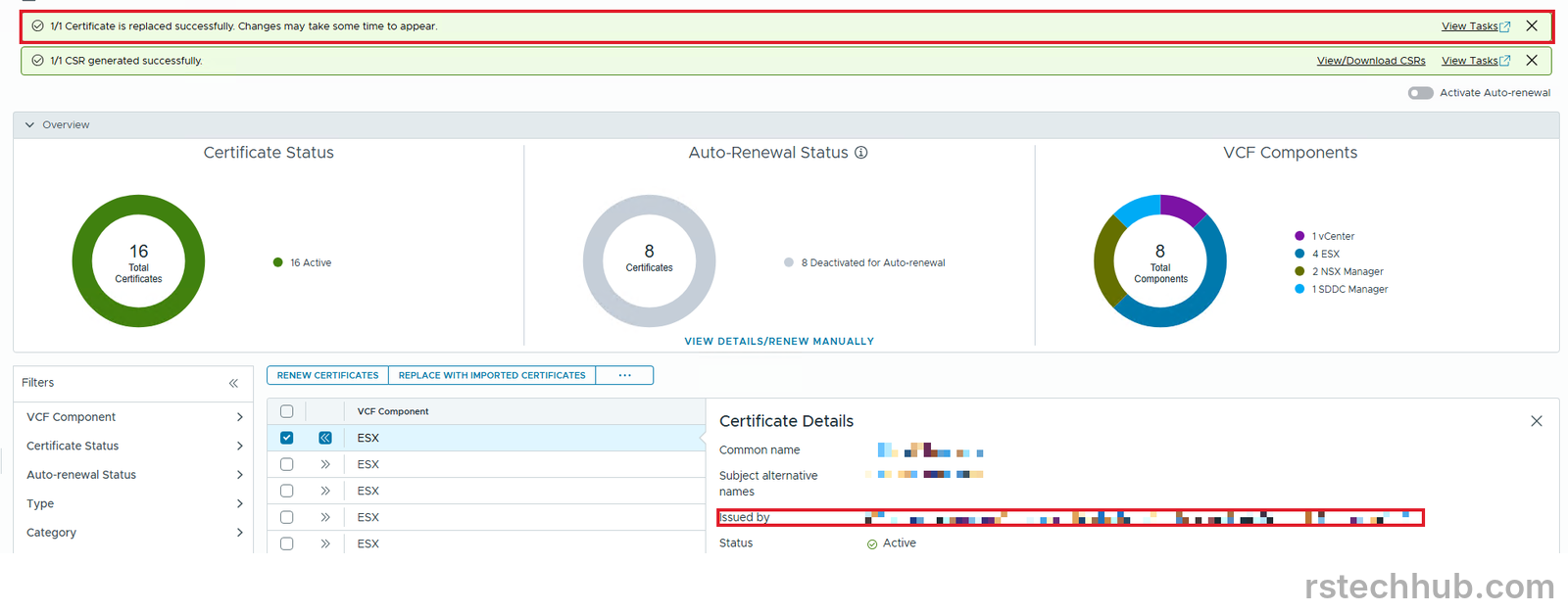
VCF Operations reported success, and the details panel for the host still showed the VMware certificate with a 2031 expiry. I refreshed the page and got the same answer. I stopped trusting the panel and asked the host.
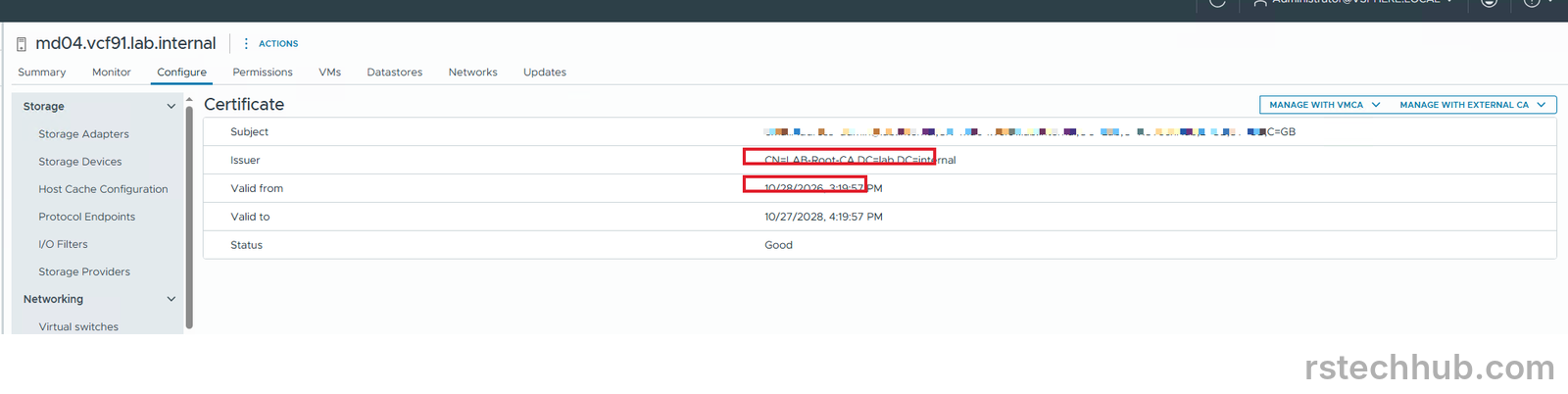
In the vSphere Client, the host’s Configure, System, Certificate page showed my root as the issuer, valid for two years. The inventory view in VCF Operations caught up later in the day.
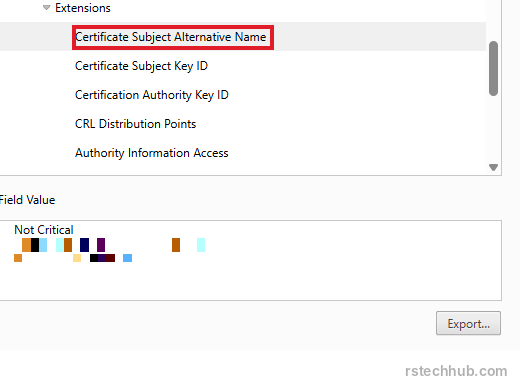
A browser pointed at the host confirmed the Subject Alternative Name holds the DNS name and the IP.
The identity broker
Part 12 got the management services backup working, so the identity broker was next. The routine is the one from the earlier sections. Tick the TLS Certificate row, not the Root row, and pick Generate CSRs from the three-dots menu.
The dialog opens with generic values, including a company name that is not mine and Palo Alto as the city. I replaced those with my own details. The Common Name and the DNS name are filled in per appliance, and I left them alone. For the identity broker the Common Name is VIDB. The node IP goes in the IP Name box.
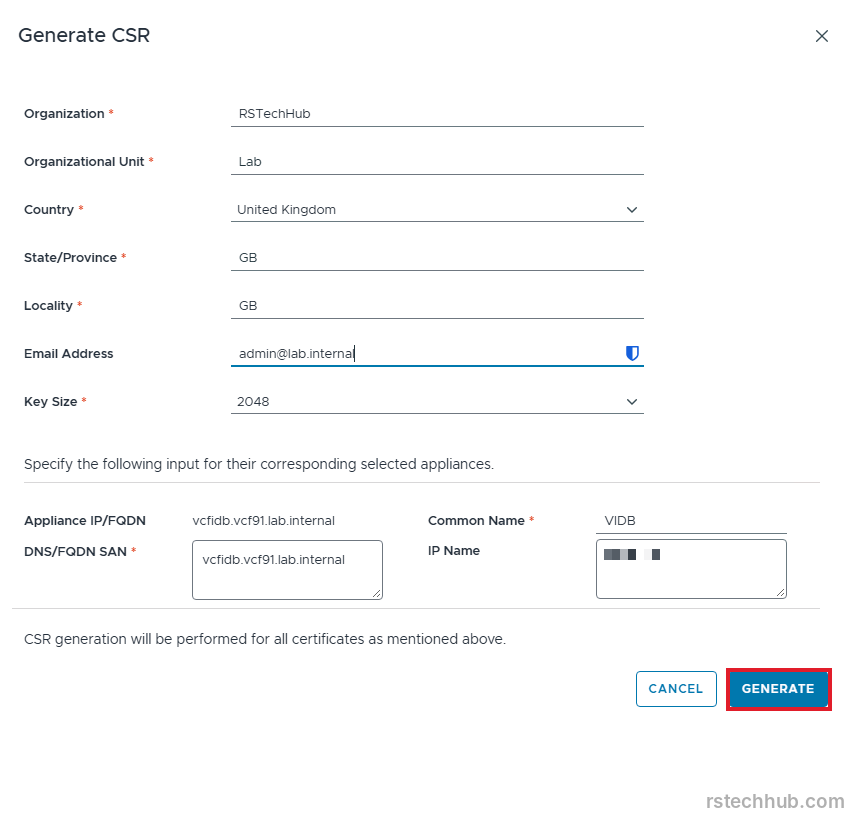
The signing request task took two minutes. Replace With Configured CA Certificate uses the last generated requests, so the only choice is Microsoft CA. The dialog also makes you tick a box promising to wait for one rotation to finish before starting the next. I took that literally.
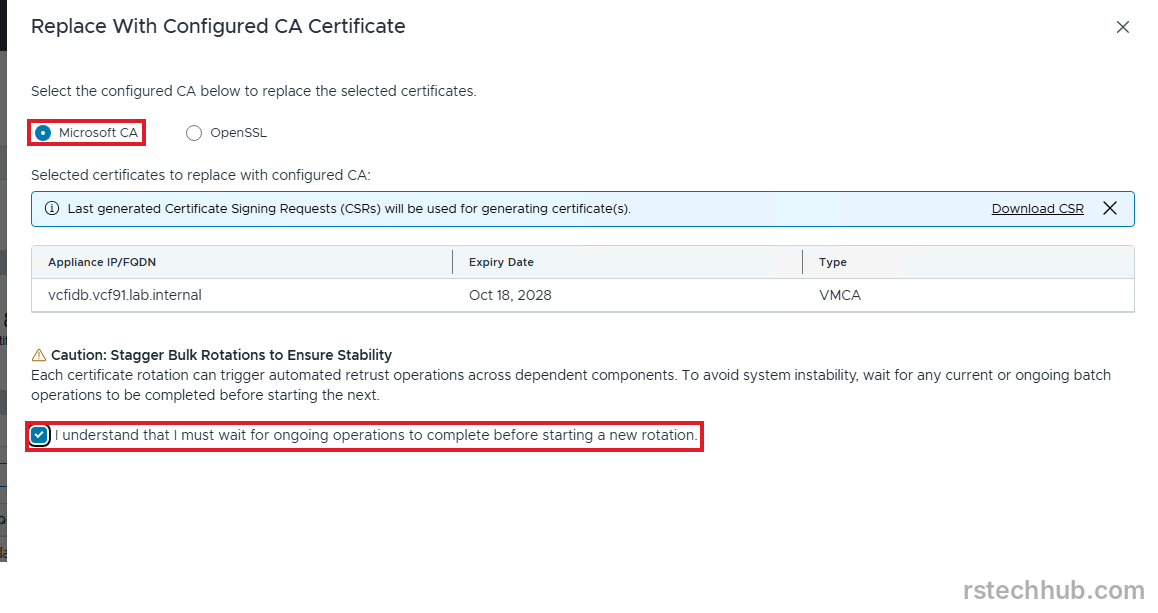
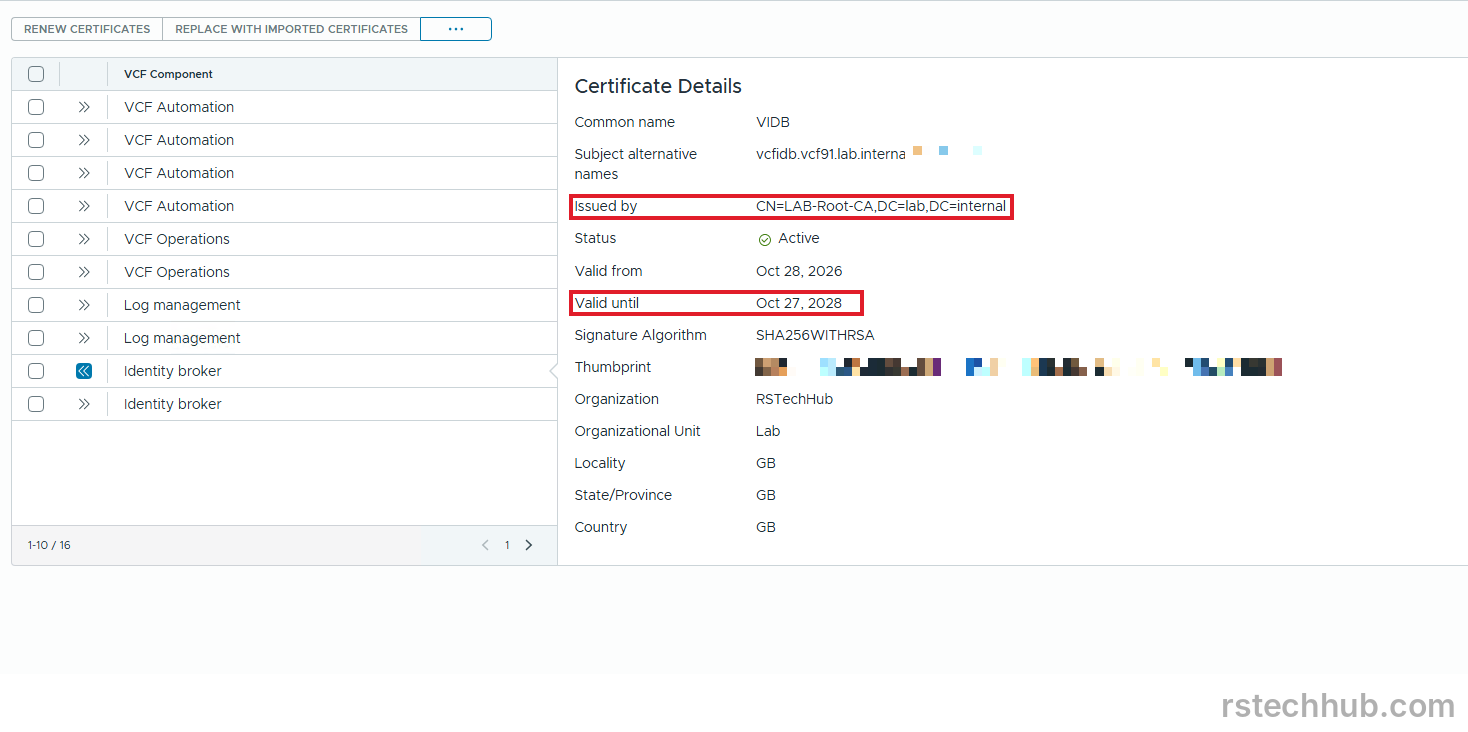
The replace ran for nine minutes. The details panel then showed my root as the issuer and an October 2028 expiry. The Identity and Access page loaded fine, but SSO is not configured in this lab, so that page proves very little. Collection Notifications proved more. All six adapters kept receiving data.
Three services runtime certificates, one request run
The services runtime has three certificates: vcffleet, vcfinst and vcfsvc. The CSR dialog takes several appliances at once, so I ticked all three TLS rows and generated the requests in one run. It took three minutes.
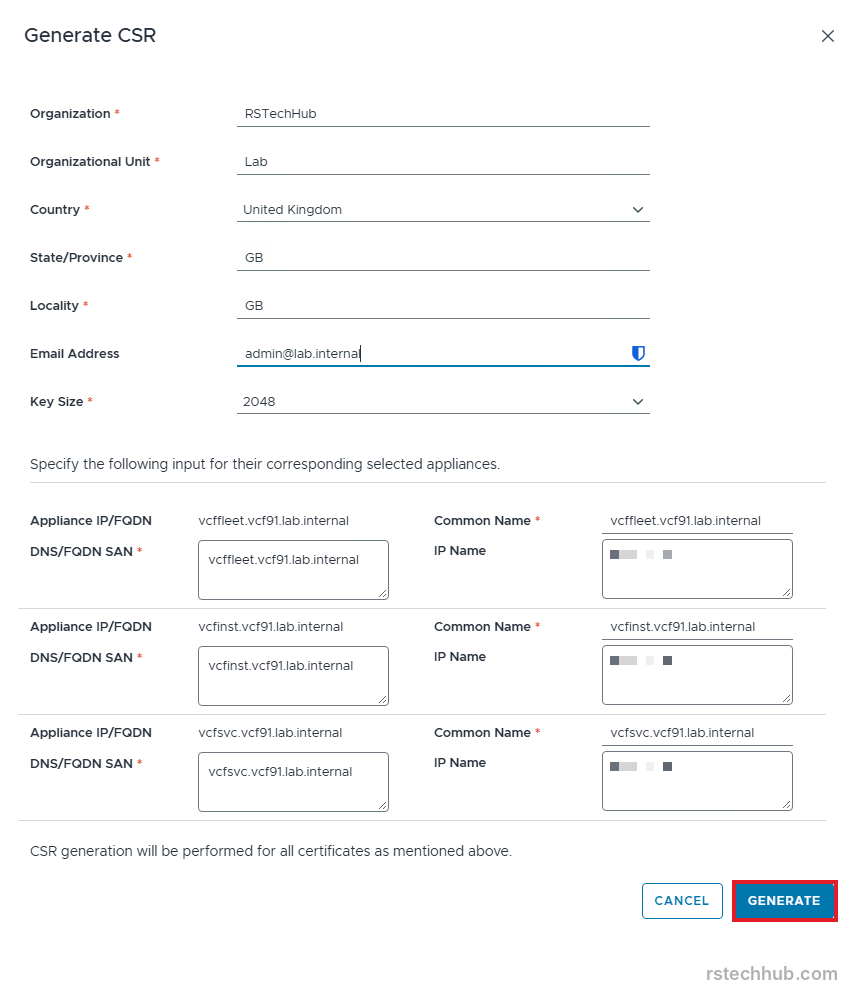
Then I nearly made a mistake. I opened the replace dialog with all three rows still ticked, and it listed all three. Confirming would have rotated them together, against the warning on the same dialog. I closed it, unticked two rows and replaced vcffleet on its own.
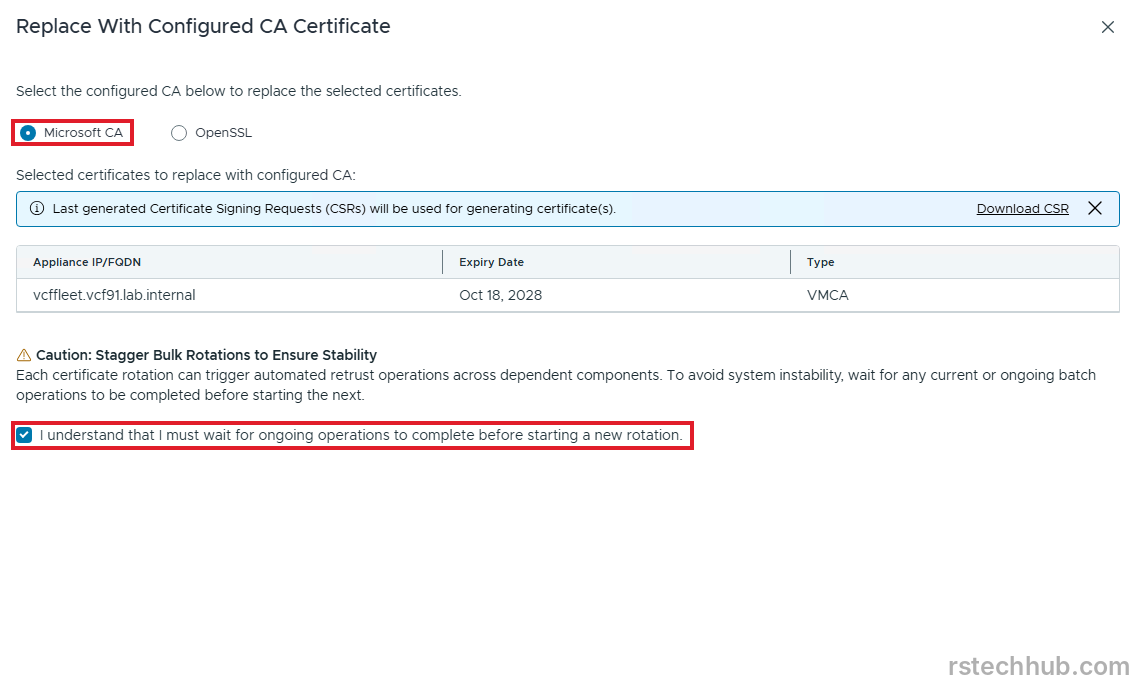
The stored requests from that one run worked for vcfinst and vcfsvc afterwards. I found nothing in the documentation about that, so this is what I saw and not a promise. Each replace took about ten minutes.
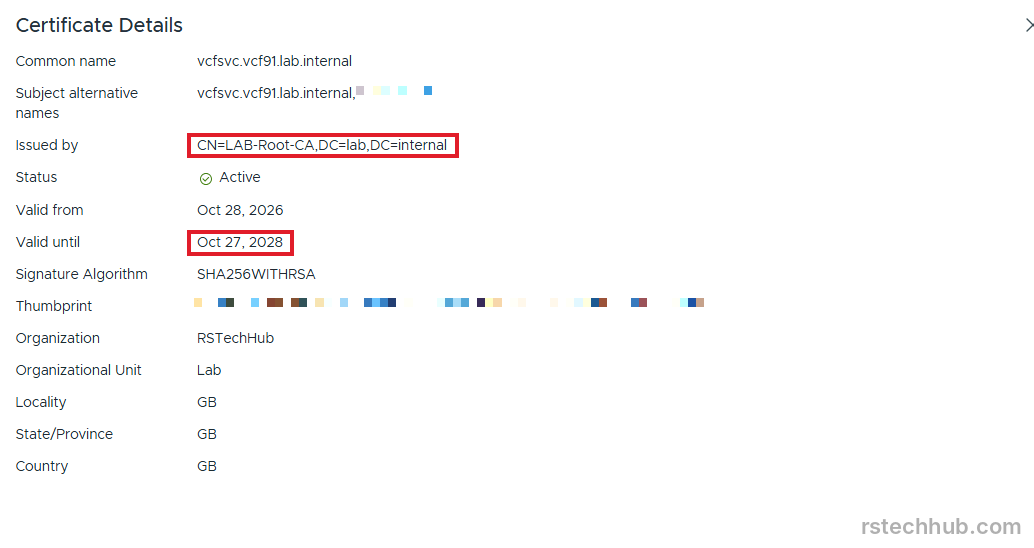
For a few minutes after vcffleet finished, the details panel still showed the old VMware certificate, issued by the vCenter CA with a 2028 expiry. Same behaviour as the hosts. I waited, refreshed, and the list caught up. I did not retry the replace.
VCF Automation
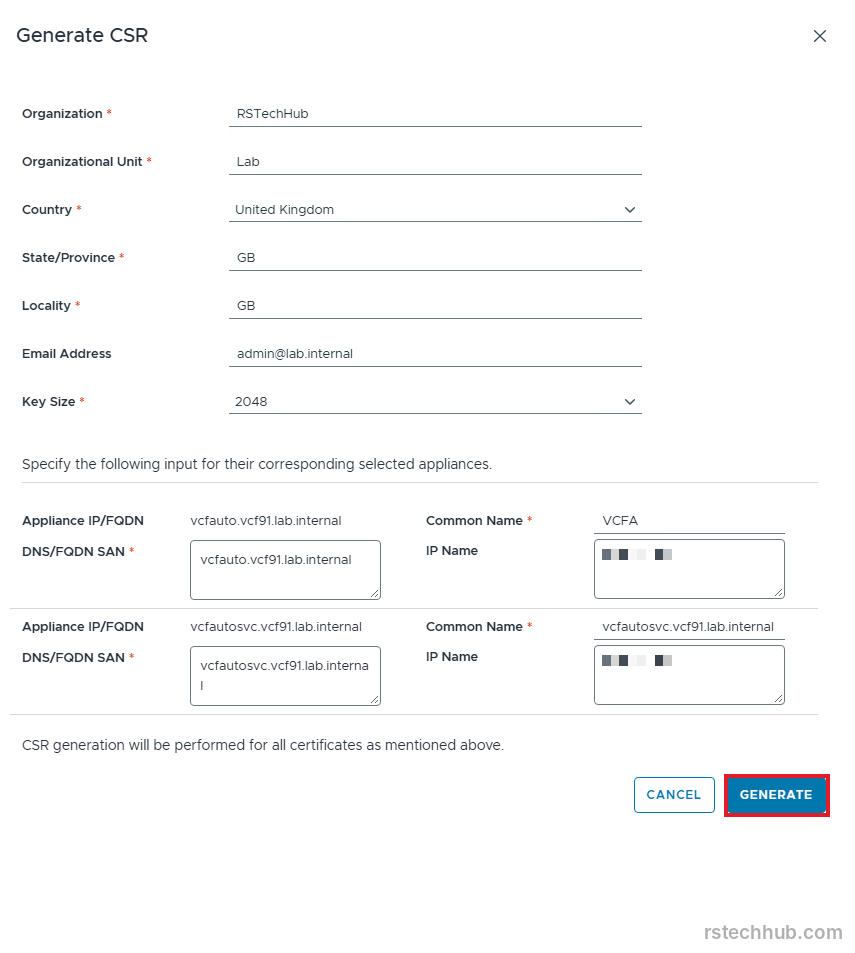
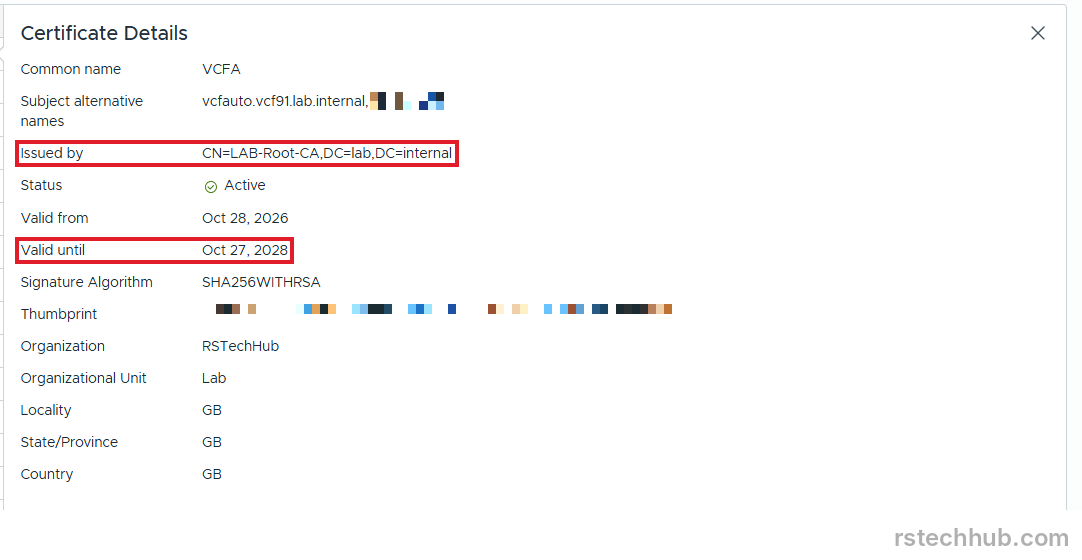
VCF Automation has two certificates, vcfauto and vcfautosvc. The Common Name for vcfauto is VCFA. I generated one run for both and replaced them one at a time. Each took about five minutes, faster than the services runtime. A task called Update Certificate, created by the system, ran alongside the replace. I did not touch it.
VCF Operations last
VCF Operations went last because it is the console I was working in. I expected to lose the session. I did not. The replace finished in two minutes, the quickest of the lot, and the adapters needed one manual refresh before they showed fresh collection times.
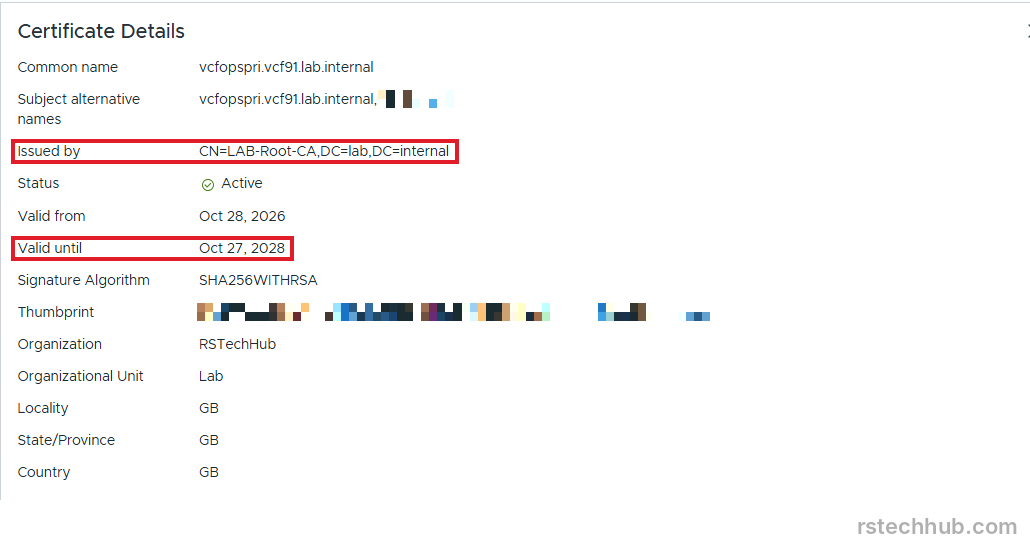
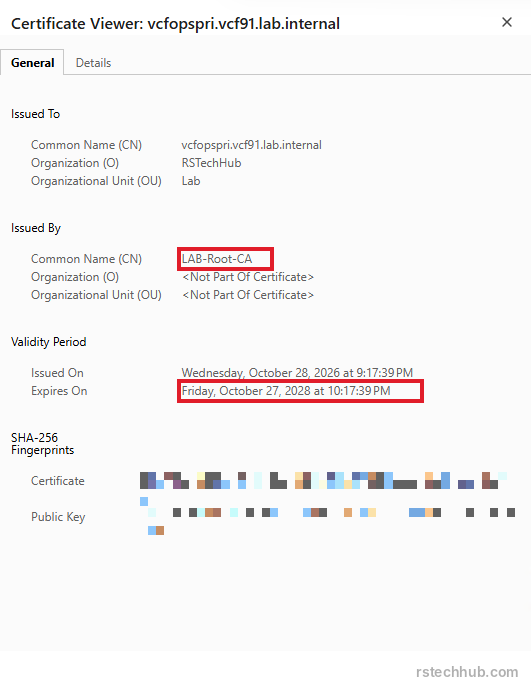
To confirm the appliance really serves the new certificate, I opened its address in a browser and read the certificate there. Same issuer, same fingerprint as the panel.
Result
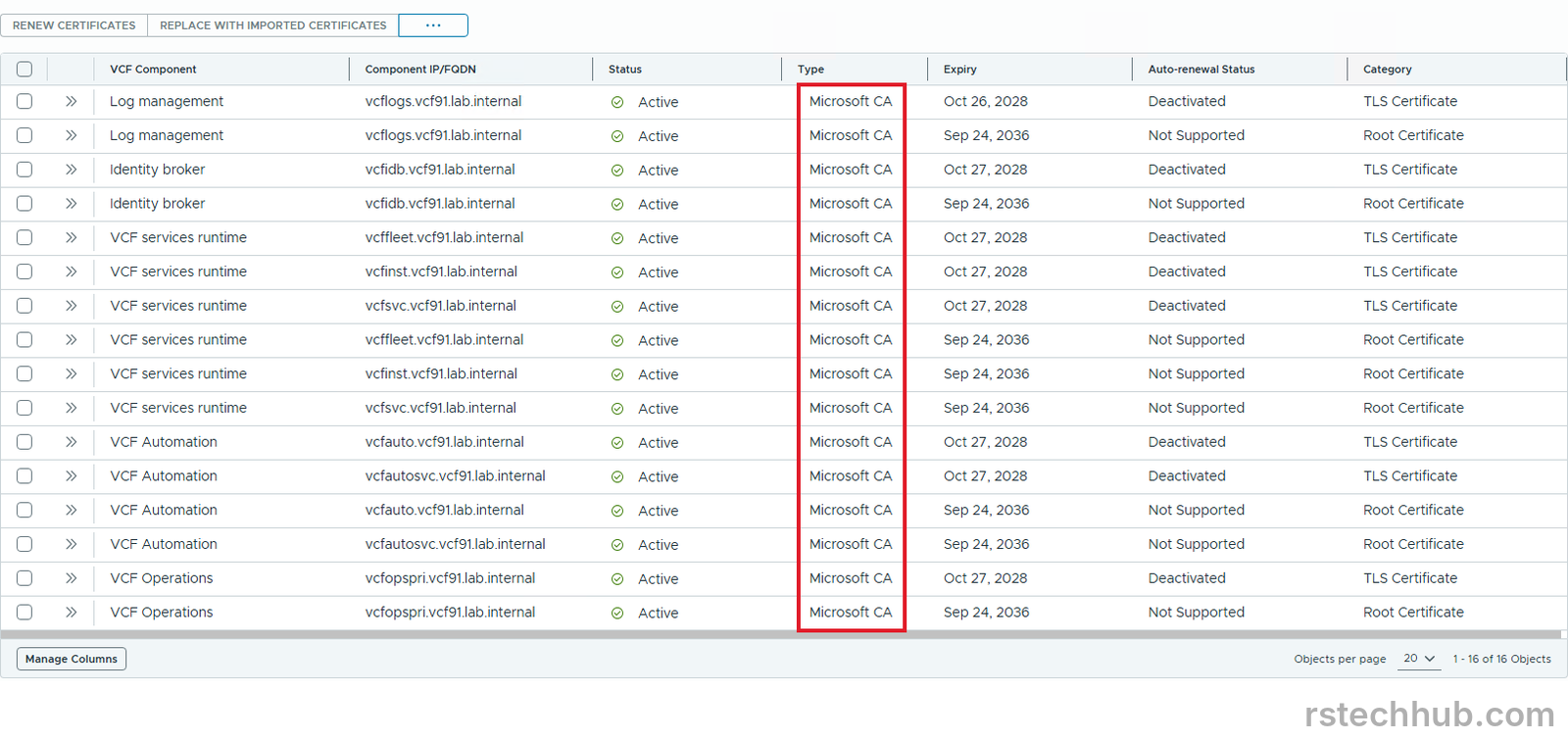
vCenter, both NSX Manager entries and SDDC Manager are now signed by my own root, valid for two years, as set by the template. I expected the VCF Operations connections to complain after the rotation. They did not. Every account in Integrations still shows Collecting.

All four hosts now show Microsoft CA as the type and an October 2028 expiry. Together with the earlier components, the whole management domain is signed by my own root.
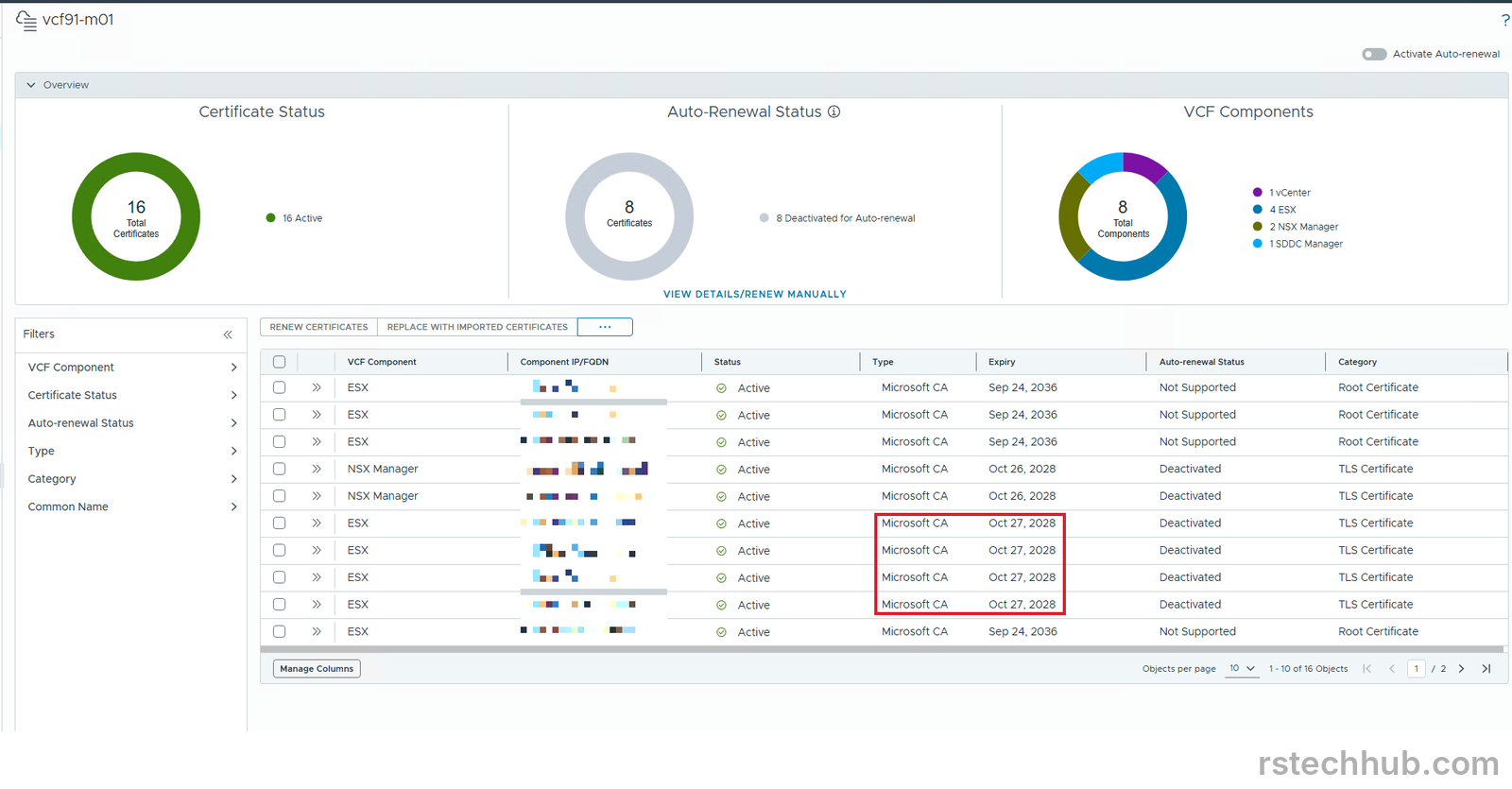
The new certificates are shorter lived than the ones they replaced. The VMware certificates ran five years, mine run two. Auto-renewal is off on every certificate in the lab, and I am leaving it that way. The activation dialog says it supports Microsoft CA once the CA is configured, but I have not seen it renew anything, so a reminder in my calendar for autumn 2028 does the job for now.
The fleet components followed the same evening. The certificates page now lists all 16 certificates as Microsoft CA and Active. The eight TLS certificates expire in October 2028 and the eight roots in 2036.
Lesson
Check the CA side before you touch VCF. Web enrollment, HTTPS, basic authentication and a working service account are all needed, and the errors from VCF will not tell you which one is missing. When a login fails, ask the CA server’s Security log what it saw. It answers in one line. When a console says it succeeded and shows the old value, ask the device itself. Replace one certificate at a time, and read the dialog to see that it lists only the row you meant. The host certificate page took ten seconds and settled it.
Next
Patching is next. If you want the management services backup that I set up before touching the identity broker, it is in Part 12.